Short answer: The Windows Update troubleshooter on Windows 11 sits in Settings, System, Troubleshoot, Other troubleshooters. On Windows 10 it's Update & Security, Troubleshoot, Additional troubleshooters. Run it, restart, then check for updates. Still failing? We'd clear the update cache and run DISM and SFC next.
The Windows Update troubleshooter is built into Windows 11 and 10: open Settings, System, Troubleshoot, Other troubleshooters and press Run next to Windows Update, or search for it in the Get Help app. It checks the update components, repairs what it can, then asks for a restart.
| Windows version | Where the troubleshooter is | Then |
|---|---|---|
| Windows 11 | Settings, System, Troubleshoot, Other troubleshooters, Windows Update, Run | Restart, Check for updates |
| Windows 11, Get Help app | Search “windows update troubleshooter”, follow the steps | Read the findings, restart |
| Windows 10 | Settings, Update & Security, Troubleshoot, Additional troubleshooters, Windows Update | Run the troubleshooter, restart |
Run the Windows Update troubleshooter on Windows 11
Two doors, same tool behind them.
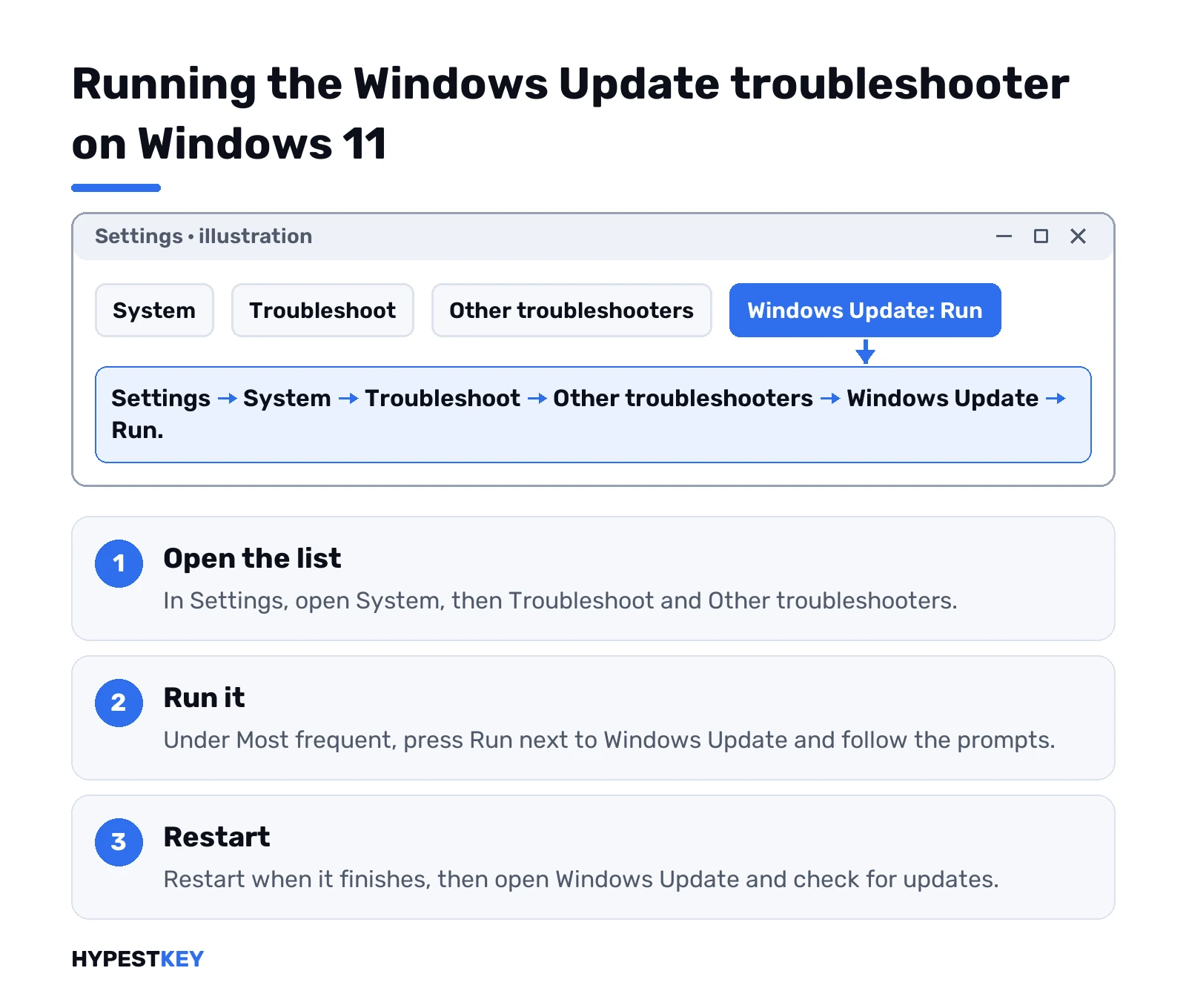
- Start, then Settings.
- System, then Troubleshoot.
- Other troubleshooters.
- Under Most frequent, find Windows Update. Press Run.
- Let it finish. Restart when it’s done.
- Settings, Windows Update, Check for updates. Install what shows up.
The other door is the Get Help app. Search for windows update troubleshooter there. Say yes to the diagnostics. Follow the prompts. Microsoft now sends this troubleshooter through Get Help anyway, so clicking Run in Settings often opens that app.
Error code on screen? Write it down before you start. We’d want it later if the tool comes back empty.
Windows 10: Additional troubleshooters
Older menu, slightly longer path:
- Start, Settings.
- Update & Security, then Troubleshoot.
- Additional troubleshooters.
- Under Get up and running, pick Windows Update. Run the troubleshooter.
- Restart, then Windows Update, Check for updates.
One patch failing again and again? Look up its KB number first. We break one down in KB5063709 Windows 10 update, as an example.
Can’t find Additional troubleshooters? Some Windows 10 builds hand the job to Get Help as well. Search for the app from Start and use the same search phrase.
What the troubleshooter actually checks
Don’t expect magic. It looks at the pieces Windows Update depends on and resets the ones that are off. Services that should run, the download queue, the update cache. Then it reports what it found and what it fixed.
- Fixed: the item is listed as repaired. Restart and check for updates.
- Found but not fixed: the report names it. That’s your lead for the steps below.
- Nothing found: the problem sits outside its reach. Disk space, a driver, the network.
Run it twice if the first pass fixed something. A second pass sometimes finds the next problem in line, and Microsoft’s own page suggests exactly that.
Windows Update troubleshooter not working or not fixing it
Tool ran, updates still fail. Or it won’t start at all. Here’s the order we’d go in, taken from Microsoft’s update troubleshooting steps:
- Plugged in and online. A laptop on battery or flaky Wi-Fi is a classic. Our Wi-Fi problems on Windows 11 page helps there.
- Admin account. Some updates won’t install from a standard user.
- Unplug extras. External drives, docks, anything not needed to boot.
- Date and time set automatically. Time & language, Date & time, then Sync now.
- Free space. At least 16 GB on 32-bit Windows, 20 GB on 64-bit.
- Third-party drivers updated from the hardware maker.
- Check for updates again, then restart with Update and restart.
Troubleshooter won’t open at all? We’d check that Get Help can reach the internet, sign in with an admin account and try again. Still nothing, go straight to the cache reset below.
Clear the update cache by hand
Corrupt files in the download cache break updates over and over. The troubleshooter tries this, but by hand it’s thorough.
- Win + R, type services.msc, Enter.
- Find Windows Update. Right-click, Stop.
- Open this folder in File Explorer and delete everything inside it:
C:\Windows\SoftwareDistribution- Back in Services, right-click Windows Update, Start.
- Check for updates. Windows downloads fresh copies.
You lose nothing personal. Only cached update files go.
Repair system files with DISM and SFC
When the cache isn’t the problem, system files might be. Command Prompt, as administrator. First this, and give it several minutes:
DISM.exe /Online /Cleanup-image /RestorehealthThen this:
sfc /scannowOrder matters. DISM fetches good copies through Windows Update, then SFC uses them to replace damaged files. “Found corrupt files and successfully repaired them” is the line we hope to see. Restart and try the update again.
Error codes the Windows Update troubleshooter often meets
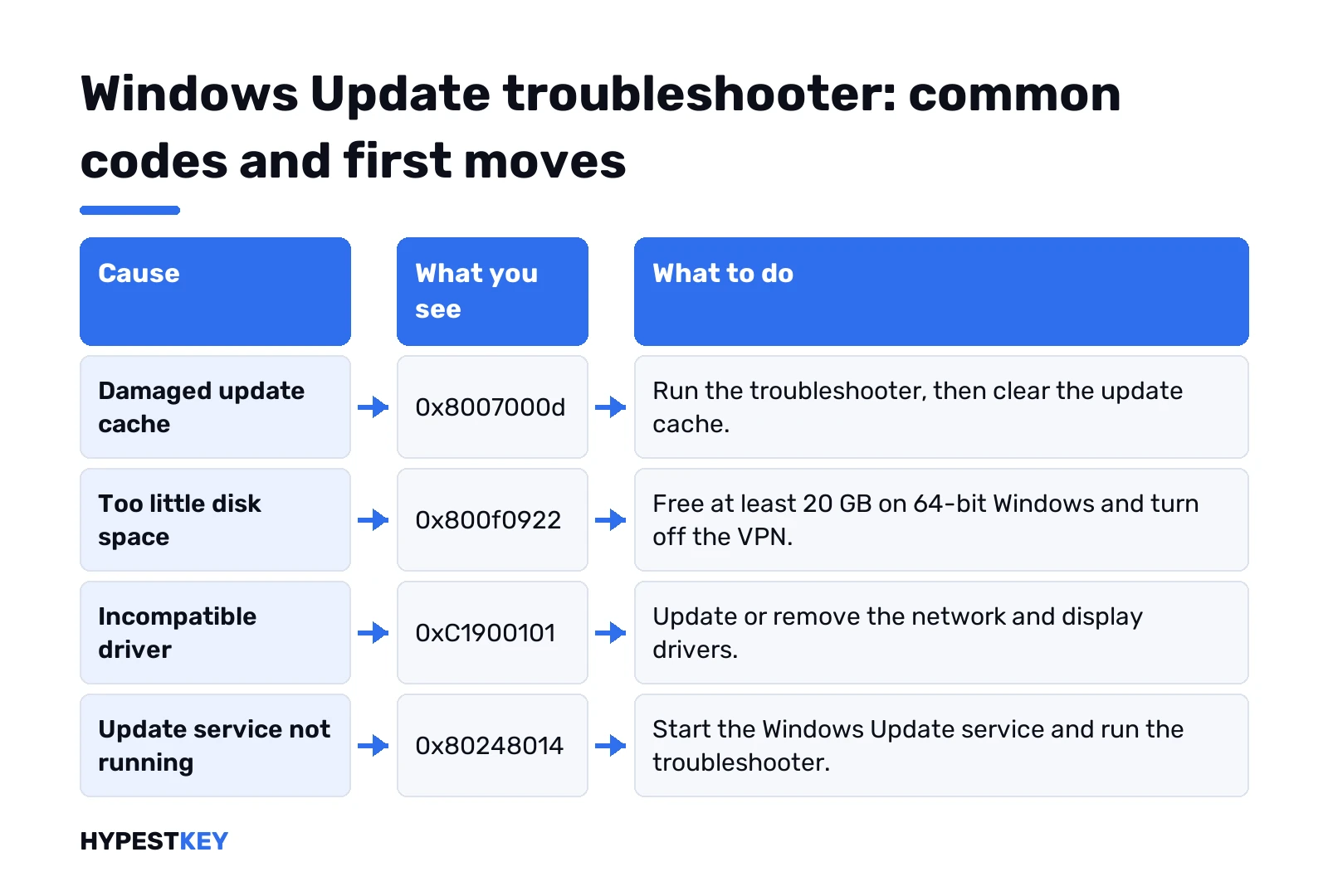
Microsoft keeps a short list of the codes it sees most. The likely cause and the first move:
| Code | Likely cause | First move |
|---|---|---|
| 0x8007000d | Damaged update files or cache | Troubleshooter, then clear the cache |
| 0x800705b4 | Update took too long or was interrupted | Check the connection, pause antivirus, restart |
| 0x80240034 | Stuck, incomplete download | Check the Windows Update service, run the troubleshooter |
| 0x800f0922 | Too little disk space or a component problem | Free space, turn off VPN |
| 0x80070057, 0x80080005 | Corrupt files or wrong configuration | SFC, then the troubleshooter |
| 0xC1900101 | Incompatible driver | Update or remove network and display drivers |
| 0x80248014 | Update database or service not running | Start the service, run the troubleshooter |
| 0x80070005 | Access denied | Admin account, pause antivirus |
| 0x80070002 | Update failed to install | Restart, troubleshooter, check space |
| 0x80070422 | The update service is disabled | Set Windows Update service back to Manual, start it |
| 0x80070003 | A missing file or folder | Clear the update cache, run the troubleshooter |
Those codes during activation rather than updating are a different story. We cover those in 0x80070005 activation error and 0x80072EE2.
Last resorts when updates still fail
Out of ideas? First the short route once more: restart, then Check for updates again. Plugged in, online, enough free space. Still failing? Note the code. Then three bigger hammers, smallest first.
- Restore point. Roll back to before the trouble started; see restore points in Windows 11.
- In-place repair upgrade. Run setup from the Media Creation Tool and keep your files and apps.
- Reset this PC. Reinstalls Windows; our factory reset guide explains what stays.
Before any of these we’d try Safe Mode once, since a startup app can block installs. Our Windows 11 Safe Mode guide has the steps. Wondering how long a normal update takes? Windows 11 update time covers that.
Skip third-party “update fixer” downloads. The built-in troubleshooter and the steps here come from Microsoft and cost nothing.
Reinstalling and need a license that sticks? Our Windows 11 Pro key is Retail, instant to email.
After a reset, we’d check the activation status once.
Related guides
- Error 0x8007371B in Windows Update
- Error 0x80070103 in Windows Update
- Error 0x800F0922 in Windows Update
- Error 0x80070490 in Windows Update
- Error 0x8007000D in Windows Update
- Error 0x800F081F in Windows Update
- Error 0xC1900101 during an upgrade
- Error 0x80073712 in Windows Update
- Error 0x80070422: Windows Update service disabled
- Error 0x80070003 in Windows Update
- Error 0x80080008 in Windows Update
- Error 0x80073701 in Windows Update
- KB5023706 for Windows 11
- Windows Update: how to check, pause and manage updates
- There is a problem with this Windows Installer package
- Getting Windows ready stuck: fixes
FAQ
where is the windows update troubleshooter in windows 11
Settings, System, Troubleshoot, Other troubleshooters, then Run next to Windows Update. The Get Help app finds it by search too.
The troubleshooter says it couldn't identify the problem
Then the cause is outside its reach. Check disk space and drivers, clear the update cache, and run DISM and SFC.
Can I download the troubleshooter separately?
We wouldn't. The current one is built into Windows and runs through Get Help, so third-party downloads add risk for nothing.
Does it delete my files or apps?
No. It only resets update services and cached update files, and your documents and programs stay as they were.
How long does it take to run?
Depends on the PC and the problem. A restart afterwards is part of the job, so save your work before you start it.
It fixed something but updates still fail
Run it a second time, restart, and check for updates. If the same error returns, follow the cache and DISM steps.