Short answer: Windows Update is the service built into Windows 11 and 10 that installs security fixes, quality updates, feature updates and drivers. Open Settings, Windows Update and press Check for updates. Same page, more buttons: we'd use it to pause updates, set active hours, view history and remove a problem update.
Windows Update is the built-in service that downloads and installs fixes, security patches, new features and drivers for Windows 11 and Windows 10. On Windows 11 open Start, Settings, Windows Update and press Check for updates. On Windows 10 the same page sits under Update & Security.
| Task | Windows 11 | Windows 10 |
|---|---|---|
| Check for updates | Settings, Windows Update, Check for updates | Settings, Update & Security, Windows Update, Check for updates |
| Pause updates | Settings, Windows Update, Pause updates, pick a length | Settings, Update & Security, Windows Update, Pause updates for 7 days |
| Set active hours | Settings, Windows Update, Advanced options, Active hours | Settings, Update & Security, Windows Update, active hours |
| See installed updates | Settings, Windows Update, Update history | Settings, Update & Security, Windows Update, View update history |
| Remove an update | Update history, Uninstall updates | View update history, Uninstall updates |
What Windows Update does on your PC
Short version: it keeps Windows patched without you doing much. By default it checks on its own, downloads in the background and installs when the PC is idle. Then it asks for a restart.
What comes through it:
- Security fixes. The monthly ones, the reason the service exists.
- Quality fixes. Bugs, stability, the odd small feature.
- Feature updates. A new Windows version, roughly once a year.
- Drivers. Hardware makers publish many of theirs through it.
- Microsoft Defender definitions. Small, frequent, mostly invisible.
Store apps? Those update from the Microsoft Store, not from here. And if you want to know which build you’re on before you start, our guide to checking what version of Windows you have takes a minute.
How to check for updates on Windows 11 and 10
Windows checks by itself, but a manual check is the quickest way to see where things stand.
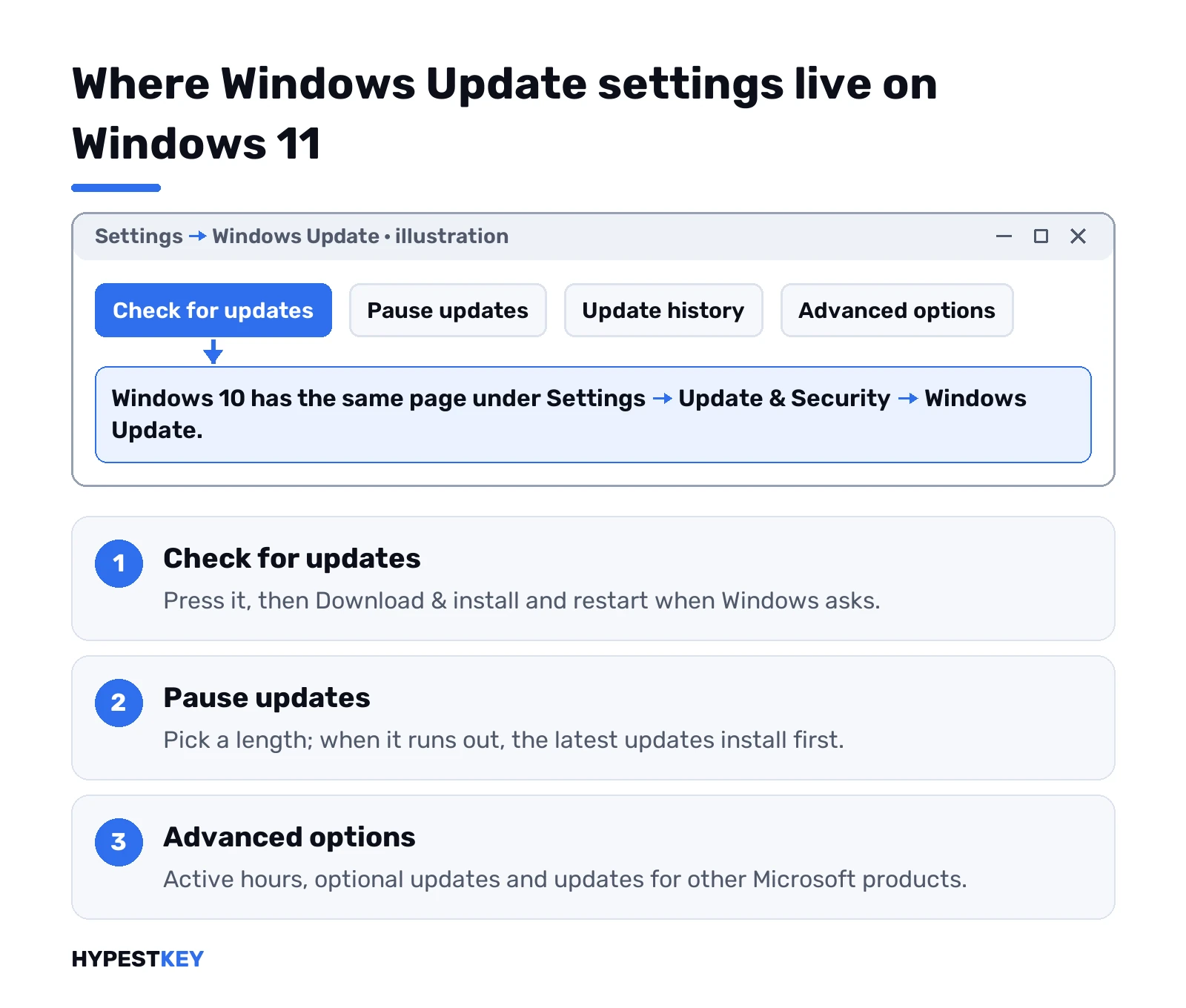
- Start, then Settings.
- Windows Update in the left menu. On Windows 10: Update & Security first.
- Check for updates.
- Something listed? Download & install.
- Restart when it asks. Save your work first.
Download time depends on your connection and the size of the package. Laptop? Keep it plugged in and online, and we’d stay on a stable network for a big one. A feature update takes longer than a monthly patch; our page on Windows 11 update time explains why.
Nothing listed? Then the PC already has what’s on offer for it, and we’d simply check again next week.
Feature updates, quality updates and drivers
Two kinds matter most, and they behave differently.
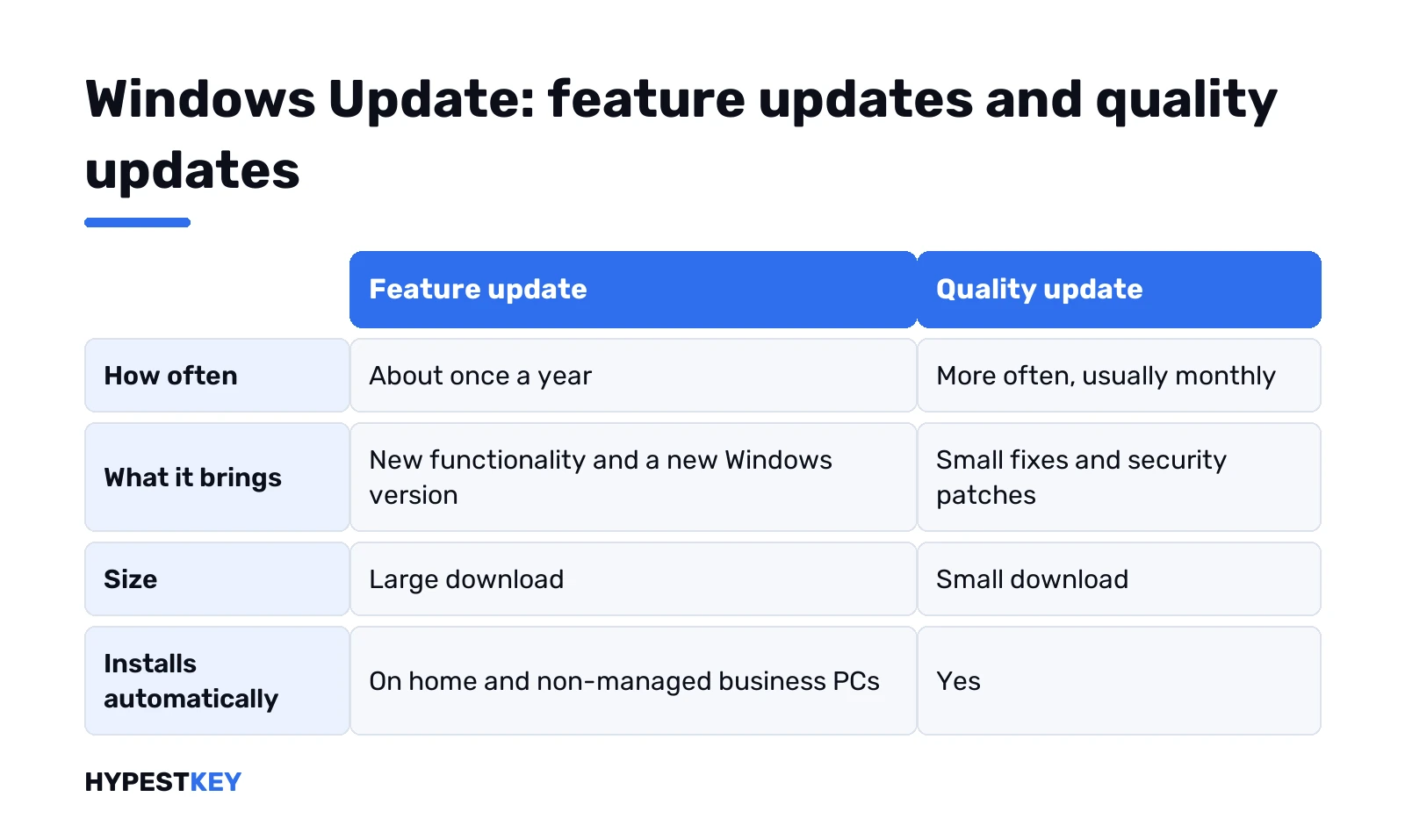
| Feature update | Quality update | |
|---|---|---|
| How often | About once a year | More often, usually monthly |
| What it brings | New functionality, a new Windows version | Small fixes and security patches, sometimes a new feature |
| Size and data | Large | Small |
| Installs automatically | On home and non-managed business PCs | Yes |
Monthly updates need a supported Windows version. Each one has a KB number. Curious what a single patch changed? We pulled two apart: KB5023706 for Windows 11 and KB5063709 for Windows 10.
Drivers come through here too, and for most hardware that’s the easiest route. Want the very latest graphics driver? We’d go to the maker’s own site for that one.
Optional updates and the “as soon as available” switch
Not everything installs by itself. Some driver updates and preview fixes wait on a separate page.
- Optional updates. Settings, Windows Update, Advanced options, Optional updates. Tick what you need, then Download & install.
- No Optional updates entry? Nothing is waiting right now, or your organization hides it.
We’d only install an optional driver when a device actually misbehaves. Otherwise leave it.
Then there’s the toggle on the main page: Get the latest updates as soon as they’re available. Turn it on and we’d say your PC jumps the queue for non-security fixes. Security updates arrive as usual either way. Expect a few more restarts per month. On a managed PC the admin may control that switch.
Pause Windows Update for a while
You can’t switch updates off for good. You can pause them.
- Settings, Windows Update.
- Next to Pause updates, choose how long.
- Done. Updates wait until that date.
When the pause runs out, Windows installs the latest updates before it lets you pause again. On 10 the button says Pause updates for 7 days. Or pick a date under Advanced options. Handy before a deadline. A bad idea for months on end, since security fixes stop too.
Active hours and restart scheduling
Surprise restarts are the number one complaint we hear about updates. Two settings fix most of it.
- Active hours. Settings, Windows Update, Advanced options, Active hours. Pick Automatically and Windows learns your routine, or Manually and set a start and end time yourself.
- Schedule the restart. When an update waits for a reboot, the Windows Update page offers this button. Choose a time that suits you.
Windows tries to restart when nobody’s using the device. Can’t find a good moment? It asks you. Leave a laptop plugged in overnight and installs outside active hours can finish. Battery? Updates use no more than other normal system work.
Update history and uninstalling an update
Something broke right after a patch? History first.
- Settings, Windows Update, Update history.
- Scroll down to Uninstall updates.
- Find the update by its KB number. Uninstall.
Microsoft doesn’t recommend removing updates, and some can’t be removed at all. We’d do it only as a short-term fix while waiting for a corrected patch. A restore point in Windows 11 made before big updates is the gentler safety net.
Driver trouble after an update? Other path. Device Manager, the device, Properties, Driver tab, Roll Back Driver.
Microsoft Update, data use and disk space
A few smaller settings live under Advanced options. Worth one look.
- Receive updates for other Microsoft products. Switch it on and Windows Update also patches desktop Office and other Microsoft software. That’s what Microsoft calls Microsoft Update.
- Metered connections. On a connection marked as metered, some updates won’t install automatically. Good for a phone hotspot.
- Data use. Monthly quality updates are small. Feature updates are big but rare.
Low on space? Delete what you don’t need, uninstall old apps or move files to an external drive or OneDrive. We’d add that new Windows 11 PCs and clean installs set aside reserved storage so updates have room.
Activation watermark still up after a patch? That’s licensing, not patching. Our page on checking the activation status sorts it out.
Delivery Optimization: where Windows Update downloads come from
Updates don’t have to come from Microsoft alone. Delivery Optimization lets a PC fetch pieces of updates and Microsoft Store apps from other PCs too.
The switch:
- Settings, Windows Update.
- Advanced options, then Delivery Optimization.
- Allow downloads from other PCs: on or off.
- With it on, pick Devices on my local network, or the internet as well.
A house with three Windows laptops? Local network makes sense. One PC downloads the big update, the others copy from it.
Turned off, nothing changes for safety. Updates and apps come straight from Windows Update and the Store, and nothing goes to or from other PCs. On a slow upload line we’d stay on local network only. The Advanced options page there also limits the bandwidth for background downloads.
On a work PC the toggle may be greyed out. IT set it. Microsoft’s own explanation is on its Delivery Optimization in Windows page.
Updates failing or stuck rather than slow? The steps and error codes are in our Windows Update troubleshooter guide.
Windows Update for Business and managed PCs
At work the rules may not be yours. Company PCs often get updates through Windows Update for Business or other management tools. The admin decides when feature updates land and which switches you see.
“Some settings are managed by your organization” on the update page means exactly that. We’d ask IT before changing anything. Home PC? No such line. Every option above is yours.
Want the official wording on any of this? Microsoft’s Windows Update FAQ and its page on getting updates as soon as they’re available are short reads.
Reinstalling or moving to a new PC? Our Windows 11 Pro key: Retail, instant to email, same official updates.
Related guides
FAQ
how do i check for windows updates
Start, Settings, Windows Update, then Check for updates. On Windows 10 go through Update & Security first.
Can I turn updates off completely?
Nope. You can pause them for a while, then Windows installs the latest updates before you can pause again.
Feature update or quality update, what's the difference?
Feature updates bring a new Windows version about once a year. Quality updates are smaller fixes and security patches, usually monthly.
An update broke something, can I remove it?
Usually yes. Update history, Uninstall updates, pick the KB number. Some updates can't be removed, and Microsoft doesn't recommend it.
Why does my PC restart for updates at bad times?
Set active hours under Advanced options, or use Schedule the restart when an update is waiting for a reboot.
Does Windows Update also update Office?
It can. Turn on Receive updates for other Microsoft products under Advanced options and desktop Office gets patched too.
The update keeps failing with an error code
Run the Windows Update troubleshooter first, then look up the code. Our troubleshooter guide and error pages cover the common ones.