Short answer: KB5023706 is the March 14, 2023 cumulative security update for Windows 11 version 22H2, so you'd end up on OS Build 22621.1413. Inside: DCOM hardening phase three, a domain join fix, the February preview features. We'd install it from Windows Update or the Catalog. Any later cumulative update already includes it.
KB5023706 is the March 14, 2023 cumulative security update for Windows 11 version 22H2, and it moves the PC to OS Build 22621.1413. Security fixes, the third phase of DCOM hardening, a domain join fix, plus every feature from the February preview. Here’s what it did and how to deal with it.
| KB5023706 at a glance | Details |
|---|---|
| Release date | March 14, 2023 (monthly security update) |
| Applies to | Windows 11, version 22H2, all editions |
| OS build after install | 22621.1413 |
| Servicing stack in the package | 22621.1344 |
| Includes | Everything from preview KB5022913 of February 28, 2023 |
| Update Catalog size | 284.0 MB for x64, 388.0 MB for ARM64 |
| Delivery | Windows Update, Windows Update for Business, WSUS, Update Catalog |
What KB5023706 is
A Patch Tuesday cumulative update. Cumulative, so it carries the fixes of the updates before it. A PC that already had those only downloads the new parts, which we like.
It’s a combined package: the servicing stack update and the latest cumulative update in one file. That detail matters later, when you try to remove it.
Its twin for the older Windows 11 release was KB5023698, build 22000.1696. Different version, same month. Not interchangeable.
What changed in KB5023706
Microsoft’s KB5023706 release notes keep the list short. Security fixes, then two items people actually noticed:
- DCOM hardening, phase three. Once installed, the registry key that used to switch it off no longer works.
- Domain join with a reused computer account. It failed with 0xaac (2732), NERR_AccountReuseBlockedByPolicy, on devices with updates from October 11, 2022 or later. Fixed here.
- The servicing stack update, 22621.1344. Quality changes to the part that installs updates.
The DCOM change is the one admins cared about. We’d test older DCOM apps on one machine before rolling it out wide. Our notes on joining Windows Server to a domain cover the domain side.
Features it brought from the February preview
KB5023706 includes everything from preview update KB5022913. So 22H2 PCs that skipped the optional preview got those features here. The ones you’d spot:
- Search results that appear in the taskbar search flyout as you type.
- Windows Studio effects in Quick Settings. Only on PCs with a supported NPU.
- A touch-optimized taskbar on 2-in-1 tablets, with collapsed and expanded states.
- Task Manager search. Ctrl+F filters by name, PID or publisher.
- Energy recommendations under Settings, System, Power & battery.
- Quick Assist listed in All apps in Start.
- Start recommendations with shared files and meeting prep, but only on Azure AD-joined work PCs.
- Narrator braille improvements and new braille displays.
- Rounded focus and hover effects in the system tray.
- Voice access that handles more controls and scrolls sideways.
- A Task Manager theme you can set apart from the Windows theme.
Also a quiet fix we liked. Copying multi-gigabyte files over SMB shares was slow before it, and the preview sped that up.
Comparing editions to see which of these you get? Our Windows 11 Home vs Pro page has the table.
Known issues listed for this update
Five entries on the release page. Most were fixed by later updates, which tells you the fix: keep updating.
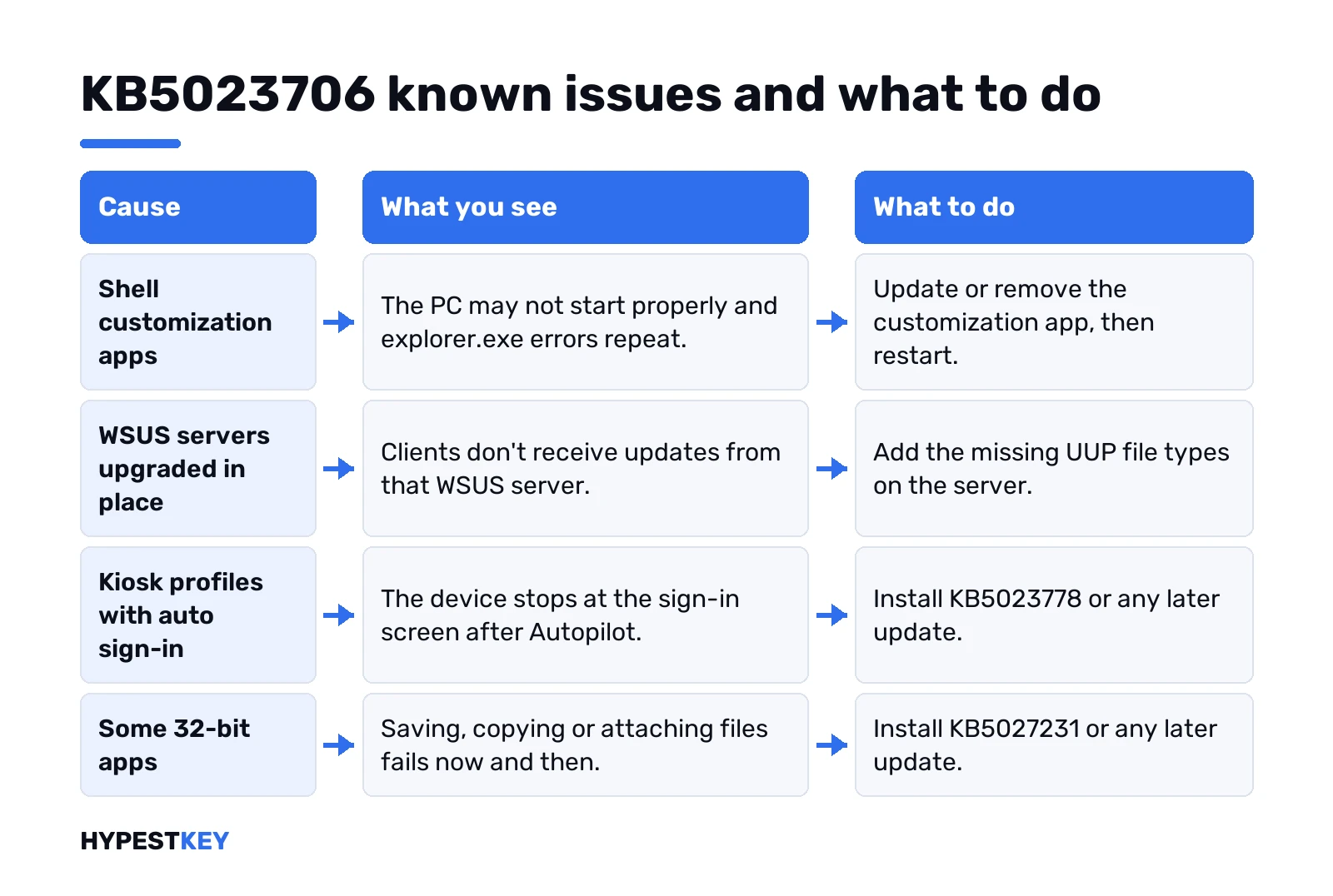
| Issue | Who | Status on the release page |
|---|---|---|
| Updates may not reach clients from some WSUS servers upgraded from older Windows Server | IT admins | Mitigation: add the UUP file types |
| PC may not start properly with some third-party UI customization apps | Home users | Contact the app developer; newer app versions report it resolved |
| Kiosk auto sign-in stops at the sign-in screen after Autopilot | IT admins | Resolved in KB5023778 |
| Speech recognition and handwriting glitches in Chinese and Japanese | Home users | Resolved in KB5026446 |
| Some 32-bit apps fail to save or copy files | IT admins | Resolved in KB5027231 |
The WSUS one hit admins. Servers upgraded in place were missing the UUP file types, so clients never saw the new updates. Adding those MIME types on the server cleared it. Configuration Manager setups weren’t affected.
The start-up problem was the loud one. Explorer.exe errors in a loop, tied to a shell customization app. Update or remove the app, then restart.
KB5023706 on Windows 10 and older Windows 11
On a Windows 10 PC you won’t find it at all. This KB is only for 22H2.
- Windows 11, the first release: KB5023698, build 22000.1696. Same DCOM and domain join items.
- Windows 10: KB5023696 that month, builds 19042.2728, 19044.2728 and 19045.2728.
Not sure which one you run? Win+R, winver. The first five digits of the build give it away. 22621 is 22H2. 22000 is the first Windows 11 release, and 1904x is Windows 10.
Planning the jump to 11 anyway? Then our Windows 11 vs Windows 10 upgrade page lists what changes.
How to install KB5023706
On a 22H2 PC it came automatically. Settings, Windows Update, Check for updates. Nothing else to do.
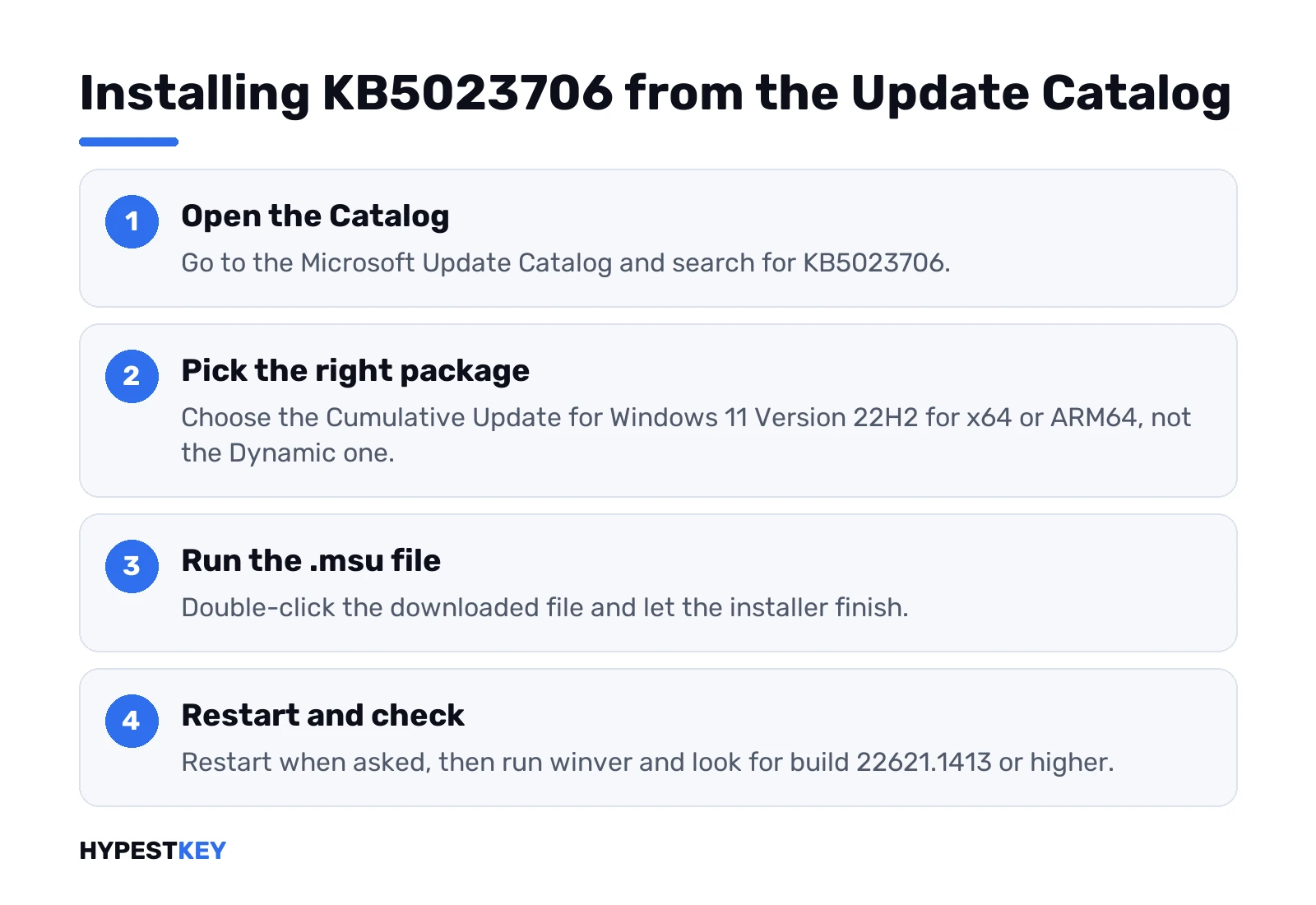
Want the file itself? Offline machines, a lab, a stuck install:
- Open the Microsoft Update Catalog.
- Search KB5023706.
- Pick “Cumulative Update for Windows 11 Version 22H2” for x64 or ARM64. Skip the Dynamic one, Windows Setup uses that.
- Run the .msu file and restart when asked.
WSUS works too. It syncs under product Windows 11, classification Security Updates. Big cumulative packages take a while to install, and our note on Windows 11 update time explains the wait.
Check whether the update is installed
Fastest way: Win+R, then this:
winverBuild 22621.1413 or higher? Then it’s in.
A higher number is normal. Later cumulative updates sit on top of this one and include its fixes.
Prefer the list? Settings, Windows Update, Update history. Look under Quality updates.
When KB5023706 fails to install
The error code tells you where to look. The usual suspects on cumulative updates, each with its own page:
- 0x800f081f, repair source missing.
- 0x80073701, a component missing from the store.
- 0x80073712, store in an inconsistent state.
- 0x80070103, usually a driver offered twice.
- 0x800f0922, often space in the reserved partition or a VPN.
No code at all, just “failed”? Run the troubleshooter first. Our Windows Update troubleshooter guide shows where it lives on Windows 11. Then the DISM and SFC repair, and the Catalog package above.
Leave at least 20 GB free on a 64-bit PC before you retry. We’d also make a restore point first, just in case.
Uninstall the March 2023 update
Here’s the catch with combined packages. The wusa uninstall switch doesn’t work on them. The servicing stack part can’t be removed at all.
Only the cumulative part comes off, with DISM. Admin Command Prompt. First list the packages:
DISM /online /get-packagesFind the RollupFix package with 22621.1413 in its name. Copy that name. Then:
DISM /online /Remove-Package /PackageName:<package name>Restart. Honestly, we’d only do this to confirm the update is behind a problem. Then install the newer cumulative update, which carries the fix.
Do you still need it today?
Not on its own. Any later cumulative update for your version already includes it, so Windows Update won’t offer it to an up-to-date PC.
Rebuilding an old 22H2 image? Slipstream the newest cumulative update, not this one. Same fixes, one package less to add.
Where it still shows up: old installation images, offline PCs, update reports in WSUS. On those we’d install the newest cumulative update instead and get this one’s fixes with it. Same idea as other monthly packages we’ve covered, like KB5063709 for Windows 10 or KB5062557 on Windows Server 2019.
Your Windows license after the update
Updates don’t touch activation. A PC that was activated stays activated. Our guide to check Windows activation status shows where to confirm it.
Setting up an old image that never had a license? Our Windows 11 Pro key is Retail, instant to email.
FAQ
which windows version is KB5023706 for
Windows 11 version 22H2, all editions. The older Windows 11 release got KB5023698 that same month.
what build do I have after KB5023706
OS Build 22621.1413. Run winver to check, and a higher build number means it's included already.
did KB5023706 add new features
Yes. It carried the February preview features, such as taskbar search changes, Task Manager search and Studio effects.
why can't I uninstall it with wusa
It's a combined servicing stack and cumulative package. Only the cumulative part comes off, with DISM Remove-Package.
KB5023706 keeps failing, what now
Note the error code first. Then the troubleshooter, DISM and SFC, and the Catalog package if Windows Update still fails.
do I need to install KB5023706 today
Not separately. Install the newest cumulative update for your version and its fixes come with it.