Short answer: The 0x800F0922 error comes up when an installer inside a Windows update fails and the update rolls back. Turn off any VPN. Free at least 20 GB, then retry. Stuck at 35% after a restart? We'd suspect a full EFI System Partition, fixed by a later Microsoft update. Otherwise, DISM and SFC.
The 0x800F0922 error means one of the installers inside a Windows update failed, so Windows rolled the whole update back. Usual suspects: a VPN, too little room on the EFI System Partition, low disk space, .NET Framework 3.5 or damaged system files. Each one leaves a different sign.
| Cause | Sign you see | Fix to try |
|---|---|---|
| VPN or blocked connection | Fails early, while Windows talks to the update servers | Disconnect the VPN, retry the update |
| EFI System Partition almost full | Stops at about 35 to 36% after the restart, “Undoing changes” | Install the later fix update, restart and check again |
| Low free space on the system drive | Several updates fail in a row | Free at least 20 GB on 64-bit Windows |
| .NET Framework 3.5 feature | Fails while turning on NetFx3 or installing a .NET update | Install the feature from Windows media with DISM |
| Damaged component store or update cache | Same update fails again and again | Troubleshooter, cache reset, DISM and SFC |
| Corrupt scheduled task or disabled HTTP service | Windows Server, CBS.log names the installer | Microsoft’s Server fixes, below |
What the 0x800F0922 error means
Microsoft’s internal name for it: CBS_E_INSTALLERS_FAILED. Component Based Servicing runs a queue of small installers for every update. One of them fails, the queue stops, and you get a rollback.
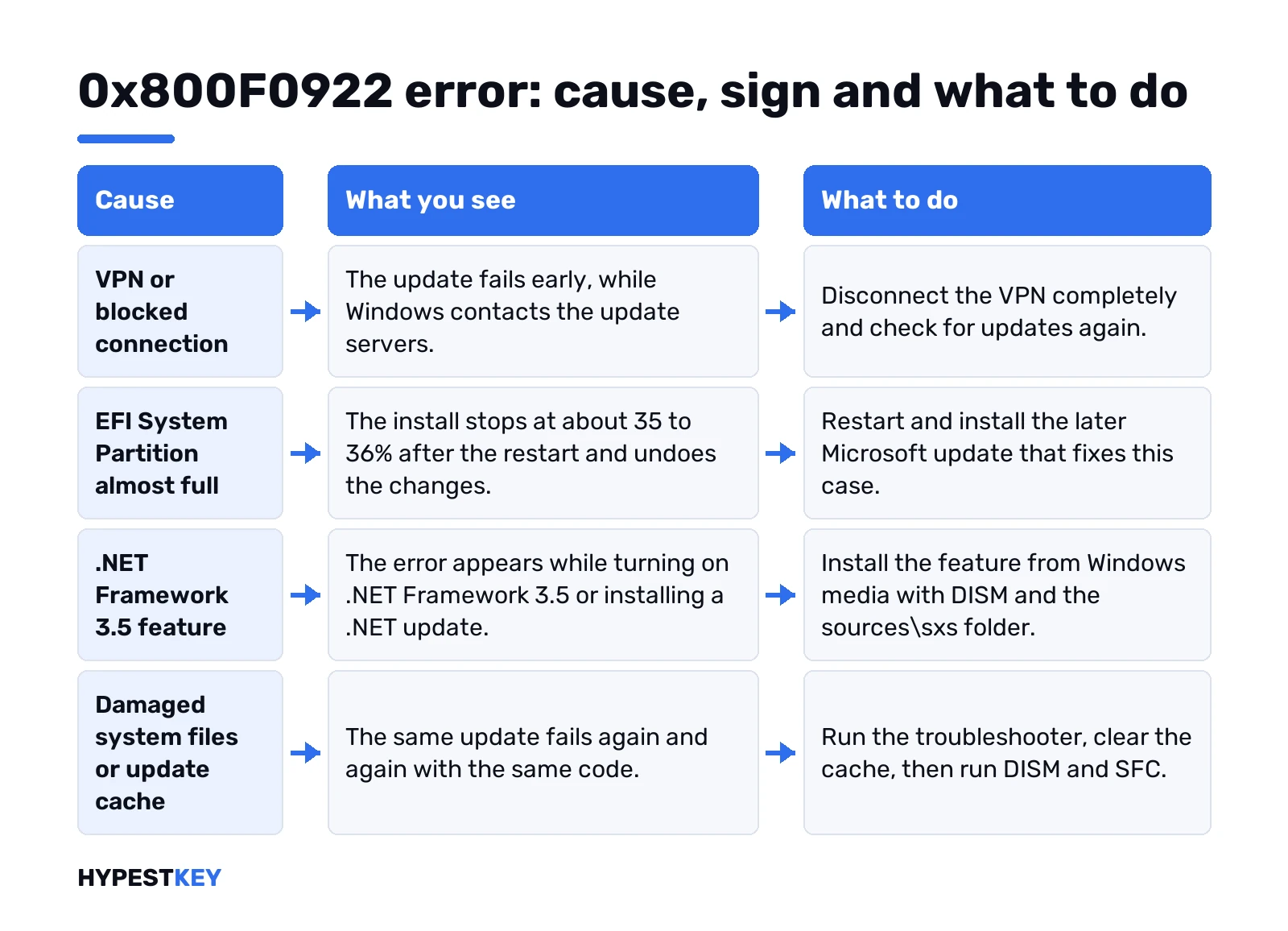
So the code tells you that something broke. Not what. The sign around it does the rest. When it fails, how far the progress got, and what sits in CBS.log.
Two places you’ll see it:
- Windows Update history. “Install error 0x800f0922” next to a cumulative or .NET update.
- Windows Features or DISM. Usually while turning on .NET Framework 3.5.
Write down the KB number of the update that failed. We’d want it for every step below.
Disconnect the VPN and check the connection
Cheapest fix first. Microsoft’s own table for this code says it: VPN on, turn it off, try again.
- Disconnect the VPN app. Quit it fully, not just pause.
- Work laptop on a company VPN? Same thing, then reconnect after the update.
- Settings, Windows Update, Check for updates.
Proxy or a strict firewall can do the same. Home PC, no VPN at all? Skip ahead. Like a VPN for daily use? Our list of free VPNs for Windows 10 and 11 has a few. Just not during an update.
EFI System Partition full: the restart-phase rollback
This one hit lots of Windows 11 PCs with the May 2026 security update, KB5089549. Microsoft documented it in the KB5089549 release notes.
The sign is very specific:
- The download and the first phases go fine.
- After the restart it stops at about 35 to 36%.
- “Something didn’t go as planned. Undoing changes.”
- Update history shows 0x800f0922.
The cause sits on a tiny hidden partition. Devices with 10 MB or less free on the EFI System Partition are the ones that fail. OEM tools and dual-boot loaders like to park files there.
CBS.log confirms it. Look for lines like these:
SpaceCheck: Insufficient free space
ServicingBootFiles failed. Error = 0x70
The fix came from Microsoft, not from the user. KB5089573, the preview update that followed, addresses it, and later cumulative updates carry the same fix. Restart, check for updates, let the newer one install. We wouldn’t start deleting files on the EFI partition by hand. One wrong file there and the PC doesn’t boot.
Using BitLocker? Have the recovery key handy before any partition work. Our BitLocker guide for Windows 11 shows where to find it.
Free up disk space and the System Reserved partition
Older Windows 10 cases point somewhere else. Microsoft’s upgrade help says this code can also mean not enough free space in the System Reserved partition.
Start with the main drive anyway. Numbers from Microsoft:
- 32-bit Windows: at least 16 GB free.
- 64-bit Windows: at least 20 GB free.
Settings, System, Storage. Temporary files first, then the Recycle Bin and old downloads. A feature update needs more room than a monthly patch, so we’d clear a little extra.
For a full System Reserved partition, Microsoft only points to third-party partition tools. That’s a bigger job. We’d back up first, or make a restore point in Windows 11 at the very least.
.NET Framework 3.5 and the 0x800F0922 error
Turning on .NET Framework 3.5 in Windows Features and getting this code? Microsoft notes the code isn’t specific to .NET. Still, the feature needs files from Windows Update or from install media, and that’s where it often trips.
The route Microsoft gives uses Windows media. Mount a Windows ISO or plug in the USB stick. Our Media Creation Tool guide shows how to get one. Then Command Prompt, as administrator. D stands for the drive letter of the media:
Dism /online /enable-feature /featurename:NetFx3 /All /Source:D:\sources\sxs /LimitAccessAfter that, this one:
DISM /Online /Cleanup-Image /RestoreHealthWork PC? A Group Policy can block the download from Windows Update. Its name: Specify settings for optional component installation and component repair. That’s your IT team’s call, not something we’d change on a managed machine.
Repair Windows Update: troubleshooter, cache, DISM and SFC
No VPN, enough space, no .NET in sight. Then the update files or the component store are the next guess.
- Run the Windows Update troubleshooter and restart.
- Clear the update cache. Stop the Windows Update service, empty the SoftwareDistribution folder, start the service again.
- Repair system files, below.
Command Prompt as administrator. DISM first, it takes a while:
DISM.exe /Online /Cleanup-image /RestorehealthThen the file checker:
sfc /scannowRestart and run Windows Update again. Same KB failing every time? We’d also try it in a clean boot, or once from Safe Mode in Windows 11 to rule out a background app.
Hiding one stubborn update for now
Sometimes the fix just isn’t out yet. The EFI case above is the classic: nothing on your side would help until Microsoft shipped the next update.
- Pause updates. Settings, Windows Update, Pause updates, pick a week.
- Come back after the pause. Check for updates, see if a newer KB replaced the failed one.
- Read Update history. A newer cumulative update usually includes everything the failed one had.
We’d keep the pause short. Security fixes matter more than a clean history list.
0x800F0922 on Windows Server
Servers get two documented variants. Both show up in CBS.log by name, so open it before trying anything. Microsoft’s Server article for this code covers the first one.
A corrupt SecureBootEncodeUEFI task
Sign: the failing installer is Task Scheduler, and the Task Scheduler log shows Event ID 146 for the SecureBootEncodeUEFI task. The fix, as we’d sum it up: remove the staged packages. Delete the broken task entries from the TaskCache keys. Install again. List the staged packages first:
Dism /english /online /get-packages /format:table | findstr /i "Staged"The registry part goes key by key, with a GUID you read from the task itself. We’d follow Microsoft’s page line by line here and export the keys before deleting anything.
“Failed to be changed to the Absent state”
Seen on Windows Server 2019. CBS.log names the HTTP Installer and error 1058. Translation: the HTTP service is disabled. Fix? In Registry Editor, set the Start value of this key to 3, then install the update again.
HKEY_LOCAL_MACHINE\SYSTEM\CurrentControlSet\Services\HTTPSetting up a new box instead? Our Windows Server 2022 install guide walks through it.
Read CBS.log to find the 0x800F0922 error source
Guessing gets old. The log says which installer failed. It lives here:
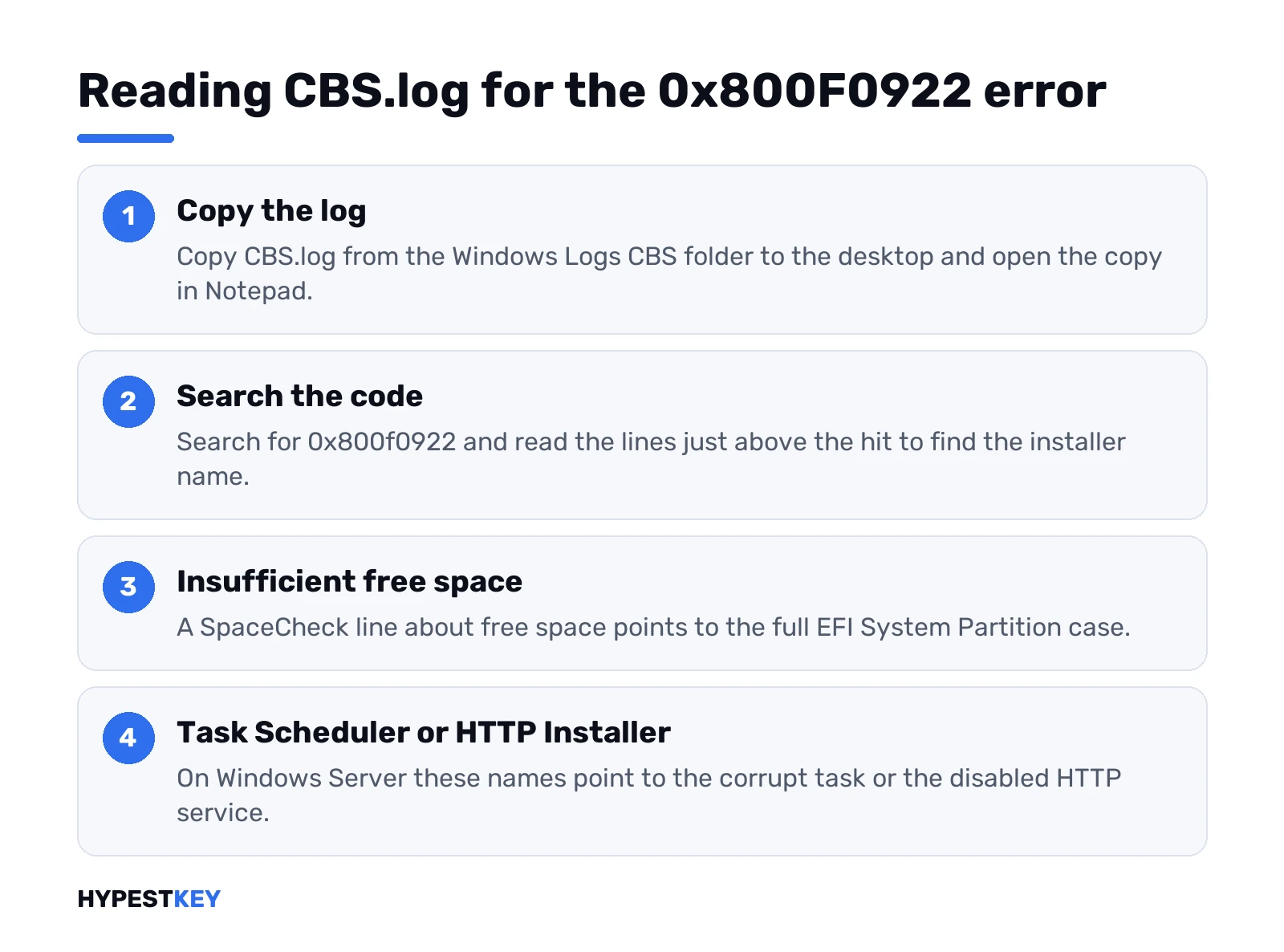
C:\Windows\Logs\CBS\CBS.logCopy it to the desktop first, Windows keeps writing to the original. Open it in Notepad and search for 0x800f0922. A few lines above the hit, look for the installer name.
- “SpaceCheck: Insufficient free space”: the EFI partition case.
- Installer name “Task Scheduler”: the scheduled task case.
- Installer name “HTTP Installer” with 1058: the disabled HTTP service.
- Nothing that obvious: DISM, SFC and a cache reset.
When the update still won’t install
Bigger tools, smallest first:
- In-place repair upgrade. Setup from the Media Creation Tool, keep files and apps.
- Restore point from before the trouble started.
- Reset this PC. Our factory reset guide explains what stays.
A big feature update just takes time, and that’s normal. Our page on Windows 11 update time shows what’s normal. Curious what one monthly patch actually holds? See our KB5063709 update page, as an example.
Other update codes with the same family feel: 0x80070490, a driver step that fails, and 0x8007000D, invalid data in the update files.
After a reset or reinstall we’d check the activation status once. Reinstalling anyway and need a license? Our Windows 11 Pro key is Retail, instant to email.
Related guides
FAQ
What does 0x800f0922 mean?
CBS_E_INSTALLERS_FAILED. One installer inside the update failed, so Windows undid the whole update to stay safe.
Is it safe to just restart and try again?
Yes. For the EFI partition case that's the actual fix, once the newer update from Microsoft is offered.
Do I need to delete files on the EFI partition?
We wouldn't. Microsoft fixed that case with a later update, and a wrong deletion there can stop the PC from booting.
Will a VPN really cause it?
It can. Microsoft lists turning the VPN off as one of the first fixes, so disconnect and try once.
Does DISM or SFC delete my files?
No. They only check and repair Windows system files, and your documents, photos and apps stay where they are.
It fails while turning on .NET Framework 3.5
Install the feature from Windows media with DISM and the sources\sxs folder, then run the RestoreHealth command.
Does this error affect activation?
No. Update failure only. Activation and your license stay as they were before the update tried to install.