Short answer: The 0x80073701 error stops a Windows update or feature install: a component it needs is missing from the store. We'd run DISM StartComponentCleanup, restart and check again. Still failing? Then DISM RestoreHealth and SFC. After that we'd reset the update components, grab the missing KB from the Update Catalog or repair in place.
The 0x80073701 error is a Windows Update or feature install failure called ERROR_SXS_ASSEMBLY_MISSING: the referenced assembly could not be found, so a component the update depends on is missing from the store. Annoying, rarely serious. We’d clean up the store first, then run DISM and SFC.
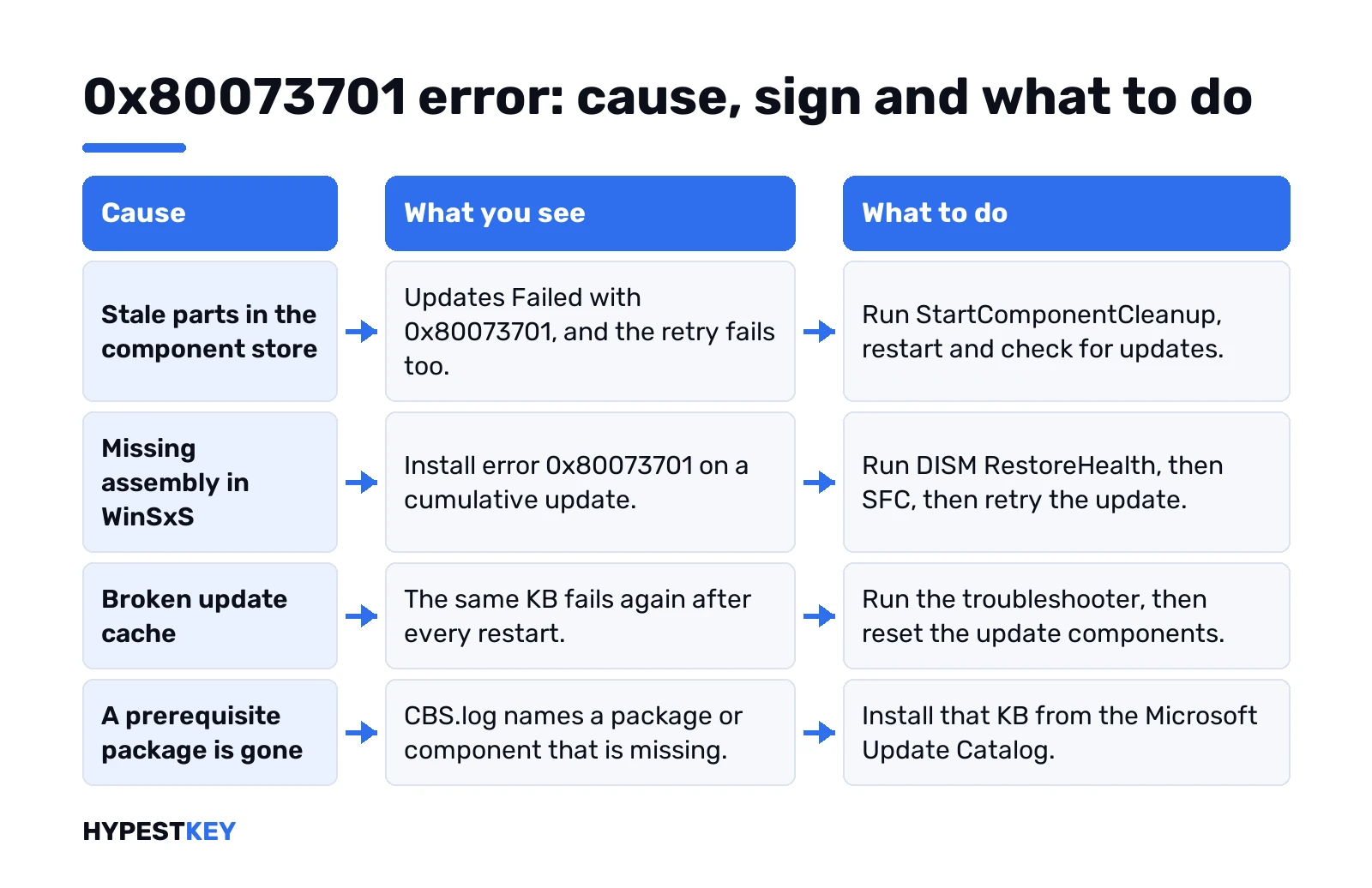
| Cause | What you see | What to do |
|---|---|---|
| Stale or half-removed components in the store | “Updates Failed” with 0x80073701, retried later and failing again | StartComponentCleanup, restart, check again |
| Missing or damaged assembly in WinSxS | Install error 0x80073701 on a cumulative update | DISM RestoreHealth, then SFC |
| Broken update cache or services | Same KB fails after every restart | Troubleshooter, then reset the update components |
| A prerequisite package is gone | CBS.log names a missing package | Install that KB from the Update Catalog |
| Damage DISM can’t repair | Everything above finishes clean, error stays | Reinstall Windows in place, keeping files and apps |
What the 0x80073701 error means
Windows keeps its parts in the component store, the WinSxS folder. Every update is built on top of pieces already in there. One piece missing? The install stops and returns 0x80073701.
The system error code reference gives the plain text: “The referenced assembly could not be found.” Assembly is servicing talk for a component.
Close relatives, same family of store damage. 0x80073712 says the store is inconsistent. 0x8007371b says a transaction is incomplete. The fixes overlap a lot.
Where you see it
Settings, Windows Update, Update history. The failed line reads “Install error – 0x80073701” under a KB number. Sometimes the top of the page just says “Updates Failed. There were problems installing some updates, but we’ll try again later.”
- Monthly cumulative updates. Most reports.
- Servicing stack and .NET packages, now and then.
- Server Manager when you add a role or feature. More on that below.
- DISM itself, with “ERROR_SXS_ASSEMBLY_MISSING” in its output.
Copy the KB number somewhere. Later steps need it.
Common causes of 0x80073701
Almost always the store, not your hardware. Leftovers from an update that got rolled back, a manifest that never landed, a package removed by a cleanup tool. Third-party antivirus sometimes holds a file at the wrong moment.
Low disk space adds to it. Windows wants at least 16 GB free on 32-bit and 20 GB on 64-bit before a big update. We’d check that before anything else, honestly.
Your license has nothing to do with it. This code lives in servicing, and activation sits elsewhere.
Fix 1: retry, then run the Windows Update troubleshooter
Boring, but it works more often than you’d expect. Restart. Check for updates again.
Still failing? Settings, System, Troubleshoot, Other troubleshooters. Run next to Windows Update. On Windows 10 it hides under Update & Security. Our Windows Update troubleshooter guide covers both menus and what the results mean.
Unplug external drives and docks you don’t need. Pause third-party antivirus too, then retry.
Fix 2: clean up the component store
This is the step Microsoft gives for this exact message in its article on 0x80073701 and 0x800f0988. Command Prompt, as administrator. Accept the UAC prompt. Then this:
dism /online /cleanup-image /startcomponentcleanupLet it finish. It can sit at one percentage for a while. Restart, then Check for updates.
The cleanup throws out superseded parts that confuse the next install. Nothing personal gets touched.
Fix 3: repair the store with DISM and SFC
Cleanup didn’t do it? Then the store needs actual repair. Same admin Command Prompt:
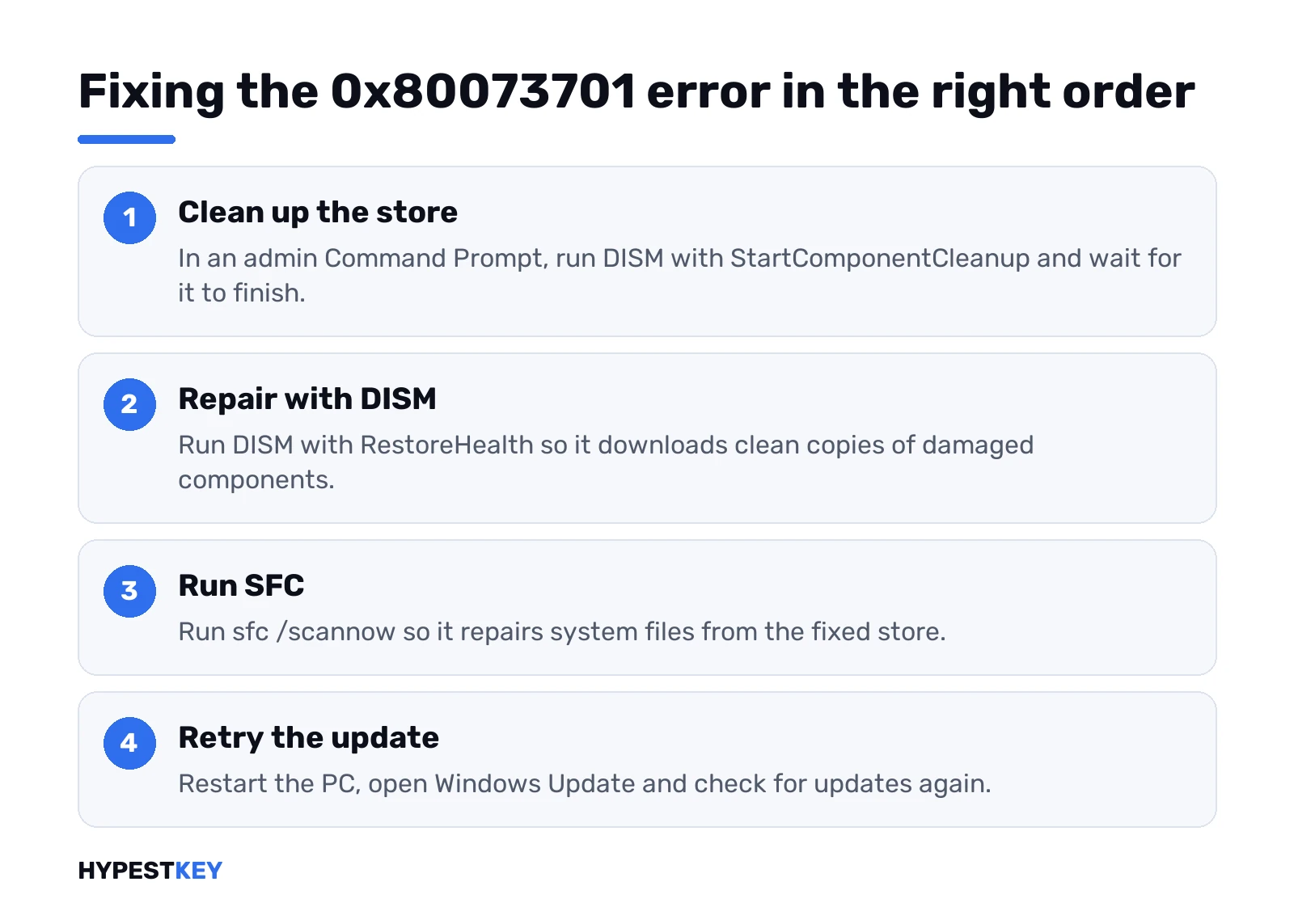
DISM.exe /Online /Cleanup-image /RestorehealthDISM downloads clean copies from Windows Update. Wait for “The restore operation completed successfully.” After that:
sfc /scannowOrder matters here. SFC repairs system files from the store DISM just fixed. Restart and try the update.
No internet on that PC, or a WSUS server without repair files? Give DISM a working source instead, a healthy PC on the same build:
DISM.exe /Online /Cleanup-Image /RestoreHealth /Source:\\servername\c$\windows /LimitAccessIf DISM itself fails with a source error, that’s 0x800f081f, and its page picks up from there.
Fix 4: reset the Windows Update components
Corrupt download cache, stuck services. A reset clears both. Admin Command Prompt, one line at a time:
net stop bits
net stop wuauserv
ren %systemroot%\softwaredistribution softwaredistribution.bak
ren %systemroot%\system32\catroot2 catroot2.bak
net start bits
net start wuauserv
Restart. The next check downloads everything again, so give it time. Our piece on Windows 11 update time explains why big updates crawl.
Files and apps stay put. Only the update cache goes.
Find the missing package for 0x80073701 in CBS.log
For the stubborn cases. DISM and the servicing stack write everything to one log:
%windir%\Logs\CBS\CBS.logOpen it right after a failed install. Search for 0x80073701 or ERROR_SXS_ASSEMBLY_MISSING. The lines around it name the package or component that’s gone, often with a build number like 10.0.19045.3636.
- Take the last part of that build, the update build revision.
- Match it to a KB on the Windows release information page for your version.
- Search that KB in the Microsoft Update Catalog.
- Download the package for your architecture and run it. Restart.
- Then install the update that failed originally.
Wrong package picked? The installer says it doesn’t apply. No harm done. A monthly package such as KB5063709 for Windows 10 shows what these downloads look like.
One warning we’d repeat. Don’t change permissions on the WinSxS folder by hand. That breaks servicing for good.
0x80073701 error when adding roles or features
Windows Server too. Server Manager or PowerShell, adding a role or feature. The feature’s manifest isn’t on the system, so we’d expect the install to miss its assembly.
Same medicine. StartComponentCleanup, then DISM with a source from installation media of the same build, then SFC. Then add the feature again. On a domain controller we’d take a full backup before anything that touches the store.
Repair Windows without losing files
When nothing above helps, rebuild the system files in place. On Windows 11: Settings, System, Recovery. Fix problems using Windows Update. Reinstall now.
It reinstalls your current version, repairs system files and components, and keeps apps, files and settings. Keep the PC on power and online while it runs.
No such button? Work PCs and older builds may not have it. Then the Windows 11 Media Creation Tool works, with Keep personal files and apps. We’d make a restore point in Windows 11 before either.
Out of options after that? A factory reset or a clean Windows 11 installation. Back up first.
After the fix: check activation
An in-place reinstall keeps the license. A clean install may ask for it again. Our guide to check Windows activation status shows where to look.
Other codes on the same updates? See 0x800f0922 and 0x8007000d. Starting over on a PC with no proper license? Our Windows 11 Pro key is Retail, instant to email.
FAQ
is 0x80073701 a virus or a hardware fault
Nope. It's a servicing problem in the component store, so your disk and your files are fine.
what does ERROR_SXS_ASSEMBLY_MISSING mean exactly
A referenced assembly, which is servicing talk for a component, could not be found in the store.
StartComponentCleanup or RestoreHealth, which first
Cleanup first. That's the step Microsoft gives for this message, and RestoreHealth comes next if the update still fails.
can I just skip the update that fails
For a while, sure. The next cumulative update usually hits the same missing component, so we'd fix the store.
will Reinstall now delete my apps
No. It reinstalls the current version of Windows and keeps your apps, files and settings in place.
does 0x80073701 affect Windows activation
Not at all. Activation lives outside the component store, so the license state stays exactly as it was.