Short answer: The 0x8007371b error shows up when a Windows update can't finish: the component store is missing a required piece. We'd run DISM RestoreHealth, then SFC, then retry. Still failing? We'd reset the update components, install the KB from the Update Catalog, or do an in-place repair upgrade.
The 0x8007371b error is a Windows Update install failure called ERROR_SXS_TRANSACTION_CLOSURE_INCOMPLETE: one or more required members of the transaction are not present, so the component store is missing pieces the update needs. Annoying, but fixable. We’d start with DISM, then SFC, then the update again.
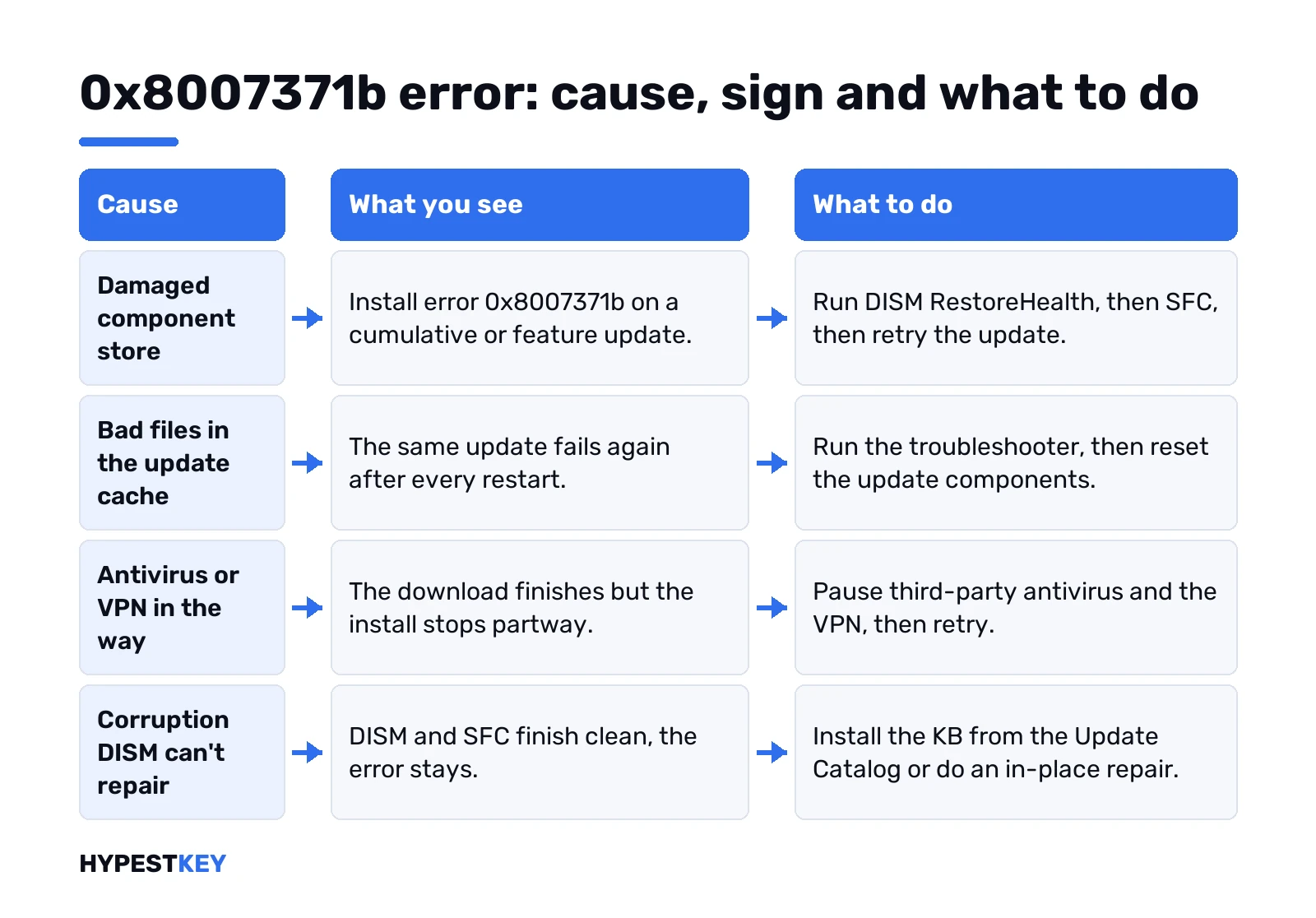
| Cause | What you see | What to do |
|---|---|---|
| Damaged or incomplete component store | Install error 0x8007371b on a cumulative or feature update | DISM RestoreHealth, then SFC, then retry |
| Bad files in the update cache | Same update fails again after every restart | Troubleshooter, then reset the update components |
| Antivirus or VPN in the way | Download finishes, install stops partway | Pause third-party antivirus and VPN, retry |
| Corruption DISM can’t repair | DISM and SFC finish clean, error stays | Manual install from the Update Catalog or an in-place repair |
What the 0x8007371b error points to
Windows keeps its system components in a store under the WinSxS folder. Updates, optional features and language packs all install from it. Each install runs as one transaction.
One required member missing? Setup stops and reports 0x8007371b. Microsoft files it under its Windows Update corruption errors, next to 0x80073712 and 0x800f081f. Same family, same first fix.
Nothing is wrong with your license here. Activation lives elsewhere, and this code never touches it.
Where 0x8007371b shows up
Settings, Windows Update, Update history. The failed entry reads “Install error – 0x8007371b” under its KB number. Typical victims:
- Monthly cumulative updates. The usual suspect.
- .NET Framework updates, which ride along with them.
- Feature updates to a new Windows 11 version.
- Language packs and optional features. Same store, same failure.
- Server too. Windows Server 2019 hosts report it on monthly patches.
Write down the KB number. You’ll need it if the quick fixes fail.
Fix 1: run the Windows Update troubleshooter
Cheap and quick, so it goes first. Settings, System, Troubleshoot, Other troubleshooters. Run next to Windows Update. Restart afterwards.
On Windows 10 the path sits under Update & Security instead. Our Windows Update troubleshooter guide walks through both menus and what the results mean.
It rarely cures this particular code alone. Still, it resets services that the next steps rely on.
Fix 2: repair the component store with DISM and SFC
This is the real fix for 0x8007371b. Command Prompt, as administrator. Then this, and give it several minutes:
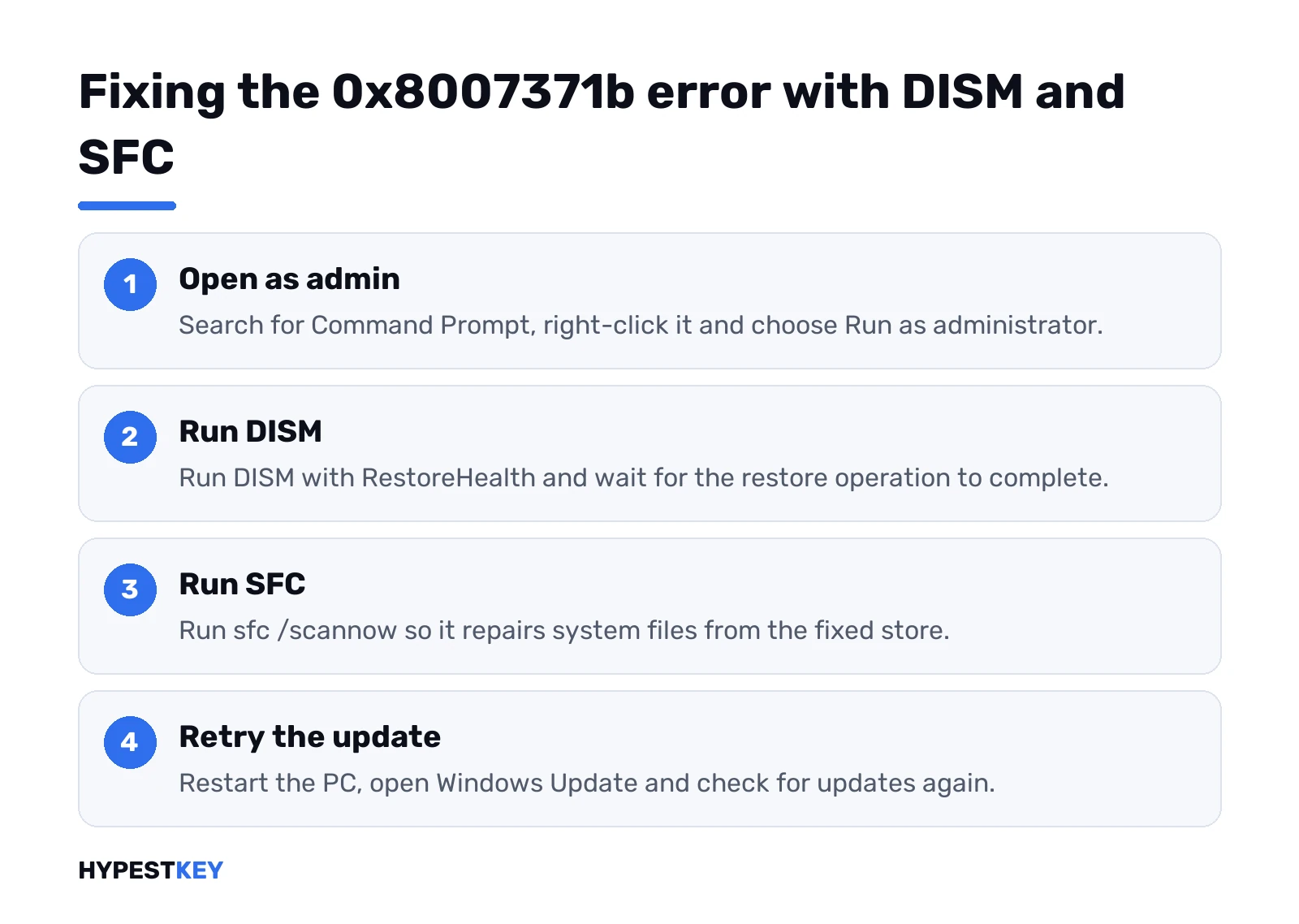
DISM.exe /Online /Cleanup-image /RestorehealthDISM pulls clean copies of damaged files from Windows Update. Wait for “The restore operation completed successfully.” Then this:
sfc /scannowOrder matters. SFC uses the store that DISM just repaired. Restart, then Check for updates again.
Stuck at some percentage? Leave it. We’d give DISM plenty of time before calling it frozen.
Both tools log to the CBS log. Useful later if you need to know which file broke:
%windir%\Logs\CBS\CBS.logFix 3: reset the Windows Update components
Corrupt cache, wrong state in the update services. A reset clears both. Microsoft support staff on Q&A suggest this exact set for 0x8007371b. Elevated Command Prompt, one line at a time:
net stop wuauserv
net stop cryptSvc
net stop bits
net stop msiserver
ren C:\Windows\SoftwareDistribution SoftwareDistribution.old
ren C:\Windows\System32\catroot2 catroot2.old
net start wuauserv
net start cryptSvc
net start bits
net start msiserver
Restart. Windows Update downloads everything fresh, so the first check takes longer. Your files stay where they are.
Before you retry, pause any third-party antivirus and switch off the VPN. Turn them back on once the update is in.
When DISM can’t reach Windows Update
Offline PC, blocked proxy, or a WSUS server that doesn’t carry repair files. DISM then fails with its own error, often 0x800f081f. Point it at a working source instead:
DISM.exe /Online /Cleanup-Image /RestoreHealth /Source:\\servername\c$\windows /LimitAccessSwap servername for a healthy PC on the network. Same Windows version and build, or the files won’t match. A mounted install image of the same build works too.
Then the usual. SFC, restart, check for updates.
Install the failing update by hand
DISM says healthy, the update still dies. Then we’d skip Windows Update and grab the package ourselves.
- Note the KB number from Update history.
- Search it in the Microsoft Update Catalog.
- Pick the file for your version and architecture. x64 for most PCs.
- Run the .msu file. Restart when asked.
Pick the wrong build and the installer just says it doesn’t apply. Harmless, try the other one. Big monthly patches can take a while to install this way, and our note on Windows 11 update time explains why. A typical example of a monthly package is KB5063709 for Windows 10.
0x8007371b error on a language pack
Adding a display language goes through the same store. So it fails the same way. Microsoft staff walked one user through it for Simplified Chinese:
- Pause VPN and third-party antivirus.
- Troubleshooter, then the component reset above.
- Restart, then Check for updates.
- Retry from Settings, Time & language, Language & region.
The reset alone didn’t do it there. The in-place repair below did. Our Windows 11 change language guide covers the language settings once the pack installs.
Fix 0x8007371b with an in-place repair upgrade
Some corruption sits deeper than DISM reaches. An in-place upgrade rebuilds the whole component store and keeps your files and apps.
- Free space first. At least 20 GB on 64-bit Windows.
- Download the Windows 11 Media Creation Tool from Microsoft.
- Run it and pick Upgrade this PC now.
- Choose Keep personal files and apps. Let it run.
Expect a long run and a few restarts. We’d make a restore point in Windows 11 first, just in case. Booting into Windows 11 Safe Mode is not needed for this.
Still no luck after that? A factory reset of Windows 11 or a clean installation are the last options. Back up before either.
After the fix: check Windows is still activated
An in-place repair keeps the license. A clean install may ask for it again. Settings, System, Activation shows the state; our guide to check Windows activation status has the details.
Reinstalling on a PC that never had a proper license? Our Windows 11 Pro key is Retail, instant to email.
Related guides
FAQ
does 0x8007371b mean my windows is broken
Nope. The PC keeps working, only that one update or feature won't install until the store is repaired.
DISM and SFC found nothing, now what
Reset the update components, then try the KB from the Update Catalog. An in-place repair upgrade fixes the rest.
will the in-place repair delete my files
Not if you choose Keep personal files and apps. We'd still back up first, just to be safe.
can antivirus cause this one
It can. Pause third-party antivirus and the VPN while the update installs, then switch them back on.
is it safe to delete SoftwareDistribution
Yes, once the update services are stopped. Windows rebuilds the folder and downloads fresh update files.
does this error affect activation
Nope. It's a servicing problem, so the license and activation state stay as they were.