
Short answer: Windows 11 safe mode starts the PC with a limited set of files and drivers. We reach it through Settings, System, Recovery, Advanced startup. Then Troubleshoot, Advanced options, Startup Settings, and 4. A restart brings normal mode back. If it doesn't, I'd clear Safe boot in msconfig.
Windows 11 safe mode starts the PC in a basic state, with a limited set of files and drivers. If the problem is gone there, we can rule out the default settings and basic drivers. Then the search for the real cause begins.
| Variant | Key on the Startup Settings screen | What it adds |
|---|---|---|
| Safe Mode | 4 or F4 | Nothing: the minimal set |
| Safe Mode with Networking | 5 or F5 | Network drivers and services, for internet and local network |
| Safe Mode with Command Prompt | 6 or F6 | A command prompt window in place of the usual interface |
The definitions follow Microsoft’s support article Windows startup settings.
When to use it
| Problem | What safe mode tells you |
|---|---|
| Crashes or freezes since a driver was installed | If they stop, the driver is the suspect; remove it here |
| A program that blocks its own removal | It doesn’t start in safe mode, so it can be uninstalled |
| Malware that fights the scanner | Software that starts with Windows doesn’t load, and that often includes it |
| A black screen after sign-in | Low-level graphics load; the display driver can be rolled back |
| Windows restarts in a loop | If safe mode starts, the core system is intact |
The old F8 key at power-on doesn’t open this menu in Windows 11. All routes below go through the recovery screen or through a setting.

How to start Windows 11 in safe mode from Settings
This is the route when Windows still runs.
- Open Settings and go to System, then Recovery.
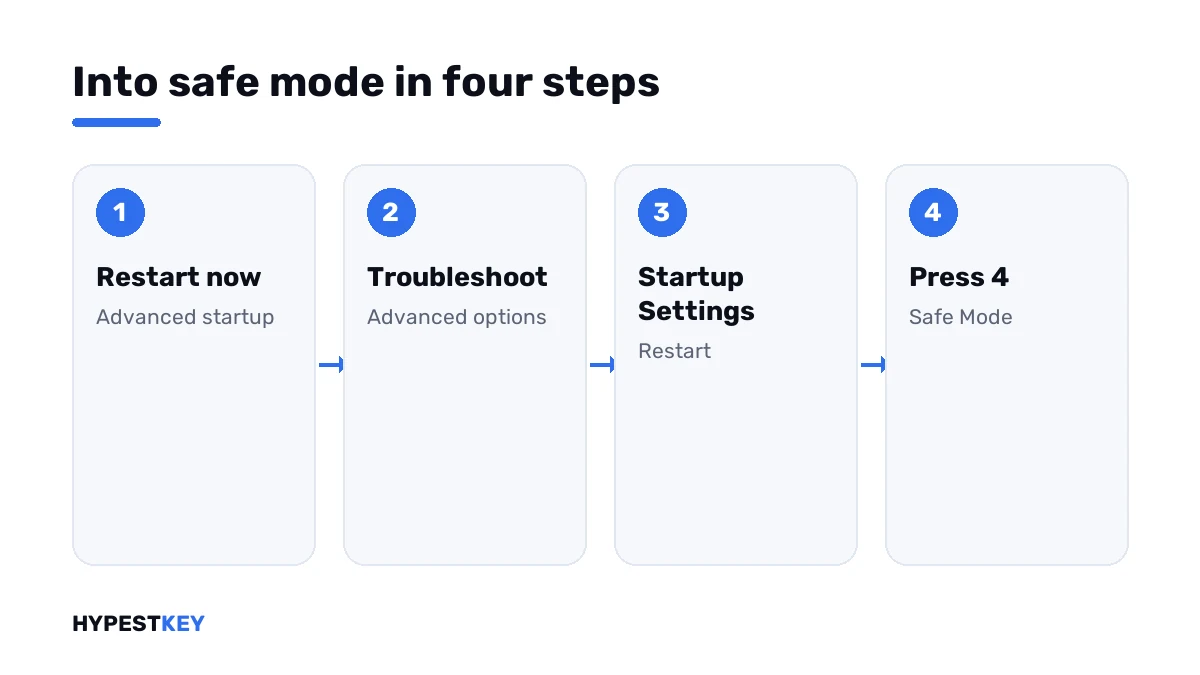
- Next to Advanced startup, select Restart now and confirm.
- On the blue screen, select Troubleshoot.
- Select Advanced options, then Startup Settings.
- Select Restart.
- When the list appears, press 4 for Safe Mode, 5 for Safe Mode with Networking or 6 for the command prompt variant.
- Sign in; the words Safe Mode stand in the corners of the screen.
On an encrypted device Windows may ask for the BitLocker recovery key on the way. Microsoft’s article says to have it ready.
Other ways in
| Situation | Route to the same blue screen |
|---|---|
| You’re at the sign-in screen | Select Power, hold Shift and select Restart |
| Windows runs, and you prefer the Start menu | Start, Power, hold Shift and select Restart |
| Windows doesn’t get as far as sign-in | After repeated failed starts Windows opens the recovery screen by itself |
| The screen stays black | Hold the power button for 10 seconds to switch off, switch on, and repeat at the first sign of Windows until recovery appears |
From the blue screen the path is always the same: Troubleshoot, Advanced options, Startup Settings, Restart, then the number.
The msconfig way
System Configuration can set safe mode for the next start without the blue screen.
| Step | Where |
|---|---|
| Press Windows + R, type msconfig, select OK | Run box |
| Open the Boot tab | System Configuration |
| Tick Safe boot | Under Boot options |
| Choose Minimal, or Network for the networking variant | Below the tick box |
| Select OK and restart | Windows starts in safe mode |
This setting stays. Windows will start in safe mode every time until the tick is removed, which leads to the most common question we get about it.
Getting out of safe mode
Normally a restart is all it takes. Microsoft’s article says restarting should be enough to return to normal mode.
If the PC keeps coming back in safe mode, the msconfig setting is on.
- Press Windows + R.
- Type msconfig and select OK.
- Open the Boot tab.
- Under Boot options, clear the Safe boot checkbox.
- Select OK and restart.
What works and what doesn’t
| Area | In safe mode |
|---|---|
| Display | Basic driver, low resolution |
| Network | Only in the networking variant |
| Startup programs | Don’t load |
| Device Manager, Settings, Control Panel | Available |
| Uninstalling programs and drivers | Available for most |
| System Restore | Available |
That last row pairs well with a restore point made earlier: see creating a restore point in Windows 11.
The other entries on that screen
| Entry | Use |
|---|---|
| Enable boot logging | Writes ntbtlog.txt with the drivers loaded at startup |
| Enable low-resolution video | Starts with the current video driver at low resolution, to reset display settings |
| Disable Driver Signature Enforcement | Lets drivers with improper signatures install |
| Disable early launch anti-malware protection | Skips the early check of boot drivers |
| Disable automatic restart on system failure | Stops a fail-and-restart loop so the error can be read |
The last three lower the guard on purpose. I’d use them for one start and for a known reason only.
If safe mode doesn’t solve it
- Reinstall Windows in place: factory reset Windows 11.
- Start from an empty disk: clean Windows 11 installation.
- Network faults in normal mode: Wi-Fi problems in Windows 11.
- The same steps on the older system: safe mode in Windows 10.
- On a server: safe mode in Windows Server 2019.
Don’t judge activation by what safe mode shows. Check the state in normal mode: check Windows activation status. If it’s truly not activated, see how to activate Windows 11.
The feature is the same on every edition: see Windows 11 editions. For a rebuilt PC, we send the Windows 11 Pro key instant to email; the others are under Windows 11 keys.
Mistakes we see most
- Pressing F8 at power-on and waiting for a menu.
- Setting Safe boot in msconfig and forgetting to clear it.
- Choosing plain Safe Mode and then needing to download a driver.
- Starting the recovery route on an encrypted laptop without the BitLocker key.
- Judging performance or activation by what safe mode shows.
Terms used on this page
| Term | Meaning |
|---|---|
| Safe mode | A start of Windows with a limited set of files and drivers |
| Recovery screen | The Windows Recovery Environment with the Troubleshoot tile |
| Startup Settings | The numbered list of start options behind Advanced options |
| msconfig | System Configuration, a tool for boot and startup options |
| BitLocker recovery key | The 48-digit key for an encrypted drive |
FAQ
How do I start Windows 11 in safe mode?
Open Settings, System, Recovery and select Restart now beside Advanced startup. Then choose Troubleshoot, Advanced options, Startup Settings, Restart. I'd press 4 for plain safe mode.
Does F8 work for safe mode in Windows 11?
Not in the way it did on old systems. The Startup Settings screen is reached through the recovery screen. We hold Shift while selecting Restart to get there.
How do I get out of safe mode?
Restart the PC. If it returns to safe mode, open msconfig, go to the Boot tab and clear Safe boot. I'd restart once more after that.
What is the difference between the three variants?
Plain Safe Mode loads the minimum. The networking variant adds network drivers and services. With the third one we get a command prompt in place of the desktop.
How do I reach safe mode if Windows won't start?
After repeated failed starts, Windows opens the recovery screen by itself. From there it's Troubleshoot, Advanced options, Startup Settings. I'd keep the BitLocker key at hand on an encrypted PC.
Can I use the internet in safe mode?
Only in Safe Mode with Networking, key 5 on the Startup Settings screen. Plain safe mode loads no network drivers. We pick the networking variant when a driver has to be downloaded.
Is safe mode different on Windows 11 Home and Pro?
No. The Startup Settings screen and its options are the same on every edition. I'd follow the same steps on both.