Short answer: The Windows 11 editions are layers of one system. Home is for private PCs. Pro adds BitLocker, Hyper-V, Remote Desktop host and domain join. Pro for Workstations raises the hardware limits, and Enterprise adds Credential Guard and lockdown. I'd check the installed edition before buying a key.
The Windows 11 editions share one core system and differ in who they’re built for. Home is for private PCs and Pro for work. Enterprise and Education serve organisations. We’d pick by the features you need and by how each one is sold.
| Edition | Built for | Sold through | Maximum memory |
|---|---|---|---|
| Home | Private PCs | Retail, PC makers | 128 GB |
| Pro | Work PCs, small and mid-sized businesses | Retail, PC makers, commercial licensing | 2 TB |
| Pro for Workstations | High-end workstations | Preinstalled on workstations, or by key | 6 TB |
| Enterprise | Large and mid-sized organisations | Commercial licensing | 6 TB |
| Education | Schools and universities | Academic licensing | 2 TB |
| Enterprise LTSC | Specialised devices that must change rarely | Commercial licensing | Not listed separately |
Memory limits are from Microsoft’s memory limits page. Sales channels follow its Windows commercial licensing overview.
Features edition by edition
| Feature | Home | Pro | Pro for Workstations | Enterprise |
|---|---|---|---|---|
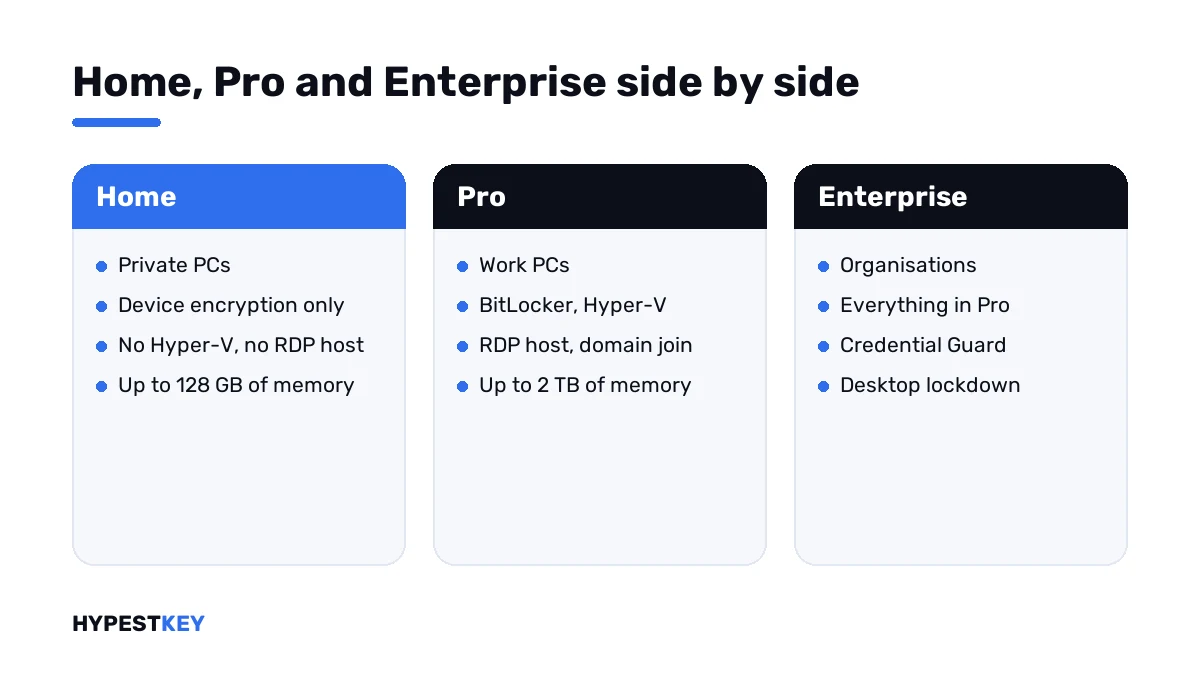
| BitLocker and BitLocker To Go | No; device encryption only | Yes | Yes | Yes |
| Hyper-V and Windows Sandbox | No | Yes | Yes | Yes |
| Remote Desktop host | No | Yes | Yes | Yes |
| Group Policy and domain join | No | Yes | Yes | Yes |
| Creating ReFS data volumes | No | No | Yes | Yes |
| SMB Direct, persistent memory | No | No | Yes | Yes |
| Credential Guard | No | No | No | Yes |
| Personal Data Encryption | No | No | No | Yes |
| Windows experience customization, for kiosks and lockdown | No | No | No | Yes |
| Physical processors | 1 | 2 | 4 | Not listed separately |
Read the table from left to right. Each edition keeps what the one before it has and adds a layer.
What every edition includes
The differences sit on top of a large common base.
| Area | In all editions |
|---|---|
| Desktop | The same Start menu, taskbar, Snap layouts and virtual desktops |
| Apps | Microsoft Store, Microsoft Edge and the same desktop programs |
| Security base | Windows Security with Microsoft Defender Antivirus, firewall, Secure Boot, TPM 2.0 support |
| Sign-in | Windows Hello with PIN, fingerprint or face on supported hardware |
| Updates | The same monthly updates through Windows Update |
| Developer storage | Dev Drive, which Microsoft offers on all editions |
So a higher edition never changes how Windows looks or which programs it runs. It changes what an administrator can do with the PC.
How Microsoft sells each one
| Channel | Editions in Microsoft’s table |
|---|---|
| Retail, as a full packaged product | Windows 11 Home, Windows 11 Pro |
| Preinstalled by the PC maker | Windows 11 Home, Windows 11 Pro |
| Commercial licensing | Windows 11 Pro, Windows 11 Enterprise, Windows 11 Enterprise LTSC |
That table explains most of what people run into. A shop PC comes with Home or Pro. Enterprise arrives later, through a company agreement or a key.
Windows 11 Home
Home runs everything a private PC needs: the same desktop, the same apps, the same updates. Games don’t run better on a higher edition.
What it leaves out is the business layer. There’s no BitLocker management, no Hyper-V, no Remote Desktop host and no domain join.
Our Windows 11 Home key covers one PC. The full comparison with the next step up is in Windows 11 Home vs Pro.
Windows 11 Pro
Microsoft describes Pro as designed for small and medium businesses. It adds device and app management, data protection and remote scenarios to Home.
In practice people buy it for four things: BitLocker, Hyper-V, incoming Remote Desktop and joining a company domain.
The Windows 11 Pro key is our most ordered Windows license. Moving up from Home is covered in upgrading to Windows 11 Pro.
Windows 11 Pro for Workstations
This one is Pro with higher hardware limits. It takes 6 TB of memory and four physical processors, and adds ReFS data volumes, SMB Direct and persistent memory.
On an ordinary desktop it behaves like Pro. We go through the cases in Windows 11 Pro for Workstations vs Pro, and the license is the Windows 11 Pro for Workstations key.
Windows 11 Enterprise
Enterprise builds on Pro. Four features need it on the PC: Credential Guard, Personal Data Encryption, Windows experience customization and organizational messages.
Microsoft sells it as the per-user subscriptions E3 and E5, through commercial licensing. Both require Windows Pro underneath as the qualifying system.
We keep a single-PC Windows 11 Enterprise key as well. What it gives and what belongs to the subscriptions is set out in Windows 11 Enterprise vs Pro.
Education and Pro Education
Schools get two editions of their own. Microsoft’s edition tables treat them as counterparts of the business pair.
| Point | Pro Education | Education |
|---|---|---|
| Credential Guard | No | Yes |
| Maximum memory | Not listed separately | 2 TB |
| Upgrade from Pro | Supported, no reboot | Supported, reboot required |
| Upgrade from Home | Supported, reboot required | Supported, reboot required |
| Licenses Microsoft names for Credential Guard | None | Education A3 and A5 |
Neither is sold to private buyers. A student usually meets them on a school device or through the institution’s agreement.
S mode
S mode isn’t an edition. It’s a locked setting in which Windows runs apps from Microsoft Store only.
For Windows 11, Microsoft offers it on Home alone. Switching out is free and goes one way: once out, the PC doesn’t return to S mode.
A PC in S mode shows it on the same About page as the edition. I’d switch out before installing anything from outside the Store.
N and KN variants
Every desktop edition also exists as N and KN. Those leave out Windows Media Player and the media technologies under it.
Webcam, Windows Hello and calls in Teams depend on that layer. Microsoft’s free Media Feature Pack puts it back.
The details, and the keys for them, are in Windows N edition.
Enterprise LTSC
LTSC stands for Long-Term Servicing Channel. Microsoft intends it for specialised devices that may change very little, because of regulation or certification.
It’s a separate product from regular Enterprise, listed under commercial licensing. For an office PC we wouldn’t choose it.
How to choose between the Windows 11 editions
Six questions, in this order.
- Is the PC private, with no need for disk encryption management or virtual machines? Take Home.
- Do you need BitLocker, Hyper-V, incoming Remote Desktop or a company domain? Take Pro.
- Does the PC have more than two processors or more than 2 TB of memory? Take Pro for Workstations.
- Do you have to protect domain credentials or lock a desktop down to one app? Take Enterprise.
- Did the PC ship with an N variant? Stay with N and buy the matching key.
- Check which edition is installed before buying a key, as described below.
| Who | Edition |
|---|---|
| Family PC, student laptop, gaming PC | Home |
| Freelancer, small office, developer | Pro |
| Video, 3D and simulation on multi-socket hardware | Pro for Workstations |
| Regulated teams, kiosks, large fleets | Enterprise |
| School-owned devices | Education, through the school |
Checking the edition you have
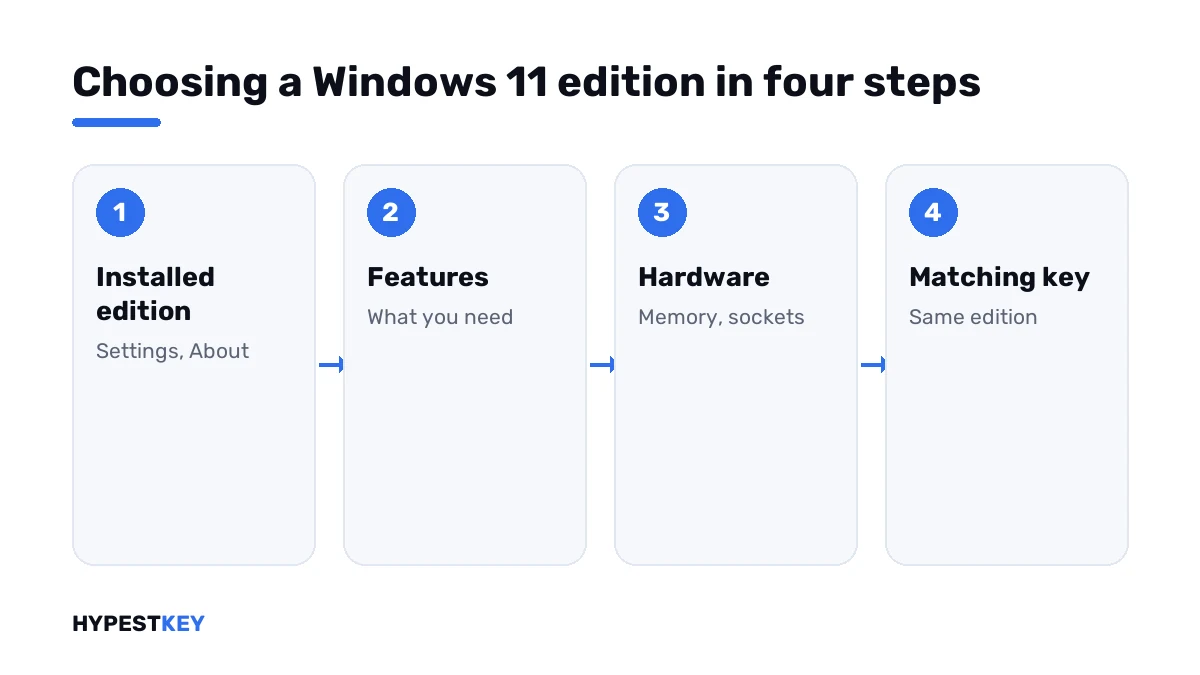
Open Settings, System, About and read the Edition line under Windows specifications. The command below shows the same.
winverA key works only for its own edition. So this check comes before any purchase, and check Windows activation status shows whether the current one is activated.
Moving between editions
Most moves up need only a product key. Microsoft’s Windows edition upgrade page lists them.
| Path | By entering a key |
|---|---|
| Home to Pro | Supported, reboot required |
| Home to Pro for Workstations | Supported, reboot required |
| Pro to Pro for Workstations | Supported, no reboot |
| Pro to Enterprise | Supported, no reboot |
| Pro to Education | Supported, reboot required |
| Home to Enterprise | Not listed; go to Pro first |
| Enterprise back to Pro | A supported downgrade path |
Going down from Pro to Home isn’t in Microsoft’s downgrade table. That takes a clean installation.
| Where people start | Where they usually go |
|---|---|
| A laptop bought with Home | Pro, with a Pro key, when work needs BitLocker or Remote Desktop |
| A company PC on Pro | Enterprise, through the company’s subscription or an Enterprise key |
| A new workstation on Pro | Pro for Workstations, when the hardware goes past Pro’s limits |
| A PC that shipped with Pro N | It stays on N; the Media Feature Pack adds what’s missing |
The key goes in under Settings, System, Activation, Change product key. The full walk-through is in how to activate Windows 11.
Hardware requirements
The minimum requirements are the same for every edition. They’re listed in our Windows 11 requirements guide.
Only the upper limits differ: memory and processor count, as in the tables above.
So a PC that runs Home will run Pro or Enterprise just as well. No edition asks for a faster processor or more disk space.
Keys for each edition
All the editions we carry are under Windows 11 keys. Each key is genuine and arrives instant to email.
How a key relates to the license stored for your PC is explained in digital license vs product key. The types of license are in retail vs OEM vs volume license.
Still on the older system? Windows 11 vs Windows 10 covers that decision.
Mistakes we see most
- Buying a Pro key for a PC that runs Home N or Pro N.
- Buying Enterprise for BitLocker, which Pro has.
- Expecting a higher edition to speed up games.
- Typing an Enterprise key into Home.
- Choosing LTSC for an ordinary office PC.
- Reinstalling Windows for a move that a key change would do.
Terms used on this page
| Term | Meaning |
|---|---|
| Edition | A variant of Windows 11 with its own feature set and keys |
| Commercial licensing | Microsoft’s licensing programs for organisations |
| E3 and E5 | The per-user Enterprise subscriptions |
| Qualifying operating system | The edition a PC must already have for an upgrade license |
| N and KN | Variants without media technologies, for Europe and Korea |
| LTSC | Long-Term Servicing Channel |
| Device encryption | The simpler disk encryption that Home offers on supported hardware |
FAQ
How many Windows 11 editions are there?
The main ones are Home, Pro, Pro for Workstations, Enterprise, Pro Education and Education. Each also exists as an N variant. We'd count Enterprise LTSC as a separate product.
Which Windows 11 edition is best for home use?
Home, for most people. It runs the same apps and games as the higher editions. I'd take Pro only for BitLocker, Hyper-V or incoming Remote Desktop.
What is the difference between Windows 11 Home and Pro?
Pro adds the business layer: BitLocker, Hyper-V, Windows Sandbox, Remote Desktop host, Group Policy and domain join. Home stops at 128 GB of memory, Pro at 2 TB. We compare them in detail on a separate page.
Which Windows 11 edition is best for gaming?
Home is enough. Games use the same core system on every edition. I wouldn't expect more frames from Pro or Enterprise.
Can I change the edition without reinstalling?
Upwards, usually yes. Microsoft lists Home to Pro and Pro to Enterprise as supported by entering a product key. Going from Pro down to Home isn't listed, so I'd plan a clean installation for that.
Is Windows 11 Enterprise sold to individuals?
Microsoft sells it through commercial licensing, as per-user subscriptions on top of Pro. We offer a single-PC Enterprise key for those who need the edition itself.
What is Windows 11 Education?
The edition for schools and universities, licensed through academic programs. Microsoft's tables give it Credential Guard, like Enterprise. I'd expect to get it from the institution, not from a shop.
Do all editions have the same hardware requirements?
Yes, the minimum requirements don't depend on the edition. The upper limits do: memory and the number of processors. We list them in the tables above.