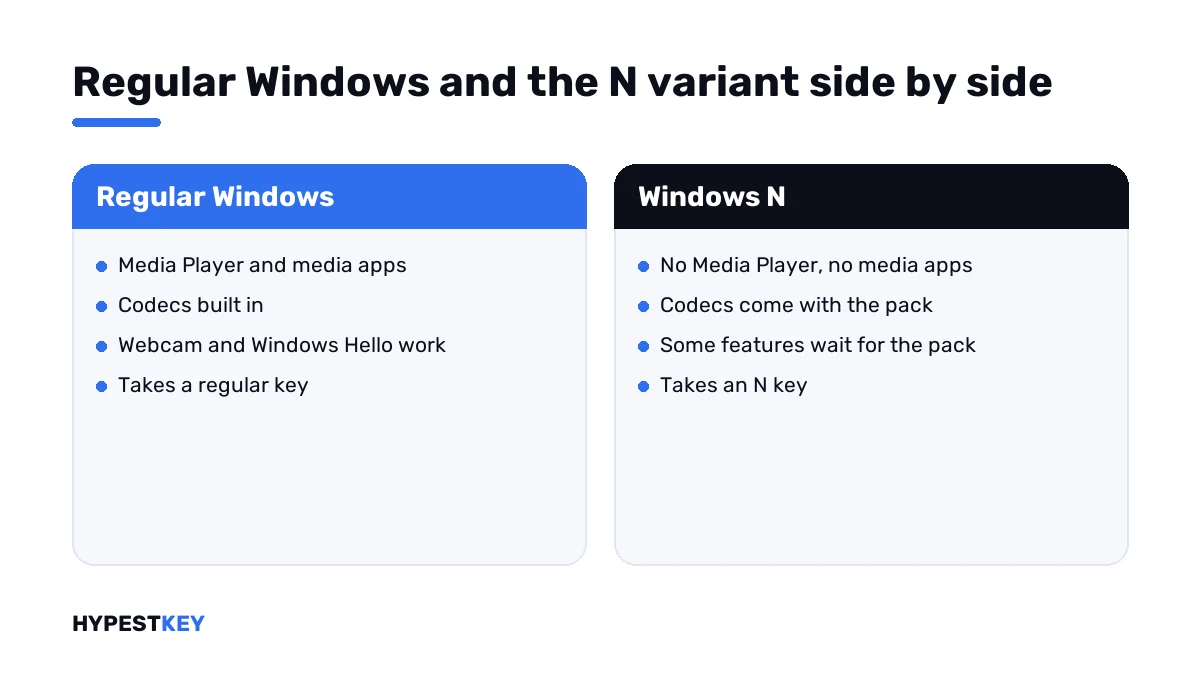
Short answer: A Windows N edition leaves out Windows Media Player, the codecs and a few media apps. Webcam, Windows Hello and Teams calls then stop working. We bring them back with the free Media Feature Pack. It takes its own N key. I'd pick the regular Windows for a home PC.
A Windows N edition has the same functions as the regular one, minus the media technologies. Windows Media Player is out. So are the codecs and a few apps. We’d know what depends on them before choosing it.
| Question | Short answer |
|---|---|
| What’s missing? | Windows Media Player, the media technologies under it and some preinstalled media apps |
| What else is affected? | Webcam, Windows Hello, voice typing, calls in Teams and more |
| Can it be put back? | Yes, with Microsoft’s free Media Feature Pack |
| Which key does it take? | A key for that N variant |
| Where is it offered? | In Europe; KN is the Korean counterpart |
The lists on this page follow Microsoft’s support article Media Feature Pack for Windows N.
Why it exists
The N variants go back to a European Commission decision on media software bundled with Windows. Microsoft has offered Windows without its media player in Europe ever since.
Nothing else was taken out. Microsoft says the N variants include the same functionality as the others, except for media-related technologies.
What Microsoft leaves out
| Excluded | What it’s for |
|---|---|
| Windows Media Player application | Plays media and audio CDs, manages libraries and playlists |
| Windows Media Player Runtime | Lets webpages and apps control playback |
| Windows Media Format | The ASF container, Windows Media codecs, basic streaming |
| Windows Media DRM | Playback of protected content |
| Media sharing and Play To | Sharing music, pictures and videos across a network |
| Media Foundation | Content protection and media quality support |
| Windows Portable Devices infrastructure | Talking to media and storage devices, MTP devices included |
| Audio codecs | MPEG, WMA, AAC, FLAC, ALAC, AMR and Dolby Digital |
| Video codecs | VC-1, MPEG-4, H.264, H.265 and H.263 |
| Groove Music | Music playback |
| Movies & TV | Video playback |
| Windows Voice Recorder | Sound recording |
| Skype | Messaging and calls |
The codecs matter more than the apps. Plenty of other programs lean on them.
What stops working without them
These features aren’t removed. They depend on the missing media layer, and Microsoft lists them as affected until the pack is installed.
| Feature | Effect |
|---|---|
| Webcam | Doesn’t work |
| Windows Hello | Doesn’t work |
| Microsoft Teams | Audio and video calling don’t work |
| Voice typing | Doesn’t work |
| Live captions | Don’t work |
| Narrator | Voice navigation doesn’t work |
| Wireless Display | Doesn’t work |
| Microsoft Edge | Some video streaming sites work incompletely |
| OneDrive and Photos | Can’t play videos |
| Microsoft Store media | Audio and video from the Store can’t be played; previews don’t work |
| Alarms and clock | Alarm and timer sounds don’t play |
| Sound Recorder | Recordings are limited to WAV |
| Windows Portable Devices | No media sync, image acquisition or file browsing |
| Camera devices on Windows 10 | PTP cameras don’t work |
| Xbox | Some functions, Game DVR among them, don’t work |
| Windows Mixed Reality | Not compatible with Windows 10 N |
| Application Sync | Doesn’t work |
| Cortana | Voice interaction doesn’t work |
| Group Policy for removable disks | Not available in Windows 10 Pro N |
| PDF viewing in Microsoft Edge | Fails in the old Edge only; the Chromium-based Edge works without the pack |
For a laptop the first three rows decide it. No camera, no face sign-in and no calls in Teams, until the pack is in.
What works without the pack
Everything that isn’t media. The business tools of Pro are all in Pro N.
| Area | On an N installation |
|---|---|
| BitLocker, Hyper-V, Remote Desktop host | Same as the regular Pro |
| Group Policy, domain join | Same as the regular Pro |
| Office, browsers, line-of-business apps | Work as usual |
| Windows Update | Works as usual |
| Players that bring their own codecs | Play files without the pack |
That last row explains why some owners never notice. A player such as VLC carries its own codecs. Features built on the media layer of Windows still wait for the pack, though.
How to tell whether you have a Windows N edition
The letter is easy to overlook. It sits at the end of the name.
- Open Settings.
- Go to System, then About.
- Find Windows specifications.
- Read the Edition line: a name such as Windows 11 Pro N ends in N.
- Or press Windows + R, type
winverand read the name in the window that opens.
A command gives the same answer:
systeminfo | findstr /B /C:"OS Name"More ways to read edition and license details are in check Windows activation status and in our slmgr commands reference.
Adding the Media Feature Pack
The pack is free and installs from Settings. Microsoft offers it as an optional feature.
| System | Path |
|---|---|
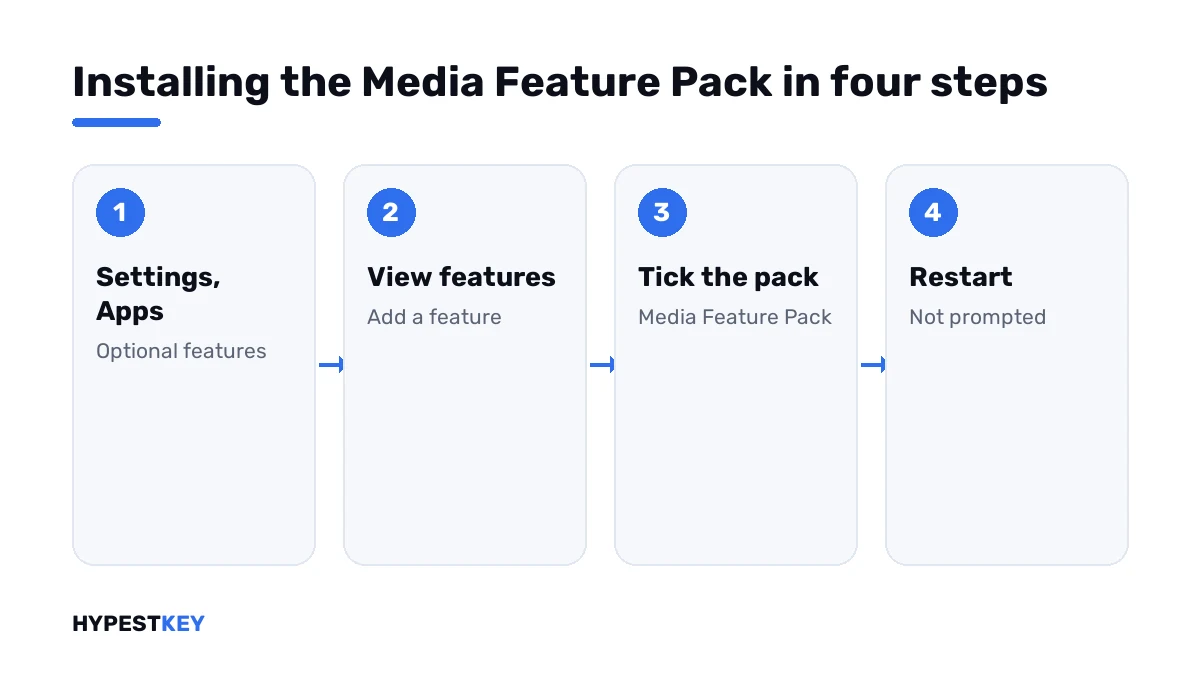
| Windows 11 N | Settings, Apps, Optional features; View features next to Add an optional feature; select Media Feature Pack |
| Windows 10 N | Settings, Apps, Apps and features, Optional features, Add a feature; find Media Feature Pack |
One trap. Windows doesn’t prompt for a restart, and the installation finishes only after one.
Microsoft adds a note about hardware. Some features need their drivers reinstalled after the pack is installed.
On Windows 10 the same holds from version 1909 on: the pack comes as an optional feature only.
Installing the pack from a command line
Administrators who image many PCs add the pack with DISM. I’d list the capabilities first and copy the exact name from the output.
DISM /Online /Get-Capabilities | findstr /i media
DISM /Online /Add-Capability /CapabilityName:Media.MediaFeaturePack~~~~0.0.1.0
Run both lines in a Command Prompt opened as administrator, then restart. The PC needs an internet connection or a local source for the files.
Pack missing from the list in Settings? Check the name of the installed Windows first. The pack is offered on N installations only.
What to add after the pack
The pack restores the technologies. Several apps and codecs still come separately, from Microsoft Store.
| From Microsoft Store | Kind |
|---|---|
| VP9 Video Extensions | Codec |
| Web Media Extensions | Codec |
| HEIF Image Extensions | Codec |
| Movies & TV | App |
| Groove Music | App |
| Windows Voice Recorder | App |
| Xbox Game Bar | App |
| Skype | App |
With the pack and these in place, an N machine handles media like a regular one. I’d still test the webcam and Windows Hello before handing the PC over.
N, KN and the regular one
| Variant | Offered for | Media technologies |
|---|---|---|
| Regular | Everywhere | Included |
| N | Europe | Removed; added by the Media Feature Pack |
| KN | Korea | Removed |
Microsoft’s upgrade documentation says each desktop variant has an N and a KN version. Home, Pro, Enterprise and Education all come that way.
Which key activates it
An N installation takes its own key. A regular Pro key doesn’t activate Pro N, and we hear about that after reinstalls most of all.
Upgrades stay inside the family. Microsoft’s Windows edition upgrade page says N devices move to the corresponding N variant by the same methods. So Home N goes to Pro N with a Pro N key.
For the current system we keep a Windows 11 Pro N key. Its Home counterpart is the Windows 11 Home N key. The earlier system has two as well: the Windows 10 Pro N key and the Windows 10 Home N key. All are genuine and arrive instant to email.
Not sure what the PC has now? Start with finding your Windows product key. Activation itself is in how to activate Windows 11.
Should you choose it
| Situation | Our pick |
|---|---|
| A home PC or laptop | Regular |
| A PC that shipped with N and needs a key | The matching N key, plus the pack |
| Lab, kiosk or measurement PCs that never play media | N is fine |
| One clean office image, media added only where needed | N is fine |
| A laptop for video calls | Regular |
What the regular variants offer is compared in Windows 11 Home vs Pro. All of them are under Windows 11 keys.
Moving to the regular Windows
Microsoft’s upgrade table has no path from N to the regular variant. A key change won’t do it.
| Goal | Way |
|---|---|
| Media functions on the N installation | Install the Media Feature Pack and the Store items |
| The regular variant itself | A clean installation from regular media, with a regular key |
For the second way we have three guides. Start with the Windows 11 Media Creation Tool. Then install Windows 11 from USB, as a clean Windows 11 installation.
Mistakes we see most
- Buying a regular key for a PC that runs N.
- Installing the pack and skipping the restart.
- Blaming the webcam driver when the media layer is missing.
- Expecting the pack to bring back every Store app by itself.
- Picking N for a family laptop because the name looked the same.
Terms used on this page
| Term | Meaning |
|---|---|
| N | The variant of Windows without media technologies, offered in Europe |
| KN | The same idea for Korea |
| Media Feature Pack | Microsoft’s free optional feature that restores the media technologies |
| Media Foundation | The Windows framework for audio and video |
| Codec | Software that encodes and decodes an audio or video format |
| Optional features | The Settings page where Windows components are added |
FAQ
What is a Windows N edition?
Windows with the media technologies left out. Windows Media Player, the codecs and some preinstalled media apps aren't included. Everything else matches the regular Windows, as I read Microsoft's support article.
What does the N stand for?
Microsoft's article doesn't spell the letter out. The variant is offered in Europe and goes back to a European Commission decision on bundled media software. I'd read it simply as "no media player".
What doesn't work on Windows N?
Microsoft lists webcam, Windows Hello, voice typing, live captions and Wireless Display, among others. Audio and video calling in Teams is on the list too. We install the Media Feature Pack to bring them back.
How do I install the Media Feature Pack on Windows 11 N?
Open Settings, Apps, Optional features. Select View features next to Add an optional feature, then choose Media Feature Pack. I'd restart afterwards, because Windows doesn't prompt for it.
Is the Media Feature Pack free?
Yes. Microsoft offers it as an optional feature inside Settings. We'd also add the codecs and apps from Microsoft Store that its article lists.
Can I activate Windows 11 Pro N with a regular Pro key?
No. Pro N takes a Pro N key. We see this most after a reinstall on a PC that shipped with the N variant.
Can I switch from N to regular Windows without reinstalling?
Microsoft's upgrade table has no such path. N devices move to the corresponding N variant only. For the regular Windows I'd plan a clean installation with a regular key.
Is Windows N faster or lighter?
It has fewer preinstalled apps and no media layer. I know of no Microsoft page that claims a speed gain. We'd choose it for media-free work PCs, not for performance.