Short answer: To activate Windows 11, open Settings, then System, then Activation. Press Change next to Change product key and type the 25 characters. No key because the PC has a digital license? Sign in with your Microsoft account and it activates by itself once it's online.
Short version of how to activate Windows 11: Settings, System, Activation, then Change product key. Type the 25 characters and you’re done. A PC that already carries a digital license doesn’t even need that. It activates by itself the first time it goes online.
Real life is messier. A new motherboard, a wrong edition, a key that won’t take. So I’ll go through both routes, the commands, and the error codes we see most in chat.
| Your situation | What to do |
|---|---|
| You have a 25-character key | Settings, System, Activation, Change product key |
| The PC came with Windows 11 | Go online; the digital license activates it |
| You bought the upgrade in the Microsoft Store | Sign in with the same Microsoft account |
| You changed the motherboard | Activation troubleshooter, the hardware change option |
| No internet on that PC | Installation ID and the Product Activation Portal |
| An error code shows | Find the code in the table further down |
How to activate Windows 11 with a product key
Two minutes, if the key matches the edition. You need an administrator account and an internet connection.
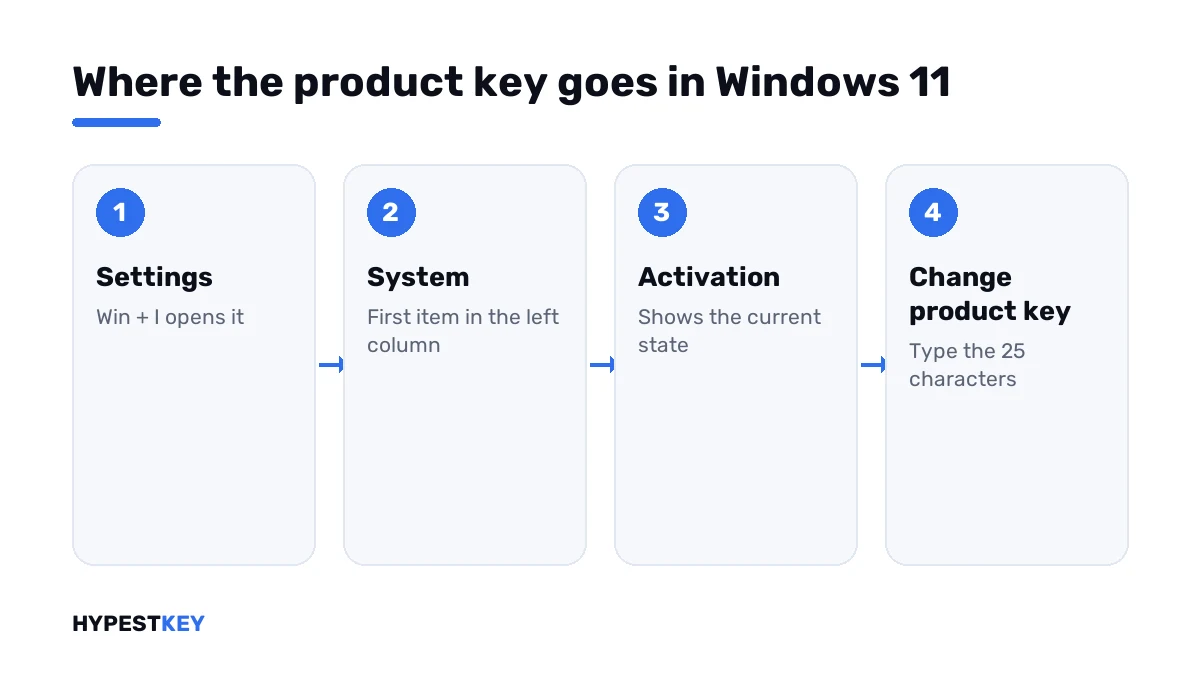
- Open Settings. Win + I is the quick way.
- Go to System, then Activation.
- Find the line Change product key and press Change.
- Type the 25 characters. The dashes fill in by themselves.
- Press Next, then Activate.
- Wait for the line “Windows is activated”. It usually shows within a minute.
Prefer a shortcut? Press Win + R and paste this. It opens the Activation page directly.
ms-settings:activationOne thing before you type. The key has to match the edition that’s installed. A Pro key on a Home install switches the PC to Pro after a restart. A Home key on a Pro install won’t activate it. Not sure which edition you have? Settings, System, About, and read the Edition line.
Product key or digital license
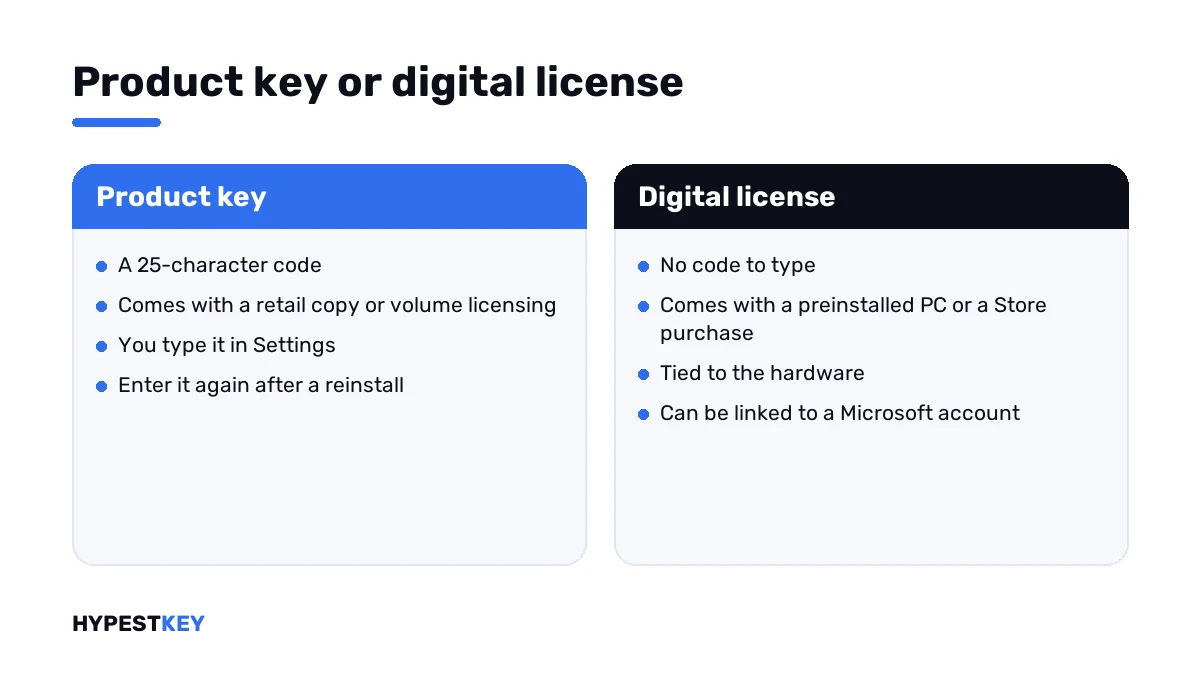
Two ways a PC proves it’s paid for. Microsoft’s wording, shortened: a product key is the 25-character code, and a digital license activates the PC without one.
| Product key | Digital license | |
|---|---|---|
| What it is | A 25-character code | A license associated with your hardware, with no code to enter |
| You get it with | A boxed or digital retail copy, a new or refurbished PC, volume licensing | A free upgrade from an eligible device, a Microsoft Store purchase |
| What you type | The key | Nothing |
| After a reinstall | Enter the key again | Skip the key; the PC activates once it’s online |
| Microsoft account | Not involved | Can be linked, which helps after a hardware change |
Which one do you have? The Activation page tells you. Open it and read the exact wording of the status line.
| The line says | In plain words |
|---|---|
| Windows is activated | Activated. No Microsoft account linked |
| Windows is activated with a digital license | Activated by a digital license, account not linked |
| Windows is activated with a digital license linked to your Microsoft account | Activated, and your account can bring the license back after a hardware change |
| Windows is not activated | Nothing valid yet; an error code usually sits below |
Microsoft Helps has a short video on licenses and activation. Under three minutes, and worth it before a reinstall.
Linking the license to your Microsoft account
Do this before you ever swap a motherboard. It takes a minute, and it’s the step people wish they’d done.
- Sign in to the PC as an administrator.
- Settings, Accounts, Your info. The administrator account has to be a Microsoft one.
- Go back to Settings, System, Activation.
- Press Add an account and sign in.
The status line then ends with “linked to your Microsoft account”. That’s the one you want to see.
Entering the key during a clean install
Setup asks for the key early. Two choices on that screen.
| On the setup screen | What happens |
|---|---|
| You type the key | Setup installs the matching edition, and the PC activates once it’s online |
| You press I don’t have a product key | You pick the edition yourself, finish the install and enter the key later in Settings |
Reinstalling on a PC with a digital license? Skip the key and pick the same edition as before. Pick the wrong one and it won’t activate. Our Windows 11 new PC setup guide walks through the whole install.
The Activation troubleshooter
It only shows up when the PC isn’t activated. You’ll find it on the Activation page, under Troubleshoot, and you need an administrator account to run it.
| It handles | What it does |
|---|---|
| A Pro license on a Home install | Offers the upgrade to Pro |
| A Home license on a Pro install | Offers to install Home |
| A digital license that hasn’t activated yet | Tries the activation again |
| A hardware change | Lets you pick this PC from your Microsoft account |
The hardware one matters most. After a new motherboard it goes like this:
- Choose “I changed hardware on this device recently”.
- Sign in with the linked Microsoft account.
- Tick “This is the device I’m using right now”.
- Press Activate.
It needs the same account and the same edition as before. Moving the license to a different computer is another job, covered in how to transfer a Windows license to a new PC.
Commands that do the same job
For a PC with a broken Settings app. Or for twenty PCs. Open Terminal or Command Prompt as administrator first.
Three lines. The first installs the key, the second activates online, the third shows what you’ve got.
slmgr /ipk XXXXX-XXXXX-XXXXX-XXXXX-XXXXX
slmgr /ato
slmgr /dli| Command | What it does | Administrator window |
|---|---|---|
| slmgr /ipk | Installs a key and silently replaces the one that’s there | Needed |
| slmgr /ato | Attempts online activation | Needed |
| slmgr /dli | Shows basic license information: edition, channel, last five characters of the key, status | Not needed |
| slmgr /dlv | Shows detailed license information | Not needed |
| slmgr /xpr | Shows the activation expiration date; mostly useful for KMS clients, because retail and MAK activation is perpetual | Not needed |
A healthy retail install answers the last command with License Status: Licensed and a RETAIL channel line. Anything else, and I’d read the error code before trying again.
No internet on that PC
Phone activation has changed. The PC may still show a phone number, and Microsoft now says not to call it. The Product Activation Portal replaced the call.
- On the offline PC, open Settings, System, Activation and choose Automated Help. Recent Windows 11 builds show the Installation ID there.
- On any device with internet, open the Product Activation Portal and sign in.
- Choose Activate a Microsoft Product, then Windows, then Windows 11.
- Type the Installation ID. The portal returns a Confirmation ID.
- Back on the PC, choose Enter Confirmation ID and type it in.
No Automated Help button on your build? Then the Installation ID comes from one command, and the Confirmation ID goes in with a second.
slmgr /dti
slmgr /atp CONFIRMATION-ID
The old phone activation window may not open at all on current builds. Microsoft points to Automated Help or the commands.
What an unactivated PC looks like
Windows 11 keeps running without activation. Microsoft’s license terms mention reminders to obtain a proper license, and some updates and services may be offered only to genuine installs.
What we see on unactivated PCs in practice: the watermark in the corner, and Personalization settings greyed out. No wallpaper change, no colours, no themes. The watermark guide covers that corner of the screen.
Error codes after you press Activate
| Code | Microsoft’s meaning, shortened | Full fix |
|---|---|---|
| 0xC004F213 | No product key was found on the device; typical after a motherboard replacement | 0xC004F213 guide |
| 0xC004C003 | The key was marked invalid | 0xC004C003 guide |
| 0x803F7001 | No valid license found | 0x803F7001 guide |
| 0xC004F050 | The key can’t be used to activate this install | 0xC004F050 guide |
| 0xC004C008 | The key has already been used on another device | 0xC004C008 guide |
| 0xC004F034 | Invalid key, or a key for a different version | 0xC004F034 guide |
Something else on screen? The Windows 11 activation errors list has every code we’ve written up.
Mistakes we see most
| Mistake | Better |
|---|---|
| A Home key typed into a Pro install | Read the Edition line first |
| Mixing up B and 8, or G and 6 | Copy and paste the key from the email |
| Swapping the motherboard before linking the account | Add the Microsoft account on the Activation page first |
| Calling the phone number on screen | Use the Product Activation Portal |
| Running “activator” scripts from search results | Don’t. They bypass activation, and the license terms forbid that |
That last one fills the search results for this topic. A script that fakes activation leaves you with an unlicensed PC and somebody else’s code running as administrator. I’d rather pay for a key.
Need a key first
Need a key that actually sticks? Ours is Windows 11 Pro, emailed the second you pay. There’s Windows 11 Home too, if Pro is more than you need.
Not sure which? Windows 11 Home vs Pro compares the two. We’re a trusted reseller with genuine keys, and every one activates on Microsoft’s own servers. The other editions sit in the Windows 11 keys section.
Where these steps apply
Windows 11 Home and Pro, current builds. The names of the buttons come from Microsoft’s support pages as they read in November 2026. Still on the older system? The path differs there, and our Windows 10 activation guide has it.
Sources I checked the steps against:
- Microsoft Support: Activate Windows
- Microsoft Support: Using the Windows Activation troubleshooter
- Microsoft Learn: Slmgr.vbs options
Words on this page
| Word | Short explanation |
|---|---|
| Product key | The 25-character code that activates the system |
| Digital license | Activation without a key, associated with your hardware |
| Edition | Home, Pro and so on; the key has to match it |
| Installation ID | The number the PC shows for offline activation |
| Confirmation ID | The number the Product Activation Portal gives back |
| KMS and MAK | Volume activation methods used by organizations |
FAQ
Can I activate Windows 11 without a product key?
Yes, if the PC has a digital license. Go online and it activates by itself. No license at all? Then you need a key.
Will a Windows 10 key activate Windows 11?
Microsoft's pages don't promise it. Plenty of guides report that it works for the matching edition. I wouldn't count on it for a new purchase.
What happens if I never activate it?
Windows keeps running. You get the watermark, reminders, and locked Personalization settings. Microsoft's terms also say some updates and services may go only to genuine installs.
How do I check that it's activated?
Settings, System, Activation. The line should read "Windows is activated", with or without the digital license wording.
I changed the motherboard and it deactivated. Now what?
Run the Activation troubleshooter and choose the hardware change option. It works when the digital license was linked to your Microsoft account. With a retail key, type the key again.
Can I activate Windows 11 with CMD?
Yes. One command installs the key, a second one activates online. Both are in the commands section, and both need an administrator window.
Where do I find my product key?
In the order email if you bought a digital copy. On the box or card for a boxed copy. A PC that shipped with Windows 11 keeps its key in the firmware, and Windows reads it by itself.