Short answer: To activate Windows by phone today, get the installation ID on the PC under Settings, System, Activation. Then I'd enter it on Microsoft's Product Activation Portal from another device and type the confirmation ID back into the PC. Microsoft says not to call the number that may be shown.
You can still activate Windows by phone, but the “phone” part has changed. The PC gives you a long number. A web portal turns it into a second one. No call is needed.
| Step | Where |
|---|---|
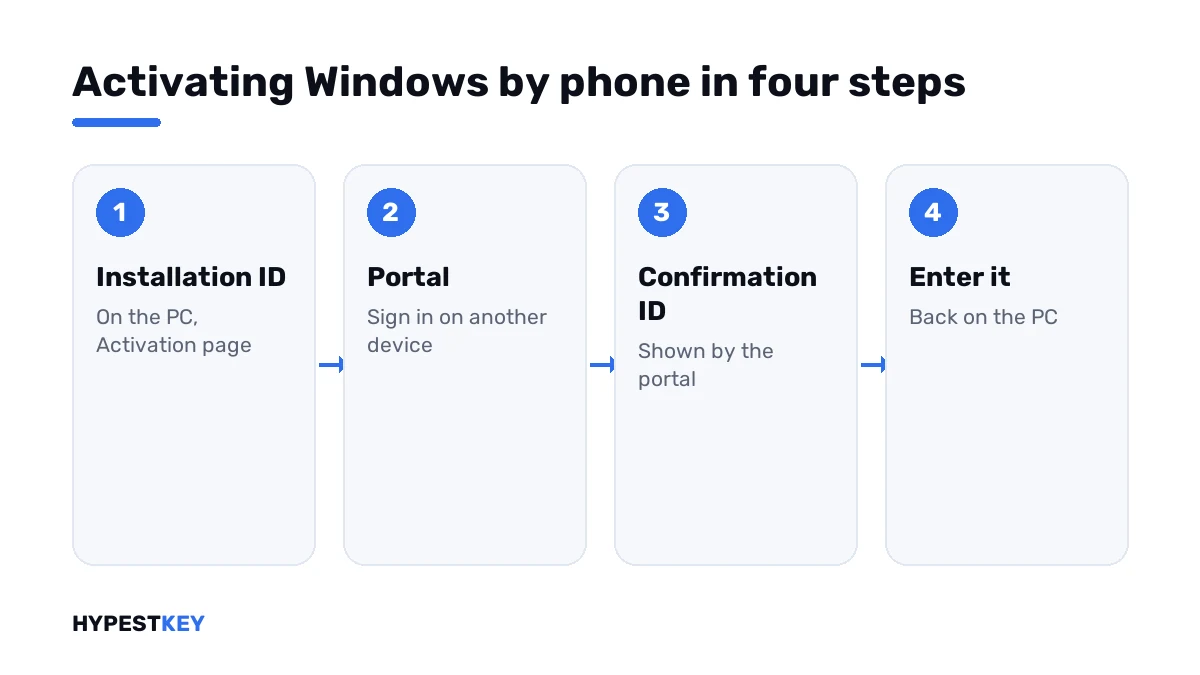
| Get the installation ID | On the PC that needs activating |
| Turn it into a confirmation ID | On Microsoft’s Product Activation Portal, from any device that’s online |
| Enter the confirmation ID | Back on the PC |
It’s the route for PCs without internet, and for valid keys that online activation turns down after a hardware change.
What changed
Microsoft’s page Activate Windows: online activation, or offline activation using your Installation ID and Confirmation ID describes the current way.
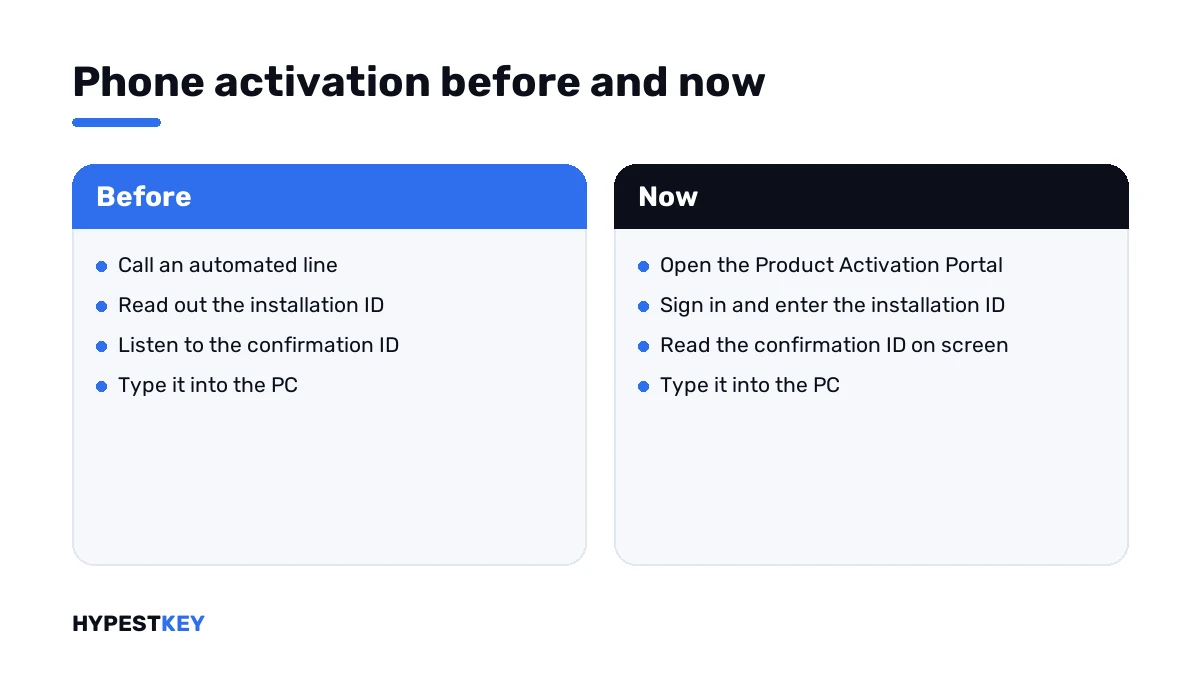
The old way meant calling an automated line and reading numbers out digit by digit. The new way keeps the two numbers and drops the call.
Windows may still show a telephone number on the activation screen. Microsoft’s page is blunt about it: don’t call the number, use the portal.
| Before | Now | |
|---|---|---|
| Installation ID | Shown on the PC | Shown on the PC |
| Confirmation ID | Read out by an automated phone line | Shown on the Product Activation Portal after sign-in |
| What you need besides the PC | A phone | Any device with a browser and a Microsoft account |
When to use it
| Situation | Why this route |
|---|---|
| The PC has no internet connection | The PC itself never goes online; another device does the web part |
| A firewall you can’t change blocks activation | Same reason |
| New motherboard, valid retail key, online activation refused | Microsoft names this route for substantial hardware changes |
| The key is counted as used after a reinstall | The offline route can confirm it for the same owner |
It doesn’t rescue a blocked key or a key that someone else is using. Those get a refusal on the portal too.
How to activate Windows by phone
You need the PC, the product key already entered on it, and a second device that’s online.
- On the PC, open Settings, System, Activation.
- Choose Automated Help on the newest Windows 11 versions, or Activate by Phone on earlier ones and on Windows 10.
- Pick your country or region and press Next; the installation ID appears, a long number in groups.
- On the second device, open Microsoft’s Product Activation Portal and sign in with a Microsoft account.
- Choose Activate a Microsoft Product, then Windows, and type in the installation ID.
- Write down the confirmation ID the portal shows.
- Back on the PC, press Enter Confirmation ID, type it in and press Activate Windows.
On Windows 10 the Activation page sits under Settings, Update & Security.
No such option on the Activation page? Microsoft’s page allows for that and points to the script lines in the next section. Make sure the key is entered first, under Change product key.
The command line way
Microsoft gives two more ways to reach the same screen, both from an administrator Command Prompt.
slui 4
slmgr /dti
slmgr /atp CONFIRMATION-ID
slmgr /xpr| Line | What it does |
|---|---|
slui 4 |
Opens the activation window with the country list and the installation ID |
slmgr /dti |
Shows the installation ID as plain text |
slmgr /atp |
Activates with the confirmation ID typed after it |
slmgr /xpr |
Shows whether the machine is activated |
The first line has a catch. Microsoft notes that on the newest Windows 11 builds it may no longer open the expected window. The two script lines work without it.
Type the confirmation ID after the third line. Then check the result with the last one.
Editions that can’t
Two editions are shut out. Microsoft’s activation errors page says so in a note that’s easy to miss.
| Edition | Phone activation |
|---|---|
| Windows Home and Pro | Yes |
| Windows Pro Education | No; over the internet only |
| Windows Pro for Workstations | No; over the internet only |
| Volume editions at work | Handled by IT, with Microsoft’s licensing activation centers |
A PC with one of the two excluded editions needs a connection at least once.
If the portal says no
A confirmation ID isn’t guaranteed. The portal checks the same things the online servers do.
| What you’re told | What it comes down to |
|---|---|
| The installation ID isn’t valid | A typo; the number is long, so check it group by group |
| The key is blocked | See 0xC004C003 |
| The key is in use on another device | See 0xC004C770 |
| The key doesn’t fit the edition | See 0xC004F210 |
For a key that’s yours and valid, the next stop is Microsoft support. For a key that was sold twice, it’s the seller.
Starting over with a clean key? Ours are genuine and arrive instant to email: Windows 11 Pro and Windows 10 Pro.
Online first, if you can
The offline route takes ten minutes and two devices. Online activation takes seconds, so I’d rule out the easy fixes first.
- A wrong clock: 0x80072F8F.
- No connection or a firewall: 0xC004FC03.
- A hotspot from your phone gets most PCs online long enough.
The normal steps are in how to activate Windows 11 and in the Windows 10 activation guide. After a new motherboard, read 0xC004F211 first. Every code is in our list of Windows 11 activation errors.
Where these steps apply
| System | Notes |
|---|---|
| Windows 11, newest versions | The option is called Automated Help |
| Windows 11, earlier versions | Activate by Phone |
| Windows 10 | Activate by Phone, under Update & Security |
| Windows Server | The script lines; see our Windows Server 2022 activation guide |
Mistakes we see most
- Calling the number on the screen.
- Looking for the option before a key is entered.
- Mistyping one group of the installation ID.
- Expecting the route to free a blocked key.
- Trying it on Pro for Workstations.
- Giving the installation ID to a “support” site that isn’t Microsoft’s.
Terms used on this page
| Term | Meaning |
|---|---|
| Installation ID | A long number the PC creates from its key and its hardware |
| Confirmation ID | The number Microsoft returns for that installation ID |
| Product Activation Portal | Microsoft’s website for offline activation |
| Offline activation | Activation in which the PC itself never goes online |
| Automated Help | The name of the option on the newest Windows 11 versions |
FAQ
Can I still activate Windows by phone?
Yes, in a changed form. The PC still shows an installation ID. Microsoft now returns the confirmation ID through its Product Activation Portal, and its page says not to call the number on screen.
How do I activate Windows by phone step by step?
Open Settings, System, Activation and choose Automated Help or Activate by Phone. Note the installation ID, enter it on Microsoft's Product Activation Portal and type the confirmation ID into the PC.
Do I need internet for phone activation?
Not on the PC being activated. A second device has to be online for the portal, and a phone will do. That's why we use this route for PCs that can't get a connection.
What is the installation ID?
A long number the PC builds from its product key and its hardware. It appears after you choose the offline option on the Activation page. I'd copy it group by group, because one wrong digit spoils it.
Why is there no Activate by Phone option on my PC?
On the newest Windows 11 versions it's named Automated Help. If neither shows, Microsoft's page gives the script lines of slmgr as the fallback. Two editions don't offer the route at all.
Which editions can't be activated by phone?
Windows Pro Education and Windows Pro for Workstations. Microsoft's activation errors page says both must activate over the internet. Home and Pro can use the offline route.
Does phone activation work with a blocked key?
No. The portal checks the key like the online servers do. A blocked or overused key is refused there as well. I'd go back to the seller in that case.