Short answer: Unmountable boot volume is stop code 0x000000ED: Windows couldn't mount the partition it starts from. Open the recovery environment and run Startup Repair. Then we'd run chkdsk on the Windows drive and the bootrec commands. Check cables and storage mode first. If nothing helps, save your files, because the drive may be failing.
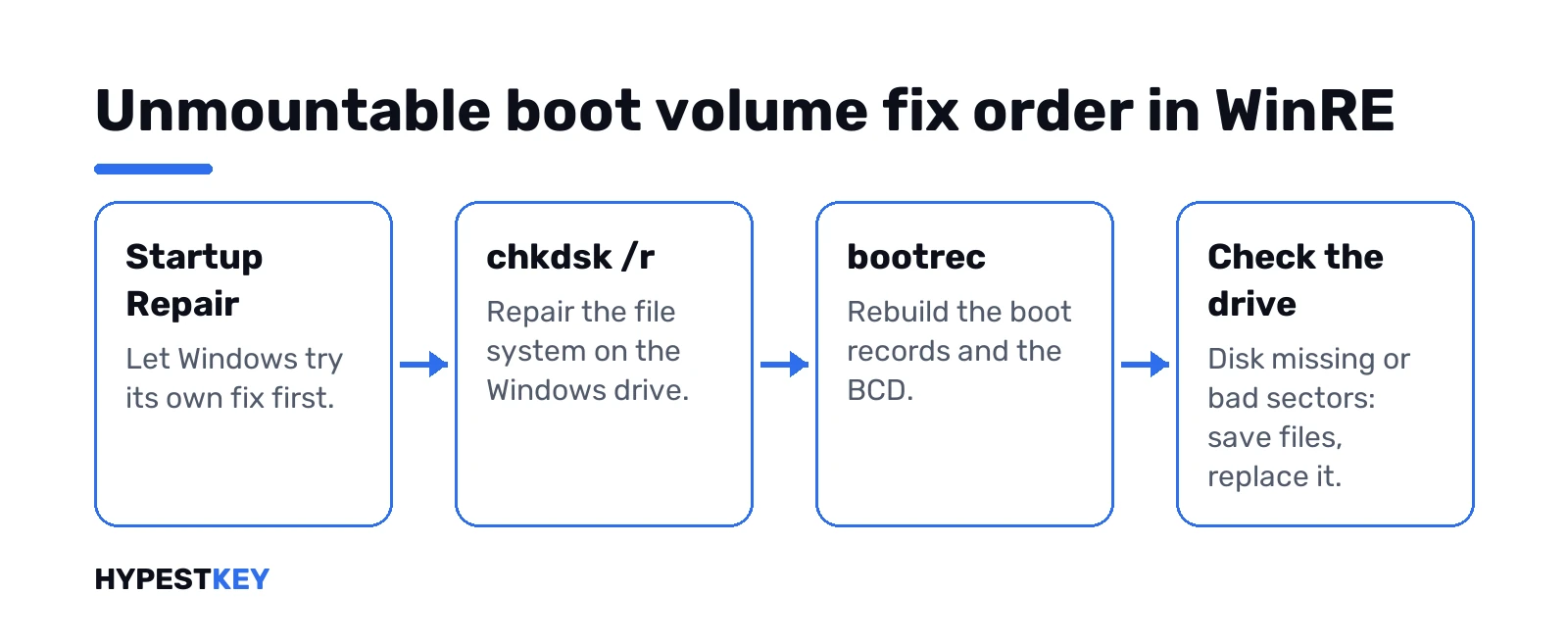
Unmountable boot volume is the blue screen stop code 0x000000ED: Windows tried to mount the drive it starts from and failed. Usual causes? File system damage, broken boot records, a failing drive. We’d fix it from the recovery environment, in this order, before any reinstall.
- Undo recent hardware and firmware changes: new drive, cables, storage mode.
- Run Startup Repair from Troubleshoot, Advanced options.
- Repair the file system with chkdsk from Command Prompt.
- Rebuild the boot records and the BCD with bootrec.
- Check in diskpart that the Windows disk shows up at all.
- After an update: revert pending actions with DISM.
- Run System File Checker offline.
- Copy your files off, then test or replace the drive.
What the unmountable boot volume stop code says
The screen reads “Your device ran into a problem and needs to restart”, with UNMOUNTABLE_BOOT_VOLUME as the stop code. Old Windows versions? STOP 0x000000ED and a wall of text. Same meaning.
Microsoft’s bug check page puts it in one line. The I/O subsystem attempted to mount the boot volume and it failed. The boot volume is the partition Windows lives on, usually C:. So the problem is the file system or the drive under it.
The second parameter of the bug check holds the file system status code that explains why. Useful for a developer with a crash dump. For everyone else the fix list below is the same either way.
Restarts so fast you can’t read anything? After two failed starts Windows opens the recovery environment by itself. From there you can turn off automatic restart, covered further down.
Why the boot volume won’t mount
The 0xED bug check reference ties it to the boot storage device itself, typically the hard drive or SSD. In practice we see these:
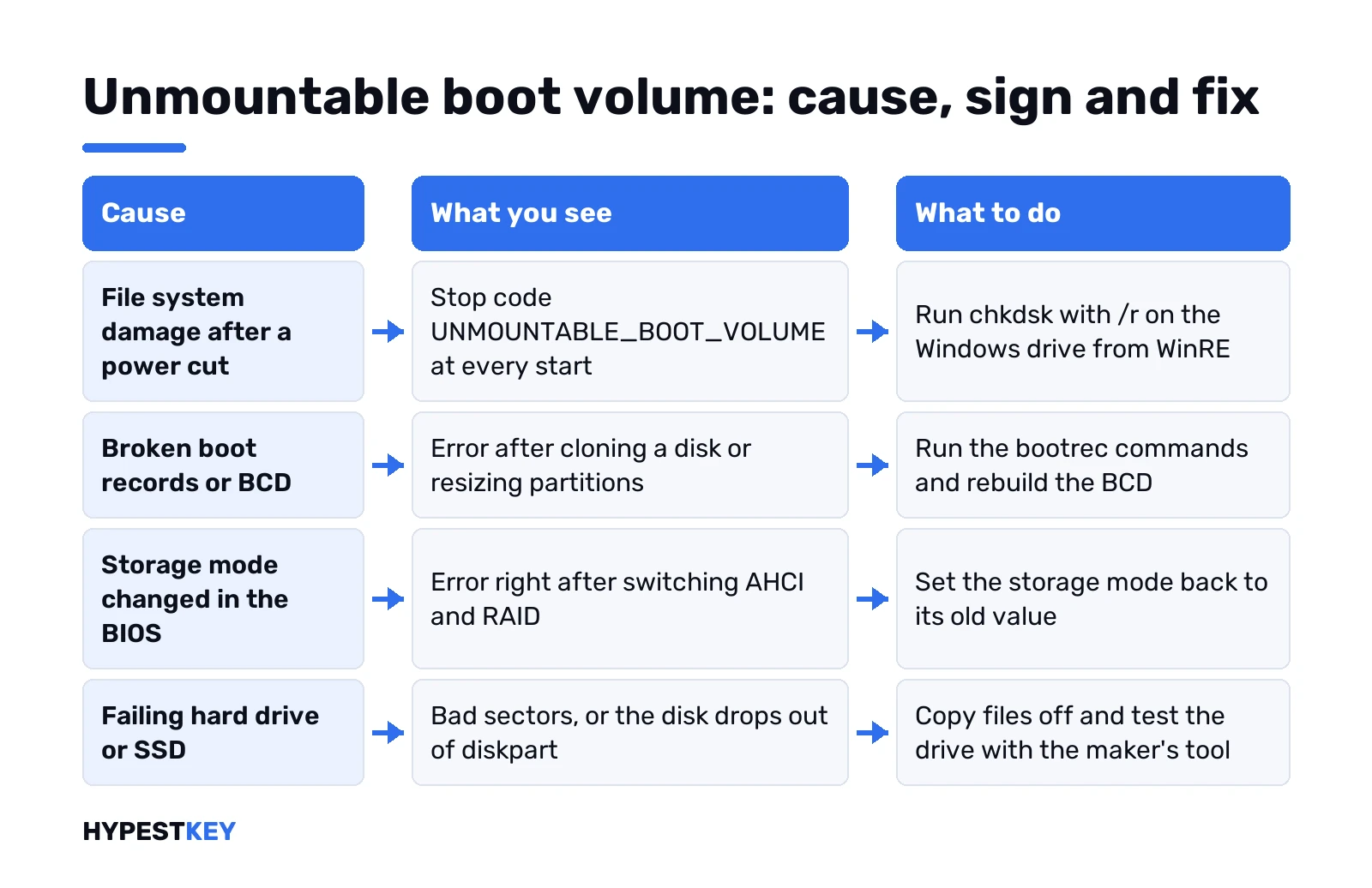
- File system damage. A power cut, a forced shutdown during an update, a cable that worked loose.
- Broken boot records or BCD. After cloning a disk, resizing partitions or adding a second OS.
- Storage controller changes. Switching between AHCI, RAID or IDE mode in the BIOS, or moving the disk to another PC with a different controller.
- Storage drivers. A new or broken storage filter driver, often after an update.
- A failing drive. Bad sectors, a dying SSD controller, a loose or damaged SATA cable.
The controller and driver items come from Microsoft’s notes on its close cousin, INACCESSIBLE_BOOT_DEVICE. Both errors mean Windows can’t use its own disk. Same starting point.
First checks: cables, new drives and firmware settings
Started right after you opened the case? Look there first.
- Cables. Desktop with SATA? Reseat the data and power cables at both ends. Got a spare cable? Cheap test.
- New hardware. Added a drive or RAM just before? Take it out and start again.
- Storage mode. Firmware settings, then the SATA or storage section. If it was switched between AHCI and RAID, switch it back. A BIOS update can reset this, so check after one too.
- Boot order. Two drives? Make sure the PC starts from the one with Windows.
Getting into the firmware differs by maker. Our Secure Boot guide shows the common keys and menus, and installing Windows 10 through the BIOS covers the boot menu.
Get into the recovery environment
Every fix below runs in WinRE. Two ways in.
- Automatic. After two failed starts, the repair screen opens on its own. Choose Advanced options, then Troubleshoot, then Advanced options again.
- From USB. No repair screen? Boot from Windows installation media made on another PC. Next, then Repair your computer.
We’d make that stick with the Windows 11 Media Creation Tool, or follow the bootable Windows 10 USB guide for the older version. The stick should hold the same or a newer Windows version than the PC.
BitLocker turned on? Most tools ask for the recovery key first. Our BitLocker guide for Windows 11 shows where it’s stored.
Unmountable boot volume fix: start with Startup Repair
Troubleshoot, Advanced options, Startup Repair. It reads the startup logs, guesses the cause and tries to fix it. When it’s done, choose Shut down and start the PC normally.
It failed? Fine, it still wrote a log. Command Prompt from the same menu:
notepad C:\Windows\System32\LogFiles\Srt\SrtTrail.txtDrive letters shift in WinRE. Empty result? Try D: in the same path.
Repair the file system with chkdsk
This is the fix that works most often for this code, since the error itself is about a file system that won’t mount. Command Prompt in WinRE.
First find the right letter. Then:
diskpart
list vol
exit
Windows is the large NTFS volume. In WinRE it’s often D:, not C:. Now the repair:
chkdsk D: /rUse your letter, not ours. The /r switch finds bad sectors and recovers what it can, and it implies /f. On a big hard drive this takes hours. Don’t stop it halfway.
Chkdsk finished? Restart and try Windows.
Rebuild the boot records and the BCD
Disk checks out clean but the error stays? Then the boot code. Same Command Prompt:
bootrec /fixmbr
bootrec /fixboot
bootrec /scanos
bootrec /rebuildbcd
The first two repair the master boot code and the boot sector. Scanos looks for Windows installs. Rebuildbcd adds them back to the boot menu. Restart and test.
Still broken, or rebuildbcd finds nothing? Back up the store, move it aside, rebuild from scratch:
bcdedit /export C:\bcdbackup
attrib C:\boot\bcd -r -s -h
ren C:\boot\bcd bcd.old
bootrec /rebuildbcd
UEFI PC? We’d also recreate the boot files from the Windows folder. Here D: is Windows and S: is the small FAT32 system partition from list vol. You may have to give it a letter first.
bcdboot D:\Windows /s S: /f ALLCheck that Windows can see the disk
If the commands above can’t find the drive at all, stop and check this. Command Prompt in WinRE:
diskpart
list disk
list vol
What you want to see. The disk listed as Online. An asterisk in the Gpt column on UEFI machines. A large NTFS volume for Windows, a small FAT32 one labelled SYSTEM, and usually a recovery partition.
- Disk missing. A connection, controller mode or drive problem. Back to the first checks, or the drive is dead.
- Volume shows RAW instead of NTFS. The file system is badly damaged. Run chkdsk; if it can’t fix it, save your files first.
- Everything looks normal. Back to the boot records section.
After an update: revert pending actions
Error showed up on the first restart after Windows Update? A half-finished update can leave storage drivers in a bad state. Two options.
The menu way: Troubleshoot, Advanced options, Uninstall Updates. Remove the latest quality update first.
The command way, from Microsoft’s startup troubleshooting notes. List packages, then revert anything still pending:
DISM /image:D:\ /get-packages
DISM /image:D:\ /cleanup-image /revertpendingactions
Then the system files, offline, since Windows isn’t running:
sfc /scannow /offbootdir=D:\ /offwindir=D:\WindowsRestore point from before the update? Troubleshoot, Advanced options, System Restore is quicker. Personal files stay. Our guide to restore points in Windows 11 explains what it rolls back.
Windows 11 keeps restarting with unmountable boot volume
Blue screen, restart, blue screen. On Windows 11 and 10 alike that cycle hides the details and sometimes lands you in the repair loop instead.
- Troubleshoot, Advanced options, Startup Settings, Restart.
- Press 9, disable automatic restart on system failure.
Now Windows stops on the blue screen so you can read it. Same screen also offers Safe Mode with 4. Safe Mode starts? Then we’d suspect a third-party storage or security driver and remove it from there. Routes for each version: our Windows 11 Safe Mode guide and how to enter Safe Mode on Windows 10.
Save your files before a reinstall
Fixes didn’t stick and you’re heading for a reset? Get the data off first. No extra software needed.
- Boot from the Windows USB stick. Repair your computer, Command Prompt.
- Plug in an external drive. Type notepad and press Enter.
- File, Open. Set the file type to All files. Now it’s a file browser.
- Copy folders from your user folder to the external drive.
The volume shows RAW and nothing opens? Then data recovery needs a specialist. Every extra repair attempt can make it harder. We’d stop there.
Files safe? Then the options, gentlest first. Factory reset Windows 11 with keep my files. A full wipe. Then a clean Windows 11 install or the clean install of Windows 10.
When the unmountable boot volume error means a failing drive
Microsoft says it plainly: if Startup Repair, chkdsk and bootrec don’t help, the hard drive may have failed. Signs we’d take seriously:
- chkdsk reports bad sectors, or stops with errors it can’t fix;
- the disk drops out of diskpart, then comes back;
- clicking or grinding from a hard drive;
- the error returns days after a successful fix.
Most drive makers offer their own diagnostic tool. Run it from another PC or a boot stick. Failure confirmed? We’d buy a new SSD and do a fresh install rather than chase the error. Our Windows 11 USB install guide covers the setup on the new drive.
On the same PC the digital license usually reactivates by itself. No license for the new install? A Windows 11 Pro key from us comes instant to email.
Related guides
FAQ
Can a restart alone fix it?
Occasionally, after a one-off glitch like a power cut. If the blue screen comes back on the next start, the file system or drive needs the repairs.
Will chkdsk /r delete my files?
Normally no. It repairs the file system and moves readable data off bad sectors. Files sitting on badly damaged sectors can be lost, which is why we copy important ones first when we can.
Why does WinRE show my Windows drive as D:?
WinRE assigns letters on its own. The small system partition often takes C:, so Windows moves to D: or E:. Check with diskpart and list vol.
The error started after I changed AHCI to RAID. What now?
Change it back in the firmware settings. Windows loaded its storage driver for the original mode, so it can't read the disk in the new mode.
Does this happen on SSDs too?
Yes. SSDs fail differently but the error looks the same. Run the SSD maker's diagnostic tool and check for a firmware update.
Is this error caused by a virus?
Rarely. Disk, boot record and driver problems are far more common. If Windows starts again, run a full scan in Windows Security anyway.
Do I need a new Windows key after replacing the drive?
Usually not on the same PC. The digital license is tied to the hardware, so a clean install on a new drive normally activates by itself.