Short answer: Getting Windows ready stuck on screen usually points to an update, reset or first sign-in still running. Wait while the disk light blinks, overnight if needed. Frozen with no activity? Hold the power button, unplug extras, start again. A loop? We'd open the recovery tools: Startup Repair, Uninstall Updates, Safe mode with SFC and DISM, then System Restore.
Getting Windows ready stuck on the screen usually means Windows is still finishing an update, a reset or a first sign-in, and the fix is to wait first, then restart into the recovery tools. Give it real time with the disk light blinking. Only a frozen screen with no disk activity needs the steps below.
| What you see | Likely reason | What to do |
|---|---|---|
| Spinning dots, disk light blinking | Update still installing | Wait, keep the charger in |
| Same screen for hours, no disk activity | Install hung | Hold the power button, start again |
| Back on the same screen after every restart | An update keeps failing | Recovery tools: Uninstall Updates |
| Automatic Repair or “Preparing Automatic Repair” | Windows saw failed starts | Startup Repair, then System Restore |
| Blue screen, then the same message | Driver or disk problem | Safe mode, SFC and DISM, check the disk |
| Stuck after Reset this PC | Reset interrupted or still running | Wait, then reset again from the recovery tools |
What Getting Windows ready actually means
Not an error. Windows shows “Getting Windows ready. Don’t turn off your computer.” while it does work it can’t do with you signed in.
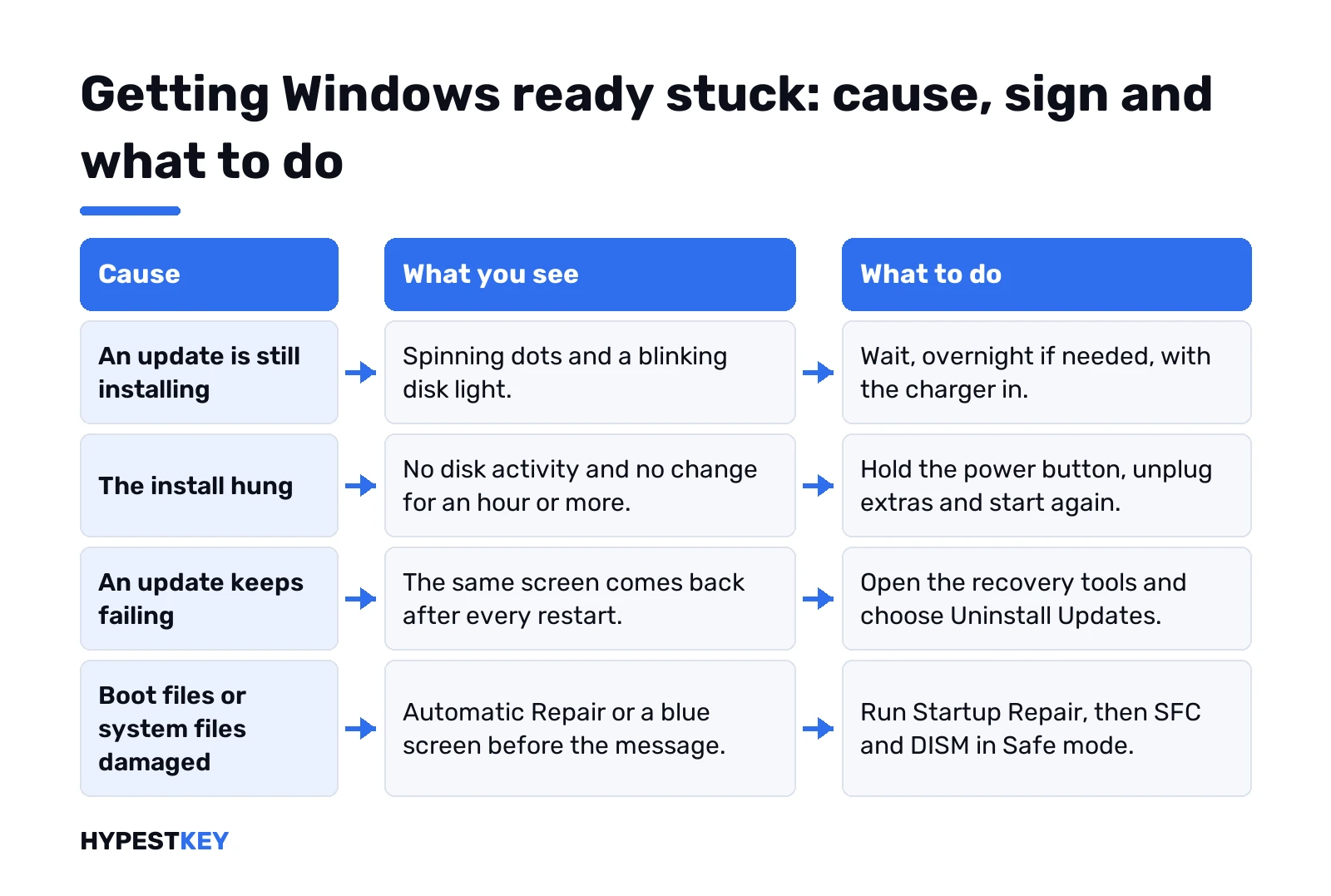
Most often that’s an update. Files went in while you worked, and the restart applies them. A feature update takes longest, since it swaps out much of the system.
Two other moments bring the same screen. The end of a reset, and the first sign-in after a big upgrade. Same message, same advice.
How long is normal? Microsoft gives no fixed number. Its update troubleshooting page says install time depends on connection speed and the size of the update. Slow disks add more. Our Windows 11 update time guide covers what speeds it up.
How long to wait before you call it stuck
We’d give it a couple of hours on an older PC with a hard drive. Less on an SSD. A feature update on a slow laptop can run past that.
Look for signs of life:
- The disk activity light blinks. Keep waiting.
- The fan changes speed now and then. Still working.
- A percentage moves, even slowly. Fine.
- Nothing changes at all for an hour or more, no light, no sound. That’s the stuck case.
Laptop? Plug in the charger right away. A battery that dies halfway through an update is the worst way this can end.
We’d leave it overnight before forcing anything.
Force a restart the safe way
Waited long enough and nothing moves? Then a forced shutdown is the next step. It carries some risk, so do it once and on purpose.
- Hold the power button for about 10 seconds until the PC turns off.
- Unplug USB drives, docks, printers and card readers. Keep the mouse and keyboard.
- Pull the network cable or switch off the router for this one boot.
- Turn the PC on and let it run.
Microsoft’s own update checklist asks you to remove external storage, docks and other hardware you don’t need. Fewer devices, fewer drivers to load.
What we’d skip: pulling the power cable over and over. Same for a third-party “repair” app from a USB stick. One clean forced restart, then the built-in tools.
Offline for one boot helps when Windows keeps downloading a broken piece. Plug the network back in once you’re at the desktop.
Getting Windows ready stuck after every restart
Same screen again and again? That’s a loop. Windows tries to finish an update, fails and starts over.
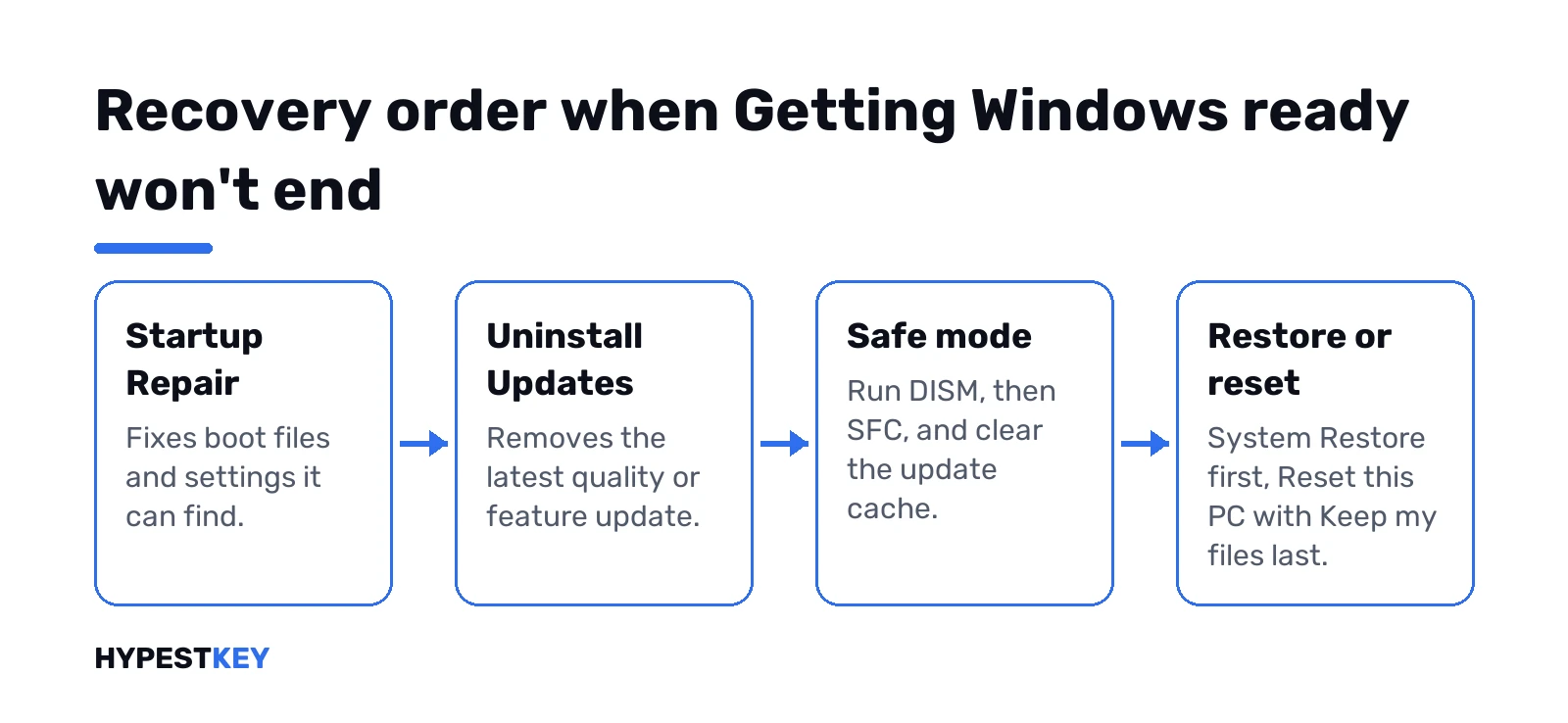
The way out is the Windows Recovery Environment, WinRE for short. It’s a separate small system on the disk with repair tools.
When Windows can’t start, it opens on its own. Microsoft’s docs say it starts automatically after two failed attempts to start Windows in a row. You can force that:
- Turn the PC on.
- When the Windows logo or the spinning dots show, hold the power button until it switches off.
- Do it once more.
- On the third start, Windows should show “Preparing Automatic Repair” and then the recovery screen.
Choose Advanced options, then Troubleshoot. Everything below starts from there.
BitLocker on? WinRE may ask for the recovery key before some tools run. Our BitLocker recovery key guide shows where to find it from a phone.
No way into WinRE at all? Boot from Windows installation media and pick “Repair your computer”. Our USB install guide and the Media Creation Tool guide show how to make the stick on another PC.
Startup Repair for a PC that won’t finish starting
First tool to try. It checks the boot files and settings and fixes what it can.
Troubleshoot > Advanced options > Startup RepairA few minutes. “Startup Repair couldn’t repair your PC” is not the end. Move on to the next tool.
Uninstall the update that keeps failing
The most direct fix for a loop. WinRE can remove the last update without a working desktop.
Troubleshoot > Advanced options > Uninstall UpdatesTwo choices appear: the latest quality update or the latest feature update. Quality is the monthly patch. Feature is the big yearly version. Pick the one you were installing when the screen froze. Not sure? Quality first.
Some updates can’t be removed, so the option may refuse. Back at the desktop later, the same list lives in Settings, Windows Update, Update history, Uninstall updates.
Feature update went in, and now the PC hangs here at every start? Windows keeps the old version for about ten days after an upgrade. Within that window Settings, System, Recovery shows a Go back button. We’d use it once the desktop is reachable, even in Safe mode.
Removed it? Good. Sign in, back up anything important, and check that the PC starts twice in a row without the screen.
The update will come back. Run the Windows Update troubleshooter before it does, or the loop repeats. Our Windows Update guide explains pausing.
Safe mode, then SFC and DISM
Safe mode loads Windows with the bare minimum of drivers. If it starts there, something you added is in the way.
Troubleshoot > Advanced options > Startup Settings > RestartPress 4 for Safe mode, or 5 for Safe mode with networking. Full walkthroughs: Windows 11 Safe mode and Safe mode on Windows 10, with the differences in this comparison.
In Safe mode, open Command Prompt as administrator and repair the system files. DISM first, then SFC, as Microsoft’s update troubleshooting page orders them:
DISM.exe /Online /Cleanup-image /Restorehealth
sfc /scannow
Both take a while. Restart normally afterwards.
Still looping on the same update? Safe mode is also the place to clear the update download cache, so Windows fetches clean copies next time. Command Prompt as administrator again:
net stop wuauserv
net stop bits
ren C:\Windows\SoftwareDistribution SoftwareDistribution.old
net start bits
net start wuauserv
Nothing personal lives in that folder. You lose the update history list, not the updates already installed.
A disk problem can hide behind all of this. Our CHKDSK guide covers the check. Blue screens along the way? See our blue screen guide.
System Restore or Point-in-time restore
Rolls system files and settings back to an earlier moment. Personal files stay.
Troubleshoot > Advanced options > System RestoreWindows 11 version 24H2 and later can also show Point-in-time restore in the recovery tools. Local restore points, a window of a few days. Microsoft suggests it first when both are there.
Both depend on restore points existing before the trouble. Ours were on? Pick the last one dated before the update. Never made one? Our restore point guide is worth ten minutes once the PC works again.
Reset or reinstall when nothing else gets past the screen
Last resort, and still not the end of your files.
- Reset this PC with “Keep my files” reinstalls Windows and keeps your documents. Apps are removed.
- “Remove everything” is the clean slate. Back up first if the disk is still readable.
- Still reaching the desktop now and then? Setup from installation media can reinstall Windows and keep files and apps.
Step by step: factory reset Windows 11, or reset any PC for Windows 10 and older machines.
The license survives a reset. A digital license reactivates on its own once online, and our activation check confirms it.
Getting Windows ready stuck after a reset or on a new PC
Interrupted resets cause their own version of this screen. Sleep mode mid-reset, a dead battery, a forced shutdown.
Wait first, same as above. If the screen won’t change, go to WinRE and start Reset this PC again from there. Worth one more try before anything drastic.
On a brand-new PC the first boot also shows this screen for a while. Normal. Updates install before you even reach the desktop sometimes. Our Windows 11 new PC setup guide has the full first-day sequence.
Upgrade that rolled back with an error after the screen? That’s a different problem, see 0xc1900101 or 0x800f0922.
Windows 10 and Windows 11: where the tools sit
The recovery tools look the same on both. The paths to them from a working desktop differ a little.
| Task | Windows 11 | Windows 10 |
|---|---|---|
| Open the recovery tools | Settings, System, Recovery, Advanced startup, Restart now | Settings, Update & Security, Recovery, Advanced startup |
| Update troubleshooter | Get Help app | Settings, Update & Security, Troubleshoot |
| Uninstall an update | Windows Update, Update history, Uninstall updates | Windows Update, View update history, Uninstall updates |
| Restore point rollback | Point-in-time restore on 24H2 and later, System Restore | System Restore |
Shift plus Restart works on both. Hold Shift, click Power, then Restart, and the PC boots straight into the recovery tools.
One more thing on either system. A PC that sat unused for months has a backlog of updates. Expect a long first screen after you switch it on.
Once you’re past the screen: find what went wrong
Desktop back. Before the next update, ten minutes of checks.
- Settings, Windows Update, Update history. A failed entry shows the update and the error code.
- Search for “reliability” and open View reliability history. Red crosses mark the day and the app or update that failed.
- Free space on C:. Disk Cleanup with “Clean up system files” removes old update leftovers.
- Drivers. Graphics, storage and network first, from the PC maker.
Got an error code from the history? Search our site for it. Most common update codes have their own page, and the troubleshooter guide lists them.
Then let Windows Update run again while you watch. Same failure twice? We’d pause updates for a week or two in Windows Update and let Microsoft ship a fixed version.
The same screen on Windows Server
Servers show the identical message after updates or role changes. Same logic, bigger stakes.
Server 2016, 2019 and 2022 all do it. Big cumulative updates on a busy server can sit on this screen a long time. We’d plan a maintenance window with time to spare.
For an Azure virtual machine, Microsoft’s troubleshooting article says the screen shows during the final restart after a configuration change. Never ends? Restore the VM from a backup. Or collect a memory dump for support.
On physical servers we’d wait longer than on a desktop, then use Safe mode. Here’s Safe mode on Windows Server 2019, and a working Windows Server Backup makes the restore option real.
Keep the screen from getting stuck next time
A few habits cut the odds a lot:
- Free space. Microsoft asks for 16 GB free on 32-bit Windows and 20 GB on 64-bit for upgrades.
- Set active hours in Windows Update so restarts land when you’re away.
- Laptop on the charger before you click Update and restart.
- Third-party antivirus up to date, or removed before a feature update.
- A restore point and a backup before big updates.
- Never hold the power button while the disk light still blinks.
Reinstalled and lost the key? We sell a Windows 11 Pro key, retail, one PC, instant to email.
FAQ
how long should getting windows ready take
Depends on the update and the disk. We'd wait a couple of hours, overnight on an old hard drive.
can i just turn it off
Only when nothing moves for a long time. Holding the power button mid-update can damage the install.
will i lose my files if i force restart
Usually not. Updates and repairs leave personal files alone, and Reset with Keep my files keeps documents.
it comes back after every restart
That's a loop. Enter the recovery tools, run Startup Repair, then uninstall the latest quality update.
recovery asks for a bitlocker key
Normal on encrypted drives. Sign in to your Microsoft account on a phone and find the recovery key there.
does it happen on windows server too
Yes. Same message after updates or role changes, and the same recovery tools apply to servers.
does a reset remove my windows activation
Nope. A digital license reactivates once online, and a retail key can be entered again after a reset.