Short answer: The 0xc1900101 error is Windows Setup's generic rollback code: an upgrade or feature update failed and Windows went back to the previous version. We'd update network, display and storage drivers, unplug extra devices, free 20 GB and uninstall third-party antivirus. Then a clean boot and a retry.
The 0xc1900101 error is a generic rollback code from Windows Setup: the upgrade or feature update started, something broke, and Windows went back to the version you had. Usually a driver. Sometimes antivirus, disk space or a peripheral. Your files are fine, and we’d start with the drivers.
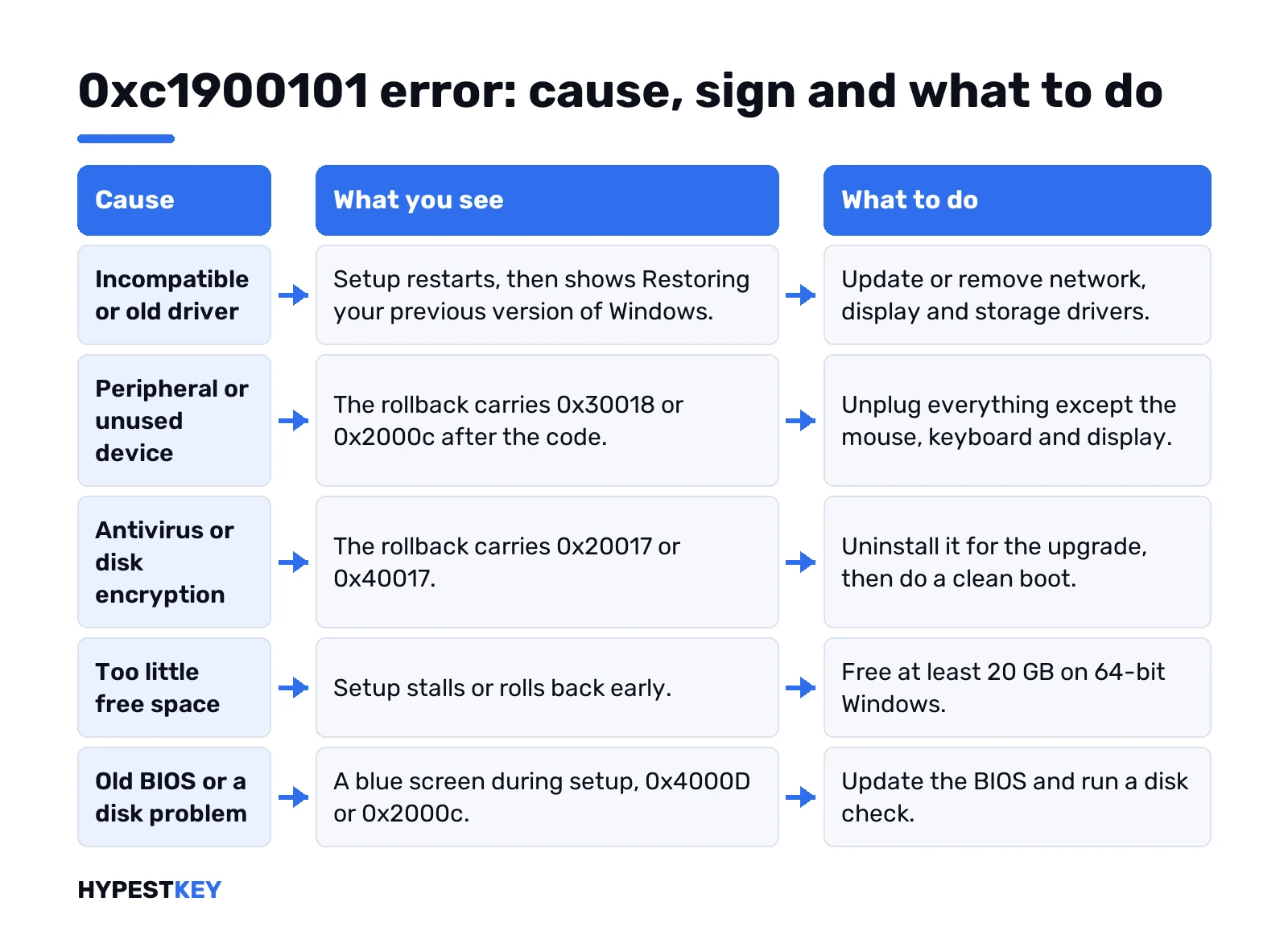
| Cause | What you see | What to do |
|---|---|---|
| Incompatible or old driver | Restart, progress, then “Restoring your previous version of Windows” | Update or remove network, display and storage drivers |
| Peripheral or unused device | Rollback with 0x30018 or 0x2000c after the code | Unplug everything except mouse, keyboard and display |
| Third-party antivirus or disk encryption | Rollback with 0x20017 or 0x40017, often after the second restart | Uninstall it for the upgrade, clean boot |
| Too little free space | Setup stalls or rolls back early | Free 20 GB on 64-bit Windows |
| Old BIOS or a disk problem | Rollback with 0x4000D or 0x2000c, blue screen during setup | Update the BIOS, run a disk check |
What the 0xc1900101 error tells you
Microsoft’s upgrade resolution procedures call it a generic rollback code. Usually that’s an incompatible driver. Blue screens, hangs and surprise restarts during setup point the same way.
Its internal name is MOSETUP_E_SETUP_PLATFORM. The description is just as vague: the Setup Platform has encountered an unspecified error. Hence the suffix, more on that below.
It can appear at almost any stage of the upgrade. Not in the first one, though, while setup still runs inside your old Windows.
Two ways it reaches you. Windows Update shows “Install error – 0xc1900101” on a feature update. Or setup from an ISO ends with the same code and a second part after a dash.
Nothing is wrong with your license. Activation never enters into it.
The second code after 0xc1900101
That suffix names the phase that failed. It’s the best clue you get, so write it down.
| Full code | Where it failed | First thing to try |
|---|---|---|
| 0xC1900101 – 0x20004 | Safe OS, installing the recovery environment | Remove antivirus, unused SATA devices, update drivers and BIOS |
| 0xC1900101 – 0x2000c | Image apply in WinPE | Unplug peripherals, update drivers, check the disk |
| 0xC1900101 – 0x20017 | Safe OS boot, driver migration | Find the driver in the setup logs, update or remove it |
| 0xC1900101 – 0x30018 | A driver stopped responding to setup | Unplug peripherals, get new drivers from the vendor |
| 0xC1900101 – 0x3000D | First boot, data migration | Update or uninstall the display driver |
| 0xC1900101 – 0x4000D | Second boot, driver configuration | Read the rollback log, free space, update BIOS |
| 0xC1900101 – 0x40017 | After the second restart | Clean boot, remove antivirus or encryption filter drivers |
No suffix in Windows Update? The setup logs below carry it.
Fix 1: update or remove the driver behind it
Most rollbacks end here. Microsoft’s own support page names network and display adapters first.
- Right-click Start, open Device Manager.
- Expand Network adapters, then Display adapters.
- Look for a yellow warning mark. Check storage controllers too.
- Get the newest driver from the PC or motherboard maker’s site.
No newer driver for an old card? Uninstall it for the upgrade, then reinstall afterwards.
We’d also run Windows Update first and let it pull any pending driver updates. The Windows Update troubleshooter helps if that check stalls.
Fix 2: unplug devices and free disk space
Docks, USB hubs, card readers, external drives, printers. Setup tries to migrate a driver for each one. Fewer devices, fewer chances to fail.
Leave the mouse, keyboard and display. Pull everything else, including a second internal SATA drive you don’t use.
Then space. Microsoft asks for at least 16 GB free on 32-bit Windows and 20 GB on 64-bit. Disk Cleanup with system files is the quick way.
Tiny drive? Setup can use an external USB drive for the backup copy of the old Windows. At least 8 GB, formatted NTFS.
Fix 3: remove third-party antivirus and encryption
Security suites load filter drivers deep in the system. Same for non-Microsoft disk encryption. Setup can’t always migrate them, so it rolls back.
Disabling isn’t enough here. Uninstall it from Settings, Apps, using the vendor’s own remover if there is one.
Reinstall your suite once the upgrade is done. Get the current version, not the old installer.
Fix 4: clean boot before you retry the upgrade
A clean boot starts Windows with Microsoft services and a minimal set of drivers. It isn’t Safe Mode, and setup won’t run from Safe Mode anyway.
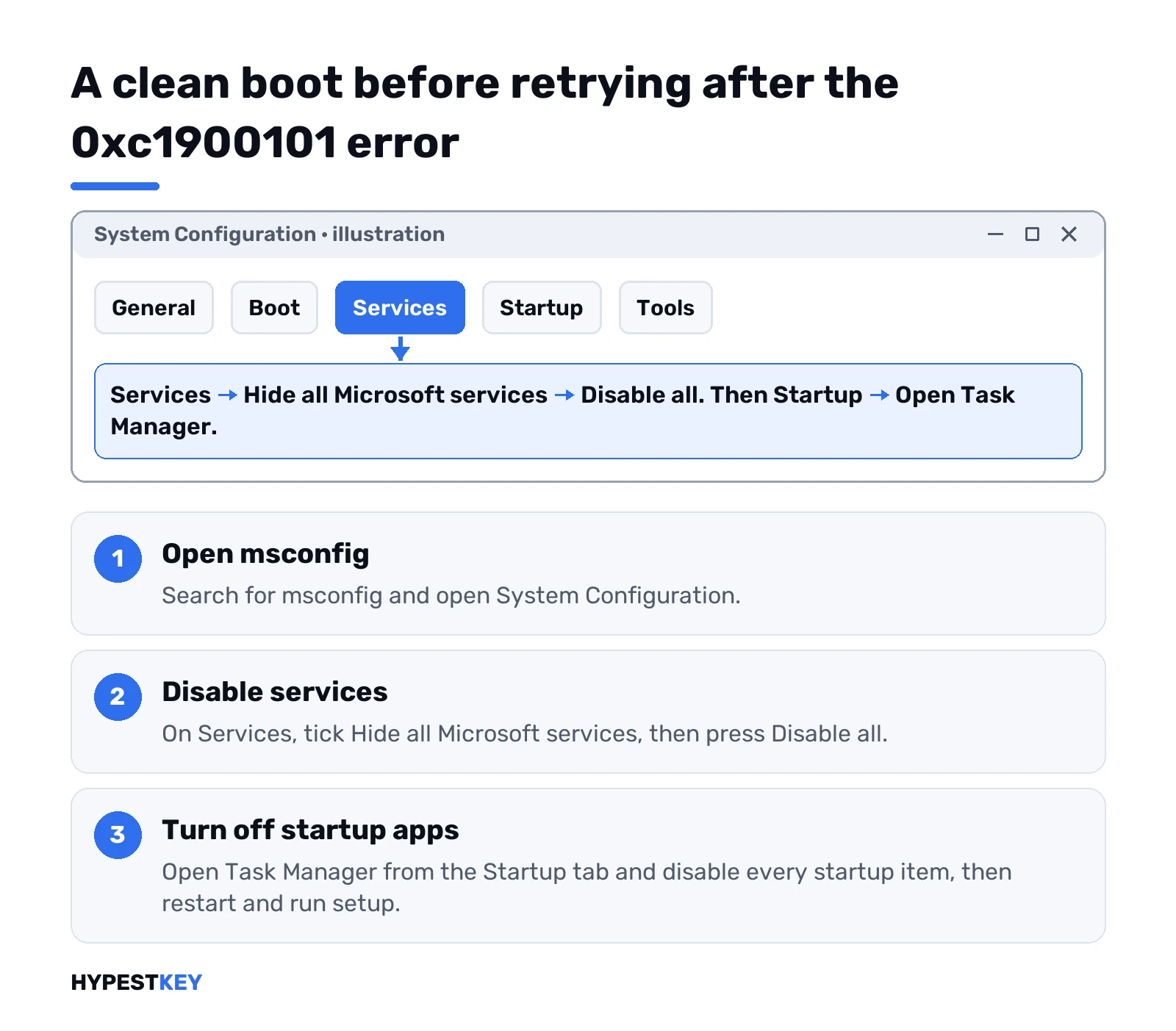
- Search for msconfig, open System Configuration.
- Services tab. Tick Hide all Microsoft services, then Disable all.
- Startup tab, Open Task Manager. Disable every startup item.
- OK, restart, run setup.
Afterwards, back to Normal Startup on the General tab and Enable all on Services. Write down what you switched off first.
Citrix VDA and other filter drivers
Work PCs and virtual desktops have a special case. Citrix Virtual Delivery Agent installs its own filter driver, called CtxMcsWbc. It stops setup from writing changes to the disk. The upgrade fails after the second restart with 0x40017 and rolls back.
The way out Microsoft gives is plain. Uninstall the VDA with its own setup program, run the Windows upgrade, then reinstall the VDA. There’s also a registry route, but on a managed machine we’d leave that to IT.
Antivirus and encryption filter drivers cause the same rollback. Remove them for the upgrade, reinstall after.
Find the bad driver in the setup logs
Still rolling back? Then we’d stop guessing and read what setup wrote. After a failed upgrade, Windows Setup runs SetupDiag on its own. The result lands here:
%WinDir%\Logs\SetupDiag\SetupDiagResults.xmlOpen it in Notepad. A matched rule often names the driver package, the device or the app.
Want more detail? The setup logs live in the Panther folder:
%windir%\Panther\setuperr.log
%windir%\Panther\setupact.log
Rollback leftovers sit under the hidden $Windows.~bt folder. Find a setupmem.dmp there? Setup crashed. The device log helps with 0x30018:
$Windows.~bt\Sources\Rollback\setupapi\setupapi.dev.logSeveral failures listed? Trust the last one. That’s usually the fatal one.
Update the BIOS and check the disk
For 0x4000D and blue screens during setup, Microsoft suggests a BIOS update from the hardware vendor. Same for 0x20004. Follow the maker’s instructions to the letter, on mains power.
For 0x2000c the cause can be disk corruption. Command Prompt as admin, then this, and restart when asked:
chkdsk C: /fChanging firmware settings? Our guides to enter the BIOS on Windows and Secure Boot cover the menus.
Retry the 0xc1900101 upgrade with fresh media
Drivers sorted, devices out, space free. Try once more, but not through the same cached download.
- Make a USB stick or ISO with the Windows 11 Media Creation Tool.
- Run setup.exe from it inside Windows.
- Accept the offer to download and install updates. Setup grabs newer drivers that way.
- Keep personal files and apps, then Install.
A blocked requirement shows a different code, such as 0xC1900200. Then check the Windows 11 requirements and TPM 2.0 instead.
When the 0xc1900101 error won’t go away
Some old hardware has no driver for the new version at all. Then the honest options are staying put, or a clean install where setup has nothing to migrate.
Back up first. A clean Windows 11 installation wipes the system drive. We cover the stick in how to install Windows 11 from USB. Before driver changes we’d make a restore point, too.
After the upgrade: check activation
An upgrade keeps the license. A clean install may ask for it again. Settings, System, Activation shows the state, and we explain it in how to check Windows activation status.
No license for the clean install? Our Windows 11 Pro key is Retail, instant to email.
FAQ
did 0xc1900101 delete my files
Nope. The rollback puts your previous Windows back with files and apps where they were.
what does the 0x20017 part mean
Setup failed in the Safe OS boot phase. Usually a driver or third-party disk encryption software.
antivirus off is enough, right
Often not. Uninstall the third-party suite for the upgrade and reinstall a current version afterwards.
where do i see which driver failed
Open SetupDiagResults.xml in the Windows Logs folder, or setuperr.log in the Panther folder.
can a bios update fix it
Sometimes. Microsoft suggests one for rollbacks with 0x4000D and 0x20004, from the hardware maker.
does this error affect activation
Nope. A failed upgrade leaves the license and activation state exactly as they were before.