Short answer: 0xC004E003 activation error: Windows couldn't evaluate its own license. Usually third-party software changed system files that activation needs. We'd restore system files to an earlier point first. Then DISM and SFC, your original product key typed again, and phone activation if online activation still fails.
The 0xC004E003 activation error is Windows saying its own license check failed: the Software Licensing Service couldn’t evaluate the license on the PC. Usually a program changed system files that activation needs. We’d undo the last change, repair system files, then type the product key again.
- Restore system files to a point before the last install.
- Repair system files with DISM, then SFC.
- Enter your original product key again.
- Reinstall the license files and activate.
- Still stuck? Activate by phone.
What the 0xC004E003 activation error stands for
Two Microsoft texts cover it. The older activation article for Windows 7 gives the message itself:
0xC004E003
The Software Licensing Service reported that license evaluation failed.
Plain version: Windows read its license and couldn’t accept it. The current Get help with Windows activation errors page names the usual trigger.
“You might see this error after installing third-party software that changed system files.” That’s the quote. Activation needs certain system files, and something touched them.
So no server refused your key. Nothing got that far. The check failed on your own PC, and that’s the good part: it’s fixable from your side.
Cause, sign and fix for 0xC004E003
| Cause | What you see | Fix |
|---|---|---|
| Third-party software changed system files | The error starts right after a new tool, tweaker or cleaner | System Restore to a point before that install |
| Damaged system files | Other parts of Windows act up as well | DISM first, then SFC |
| Damaged license files on the PC | The error stays after the repair | Reinstall the license files from their known-good copies |
| The key needs to go in again | The license check fails on every attempt | Change product key, type the original key |
| Online activation keeps failing | Same code after every step above | Phone activation |
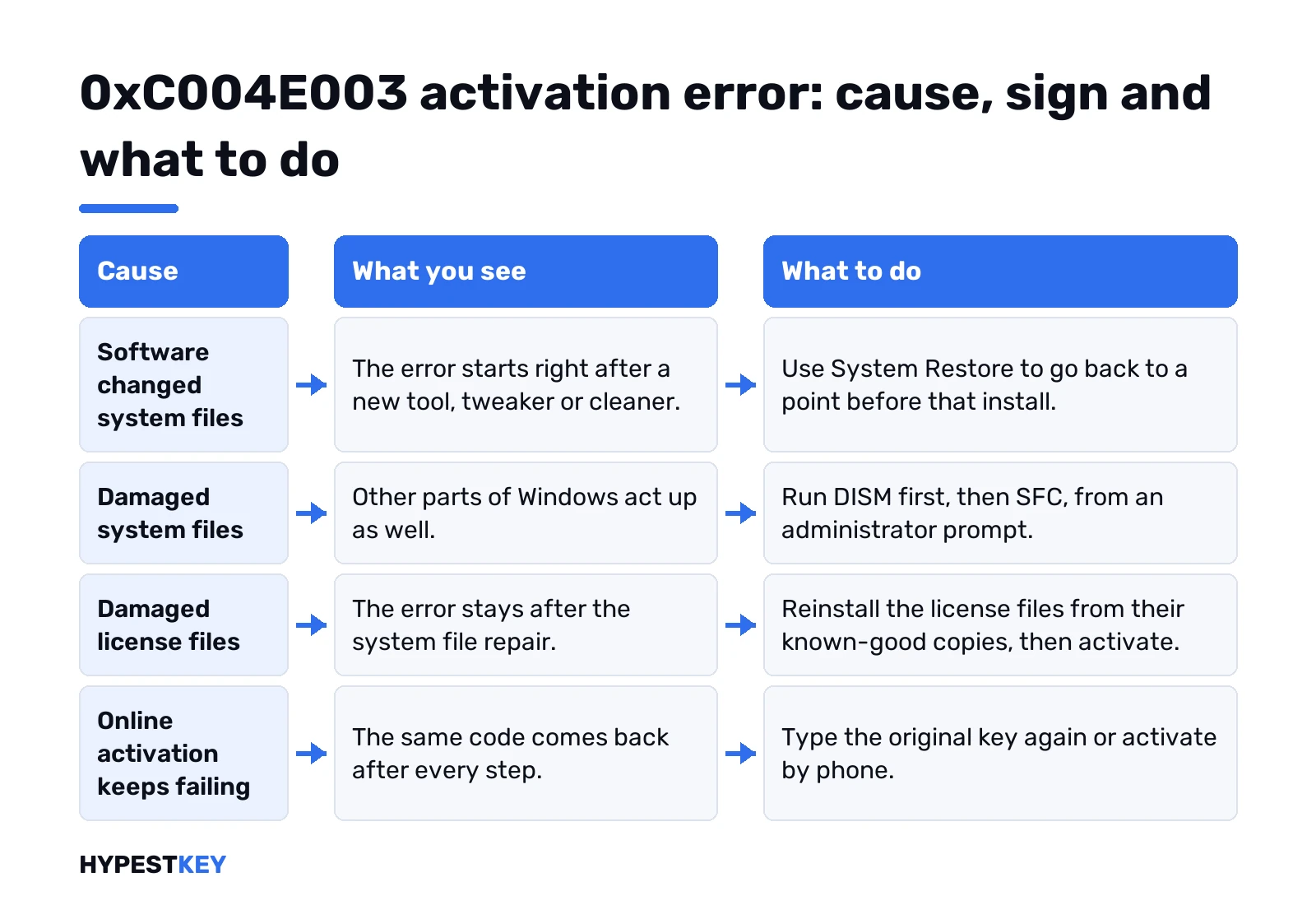
Work from the top down. Each row costs a bit more time than the one before.
Undo the last change with System Restore
This is Microsoft’s own fix for the code. Put system files back to a moment before the software went on.
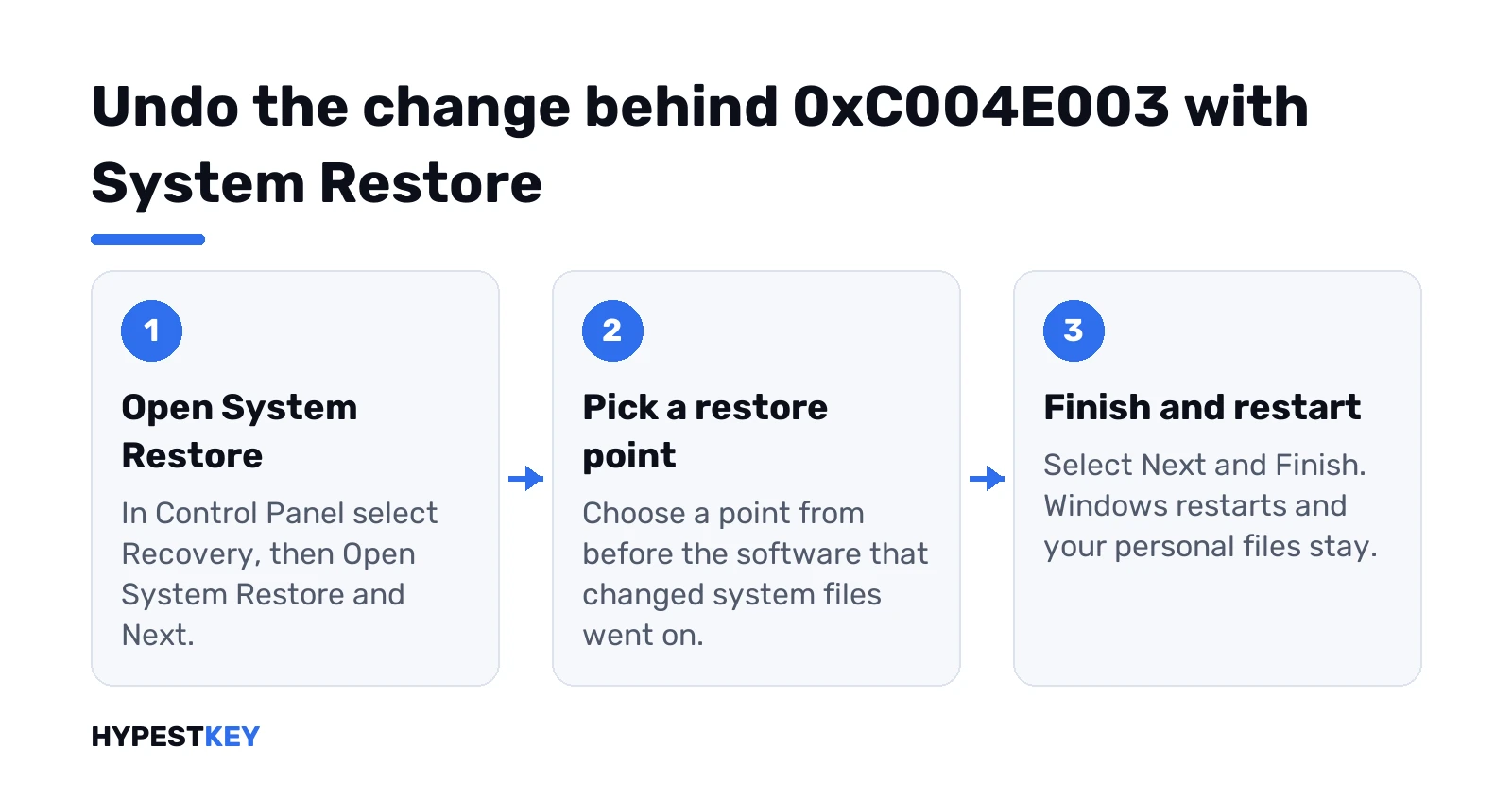
Personal files stay. Programs installed after that point are removed, so jot down what you’ll need again.
- Control Panel, Recovery.
- Open System Restore, then Next.
- Pick a restore point from before the install.
- Scan for affected programs, if you want the list.
- Next, Finish. Windows restarts by itself.
No restore point at all? Skip to the next step. Our guide on creating a restore point in Windows 11 helps for next time.
Windows won’t start normally? Restore also works from the recovery environment: Troubleshoot, Advanced options, System Restore. An encrypted drive asks for its BitLocker recovery key there, so have it ready.
Repair system files first
Damaged system files break the license check whatever key you type. Command Prompt, as administrator. DISM goes first:
DISM.exe /Online /Cleanup-image /RestorehealthIt pulls clean copies from Windows Update, so stay online. Updates broken too? Run the Windows Update troubleshooter before this step. Then:
sfc /scannowRestart if it says it repaired files. It found files it couldn’t fix? Then CBS.log has their names, and we’d note them before going on.
Microsoft’s System File Checker article explains each result message.
Enter the product key again
Microsoft’s older steps for this exact code are short. Type your original product key again. Not a new one, the original.
Windows 11: Settings, System, Activation, Change product key. On Windows 10 the same button sits under Update & Security, Activation.
Windows 7: Start, Computer, System properties. Then Change product key in the Windows activation section.
Lost the key? Sticker, order email, box. Our guide to finding your Windows product key lists every spot. A PC with a digital license may have no key to type, and then the troubleshooter is the way in.
Settings, System, Activation, Troubleshoot. Administrator only. The button shows up only while Windows isn’t activated.
Reinstall the license files
Windows keeps known-good copies of its license files from setup. One slmgr switch puts them back over the damaged ones. We’d use it only after the steps above.
Command Prompt, as administrator:
slmgr /rilcGive it time. Restart afterwards. Then the key goes back in and Windows asks for activation:
slmgr /ipk XXXXX-XXXXX-XXXXX-XXXXX-XXXXX
slmgr /ato
The Xs are your own key. Restart once more after installing it, since Microsoft asks for that to keep the license service stable. Then check:
slmgr.vbs /dliLicense status: Licensed? Done. Every switch is explained in our slmgr commands list.
Phone activation for 0xC004E003
Online activation still failing after a clean repair? Phone activation skips the internet part. Microsoft’s help page points there with SLUI 04:
slui 4On recent Windows 11 builds that window may not open. Our page on activating Windows by phone shows how it works now.
You read out an installation ID. You type back a confirmation ID. Windows 7 users had an automated phone line for this in the old steps.
After a rollback, a new disk or a reinstall
The Microsoft Q&A threads on this code tell similar stories. A rollback from Windows 10 to Windows 7. A move to a new SSD.
Did the hardware change too? Then it’s a reactivation. Link your Microsoft account, run the troubleshooter and pick “I changed hardware on this device recently”.
Same edition only. A Pro license won’t come back on Home. Our guide to activation after a hardware change walks through it.
OEM key from an old PC? Retail, OEM and volume licenses move differently, and that decides if the key can work on this machine at all.
When the key is the real problem
This code is about the check on your PC. When the server judges the key, the code changes:
- 0xC004C003: the key is blocked.
- 0xC004C008: the key can’t be used anymore.
- 0x803FA071: one key, too many PCs.
- 0xC004F050: the key itself is invalid.
- 0xC004F009: the grace period ran out.
All of them in one place: our Windows 11 activation errors guide.
Mistakes that keep the 0xC004E003 activation error around
- Rearming again and again. It resets the activation timers and activates nothing.
- Activators from the internet. They change system files, the very thing behind this code.
- A second key bought before the repair. The first one may be fine.
- No restart after a new key.
Finished? Confirm it with our activation status guide.
Key really gone? Our Windows 11 Pro key or Windows 10 Pro key is a retail license, instant to email.
FAQ
Does 0xC004E003 mean my key is fake?
Not by itself. The check failed on your PC before any server judged the key. Blocked or wrong keys get other codes, like 0xC004C003.
Will System Restore delete my files?
No. Personal files stay. Programs installed after the restore point are removed, so you'd reinstall those afterwards.
Do I need my product key before starting?
For the key step, yes. System Restore, DISM and SFC work without it. With a digital license there's often no key to type, and the Activation troubleshooter handles it.
It started after I went back from Windows 10 to Windows 7. Now what?
Type the original Windows 7 key again first. If that fails, phone activation is next, since the key itself may still be fine.
Is there one command that fixes it?
Not one. We'd run DISM and SFC, then reinstall the license files with slmgr, then activate. Order matters here.
Does it happen on Windows 11 too?
Yes. Microsoft's current activation help page covers this code for Windows 10 and 11, with the same advice about system files.