Short answer: BitLocker in Windows 11 Pro encrypts whole drives. Open Manage BitLocker, select Turn on BitLocker and back up the 48-digit recovery key. Home has device encryption instead. I'd keep the key in the Microsoft account and on paper.
BitLocker in Windows 11 encrypts a whole drive, so a lost or stolen PC gives nothing away. It’s part of Pro, Enterprise and Education. Home has a simpler relative called device encryption. We’d save the recovery key in two places before trusting either.
| Question | Short answer |
|---|---|
| Which editions have it? | Pro, Enterprise and Education; not Home |
| Where is it? | Start, type BitLocker, Manage BitLocker |
| What opens the drive every day? | Normally the TPM chip, without any typing |
| What is the recovery key? | A 48-digit number for the day the automatic way fails |
| Can Microsoft restore a lost key? | No |
The steps follow Microsoft’s support article BitLocker Drive Encryption.
What it protects, and what it doesn’t
| Protects against | Doesn’t protect against |
|---|---|
| Someone reading the disk of a stolen laptop | Malware running while you’re signed in |
| A drive taken out and put into another PC | Someone who knows your Windows password |
| Data left on a disk you sell or scrap | A failed disk; encryption isn’t a backup |
The encryption works while the PC is off or locked. Once you’re signed in, files open as usual and you don’t notice it.
Editions: BitLocker or device encryption
Microsoft’s article is direct about Home. If Manage BitLocker isn’t listed, the PC doesn’t have the right edition.
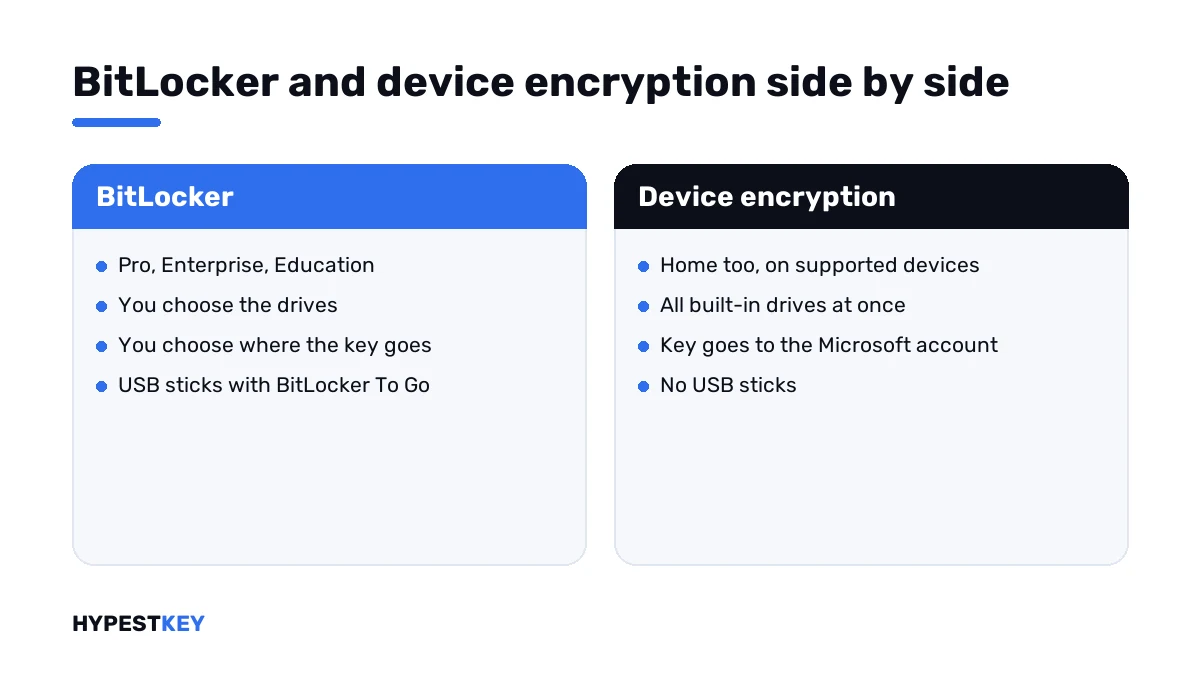
| Point | BitLocker | Device encryption |
|---|---|---|
| Editions | Pro, Enterprise, Education | Home too, on supported devices |
| Where | Manage BitLocker in Control Panel | Settings, Privacy and security, Device encryption |
| Which drives | You choose: system, data, removable | The built-in drives, all at once |
| Recovery key | You choose where to save it | Saved to the Microsoft account you sign in with |
| USB sticks | BitLocker To Go | Not covered |
Need the full feature on a Home PC? That takes Pro: see Windows 11 Home vs Pro. The move needs only a key, and our Windows 11 Pro key arrives instant to email.
Device encryption on Home
On Home the switch is in Settings, if the device supports it.
| Step | Where |
|---|---|
| Sign in with a Microsoft account that is an administrator | The recovery key is saved to it |
| Open Settings, Privacy and security, Device encryption | If the entry is missing, the device doesn’t offer it |
| Turn Device encryption on | All built-in drives are encrypted |
Many new PCs arrive with it already on. I’d look at that page on any laptop, new or old, to know where the key is.
How to turn on BitLocker in Windows 11
Sign in with an administrator account and allow some time for the first encryption.
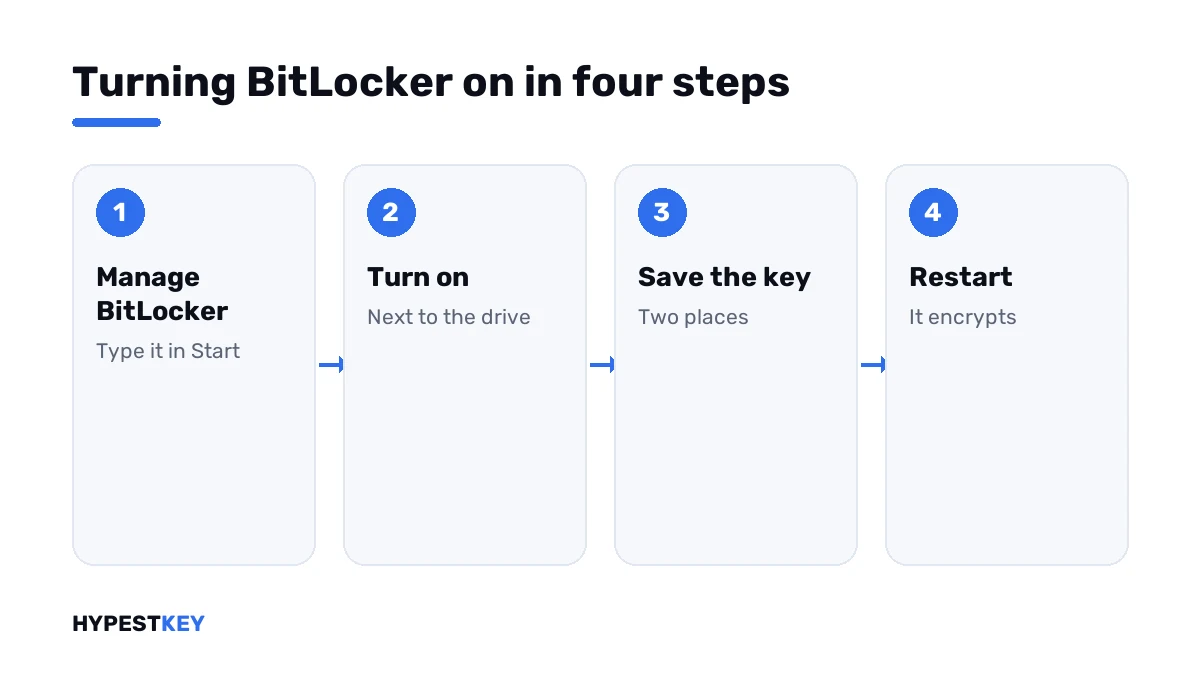
- Select Start, type BitLocker and open Manage BitLocker.
- Find the Operating system drive and select Turn on BitLocker.
- Choose where to back up the recovery key: your Microsoft account, a file or a printout.
- Choose to encrypt used disk space only, or the entire drive.
- Keep the suggested encryption mode for a built-in drive.
- Leave Run BitLocker system check ticked and select Continue.
- Restart when asked; encryption then runs in the background.
Microsoft notes that encryption can take some time and that you can keep using the device meanwhile.
| Choice | When |
|---|---|
| Used disk space only | A new PC or a new drive: faster |
| Entire drive | A PC already in use: deleted files in free space get covered too |
| New encryption mode | Drives that stay in this PC |
| Compatible mode | Drives that move to older Windows versions |
The recovery key
The recovery key has 48 digits. Windows asks for it when the drive can’t be opened automatically, for example after a hardware change or a security alert at startup.
| Where it may be | How to get it |
|---|---|
| Your Microsoft account | From another device, open aka.ms/myrecoverykey and sign in |
| A work or school account | aka.ms/aadrecoverykey, Devices, View BitLocker Keys; or ask IT |
| A printout | With the papers for the PC |
| A USB stick | Plug it in, or read the text file on another device |
| Someone else’s account | Whoever set the PC up may hold it |
The recovery screen shows a key ID. Its first eight digits tell you which key to pick if several are saved.
Microsoft says plainly that its support can’t retrieve, provide or recreate a lost recovery key. Without it the data is gone, and we can only reset the PC.
Details are in Microsoft’s Find your BitLocker recovery key.
A plan for the key
One copy isn’t a plan. We keep at least two, in different places.
| Copy | Good for | Weak point |
|---|---|---|
| Microsoft account | Reachable from any phone or PC | You have to know which account, and its password |
| Printout | Works without any device | Paper gets lost; keep it away from the laptop |
| Text file on a USB stick | Quick to read on another PC | The stick must not travel with the laptop |
| The organisation’s directory | IT can look it up | Only for work or school devices |
From Windows 11 version 24H2 the recovery screen gives a hint of the Microsoft account tied to the key. That shortens the search a lot.
What brings up the recovery screen
| Trigger | Note |
|---|---|
| A hardware change | Microsoft names this as a reason for the prompt at startup |
| A security risk detected at startup | The same |
| The drive moved into another PC | The chip that held the key stayed behind |
| A forgotten password on a data or external drive | The recovery key opens it instead |
Checking the state from a command prompt
Open Command Prompt as administrator.
manage-bde -status
manage-bde -protectors -get C:
The first line shows each drive with its conversion status and percentage. The second lists the protectors of drive C, the recovery password among them, so we don’t run it with anyone watching.
Data drives and USB sticks
The same applet lists other drives under Fixed data drives and Removable data drives.
| Drive | Opens with |
|---|---|
| A second internal drive | A password, or automatically once the system drive is encrypted |
| A USB stick or external disk | BitLocker To Go with a password |
A stick protected with BitLocker To Go opens on other Windows PCs with the password, Home included. Creating one takes Pro.
Suspending and turning off
| Action | What happens | When |
|---|---|---|
| Suspend protection | The drive stays encrypted; the key is kept in the clear for a while | Before a firmware update or a hardware change |
| Resume protection | Back to normal | Straight after |
| Turn off BitLocker | The drive is decrypted completely | Rarely; before handing the disk to a system that can’t read it |
All three sit next to the drive in Manage BitLocker. Suspending before a firmware update saves a recovery prompt afterwards.
Before repairs and reinstalls
Several repair routes stop at the encryption and ask for the key first.
- Reinstalling in place: factory reset Windows 11.
- Starting with minimal drivers: Windows 11 safe mode.
- Rolling back a change: restore points in Windows 11.
- The chip behind the automatic opening: what the TPM is and how to check it.
- Starting over: clean Windows 11 installation.
Our overview of the Windows 11 editions shows what each includes. We list hardware needs in the Windows 11 requirements guide, and all keys are under Windows 11 keys.
Mistakes we see most
- Saving the recovery key only on the drive it protects.
- Forgetting which Microsoft account holds the key.
- Looking for Manage BitLocker on Home.
- Updating the firmware without suspending protection.
- Treating encryption as a backup.
- Photographing the key and storing the photo in the same laptop bag.
Terms used on this page
| Term | Meaning |
|---|---|
| Recovery key | The 48-digit number that opens the drive when the automatic way fails |
| Key ID | The identifier shown on the recovery screen, used to find the matching key |
| TPM | The security chip that holds the key for the system drive |
| BitLocker To Go | The variant for removable drives |
| Device encryption | The automatic encryption available on supported devices, Home included |
| Protector | A way of opening a drive: TPM, password, recovery password |
FAQ
Does Windows 11 Home have BitLocker?
No. Microsoft says BitLocker Drive Encryption isn't available on the Home edition. Home has device encryption on supported devices, and we'd move to Pro for the full feature.
How do I turn on BitLocker in Windows 11?
Type BitLocker in Start and open Manage BitLocker. Select Turn on BitLocker next to the drive and back up the recovery key. I'd restart when asked and let it encrypt in the background.
Where do I find my BitLocker recovery key?
Often in the Microsoft account: open aka.ms/myrecoverykey on another device. It may also be on a printout, a USB stick or with your organisation. I'd match the key ID shown on the recovery screen.
What if I lost the recovery key?
Microsoft's support can't retrieve or recreate it. Without the key the encrypted data can't be read. We'd reset the PC and restore files from a backup.
Does BitLocker slow the PC down?
I know of no Microsoft figure for it. On current hardware we don't notice it in daily work. The first encryption runs in the background while you keep working.
Why does my PC suddenly ask for the recovery key?
Microsoft names a security risk or a hardware change at startup as reasons. A firmware update can count as such a change. I'd suspend protection before the next one.
How do I turn BitLocker off?
Open Manage BitLocker and select Turn off BitLocker next to the drive. Windows then decrypts it, which takes a while. We'd suspend instead if the reason is only an update.