Short answer: Your BitLocker recovery key has 48 digits. Home PC? It's usually in your Microsoft account at aka.ms/myrecoverykey; match the first 8 characters of the key ID. Work or school PC? We'd ask IT, since it sits in Entra ID or Active Directory. Otherwise check a printout, a text file or a USB stick.
Your BitLocker recovery key is a 48-digit number saved when encryption was turned on, and it usually sits in your Microsoft account at aka.ms/myrecoverykey. Work or school PCs keep it with IT in Microsoft Entra ID or Active Directory. Otherwise look for a printout, a text file or a USB stick.
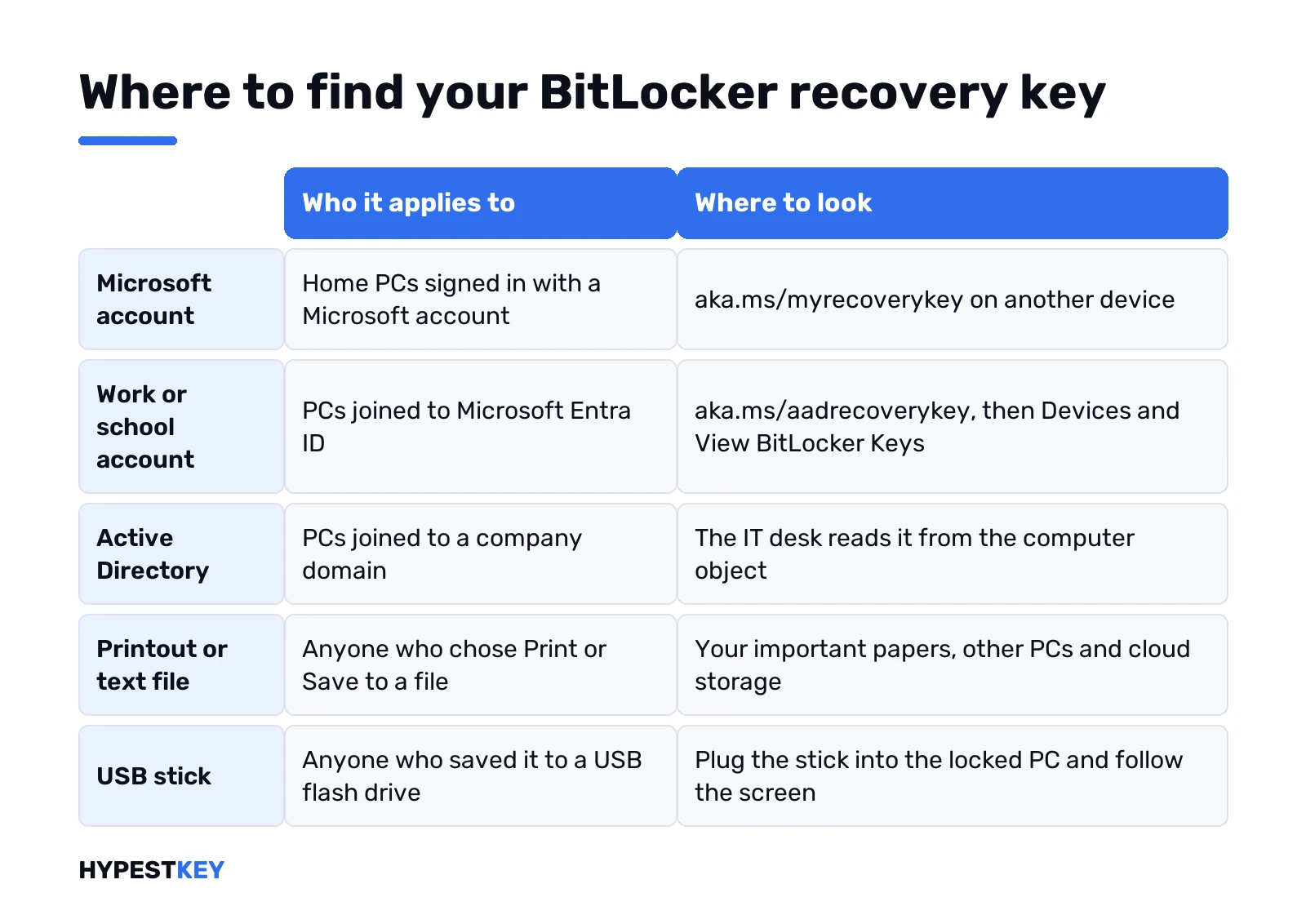
| Where it may be | Who it applies to | How to get it |
|---|---|---|
| Microsoft account | Home PCs signed in with a Microsoft account | aka.ms/myrecoverykey on another device, match the key ID |
| Work or school account | PCs joined to Microsoft Entra ID | aka.ms/aadrecoverykey, Devices, View BitLocker Keys |
| Active Directory | PCs joined to a company domain | Ask the IT desk; it’s stored with the computer object |
| Printout | Anyone who chose Print when turning it on | The folder with your important papers |
| Text file or USB stick | Anyone who chose Save to a file or USB | Read it on another device, or plug the stick into the locked PC |
| Running Windows | PCs that still start and where you’re an admin | Manage BitLocker or a command, shown below |
Six places, and on most home laptops the first one wins. Microsoft keeps its own list on the find your BitLocker recovery key page. One hard limit up front. Microsoft can’t recreate a lost key. No support call fixes that. Setting BitLocker up from scratch instead? Our BitLocker in Windows 11 guide covers turning it on.
Where your BitLocker recovery key is stored
Depends on who set the PC up and how. Think back to the day encryption got switched on.
- Bought a laptop, signed in with Outlook or Hotmail? Device encryption likely did it for you. Key went to that Microsoft account.
- Turned on BitLocker yourself? Windows asked where to back it up. Account, file, USB or paper.
- Got the laptop from work or school? IT set it up. The key is with them.
- Bought it used, or a relative set it up? The key may be in their account, not yours.
That last one trips people up a lot. Microsoft mentions it too: the key can sit in someone else’s account if they set up the device or turned on BitLocker. Worth a call to whoever did the setup.
Match the key ID first
The blue recovery screen shows a Recovery key ID. A long string of letters and digits.
Write down its first 8 characters. Every key in your account or file comes with its own ID. Pick the one where those 8 match. Several PCs on one account? This is how you tell them apart.
Read the rest of the screen too. Windows often prints a hint about where the key went. A Microsoft account link, “Look for a printout or a text file with the key”, or “Contact your organization’s help desk”. Newer Windows 11 builds even name the Microsoft account that holds it.
The ID itself unlocks nothing. Only the 48-digit key paired with it does. In company setups Microsoft’s docs call that GUID the way to find the right recovery password, and IT will ask you for it on the phone.
Microsoft account: aka.ms/myrecoverykey
The usual place for home PCs. You’ll need a second device, a phone works.
- Open aka.ms/myrecoverykey in a browser.
- Sign in with the Microsoft account used on the locked PC.
- Find the line whose Key ID starts with your 8 characters.
- Type the recovery key shown next to it into the PC.
Empty list? Try every Microsoft account you’ve ever had. Old Hotmail, the one on your Xbox, a partner’s account. Still empty? Then the key was never backed up to an account, so move on to the paper and file options.
Can’t sign in to that account at all? Account recovery first. Our Windows 11 password reset guide covers the Microsoft account side.
Work or school PCs: Entra ID and Active Directory
Company laptops play by company rules. Two cases.
Joined to Microsoft Entra ID. You can often get the key yourself, no ticket.
- Go to aka.ms/aadrecoverykey on another device.
- Sign in with your work or school account.
- Devices. Expand the locked laptop.
- View BitLocker Keys. Match the key ID.
Joined to an on-premises domain. Here the key sits in Active Directory, attached to the computer’s object. Only admins can read it. Call the helpdesk. Give them the key ID; they read the 48 digits back. Some setups also use a data recovery agent certificate. Again, IT only.
Nothing on the portal and IT can’t see it either? That happens when backup to the directory was never set up. Ask anyway before trying anything else.
Printout, text file or USB stick
When BitLocker was turned on by hand, Windows offered these.
- Printout. One page with the key ID and the key. Check the drawer with warranties and receipts.
- Text file. Its name usually starts with BitLocker Recovery Key. Search your other PCs, cloud storage and old USB drives for that phrase.
- USB stick. Plug it into the locked PC and follow the screen. Some setups store a startup key file there that unlocks without typing.
The file can’t be on the encrypted drive itself, Windows refuses that. So if it exists, it’s somewhere else.
Copying the BitLocker recovery key while Windows still works
PC still starts and you’re an admin? Then get the key now, before you need it.
- Start, type Manage BitLocker, open it.
- Next to the drive: Back up your recovery key.
- Choose your Microsoft account, a USB stick, a file or a printout.
Prefer a command? Command Prompt as administrator, then this:
manage-bde -protectors -get C:Look under Numerical Password. That’s the ID and the 48-digit password together. We’d copy it to a phone note or paper, never just to the same laptop.
Why the BitLocker recovery screen appeared
Something changed that BitLocker treats as a possible attack. Microsoft’s BitLocker recovery overview lists the usual triggers. The ones home users hit:
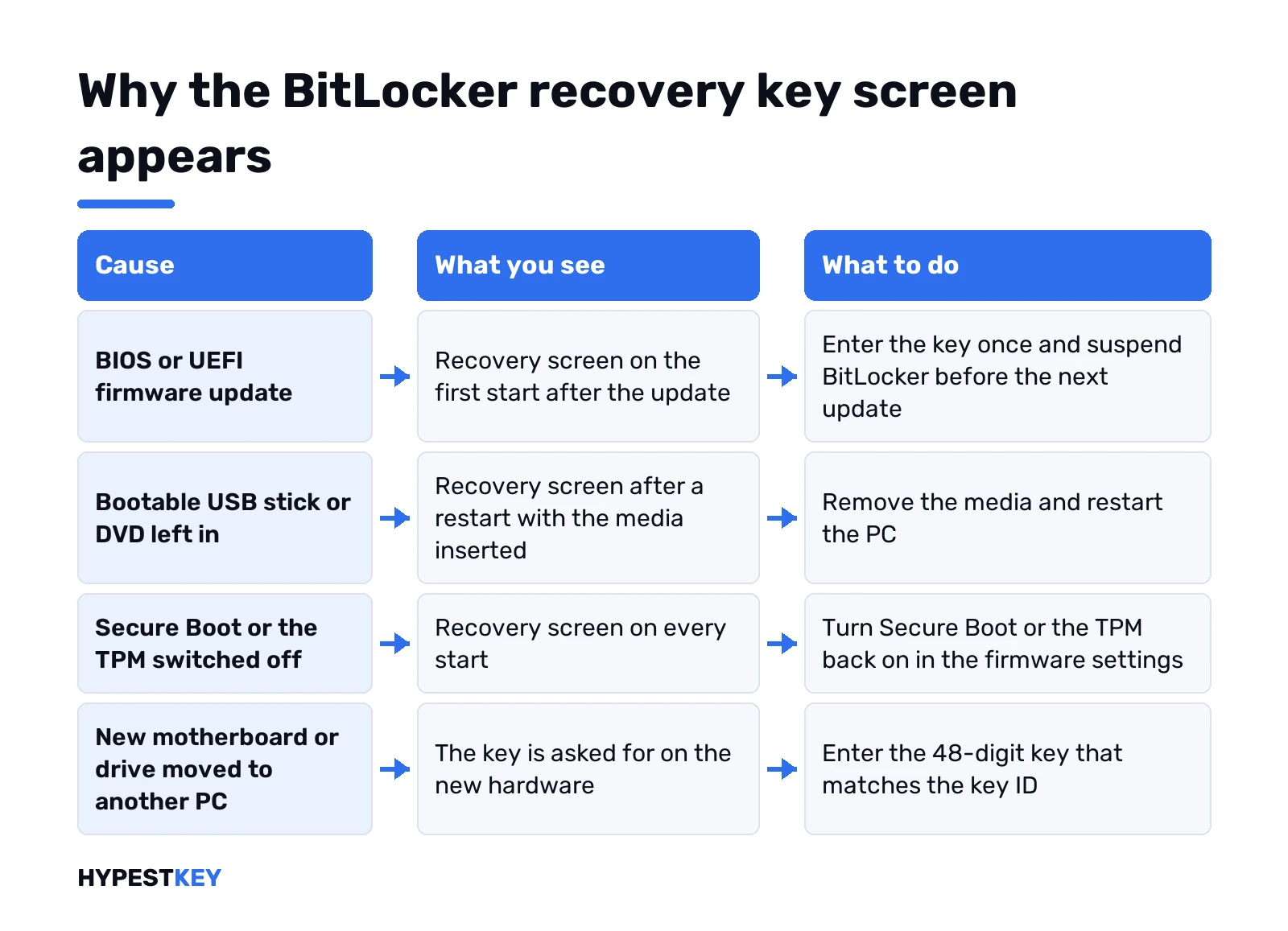
- A BIOS or UEFI firmware update.
- TPM switched off, cleared or reset in the firmware.
- A new motherboard, which brings a new TPM.
- Boot order changed, or a bootable USB stick or DVD left in.
- Secure Boot switched off.
- Docking or undocking some laptops.
- The drive moved into another computer.
- Too many wrong PINs.
Undo the change and it may start normally again. Pull the USB stick, turn Secure Boot or the TPM back on. Newer build? Press Alt on the recovery screen. We’d note the error category and code it shows. Our notes on TPM 2.0 and Secure Boot settings show where those switches live.
Typing the 48 digits
Eight groups of six digits, 48 in total. Only digits, no letters.
- Copy it from the account page group by group. Easy to skip one.
- Recovery screen from the recovery environment? Win+Ctrl+Enter starts Narrator. Tapping the box brings up the on-screen keyboard.
- Not accepted? Check the key ID again. A key from another PC or an older key won’t work.
Accepted and Windows starts? Good. Asked again on every boot? Then the trigger is still there, usually the firmware setting from the list above.
Second drives and USB sticks
Locked data drive? Calmer problem. Windows still starts, only that one drive asks.
- Open File Explorer, double-click the locked drive.
- More options. Enter recovery key.
- Type the 48 digits that match the key ID shown.
Every encrypted drive has its own key. The one for drive C won’t open a USB stick encrypted with BitLocker To Go. Company backup? Doesn’t cover removable drives automatically, per Microsoft. So we’d look in your account, a file or on paper, wherever you saved it that day.
Same steps on Windows 10 and 11. The editions differ more than the versions; our Windows 10 Home vs Pro guide shows which one manages BitLocker fully.
Can’t find the BitLocker recovery key anywhere
Every account checked, IT asked, no paper. Bad news, and we’d rather say it straight.
No key, no data. Microsoft’s support page says it can’t retrieve, provide or recreate a lost key. Tools promising to bypass it aren’t something we’d trust with a drive that matters.
What’s left: a reset from the Windows recovery options. It removes all your files. Our factory reset guide walks through it. One more catch from Microsoft’s docs. PC with a startup PIN or password? Then a Remove everything reset can itself ask for the key. We’d go for a clean install from USB, covered in installing Windows 11 from USB.
Before you wipe, try once more with the two easy fixes. Undo the hardware or firmware change. Check every Microsoft account you’ve ever owned.
Back up the recovery key before the next prompt
Back in? Five minutes now.
- Open Manage BitLocker and back up the key again, to your Microsoft account.
- Print a second copy. Keep it away from the laptop bag.
- Before a BIOS update, suspend BitLocker. Windows resumes it after the restart.
- Changed the protectors or turned BitLocker off and on? Back up the new key, the old one won’t match.
Shopping for the edition? Full BitLocker management comes with Pro, Home gets device encryption on supported hardware. See Windows 11 Home vs Pro and the Windows 11 editions breakdown. Need Pro on this PC? We sell a retail Windows 11 Pro key and a Windows 10 Pro key, instant to email.
FAQ
Where do I even look first?
Your Microsoft account. Open aka.ms/myrecoverykey on a phone, sign in and match the first 8 characters of the key ID from the blue screen.
Can Microsoft send me the key?
Nope. Microsoft can't retrieve, provide or recreate a lost recovery key, so it has to come from a place where it was saved.
The key ID matches nothing in the account, now what?
Try other Microsoft accounts you've used, and the person who set up the PC. Then printouts, text files and USB sticks.
Why does my laptop ask for it after a BIOS update?
BitLocker sees the firmware change as a possible attack. Enter the key once, and next time suspend BitLocker before updating.
Work laptop, can I get it myself?
Sometimes. On Entra ID devices try aka.ms/aadrecoverykey, Devices, View BitLocker Keys. On domain PCs only the IT desk can read it.
What if I never find it?
Then the encrypted data stays locked. Resetting the PC removes all files and gives you a working Windows again.
How do I see the key on a PC that still starts?
Open Manage BitLocker and pick Back up your recovery key, or run manage-bde with the protectors switch as an administrator.