Short answer: When Windows Explorer keeps crashing, restart it from Task Manager, then install updates and a fresh display driver. We'd run DISM and System File Checker next. Then a clean boot. One folder triggers it? Turn off thumbnails. Reliability Monitor names the faulting module. An in-place reinstall keeps your apps and files.
When Windows Explorer keeps crashing, the usual culprits are a bad display driver, an add-on that hooks into the right-click menu, a corrupt thumbnail or damaged system files. Restart Explorer to get the taskbar back. Note what you were doing when it crashed. Then these fixes, in order.
- Restart Windows Explorer from Task Manager.
- Install Windows updates, optional driver updates included.
- Update or reinstall the display driver.
- Run DISM, then System File Checker.
- Clean boot to catch a conflicting app or service.
- Turn off thumbnails, clear Explorer history, open folders in a separate process.
- Check Reliability Monitor and Event Viewer for the faulting module.
- Test the memory and the disk.
- Reinstall Windows over itself, keeping apps and files.
Get the taskbar back: restart Windows Explorer
Explorer is more than the file window. Taskbar, Start button, desktop icons, all one process. So when it dies, the screen goes blank except for your open apps.
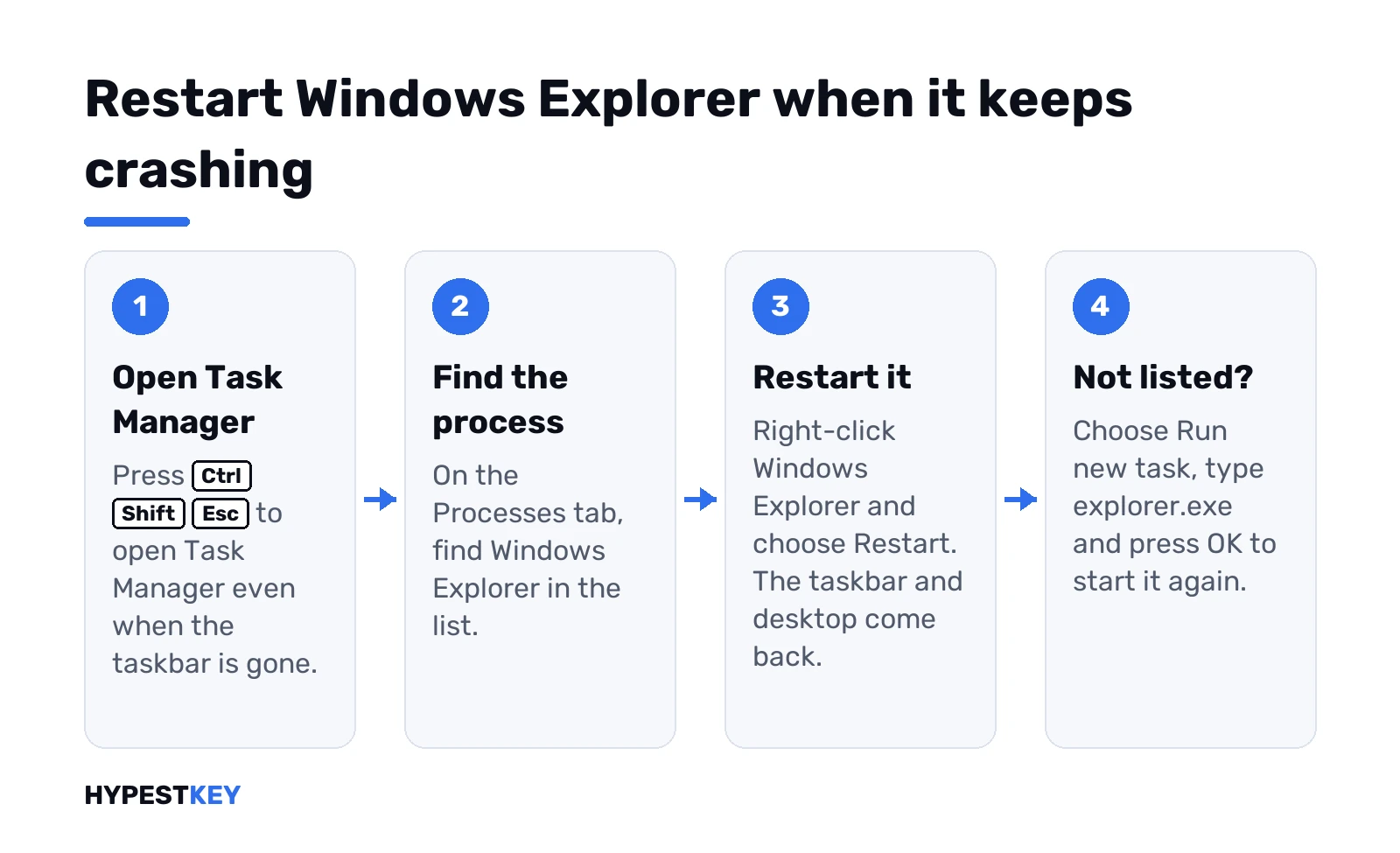
- Press Ctrl + Shift + Esc for Task Manager.
- Processes tab. Find Windows Explorer.
- Right-click it. Restart.
Not in the list? Then it’s fully closed. Task Manager, Run new task, type explorer.exe, OK. Desktop comes back.
That gets you working again. It doesn’t fix anything, so the next step is noticing when it crashes. Right-clicking a file? Opening one specific folder? Every few minutes for no reason? Each pattern points to a different section below.
Windows Explorer keeps crashing after an update
Started right after Patch Tuesday? Two moves, in this order.
Finish updating. A half-installed update causes more trouble than a full one. Settings, Windows Update, Check for updates. Then Advanced options, Optional updates, and install the driver updates listed there. Restart even if nothing asks for it.
Or roll back. If crashes began with one specific update and the next one hasn’t arrived yet, uninstall it. Settings, Windows Update, Update history, Uninstall updates. Pick the newest one. On Windows 10 it’s under Update & Security.
Restore point from before the trouble? Even quicker. Our guide on how to create and use a restore point in Windows 11 shows the rollback screen.
File Explorer crashes and the display driver
Explorer draws a lot of graphics. Thumbnails, previews, transparency. So a broken graphics driver often shows up as File Explorer crashes rather than as a game problem.
- Windows Update first. The optional updates list often carries the newest tested driver.
- Then the maker. Laptop? The laptop maker’s support page. Desktop with a separate card? The card maker’s site.
- Clean reinstall. Device Manager, Display adapters, right-click the adapter, Uninstall device. Restart and Windows puts a basic driver back.
Crashes stop on the basic driver? Then we know the cause. Install the maker’s version fresh and see if they return.
Repair system files with DISM and SFC
Damaged Windows files are the next suspect. Microsoft’s order is DISM first, then System File Checker. Command Prompt as administrator:
DISM.exe /Online /Cleanup-image /RestorehealthWait for 100 percent. Then:
sfc /scannowHow to read the result:
- Did not find any integrity violations. System files are fine. Look elsewhere.
- Found corrupt files and successfully repaired them. Restart and test.
- Found corrupt files but was unable to fix some of them. The details are in the CBS log, see the System File Checker page. A repair reinstall, further down, is easier.
- Could not perform the requested operation. Run it again from Safe Mode.
Clean boot to catch the app behind it
Cloud sync clients, archive tools, antivirus, file-sharing apps. Many of them load into Explorer. A clean boot starts Windows without them so you can see if the crashes stop.
- Search for msconfig. Open System Configuration.
- Services tab. Tick Hide all Microsoft services. Disable all. Apply.
- Startup tab. Open Task Manager. Disable every startup item and note which ones.
- OK, restart.
Explorer stable now? Turn half the services back on, restart, test. Keep halving until one is left. Microsoft’s clean boot steps describe the same split method. Done testing? msconfig, General tab, Normal startup.
Crashes even in a clean boot? Try Safe Mode next. If Explorer holds up there, a driver is likely. Our Windows 11 Safe Mode guide and the steps to enter Safe Mode on Windows 10 cover the routes.
Crashes on right-click or in one folder
Very specific crashes usually have specific causes.
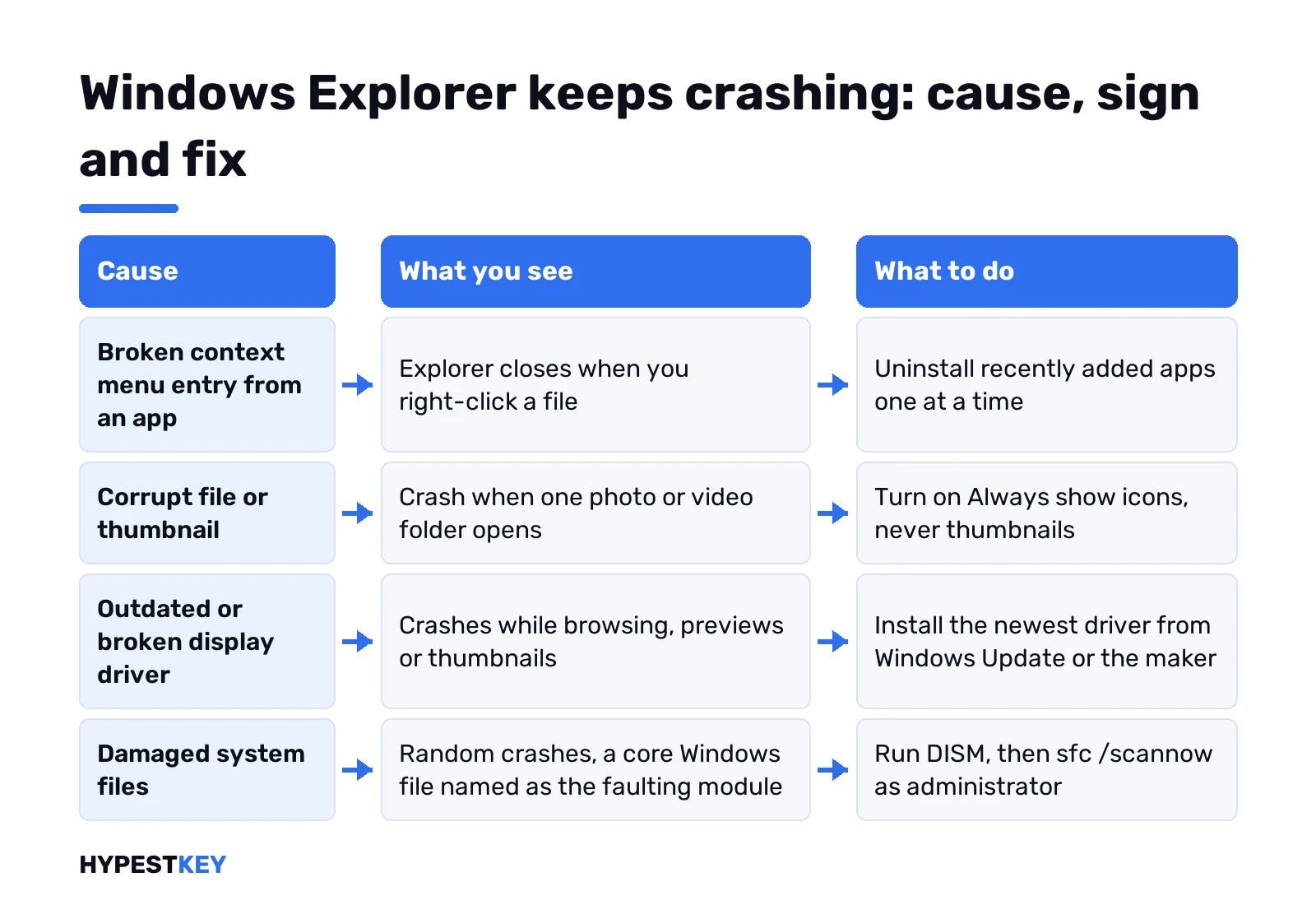
Right-click a file, Explorer dies. Something added a context menu entry, and that entry is broken. On Windows 11 it often happens on Show more options, where the older entries live. Think about what you installed lately. Uninstall it, restart, test. One app at a time.
One folder full of photos or videos. A corrupt file or thumbnail. Test with thumbnails off:
- File Explorer Options. View tab.
- Tick Always show icons, never thumbnails. Apply.
Folder opens fine now? Move the files out in batches to find the bad one. Then switch thumbnails back on.
Mapped network drive. Crashes when that drive is offline? Disconnect it and map it again once the server is reachable.
Explorer options that make crashes less painful
Three settings in File Explorer Options. Windows 11: See more, Options. Windows 10: View, Options.
- Open File Explorer to This PC. Home or Quick access loads recent files first. A broken recent item can crash it on every open.
- Privacy, Clear. Wipes File Explorer history. Clearing the recent files and frequent folders boxes keeps it from refilling. More on that in our Windows 11 Quick Access settings guide.
- Launch folder windows in a separate process. View tab, Advanced settings. Then a crash in one folder window doesn’t take the taskbar with it.
Find the faulting module in Reliability Monitor and Event Viewer
Windows records every Explorer crash. Two places to read them.
Reliability Monitor. Search for reliability, open View reliability history. Red X marks are crashes. Click a day, then the Windows Explorer entry. The technical details show the faulting module. Or run this from Win + R:
perfmon /relEvent Viewer. Right-click Start, Event Viewer, Windows Logs, Application. Look for Error entries named Application Error at the crash time. The details list the faulting application and the faulting module name.
That module name is the clue. A file from a third-party app means uninstall or update that app. A graphics driver file points back to the driver section. A core Windows file like ntdll.dll is vaguer. We’d run DISM and SFC, then the memory test.
Test memory and the disk
Faulty RAM makes everything crash, Explorer just happens to be the thing you notice. Win + R:
mdschedChoose Restart now and check for problems. The test runs before Windows starts. Results show in a notification after sign-in, or in Event Viewer under MemoryDiagnostics-Results, where event 2001 means no errors. Thinking about more memory anyway? Our RAM calculator helps size it.
Then the drive. Admin Command Prompt:
chkdsk C: /scanErrors found? Run the repair version at the next restart:
chkdsk C: /fA full malware scan in Windows Security is worth the time too. Malware hiding inside Explorer? Old trick, still around.
Windows Explorer still crashing? Repair Windows in place
Nothing helped? Reinstall Windows over itself. Apps, files and settings stay.
- Windows 11. Settings, System, Recovery, then Reinstall now under Fix problems using Windows Update. Keep the PC on power and online.
- Older builds or Windows 10. Run setup from installation media inside Windows and choose to keep personal files and apps. The Windows 11 Media Creation Tool makes the stick. Run setup from inside Windows here, don’t boot from it. Booting from it is for a fresh install, which we cover in our Windows 11 USB install and Windows 10 clean install guides.
A test account before that is quick. Settings, Accounts, Other users, add a new local user. Explorer stable there? Then your profile is damaged, not Windows.
Last resort? A reset. Our guide to factory reset Windows 11 explains keep my files versus remove everything, and the clean Windows 11 install guide covers the wipe-and-start route. Reinstalled on new hardware and need a license? A Windows 11 Pro key from us arrives instant to email.
FAQ
My taskbar and desktop vanished, how do I get them back?
Open Task Manager with Ctrl + Shift + Esc. Choose Run new task, type explorer.exe and press OK, and the taskbar returns.
Explorer crashes only when I right-click. Why?
Almost always a broken context menu entry from an installed app. Uninstall recently added apps one at a time, restarting between each, until right-click works again.
Can I reinstall just File Explorer?
No. It's part of Windows, not a separate app. A repair reinstall through Settings or installation media replaces it and keeps your apps and files.
Does turning off thumbnails hurt anything?
Nope. You see file type icons instead of previews. It's a test setting, and you can switch thumbnails back on once the bad file is found.
Explorer keeps restarting every few seconds. Is that malware?
It can be, but drivers and add-ons are more common. Run a full scan in Windows Security, then check Reliability Monitor for the faulting module.
Will sfc /scannow delete my files?
No. It only checks and replaces protected Windows system files. Documents, photos and apps stay where they are.
Does a repair reinstall need my product key again?
Usually not. The reinstall keeps the same edition on the same PC, and Windows stays activated through its digital license.