Short answer: Windows 11 Quick Access is the list of pinned and frequent folders in File Explorer. Right-click a folder and choose Pin to Quick access to add it. For the rest, open the three-dot menu and choose Options. There we'd hide recent files, stop auto-added folders or make Explorer open to This PC.
Windows 11 Quick Access is the list of pinned and frequently used folders in File Explorer. Since 22H2 it’s a section inside Home, the Explorer landing page. Out of the box it holds six known folders, and we’d pin the rest of yours there too. You control it in two places.
| Place | What you do there |
|---|---|
| The right-click menu on any folder | Pin to Quick access, Unpin from Quick access |
| Folder Options | Opened from the three-dot menu in the Explorer toolbar. It holds the landing page, the Privacy checkboxes, Clear and Restore Defaults |
Everything else on this page builds on those two spots. That goes for hiding recent files and for resetting a broken list.
- To pin a folder, right-click it and choose Pin to Quick access. Dragging it onto Quick access in the left pane works too.
- To hide recent files and auto-added folders, clear the Privacy checkboxes in Folder Options and click Clear.
- To open Explorer to your drives, set “Open File Explorer to” to This PC.
- To reset a broken list, delete the Explorer jump list file in the AutomaticDestinations folder.
- Since 22H2 the landing page is called Home, and Quick access sits inside it.
What Windows 11 Quick Access is
Quick access lists folders you pinned plus folders the system thinks you use often. It appears in the left navigation pane and on the Home page.
By default it holds six known folders. You can add or remove any others.
- Desktop
- Downloads
- Documents
- Pictures
- Music
- Videos
Press Win+E and there it is, in the left panel. The system also auto-adds folders you open frequently, wanted or not.
Microsoft mangled the naming in 22H2, from build 22593 up. The old Quick Access was the whole landing page, and it got renamed to Home.
Then the name Quick Access went onto just the pinned folders section inside Home. Pinned files turned into Favorites.
That lined them up with Office and OneDrive. Three renames at once, and everybody got lost.
Reading this, you probably want one of three things.
- Pin folders.
- Get rid of the auto-added clutter.
- Turn Quick access off completely.
All three are covered below. Registry tweaks are here too, for when the normal settings aren’t enough.
Quick reference: every action
Most changes take one right-click or one checkbox in Folder Options. Only two jobs need a file delete or a registry edit.
| Action | Where to do it | Difficulty |
|---|---|---|
| Pin a folder | Right-click folder > Pin to Quick access | Easy |
| Unpin a folder | Right-click pinned folder > Unpin from Quick access | Easy |
| Hide recent files | Folder Options > Privacy > clear “Show recently used files” | Easy |
| Hide frequent folders | Folder Options > Privacy > clear “Show frequently used folders” | Easy |
| Clear Quick Access history | Folder Options > Privacy > Clear button | Easy |
| Open to This PC | Folder Options > Open File Explorer to > This PC | Easy |
| Reset to defaults | Delete f01b4d95cf55d32a.automaticDestinations-ms | Medium |
| Remove from navigation pane | Registry: HubMode DWORD = 1 | Advanced |
| Remove Quick Access everywhere | Registry: ShellFolder Attributes = a0600000 | Advanced |
How to pin folders to Windows 11 Quick Access
Pinning only adds a shortcut. The real folder stays where it is on disk.
This is what Quick access is for. Take a folder buried five levels deep on a work drive.
D:\Work\Clients\2026\ProjectX\DeliverablesNormally that’s five clicks just to reach it. After pinning, it shows at the top of Explorer and stays there.
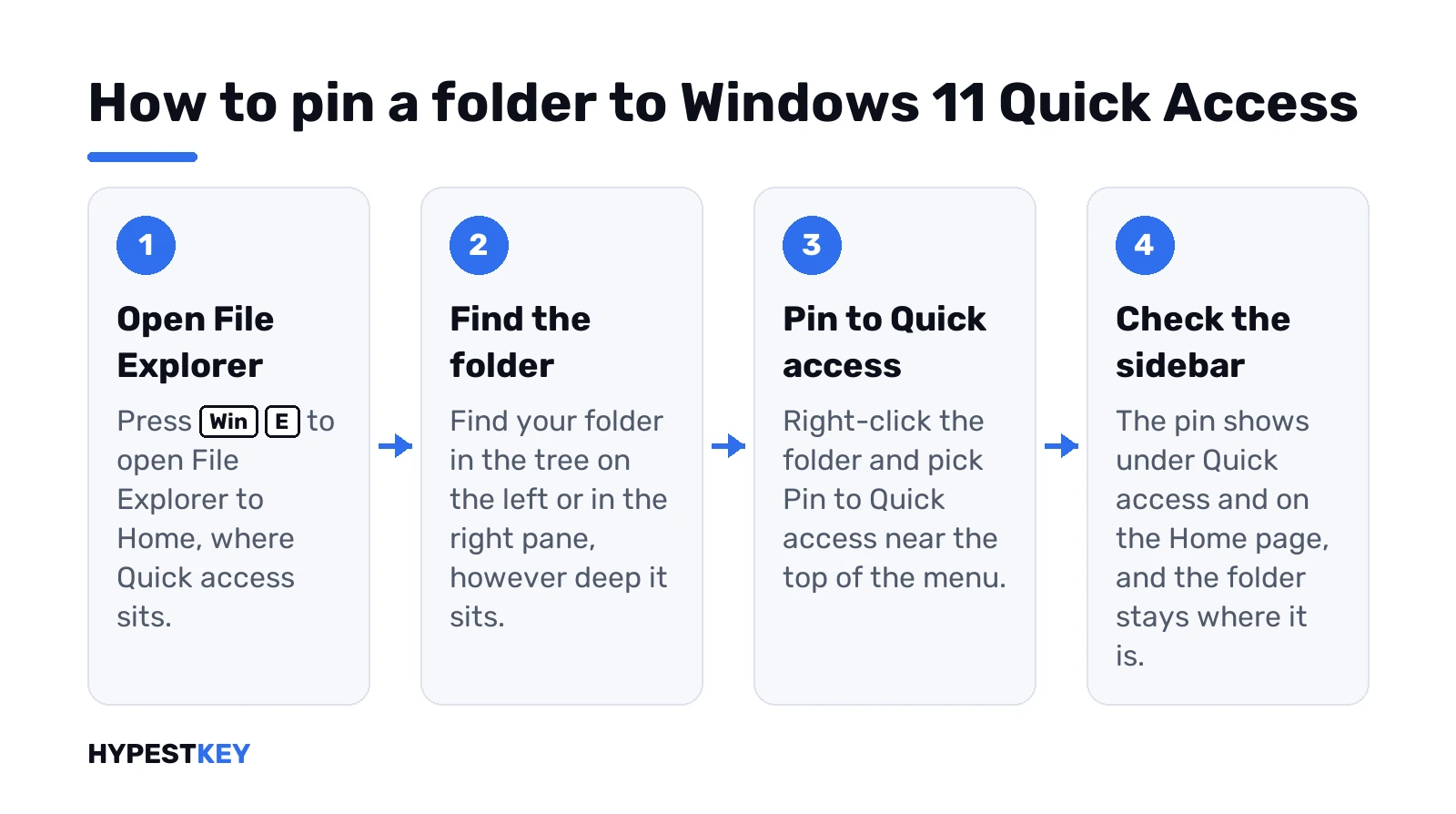
- Press Win+E to open File Explorer.
- Find your folder in the tree or in the right pane.
- Right-click it and pick Pin to Quick access near the top of the context menu.
- Check the left sidebar. The pin appears under Quick access and on the Home page.
Dragging skips the menu entirely. Grab the folder and drop it onto the Quick access section in the sidebar.
There’s one quirk: pinning works on folders, not files. Try to pin a Word document, and no option appears.
Files have their own feature, “Add to Favorites”. It keeps a separate list on the Home page.
Unpinning a folder
It’s the same idea in reverse. Right-click any pinned folder in the list and pick “Unpin from Quick access”.
The entry leaves the sidebar. The folder on disk stays put, and only the shortcut goes.
An unpinned folder can resurface a day or two later. The first time, it looks as if unpin is broken.
It isn’t. A separate tracker for “frequent folders” re-adds anything you keep opening.
Those auto-adds look almost identical to manual pins in the sidebar. To stop a folder from coming back, we’d switch off that tracking in Folder Options.
Rearranging pins
Drag pinned folders up or down within Quick access to reorder them. The order sticks across reboots and across Explorer sessions.
If dragging does nothing, check “Show all folders” in the navigation pane options. That setting breaks drag reordering more often than you’d expect.
Turn it off, rearrange, and turn it back on if you had a reason for it.
Windows 11 Quick Access settings in Folder Options
Every Quick access setting lives in Folder Options, on the General tab.
| Control | What it does |
|---|---|
| “Open File Explorer to” dropdown | Sets the landing page: Home or This PC |
| Privacy checkboxes | Recent files, frequent folders and account-based content |
| Clear | Wipes the auto-added history and leaves manual pins |
| Restore Defaults | Resets the General tab settings and keeps pins |
Opening Folder Options
It’s a bit unintuitive in the new interface. Open Explorer with Win+E and look at the toolbar along the top.
Three dots sit over on the right, easy to miss. Click them and find Options near the bottom of the dropdown.
Folder Options opens on the General tab.
What Explorer opens to
At the very top of the General tab sits a dropdown labeled “Open File Explorer to”. The two main choices are Home and This PC.
Home is the default, and it’s what most people have. This PC gives you the drives view in the style of Windows 10.
Which works better depends on your usage. On a desktop where you bounce between three drives, This PC saves a click every time.
| Machine | Better landing page | Why |
|---|---|---|
| Desktop with a system drive, a storage drive and a NAS share | This PC | The drives are one click closer |
| Laptop where nearly everything lives in Documents and Downloads | Home | Those folders sit right in front of you |
Quick access remains in the sidebar whichever you pick. You just don’t land there by default.
Recent files and frequent folders
Scroll down the General tab to the Privacy section. Current builds show these checkboxes.
| Checkbox | Notes |
|---|---|
| “Show recently used files” | Controls the recent files on the Home page |
| “Show frequently used folders” | The tracker behind auto-added folders |
| “Include account-based insights, recent, favorite, and recommended files” | Replaced the older “Show files from Office.com” label. It only matters when you sign in with a Microsoft account or a work or school account |
| “Show recommended section” | May appear on PCs signed in with a work or school account |
Untick them all, and Quick access becomes strictly what you pinned by hand.
There are no more random folders from last week’s cleanup session. Office documents from a colleague’s shared OneDrive stay out too.
Our preferred setup is everything off except recent files.
Next to the checkboxes sits a Clear button, under “Clear File Explorer history”. It wipes the auto-added entries at once.
Manual pins stay. So it’s safe to click whenever the list gets cluttered.
Keep an eye on the recommended and account-based options. When they’re on, OneDrive and Office file suggestions land on your Home page.
Your pins get pushed down the page or out of view. After an update, plenty of people on forums thought their pins were gone.
All they needed was to untick one box.
If a checkbox seems to do nothing, we’d close every File Explorer window and open a fresh one. Explorer reads these settings when a window opens, not while it’s already running.
Disabling Windows 11 Quick Access completely
There are three levels, from mild to deep.
| Level | What it does | What it needs |
|---|---|---|
| 1 | Explorer opens to This PC with the Privacy boxes cleared. Quick access stays in the sidebar | Folder Options only |
| 2 | Hides Quick access from the navigation pane | The HubMode registry value |
| 3 | Removes Quick access from Explorer and from Open and Save dialogs | An edit to a protected ShellFolder key |
We’d start at level 1 and go deeper only if the sidebar entry still bothers you.
| You want | Level |
|---|---|
| Explorer to open on your drives | 1 |
| A sidebar with no Quick access entry | 2 |
| No Quick access in Save and Open dialogs either | 3 |
Level 1: switch to This PC
- Open Folder Options from the three dots, then Options.
- Set “Open File Explorer to” to This PC.
- Untick every Privacy checkbox and click Clear.
- Click Apply, then OK.
From now on, Explorer opens to your drives view. Quick access technically still lives in the sidebar, but you rarely see it.
Level 2: hide it from the navigation pane
A registry edit pulls Quick access out of the sidebar completely.
- Press Win+R, type
regeditand press Enter. - Go to the Explorer key shown below.
- Right-click empty space in the right pane and choose New, then the 32-bit DWORD value.
- Name it HubMode, double-click it and set the value to 1.
- Restart the PC, or restart Windows Explorer from Task Manager.
HKEY_LOCAL_MACHINE\SOFTWARE\Microsoft\Windows\CurrentVersion\ExplorerQuick access is gone from the sidebar after that. Deleting HubMode, or setting it to 0, brings it back after another restart.
The value sits under HKEY_LOCAL_MACHINE, so it applies to every user on the PC.
Level 3: remove it everywhere
This is the harshest option. It pulls Quick access out of everywhere, including the Save As and Open dialogs in every app.
Open Registry Editor as administrator and go to this key:
HKEY_CLASSES_ROOT\CLSID\{679f85cb-0220-4080-b29b-5540cc05aab6}\ShellFolderThe catch is permissions. By default you can’t write to this key.
- Right-click ShellFolder and choose Permissions.
- Click Advanced first, and set the owner to your account. Confirm.
- Come back to the regular Permissions dialog and grant your admin account Full Control.
- Double-click Attributes in the right pane.
- Replace
a0100000witha0600000, then restart.
Without the owner step, the Permissions dialog refuses in most cases. That’s where people give up.
Setting the value back to a0100000 reverses it. We’d leave this one alone unless you’re confident with registry work.
Taking ownership of system keys can make Explorer behave strangely in subtle ways. Debugging that isn’t fun. If Explorer won’t start after a bad edit, we’d boot into Windows 11 Safe Mode and undo it there.
Export any key to a .reg file before you edit it, with File, Export in Registry Editor. Double-clicking that file later restores the original values in seconds. We’d also make a Windows 11 restore point first.
The LaunchTo value
One more registry value does the job of the “Open File Explorer to” dropdown. It’s scriptable, which matters when you roll settings out across many PCs.
| Key | Value | Data |
|---|---|---|
HKEY_CURRENT_USER\SOFTWARE\Microsoft\Windows\CurrentVersion\Explorer\Advanced |
LaunchTo, a DWORD |
1 opens to This PC, 2 opens to Home |
Drop it in a .reg file and import it on fresh machines during provisioning.
Resetting Windows 11 Quick Access to default
Quick access can go sideways in several ways.
- Pins vanish without warning.
- Phantom entries stay for folders you deleted ages ago.
- Drag and drop ignores you.
Resetting the underlying database fixes it in most cases. Your own pins and the frequent folder history are wiped, so we’d note them first.
There are four methods, and the table shows what each one removes.
| Method | What it resets | What it keeps |
|---|---|---|
| 1. File Explorer delete | Pins, recent folders, frequent folders | The taskbar jump lists of other apps |
| 2. Command Prompt | The same as method 1 | The same as method 1 |
| 3. PowerShell wipe | Quick access pins and the taskbar jump lists of every app | Nothing in that folder |
| 4. Restore Defaults | The General tab settings: Privacy checkboxes and landing page | All pins |
Method 1: through File Explorer
- Paste the folder path below into the Explorer address bar and press Enter.
- Find the file named below and delete it.
- Close every open Explorer window, then open Explorer again.
%AppData%\Microsoft\Windows\Recent\AutomaticDestinations
f01b4d95cf55d32a.automaticDestinations-ms
The first line is the folder, and the second is the file. Quick access resets to the six entries that ship with the system.
Everything custom gets wiped in the process. Re-pin anything you want to keep.
Method 2: Command Prompt
Close every Explorer window first, then run this:
del /f /q "%AppData%\Microsoft\Windows\Recent\AutomaticDestinations\f01b4d95cf55d32a.automaticDestinations-ms"It gives the same outcome as Method 1 in a single line.
Method 3: PowerShell
Use this when Methods 1 and 2 don’t stick. Open PowerShell and run:
Remove-Item -Path "$env:APPDATA\Microsoft\Windows\Recent\AutomaticDestinations\*" -Force
Remove-Item -Path "$env:APPDATA\Microsoft\Windows\Recent\CustomDestinations\*" -Force| Line | What it wipes |
|---|---|
| The first | The whole AutomaticDestinations folder: your Quick access pins AND the taskbar jump lists of every app |
| The second, optional | Documents pinned inside app jump lists |
A typical case for it: a machine where the single-file delete isn’t holding. The database regenerates with corrupted entries on every boot.
A full wipe breaks that cycle.
What that f01b4d95cf55d32a file holds
The odd filename belongs to File Explorer’s jump list file. The system keeps one of these per app.
They back the list you see when you right-click a taskbar icon.
| For Explorer, this binary file stores |
|---|
| Your pins |
| The recent folder list |
| The access counts used for frequent folders |
Delete the file, and a clean one gets built on the next launch. That’s why deleting it resets Quick access to the six defaults.
Method 4: Restore Defaults
This is the least destructive option. In Folder Options, scroll to the bottom of the General tab and click “Restore Defaults”.
It only resets the General tab settings, such as the Privacy checkboxes and the landing page.
Your pins stay exactly where they are. We’d use it for factory settings without losing the pin layout.
Quick access, Home and Favorites
Sometimes it seems Microsoft employs someone just to rename things nobody asked to rename. This is the rundown.
| Version | Landing page name | What “Quick access” refers to |
|---|---|---|
| Windows 10 | Quick access | The whole page: pinned folders plus recent files |
| Windows 11 21H2 | Quick access | Same as Windows 10 |
| Windows 11 22H2 and later (incl. 24H2, 25H2, 26H2) | Home | Only the pinned and frequent folders section |
Microsoft’s own File Explorer support page describes Home as the former Quick access.
On 22H2 and later the pieces are these.
| Name | What it covers |
|---|---|
| Home | The landing page |
| Quick access | The pinned and frequent folders section within Home, and in the navigation pane |
| Favorites | Pinned files, renamed to match Office and OneDrive |
| Recent | Your recently opened files |
| Recommended | Recommended or shared content that can appear when you sign in with a work or school (Microsoft Entra ID) account |
Someone posts “my Quick Access is gone”. What they mean is that the pinned folders section under Home stopped showing.
It’s still there, hidden behind a checkbox. Microsoft moved the furniture around.
Did Windows 11 remove Quick Access?
No. Version 22H2 renamed the landing page to Home, and that’s all. The pinned folders are still there, in a section still named Quick access. Pin to Quick access still sits in the right-click menu.
When Windows 11 Quick Access goes missing after an update
This comes up on forums all the time. Threads on r/Windows11 are full of it.
Windows Update runs, Explorer opens, and pinned folders sit below a block of OneDrive suggestions. Panic follows.
The fix takes under a minute.
- Open Explorer, click the three dots in the toolbar and pick Options.
- On the General tab, find Privacy.
- Untick the recommended option, or “Include account-based insights”.
- Click Apply, then OK, and reopen Explorer.
When that doesn’t work, go harder. Untick every Privacy option, click Clear and Apply, and close all Explorer windows.
Reopen Explorer, go back into Folder Options and turn on only the options you want.
This forced toggle cycle makes the system rebuild the Quick access data. That clears out whatever the update scrambled.
What changed in recent versions
Quick access works the same way on the current releases. You still pin with a right-click and control it in Folder Options.
| Version | Status |
|---|---|
| 24H2 | Every step here applies |
| 25H2 | Every step here applies |
| 26H2 | Available since September 29, 2026. Nothing on this page changed with it |
The visible changes are around it.
- Home runs on the newer Windows App SDK.
- Account-based recommendations got more prominent.
- Some old registry tweaks that restored the Windows 10 ribbon stopped working.
The modern Home page and address bar run on the Windows App SDK, not on the old Win32 shell code. Visually it’s close enough that most people won’t notice.
Internally it’s a different pipeline. That’s why several registry hacks from the 22H2 era stopped working for many users after updating.
The Windows 10 ribbon restorations were hit in particular.
Another constant source of confusion on forums is Quick Settings. That’s the Win+A panel with volume, Wi-Fi and Bluetooth.
It has nothing to do with Quick Access. A shared word in the name is the only connection.
There’s one more point for company laptops. The Recommended content in Home shows up mainly for Microsoft Entra ID accounts, formerly Azure AD.
Say your work PC shows Office file suggestions where your pinned folders used to be. That’s the Entra integration.
The checkbox in Folder Options clears it. If IT pushes that setting through Intune or Group Policy, it comes back every time policies sync down.
Stopping auto-pinned folders in Windows 11 Quick Access
It’s a classic annoyance. Open some folder a couple of times, and it’s in Quick access, looking just like your manual pins.
The mechanism behind it is “frequent folders”. A background tracker watches which folders you open and adds the ones you hit often.
Auto-adds don’t carry the pin icon that manual pins get. The visual difference is tiny and easy to miss.
Three clicks shut it down.
- Open Folder Options from the three-dot menu.
- Untick “Show frequently used folders” under Privacy.
- Click Clear to remove the existing auto-adds, then Apply.
From that moment, only what you pin yourself shows up.
A stronger option on Pro and higher Windows 11 editions is Group Policy. Run gpedit.msc and open the path in the table.
| Item | Details |
|---|---|
| Path | User Configuration > Administrative Templates > Start Menu and Taskbar |
| First setting | Enable “Do not keep history of recently opened documents” |
| Second setting | Enable “Remove Recent Items menu from Start Menu” |
Neither touches pinning directly. Both stop the recent-item tracking that frequent folders rely on.
A typical case: an office of a dozen workstations. This combination goes out through a domain GPO. We’d expect it to clean up Quick access on every machine in one go, with no visits to individual PCs.
Keep in mind that gpedit.msc doesn’t ship with the Home edition. Our Windows 11 Home vs Pro comparison shows what else Pro adds.
Home users are limited to the Folder Options checkboxes or the registry.
Keyboard shortcuts for Windows 11 Quick Access
There’s no dedicated keyboard shortcut for Quick access folders.
| Shortcut | What it does |
|---|---|
| Win+E | Opens File Explorer to Home, where Quick access sits |
| Ctrl+L or Alt+D | Jumps to the address bar, so you can type or paste a path |
That’s tough for keyboard users. In Windows 10, Alt+F opened the File menu with a numbered list of frequent places.
A folder was two keystrokes away. When File Explorer was rebuilt and the ribbon went away, that menu went too.
There’s no replacement so far, so you’re left with workarounds.
- Pin constant folders to Start.
- Pin them to the File Explorer jump list on the taskbar, for one-click access even with Explorer closed.
- Wire up AutoHotkey or PowerToys to map key combinations to folder paths.
The last one takes more work to set up. Once it’s running, it’s solid.
Losing those menu shortcuts set keyboard users back. Third-party shell tools such as StartAllBack can bring back an Explorer in the old style, menus included.
That isn’t Microsoft software, so we’d weigh it before installing on a work PC.
Network drives and OneDrive folders
Network folders, mapped drives and OneDrive folders pin exactly like local folders. Right-click and choose Pin to Quick access.
That goes for any mapped drive letter or UNC path folder. SMB shares, NAS devices and WebDAV paths all work the same way.
The catch with network pins is availability. Explorer probes pinned paths on launch.
If yours is offline, Explorer just waits. A disconnected VPN or a powered-off NAS is enough.
A typical case: a pinned NAS that’s only powered on for nightly backups. We’d expect every Explorer launch during the day to freeze for 10 to 15 seconds on that one pin.
Swap it for a desktop shortcut, and Explorer goes back to opening instantly. So pin only shares that are reliably online.
OneDrive differs, since the files sync down to local disk and the folder is always reachable.
When you sign in with an online account, recent Office documents from OneDrive also land on the Home page. That’s the account-based content you can turn off in Folder Options.
Habits that save time
The habits that save the most time are simple. A few are common among people who juggle this on various machines.
Build a hub folder
Pinning fifteen separate project folders makes the sidebar useless. A better play is one folder full of shortcuts.
Create it anywhere, fill it with shortcuts to your real folders, and pin that single hub. Something like “Quick Links” works as a name.
One entry gives access to everything underneath.
Save As dialogs pick up your pins
A lot of people miss this one. A pinned folder also appears in the Save As and Open dialogs of apps with the standard file dialog.
That covers Word, Excel and plenty of others.
So there’s no more browsing to a deep path like this one every time you press Ctrl+S.
D:\Projects\Client\2026\Q2\AssetsDefault folders that got unpinned
It happens now and then after updates. The six default folders quietly vanish.
Open your user folder, right-click each folder and pin it back.
C:\Users\YourUsernameRestore Defaults in Folder Options doesn’t bring pins back. Deleting the AutomaticDestinations file does, at the cost of your custom pins.
Back up your pin layout
The Explorer jump list file in AutomaticDestinations contains every pin you’ve set up. Copy it somewhere before a clean reinstall of Windows 11.
On the fresh install, drop the file back in the same path, and your pins transfer over.
Restoring across very different versions isn’t always perfect. It still beats re-pinning 20 or more folders from memory.
Copying Quick Access pins to another computer
The same file moves your pins to a second PC. Both machines should keep the pinned folders at the same paths, or the pins point nowhere.
- On the old PC, paste this path into the File Explorer address bar:
%AppData%\Microsoft\Windows\Recent\AutomaticDestinations- Copy the file whose name starts with f01b4d95cf55d32a to a USB stick or a cloud folder.
- On the new PC, close every File Explorer window and open the same path.
- Paste the file there and confirm the replacement.
- Sign out and back in, or restart Windows Explorer from Task Manager.
Pins to network drives come across only when the drive letters match on both computers.
Privacy on a shared PC
On a shared PC, Quick access shows everyone what you worked on recently. Recent files and frequent folders are right there when someone opens Explorer.
Screen shares and presentations have the same problem. A folder with a name like “taxes FINAL FINAL v3” can sit on screen for a whole video call.
Lockdown takes a few minutes.
- In Folder Options, untick “Show recently used files” and “Show frequently used folders”.
- Untick the account-based insights option if cloud files concern you too.
- Click Clear to wipe the activity already logged.
- Switch “Open File Explorer to” from Home to This PC. That view shows drives and nothing about recent activity.
For a shared workstation or kiosk, combine these settings with the Group Policy entries from the auto-pinning section.
A domain GPO re-applies settings at every sign-in. So even if a user edits them locally, they revert at the next logon.
In training labs we’d use this same combination, and it holds up well there.
Common problems and fixes
Most problems come down to four causes.
| Cause | Quick fix |
|---|---|
| The simplified context menu hides the pin option | Show more options |
| Frequent folders re-add entries | Untick the checkbox and clear the history |
| An unreachable network pin slows Explorer | Unpin shares that are offline |
| A corrupted AutomaticDestinations database | A full reset of the jump list files |
“Pin to Quick access” is missing
Hold Shift while right-clicking the folder, or right-click and pick “Show more options”. Both open the classic context menu, where the pin option should be.
Some builds hide it for no obvious reason. Another workaround is to select the folder and use the three-dot menu in the toolbar.
Folders keep reappearing after unpinning
A folder that comes back is most likely a “frequent folder”, not an actual pin.
Untick “Show frequently used folders” in Folder Options, then clear the history. It should stop.
Quick access is slow to load
A pinned network path that can’t be reached causes this most often.
Unpin any network folders that aren’t online right now. If Explorer is still sluggish, the database might be bloated or corrupted.
Reset it with the methods above, and start fresh with fewer pins.
Drag and drop not working
Often “Show all folders” is on in the navigation pane. Switch it off, rearrange, and flip it back on if you want it.
An empty list with no pins at all can fail too, so keep at least one pin.
Third-party tools that remove “This PC” from the navigation pane can also break drag behavior.
“Docfile has been corrupted” when pinning
This one is less common, though it shows up on Microsoft’s forum regularly. You try to pin a folder and get that message.
The AutomaticDestinations database is broken internally.
This fix is the one that works for many people posting about the same error.
- Open Folder Options from the three-dot menu.
- Untick every option under Privacy, click Clear, then Apply and OK.
- Close all Explorer windows and reopen Explorer.
- Go back into Folder Options, tick the options you want, then Apply and OK.
The toggle cycle forces a rebuild of the database file, which resolves most corruption issues.
If even that fails, delete everything in the two folders below and restart.
%AppData%\Microsoft\Windows\Recent\AutomaticDestinations\
%AppData%\Microsoft\Windows\Recent\CustomDestinations\
Undoing Quick access changes
Every step on this page can be reversed. The table shows the way back for each one.
| What you did | How to undo it |
|---|---|
| Pinned a folder | Right-click it and unpin |
| Cleared the Privacy checkboxes | Tick them again, or click Restore Defaults |
| Set Explorer to open to This PC | Set the dropdown back to Home |
| Added HubMode | Delete it or set it to 0, then restart |
| Edited the ShellFolder Attributes | Set the value back to a0100000, then restart |
| Set LaunchTo | Use 2 for Home or 1 for This PC |
| Deleted the jump list file | Copy your backup into the same folder, or pin again by hand |
| Enabled the Group Policy settings | Set them back to Not Configured |
Before any registry edit, a short routine saves trouble.
- Export the key you’re about to touch.
- Write down the old value.
- Edit one value at a time, and restart before the next.
- Keep a copy of the jump list file if your pins matter.
Differences from Windows 10
In Windows 10, Quick access is the whole landing page of File Explorer. Since 22H2 that page is called Home.
Quick access now names only the pinned folders section inside it.
| What changed on you |
|---|
| The “Quick access” label now covers only the pinned folders section, not the whole page |
| The whole page is called “Home” |
| Pinned files got renamed to “Favorites” |
| The ribbon is gone, replaced with a minimal command bar, and its File menu shortcuts went with it |
| “Recommended” content shows up if you sign in with a work or school account |
| Pins appear on the Home page as tiles as well as in the navigation pane |
Day to day it works the same. You pin folders, and you see recent items.
The renaming creates confusion, and the shortcut removal is the actual loss. Most people upgrading from Windows 10 to 11 will meet this layout sooner or later.
Moving to another PC? Our guide to transferring a Windows license to a new PC covers the key. Copy the AutomaticDestinations file from the old machine before you wipe it. With a genuine Windows 11 Pro license in place, we’d restore the pins in a minute.
Common mistakes with Windows 11 Quick Access
- Trying to pin a file. Only folders pin, and files go to Favorites.
- Unpinning a frequent folder again and again with the tracker still on.
- Thinking the pins are gone when recommended files pushed them down.
- Mixing up Quick Access with the Quick Settings panel.
- Pinning a share that’s offline most of the day.
- Running the PowerShell wipe and losing every taskbar jump list.
- Editing the ShellFolder key with no exported backup.
- Expecting Restore Defaults to bring back pins.
- Changing a checkbox and checking an Explorer window that was already open.
- Looking for the Group Policy editor on the Home edition.
Related guides
- Productivity tools for Windows
- How to disable Copilot in Windows 11
- Windows Explorer keeps crashing: fixes
Terms used on this page
| Term | Meaning |
|---|---|
| Quick access | The section with pinned and frequent folders |
| Home | The File Explorer landing page since 22H2 |
| Favorites | The list of pinned files on the Home page |
| Frequent folders | Folders the system adds because you open them often |
| Navigation pane | The left sidebar of File Explorer |
| Folder Options | The dialog behind the three dots, then Options |
| Jump list | The list you see when you right-click a taskbar icon |
| AutomaticDestinations | The folder that holds the jump list files |
| HubMode | The registry value that hides Quick access from the sidebar |
| LaunchTo | The registry value behind the landing page dropdown |
| DWORD | A 32-bit number value in the registry |
| UNC path | A network address for a shared folder |
| GPO | A Group Policy object that applies settings across a domain |
| Microsoft Entra ID | The work or school account service, formerly Azure AD |
| Quick Settings | The Win+A panel, unrelated to Quick Access |
Typical Quick access cases
The pins that vanished
After an update the Home page fills with OneDrive suggestions. The owner thinks the pins are deleted. One unticked box brings them back into view.
The folder that keeps returning
Someone unpins a downloads subfolder five days running. It’s a frequent folder, not a pin. With the tracker off and the history cleared, it stays away.
The frozen Explorer
Explorer hangs for seconds at every launch. A pinned NAS share is switched off during the day. Unpinning it makes Explorer open instantly.
The Docfile error
Pinning fails with “Docfile has been corrupted”. The toggle cycle in Folder Options rebuilds the database. Pinning works again.
The shared screen
A presenter opens Explorer on a call, and recent files are on show. Before the next call the Privacy boxes are cleared. Explorer now opens to This PC.
The office rollout
An office wants clean sidebars on every desk. A domain GPO with the two recent-items settings does it. Nobody walks from PC to PC.
The file that wouldn’t pin
Someone tries three ways to pin a spreadsheet. Pinning only takes folders. “Add to Favorites” puts the file on the Home page.
Versions and editions this guide covers
| Item | Details |
|---|---|
| Editions and versions | Windows 11 Home and Pro, versions 23H2, 24H2, 25H2 and 26H2 |
| Where | File Explorer with the Home landing page |
| Group Policy steps | Need Pro, Enterprise or Education |
| Insider builds | Menu names can differ slightly |
| Work PCs managed by Intune | Some of the Privacy checkboxes may be locked |
Shopping for the system itself? The Windows 11 licenses page lists the editions HypestKey sells as genuine keys.
FAQ
How do I open Quick Access settings in Windows 11?
Press Win+E, click the three dots at the right end of the toolbar and choose Options. The General tab holds every Quick access setting. We'd look there for the landing page, the Privacy checkboxes and the Clear button.
How do I pin a folder to Quick Access in Windows 11?
Right-click the folder and choose Pin to Quick access. Dragging it onto Quick access in the navigation pane works too. It stays there until you unpin it yourself.
How do I stop Quick Access from showing recent files and folders?
Open the three dots, Options, General, and go to Privacy. Untick "Show recently used files" and "Show frequently used folders". We'd click Clear and then Apply.
Can I completely disable Quick Access in Windows 11?
The easy way is to set "Open File Explorer to" to This PC in Folder Options. To remove it from the navigation pane, we'd add a HubMode DWORD with value 1 in the registry and restart. The exact key is in the section on disabling it.
Why did Quick Access disappear after a Windows 11 update?
Since 22H2 the landing page is called Home, and Quick access sits inside it as a section. Recommended or account-based files can push pins out of view. We'd clear that checkbox under Privacy in Folder Options, which in most cases brings them back.
Did Windows 11 remove Quick Access?
No. Since version 22H2 the File Explorer landing page is named Home. The pinned and frequent folders still appear there, in a section named Quick access, and Pin to Quick access is still in the right-click menu.
How do I reset Quick Access to default in Windows 11?
Open the AutomaticDestinations folder under Recent in your AppData and delete the file whose name starts with f01b4d95cf55d32a. Then close and reopen Explorer. The six default folders return and custom pins are removed, so we'd note them first.
What is the difference between Quick Access and Home in Windows 11?
Home is the whole landing page in File Explorer. It arrived with 22H2. Quick access is the section that shows pinned and frequent folders, inside Home and in the navigation pane. Before 22H2 the landing page itself was called Quick access.