Short answer: The best apps for Windows 11 are mostly free. Microsoft PowerToys and Windows Terminal come from Microsoft. Everything finds files, WizTree shows disk space, and ShareX takes screenshots. 7-Zip, VLC and Bitwarden cover archives, media and passwords. EarTrumpet sets volume per app. Word and Excel remain the paid part.
The best apps for Windows 11 in 2026 are mostly free: Microsoft PowerToys, Everything for file search, ShareX for screenshots, 7-Zip, VLC and Bitwarden. Add EarTrumpet for sound and Notepad++ for text. For documents, Word and Excel still do the heavy lifting. We’d install from the maker’s site or the Microsoft Store only.
| App | What it does | Price | Get it from |
|---|---|---|---|
| Microsoft PowerToys | 25+ utilities: window zones, launcher, bulk rename, OCR | Free, open source | Microsoft |
| Windows Terminal | Tabs and panes for PowerShell, Command Prompt and WSL | Free | Microsoft |
| Everything | Finds files and folders by name, instantly | Freeware | voidtools |
| WizTree | Shows what fills your disk, as a treemap | Free for personal use | diskanalyzer.com |
| ShareX | Screenshots, screen recording, GIFs, OCR | Free, open source | getsharex.com, Microsoft Store, Steam |
| OBS Studio | Video recording and live streaming | Free, open source | obsproject.com |
| 7-Zip | Packs and unpacks ZIP, 7z, RAR, ISO and more | Free, open source | 7-zip.org |
| VLC | Plays most video and audio files, DVDs, streams | Free, open source | videolan.org |
| Bitwarden | Password manager | Free plan, paid plans | bitwarden.com, Microsoft Store |
| EarTrumpet | Volume per app, playback devices | Free | Microsoft Store |
| Notepad++ | Text and source code editor | Free, GPL | notepad-plus-plus.org |
| Word, Excel, PowerPoint | Documents, spreadsheets, slides | One-time license or Microsoft 365 | Microsoft |
No ranking here, and no benchmark charts. We didn’t run lab tests, so we won’t pretend. Every app below is one we’d put on a fresh PC, and each fact comes from the developer’s own page.
Best apps for Windows 11 that come from Microsoft
Start with Microsoft’s own free extras. They fit the system, they update cleanly, and nobody bundles a toolbar with them.
Microsoft PowerToys
Over 25 utilities in one free, open-source package for Windows 10 and 11. Install once, switch on what you need. Microsoft keeps the list on its PowerToys page.
- Command Palette: Win + Alt + Space, then type. Apps, files, sums, Settings pages.
- FancyZones: custom window layouts for a big monitor.
- PowerRename: bulk renaming with search, replace and undo.
- Text Extractor: copies text from anything on screen with OCR.
- Peek: a quick look inside a file without opening it.
- Always On Top: pins one window above the rest with a shortcut.
Honestly, this one package replaces four or five small tools people used to hunt down separately.
More PowerToys worth a click
The list runs long. These are the quieter ones we’d still switch on:
- Awake. Keeps the PC from sleeping during a long copy, without touching power settings.
- Workspaces. One click opens a set of apps in fixed positions.
- Image Resizer. Right-click pictures in File Explorer, pick a size, done.
- Keyboard Manager. Remap a key you never use, or build your own shortcut.
- File Locksmith. “File in use” and no idea by what? It shows the process.
- Light Switch. Light theme by day, dark by night, automatically.
- ZoomIt. Zoom, draw and record on screen during a presentation.
- Power Display. Brightness and input of an external monitor from one flyout.
- Quick Accent. Accented letters on a keyboard that lacks them.
All of them are switches in the PowerToys settings. Off again? Gone, no uninstall.
Windows Terminal
Command Prompt, PowerShell and Linux shells through WSL, all in one window. Tabs, split panes, themes, your own shortcuts. Text renders on the GPU, so it runs quicker than the old console window. Details in the Windows Terminal overview.
Never type commands? Skip it. Type them now and then? You’ll like the tabs.
For lists, notes and focus timers, Microsoft has more free apps too. We cover them in our guide to productivity tools for Windows.
Find files and free up space: Everything and WizTree
Everything by voidtools finds files and folders by name the moment you type. It’s freeware. NTFS drives get indexed on their own. Changes? Picked up from the drive’s change journal, live. “Where did I save that PDF?” That’s the moment we’d reach for it.
Three ways to get it from voidtools: a normal installer, a Lite installer, or a portable ZIP that runs from a folder. Both 32-bit and 64-bit builds exist. A beta, too. 64-bit only. Fun to try, though we’d stay on the stable one.
WizTree answers a different question. Where did 200 GB go? It reads the NTFS Master File Table straight from the disk. Hence the quick scans. Then a treemap, where big files show up as big blocks.
- Free for personal use.
- Commercial use needs a paid license.
- Delete with care. A big block inside Windows folders usually belongs there.
Screenshots and recording: ShareX and OBS Studio
Windows 11 already has the Snipping Tool, and for most people that’s plenty. Our guide on how to screenshot on Windows covers every built-in shortcut.
Need more? ShareX is free, open source and shows no ads. What it adds:
- region, window, full screen and scrolling captures;
- screen recording and GIFs;
- an editor for arrows, callouts and blurring private bits;
- OCR, QR codes, a color picker;
- automatic upload to a destination you choose.
Get it from the ShareX site, the Microsoft Store or Steam. Long web pages in one image? See our scrolling screenshot guide too.
OBS Studio is the heavier tool. Free, open source, Windows 10 and 11. Video recording and live streaming. A quick bug clip for a colleague? Easier with the tools in screen recording on Windows 11. For a tutorial with webcam and mic, OBS.
Archives and media: 7-Zip and VLC
7-Zip has been free and open source for years and still runs on Windows 11. It packs 7z, ZIP, TAR, GZIP and a few more. Unpacking goes further, with RAR, ISO and VHDX on the list. Odd formats like WIM? Same app.
Got an ISO? You may not need any app for it. Our page on mounting an ISO shows the built-in way.
VLC plays most video and audio files, plus DVDs, audio CDs and network streams. Free, open source. No spyware, no ads, no user tracking, in VideoLAN’s own words. We keep it as the fallback player for files nothing else wants to open.
Passwords and sound: Bitwarden and EarTrumpet
Bitwarden keeps your passwords in one vault. Free plan: unlimited passwords, unlimited devices. Open source code. On Windows 11 there’s a desktop app for x64 and Arm, a Microsoft Store listing, and an extension for Edge.
One vault beats logins scattered over three browser profiles, we’d say. Laptop carried around a lot? Pair it with BitLocker on Windows 11 so the drive itself is encrypted.
EarTrumpet fixes something Windows still makes awkward: volume per app. Free in the Microsoft Store. What you get:
- a separate volume mixer;
- a slider for every app;
- moving one app to headphones while the rest stays on speakers;
- switching the default playback device;
- hotkeys.
Small app. We notice when it’s missing.
Apps for Windows 11 power users: Notepad++ and more
Notepad++ is a free source code editor and a Notepad replacement, Windows only, released under the GPL. It handles several programming languages. Config files, logs, a quick script.
Also worth a look if you script things:
- Windows Terminal, covered above, as the place to run it all.
- Command Palette in PowerToys, which can search WinGet and install apps from there.
- Mouse Without Borders, also PowerToys: one keyboard and mouse for several PCs.
Gamers have their own checklist. Is the monitor really at the refresh rate you paid for? Our refresh rate test shows the number.
Office apps for Windows 11: Word, Excel and PowerPoint
Free apps cover a lot. Not everything. A school essay or a client’s spreadsheet usually still means Microsoft’s desktop apps, and those cost money.
Two roads. Microsoft 365 as a subscription, or a one-time license, and our Microsoft 365 vs Office 2024 comparison walks through both. Just need to open a file now and then? The free web versions in our free Office guide may be enough.
| Edition we sell | Apps | Devices | License |
|---|---|---|---|
| Office Home and Business 2024 | Word, Excel, PowerPoint, Outlook, OneNote | 1 PC or 1 Mac | One-time purchase, commercial use allowed |
| Office LTSC Professional Plus 2024 | Word, Excel, PowerPoint, Outlook, OneNote, Access | 1 PC with Windows 11 | One-time purchase |
Access in the second row is the reason to pick it. No databases in your life? The first row is enough.
How to install apps on Windows 11 safely
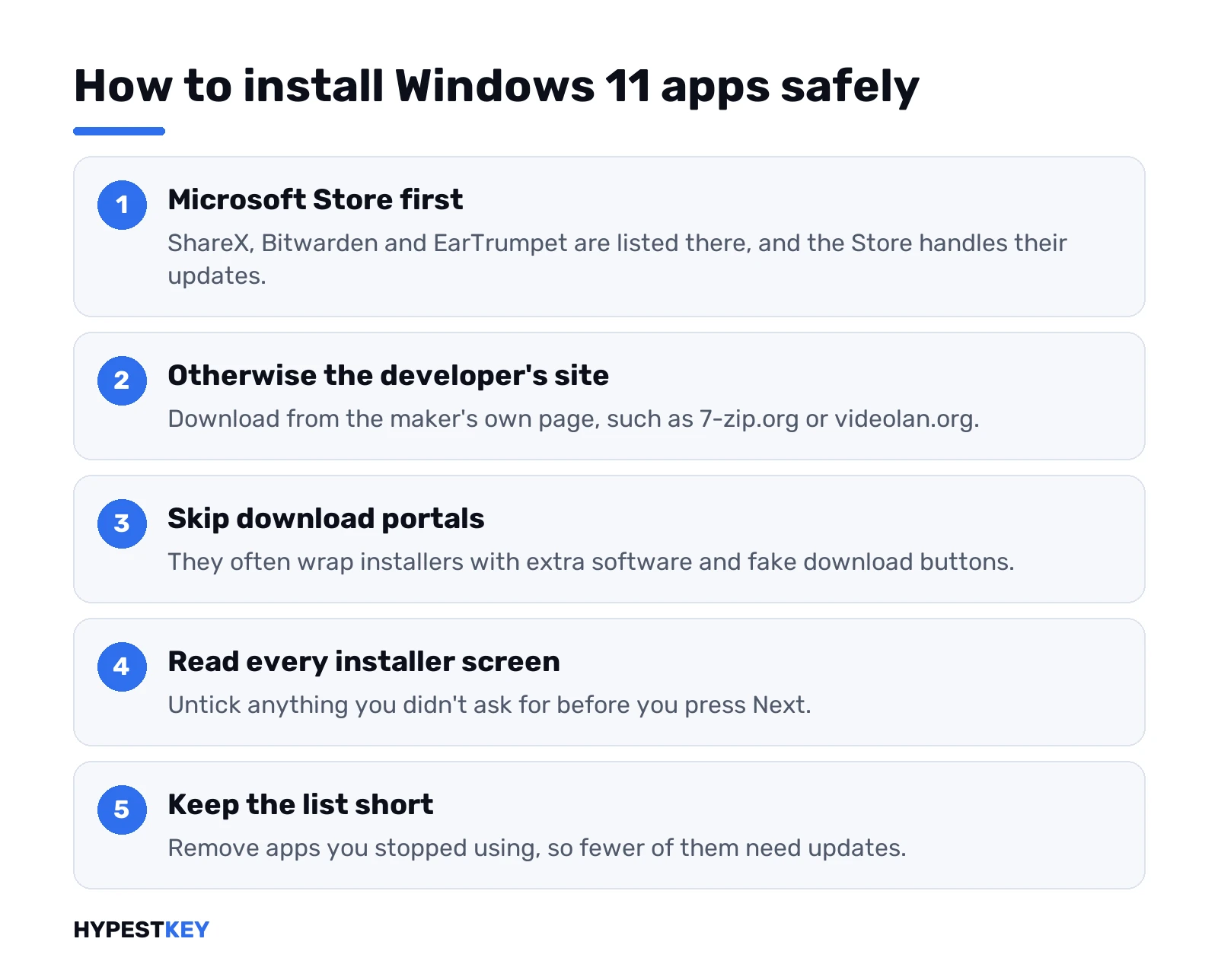
- Microsoft Store first. ShareX, Bitwarden and EarTrumpet are all there, and the Store handles updates.
- Otherwise the developer’s own site. The addresses are in the table at the top.
- Skip download portals. Wrapped installers and fake “Download” buttons live there.
- Read each installer screen. Untick anything you didn’t ask for.
- Keep the list short. Remove what you stop using.
Comfortable with a keyboard? PowerToys Command Palette has a “Search WinGet” command. Type an app’s name, and it finds and installs packages from there, no browser needed. We’d still check the publisher name before pressing install.
Setting up a brand-new machine? Do Windows first, apps second. Our Windows 11 new PC setup guide covers the order. Checking a used PC’s keyboard or webcam before you trust it? Our free PC tools run in the browser.
Keeping your apps up to date
An app you installed once and forgot is the one that ages badly. Updates fix bugs and security holes, so we’d let them happen.
- Store apps can update themselves. EarTrumpet, for instance, gets its updates through the Microsoft Store.
- Portable versions don’t. Bitwarden’s portable build for USB sticks, as Bitwarden notes, skips auto-updates. Same idea with any portable ZIP.
- Some apps ask. They check on launch and offer the new version. Say yes.
- Read the release notes once in a while. 7-Zip and Notepad++ put the version number right on their home pages.
Spring cleaning helps too. Twice a year, go down your app list and remove what you haven’t opened since last time. Fewer apps, fewer updates, fewer surprises.
And Office? Bought once or rented, the updates bring different things. Our Microsoft 365 vs Office 2024 page explains the split.
Best apps for Windows 11 by type of user
| You are | Start with | Then maybe |
|---|---|---|
| Home user | VLC, 7-Zip, Bitwarden | EarTrumpet |
| Student | Word and PowerPoint, PowerToys | ShareX for notes from slides |
| Office worker | Office, PowerToys, Everything | Bitwarden for work logins |
| Creator | OBS Studio, ShareX | VLC to check exports |
| Power user | Windows Terminal, Notepad++, PowerToys | WizTree |
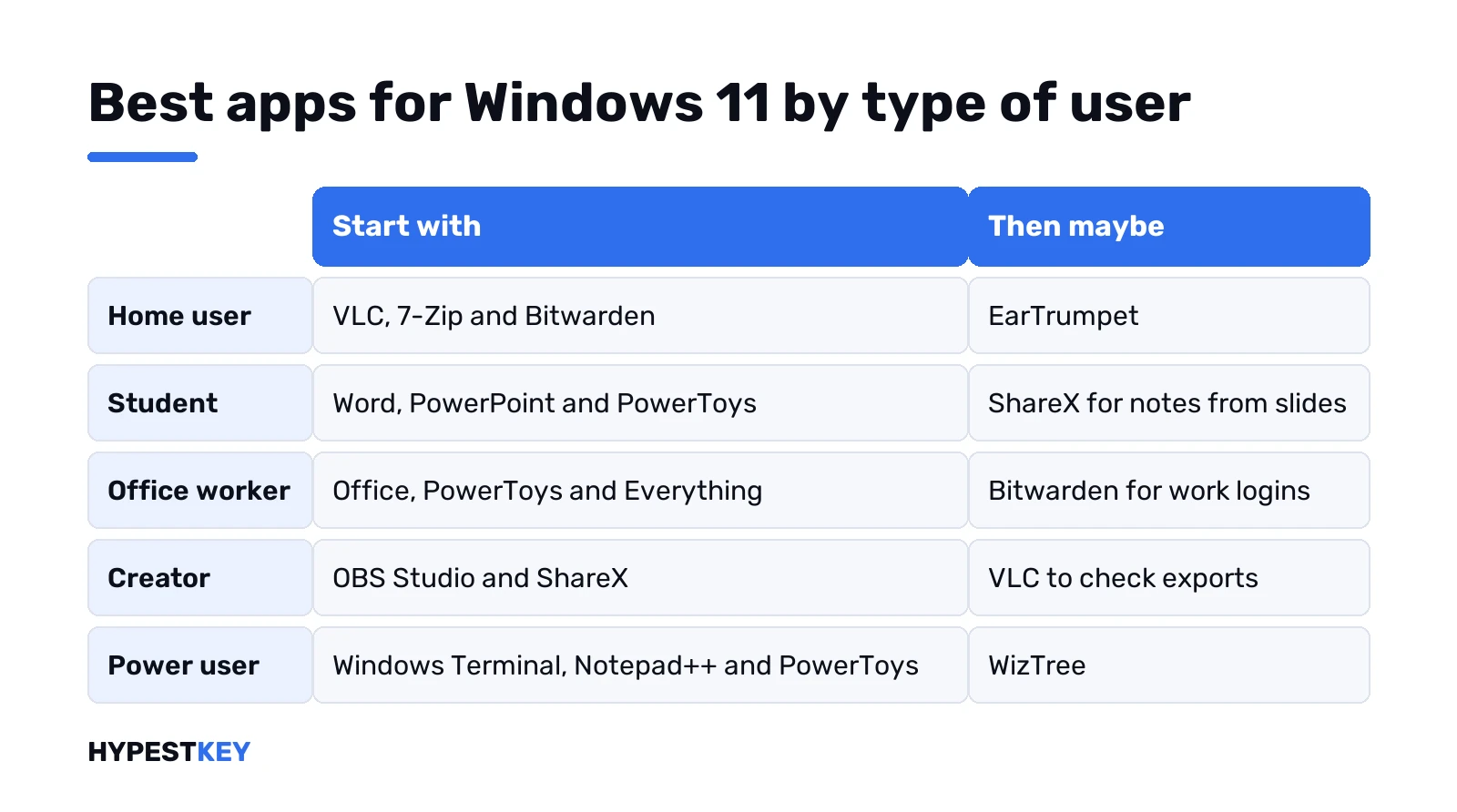
Home users rarely need more than the first column. A student who records lectures or grabs slides would add ShareX early. Office workers gain the most from Everything and PowerToys, since half the day goes into finding files and arranging windows. Creators lean on OBS. Power users end up with most of this page anyway.
Pick two or three. Live with them for a week. Then more. If the Office row is you, Office Home and Business 2024 from us is a one-time purchase with the key sent by email.
Microsoft PowerToys: the free toolbox we install first
Over 25 small utilities from Microsoft, free and open source, for Windows 10 and 11. One install. Then switch on only the parts you want. The full list sits on Microsoft’s PowerToys page.
The ones we’d turn on first:
- Command Palette. Press Win + Alt + Space and type. Apps, files, quick sums, Settings pages, even app installs through WinGet.
- FancyZones. Your own window layouts, beyond what Snap offers. Great on a wide monitor.
- PowerRename. Rename a few hundred files at once, with search and replace and an undo.
- Text Extractor. Copy text from anything on screen, a picture or a video call, using OCR.
- Peek. Look inside a file without opening its app.
- Awake. Keeps the PC from sleeping during a long download, no power settings touched.
- Workspaces. One click opens a set of apps in fixed positions. Handy for a Monday-morning setup.
Not all of it is for everyone. Hosts File Editor or Registry Preview? Admin stuff, to our eye. Leave those off and nothing changes.
Task apps: Microsoft To Do, Todoist and Notion
One task app. Not three. People who juggle several usually end up trusting none of them.
Microsoft To Do
Free in the Microsoft Store. Lists, tasks, reminders, plus a daily view for today’s plan. Outlook tasks show up in it, and everything syncs on your Microsoft account. Day already lives in Outlook? We’d start here.
Team tasks? Other tool. For a shared board with buckets and due dates, see our Microsoft Planner guide. Bigger projects with timelines and dependencies sit in Microsoft Project.
Todoist
Todoist has a Windows app and a free plan called Beginner. What it covers:
- up to 5 personal projects;
- Smart Quick Add, reminders and sub-tasks;
- list and board layouts, up to 3 custom filters.
Calendar and table layouts, task durations and automatic backups are paid extras. Fine for one person. A busy freelancer may hit the five-project ceiling fast.
Notion
Notion is more of a workspace than a list. Pages, databases with sub-tasks and dependencies, Notion Calendar, simple forms. Free plan for individuals: 7 days of page history, uploads up to 5 MB per file. Windows desktop app included, and pages can be marked for offline use.
Powerful, yes. Also easy to spend a weekend building a system instead of doing the work. We’ve seen that happen.
Note apps: OneNote and Obsidian
OneNote is free and comes from Microsoft. Notebooks, sections, pages. Touchscreen? Draw tab, pen, write straight on the page. No Save button either. It saves as you type. Notebooks stored online open on your other devices.
Obsidian takes the opposite road. Your notes stay on your disk as plain Markdown files, and the Windows app is free. Sync and Publish are separate paid services, optional.
Which one? Meeting notes with screenshots and scribbles, OneNote. A personal knowledge base of linked text notes, Obsidian. Both open fast. Comparing whole suites instead, Google’s or Microsoft’s? Our Google Workspace vs Microsoft Office page covers that.
Time tracking and focus
Focus sessions handle the “stop checking chat” part. Where did the hours go? That needs a tracker.
Clockify tracks time and builds timesheets. Free plan, Windows desktop app. A timer, a weekly timesheet or a calendar view, your choice. Start a timer on the PC and it shows up in the browser too, since all data syncs online.
Billing clients by the hour? Then a tracker pays for itself in arguments avoided. Not billing anyone? A Focus session plus an honest to-do list is often enough.
Automation tools for Windows: Power Automate
Doing the same twenty clicks every Friday? Power Automate can do them for you. Desktop flows record your steps or let you drag ready-made actions into place, then replay the routine whenever you want.
With a Microsoft account, Microsoft’s getting-started page says it costs nothing extra. The flows are saved to your OneDrive.
Typical home and small-office jobs:
- Back up a folder to another drive.
- Sort downloads into folders by type.
- Copy figures from a website into an Excel sheet.
- Fill the same web form from a file.
Start with something small, like the folder backup. Broken flows are much easier to fix when they’re five steps long.
Related guides
FAQ
What apps should I install first on Windows 11?
PowerToys, Bitwarden, 7-Zip and VLC, in our view. Others only when a real need shows up.
Are these Windows 11 apps really free?
Mostly, yes. WizTree is free only for personal use, Bitwarden and Office have paid plans, and the rest are free or open source.
Where is the safest place to download Windows 11 apps?
The Microsoft Store or the developer's own website. Download portals often wrap installers with extra software you never asked for.
Is PowerToys made by Microsoft?
Yes. PowerToys is Microsoft's own free, open-source collection of utilities for Windows 10 and Windows 11.
What archive formats does 7-Zip open?
It packs 7z, ZIP, TAR and GZIP, and unpacks many more, RAR, ISO and VHDX included, all for free.
Is there a free replacement for Microsoft Office on Windows 11?
For light work, the free web versions of Word and Excel work in a browser. Regular desktop use needs a license or Microsoft 365.
Can I control the volume of each app separately?
Yes. EarTrumpet, free in the Microsoft Store, gives every app its own slider and moves apps between playback devices.
What productivity tools come with Windows 11?
Snap layouts, clipboard history, Focus sessions and the Clock app all come built in. Microsoft To Do and OneNote are free extras from Microsoft.