Short answer: To unzip files on Windows, right-click the ZIP in File Explorer, choose Extract All, pick a folder and press Extract. To take one file, open the ZIP and drag it out. Windows 11 24H2 also opens RAR, 7z and TAR. Password-protected archives need a tool like 7-Zip.
To unzip files on Windows, right-click the ZIP file in File Explorer, choose Extract All, pick a destination folder and press Extract. No extra software is needed on Windows 11 or Windows 10. Windows 11, version 24H2, opens RAR, 7z and TAR archives the same way.
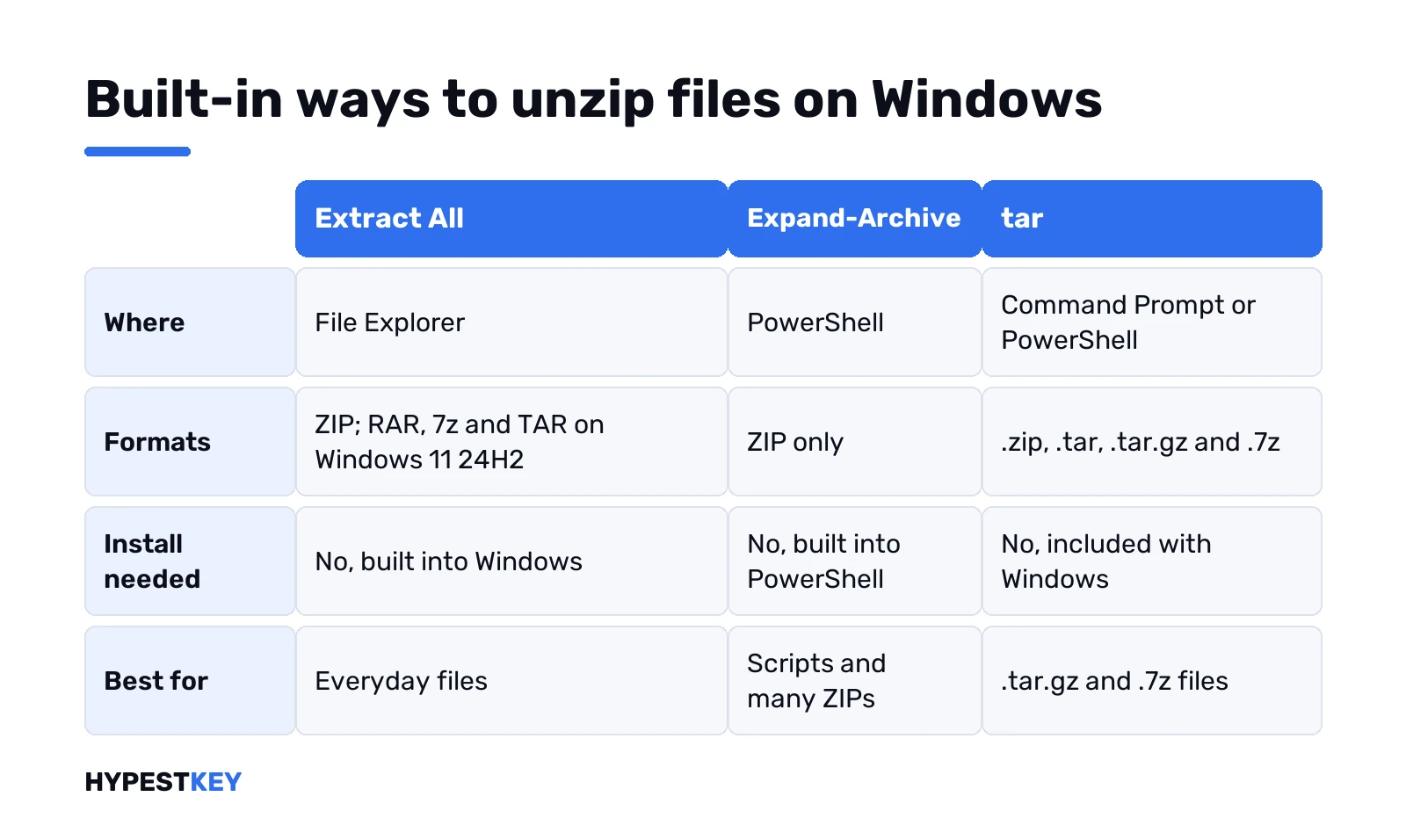
| Method | Works on | Best for |
|---|---|---|
| Extract All in File Explorer | Windows 11 and 10 | Unzipping everything in a few clicks |
| Drag a file out of the archive | Windows 11 and 10 | Taking just one file or folder |
| Expand-Archive in PowerShell | Windows 11 and 10 | Scripts and many .zip files at once |
| tar in Command Prompt | Windows 11 and 10 | .zip, .tar.gz and .7z from the command line |
| A third-party tool | Any Windows version | Encrypted archives and rare formats |
How to unzip files on Windows with Extract All
The method we’d use nine times out of ten. Built in, nothing to install.
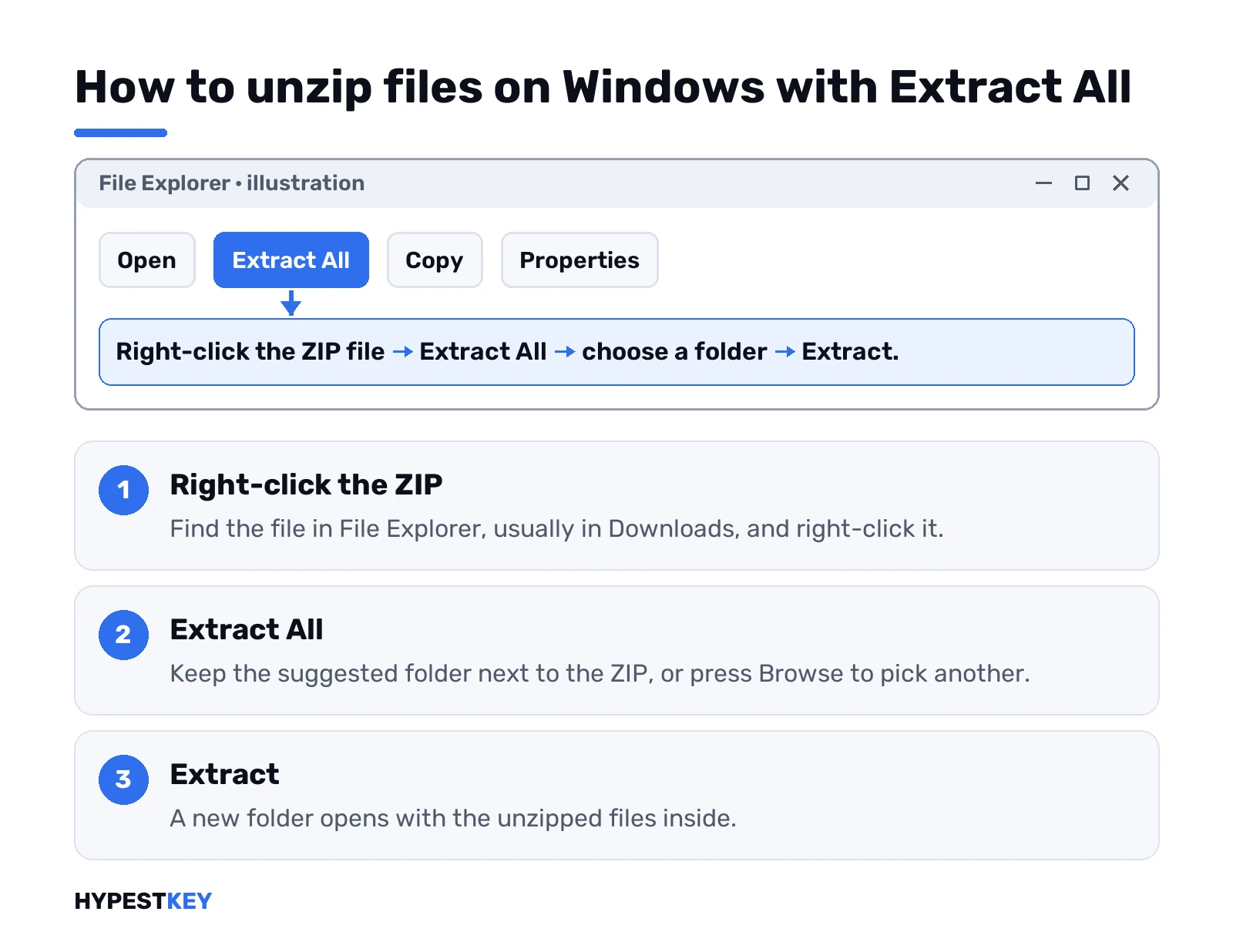
- Find the .zip file in File Explorer. Downloads, usually.
- Right-click it. Or press and hold on a touch screen.
- Extract All.
- Keep the suggested folder or press Browse and choose another.
- Extract. A new folder opens with the files inside.
The suggested folder? Next to the ZIP, same name. Fine for most cases. Keep losing extracted folders? Pin the destination in Quick Access; our guide to Windows 11 Quick Access settings shows how.
One habit we’d recommend: extract first, then work on the files in the new folder. Delete the ZIP once everything opens.
Take just one file out of a ZIP
Don’t need the whole archive? No need to extract it all.
- Double-click the ZIP. It opens like a normal folder.
- Find the file or folder you want.
- Drag it to the desktop or any other folder.
Copy and paste works too. Want to add something to an existing ZIP? Same trick in reverse: drag files into the open zipped folder.
RAR, 7z and TAR files on Windows 11
Newer Windows handles more than ZIP. Microsoft says Windows 11, version 24H2, supports ZIP, RAR, 7z and TAR archives in File Explorer. Right-click, Extract All, done, same as above.
Not sure if you have 24H2? Settings, System, About. Or our page on checking your Windows version. On an older build, or on Windows 10, File Explorer opens ZIP only. There, .7z and .tar.gz open with the tar command below. RAR needs a third-party tool.
A missing feature after a big update? Windows Update brings the new version in its own time; our Windows Update guide covers how to check for it.
Unzip files on Windows with PowerShell
Handy for scripts, or for ten archives in a row. PowerShell has a built-in cmdlet for it, Expand-Archive. Open PowerShell, then:
Expand-Archive -Path Draftv2.zip -DestinationPath C:\ReferenceWhat the switches do, from Microsoft’s docs:
- -Path points to the ZIP file.
- -DestinationPath is where the files go. Leave it out and you get a folder named after the ZIP in the current location. A missing folder gets created.
- -Force overwrites existing files. Without it, nothing gets overwritten.
- -LiteralPath replaces -Path when the file name has square brackets or similar characters.
Two limits worth knowing. Expand-Archive works with .zip only. And the underlying .NET API caps file size at 2 GB, according to Microsoft’s Expand-Archive reference. Bigger archive? Use tar or File Explorer instead.
Unzip many ZIP files at once
A folder full of archives, each needing its own folder? File Explorer makes you click through them one by one. PowerShell doesn’t.
- Open the folder with the ZIP files in File Explorer.
- Type powershell in the address bar and press Enter. PowerShell opens right there.
- Paste this line and press Enter:
Get-ChildItem *.zip | ForEach-Object { Expand-Archive -LiteralPath $_.FullName -DestinationPath $_.BaseName }Each archive lands in a folder with its own name. Existing files are left alone unless you add -Force. We’d try it on a copy of the folder first, just once, to see the result before trusting it with real work.
Same 2 GB and .zip-only limits as above. For a pile of .7z files, tar in a loop or a third-party tool is the better fit.
The tar command in Command Prompt
Windows ships tar too. It’s the same bsdtar developers know from Linux and macOS, and it reads .tar, .tar.gz, .zip and .7z.
Extract an archive into the current folder:
tar -xf archive.zipJust look inside without extracting:
tar -tf archive.zipWant it somewhere else? Change to that folder with cd first, then run the extract line with the full path to the archive. For every option, tar –help in the same window. We like it for .tar.gz files from developer tools, where File Explorer on older Windows gives up.
Password-protected and encrypted archives
Here the built-in tools stop. Windows 11 24H2 doesn’t support operations on encrypted archive files, per Microsoft. Its own help page suggests a third-party tool such as 7-Zip or WinRAR instead.
- 7-Zip. Free and open source, from 7-zip.org.
- WinZip. Paid after a 21-day trial; our WinZip download for Windows 11 page explains the trial and the safe download.
- WinRAR. From the vendor’s own site only.
Got the password but no tool? Ask the sender for an unencrypted copy over a secure channel. Sometimes that’s quicker than installing anything.
A warning from Microsoft worth repeating. Encrypted files you add to a normal zipped folder come out decrypted when someone extracts them. Whole drive to protect? We’d use BitLocker on Windows 11 for that.
Zip files back up: compress a folder
The reverse job, just as quick.
- Right-click the file or folder.
- Show more options on Windows 11.
- Send to, then Compressed zipped folder.
- Rename the new ZIP if you like.
Several files? Select them all first. Don’t expect miracles on photos: JPEG images are already compressed, so a zipped folder of them stays about the same size. From the command line, tar does it as well:
tar -caf archive.zip .\my-folderWhen you can’t unzip files on Windows
Extraction failing? Usually one of these.
- “Access is denied” or nothing happens. Pick a destination you own, like Documents or the desktop, instead of a system or protected folder.
- The ZIP says it’s invalid or damaged. Download it again. Still broken? Ask the sender to zip it again and resend.
- Extract All is missing. The file may not be a ZIP at all. Check the extension, or open it with a tool that knows the format.
- Not enough space. The unzipped files need room on the drive, often more than the archive itself.
- Strange file names after PowerShell extraction. The archive used a different encoding; File Explorer or 7-Zip may read the names better.
An ISO file isn’t a ZIP, by the way. Double-click mounts it as a drive; our guide to ISO files in Windows covers that.
Unzip on a Mac, for comparison
Same idea, fewer clicks. Double-click a .zip in Finder and the contents appear in the same folder. To compress, Control-click and choose Compress; several items become Archive.zip.
Running Windows inside a Mac? Everything above works in the VM. Our page on a Windows virtual machine on Mac shows the setup.
Free tools worth having for archives
Most people never need one. If you do, keep it to well-known tools from their makers’ sites. Our list of the best apps for Windows 11 and the roundup of productivity tools for Windows include the ones we’d trust on a fresh PC.
Skip “free unzip” download sites that wrap a known tool in their own installer. That’s how adware gets in. New PC anyway? Our Windows 11 Home vs Pro comparison helps pick the edition.
Need a license for that PC? Our Windows 11 Pro key and Windows 11 Home key are Retail, instant to email.
Related guides
FAQ
how do i unzip a file on windows 11
Right-click the ZIP in File Explorer, choose Extract All, pick a destination and press Extract. Nothing to install.
Can Windows open RAR files without WinRAR?
On Windows 11 version 24H2, yes. File Explorer supports ZIP, RAR, 7z and TAR there. Older builds need a tool.
Why can't I open a password-protected zip?
Windows 11 24H2 doesn't support encrypted archives. Use a third-party tool such as 7-Zip, WinRAR or WinZip.
Can I unzip just one file?
Yes. Double-click the ZIP to open it like a folder, then drag that one file to wherever you want it.
Expand-Archive or tar, which one?
Expand-Archive handles .zip only, with a 2 GB file limit. tar also reads .tar.gz and .7z, so we'd pick tar for those.
Extraction says access is denied
Pick a folder you own, like Documents or the desktop. System and protected folders often block new files.
Do I need WinZip on Windows?
Not for normal ZIP files. File Explorer does it free; WinZip or 7-Zip help with encrypted archives and rare formats.