Short answer: To zip files on Mac, select them in Finder, Control-click and choose Compress; several items become Archive.zip. To unzip, double-click the .zip. Contents land in the same folder, courtesy of Archive Utility. Need a password? We'd use zip -e in Terminal, and The Unarchiver for RAR 5 archives.
To zip files on Mac, select them in Finder, Control-click and choose Compress; to unzip, double-click the .zip. No app to install. macOS does both with the built-in Archive Utility, and Terminal adds password protection when you need it.
| Task | Quickest way | Built in? |
|---|---|---|
| Zip one file or folder | Control-click, Compress | Yes, Finder |
| Zip several items | Select them all, Control-click, Compress | Yes, makes Archive.zip |
| Unzip on Mac | Double-click the .zip | Yes, Archive Utility |
| Zip with a password | zip -e in Terminal | Yes, Terminal |
| Open RAR or 7z | tar in Terminal or The Unarchiver | Partly |
| Zip on iPhone or iPad | Files app, Select, More, Compress | Yes, Files |
How to zip files on Mac in Finder
Thirty seconds, tops. Here’s the Finder route from Apple’s own guide:
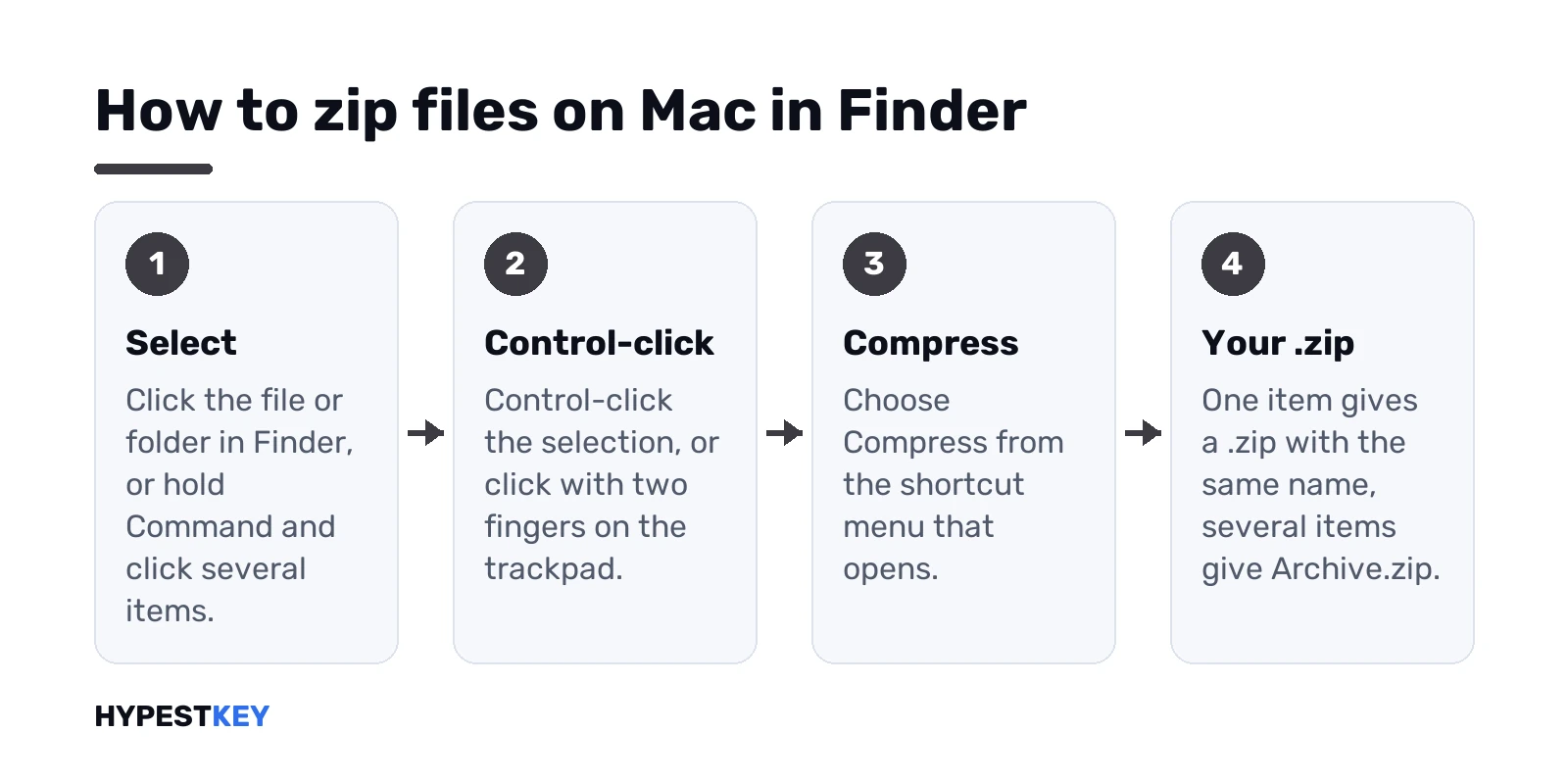
- Find the file or folder in Finder.
- Control-click it. Or a two-finger click on the trackpad.
- Compress, from the shortcut menu.
A new .zip shows up next to the original. Same name, plus .zip. The original stays where it was, untouched.
Several items at once? Select them first, holding Command while you click, then Control-click and Compress. The result is one file called Archive.zip in that folder. We’d rename it straight away; “Archive.zip” in someone’s inbox tells them nothing.
Whole folder? Same steps. One archive, the folder inside. Whoever unzips it gets the folder back, not a pile of loose files.
Apple’s step-by-step lives on the zip and unzip page of the Mac User Guide, if you want it from the source.
Unzip on Mac: double-click or Archive Utility
Double-click the .zip. That’s it. The contents appear in the same folder as the archive, and the .zip stays there too.
- Delete the .zip afterwards if you like. Apple says that’s fine.
- Zipped a folder? You get that folder back.
- Low on disk space? Free some first, since the unzipped files need room.
Behind the double-click sits Archive Utility. It’s a real app, tucked away in the system’s CoreServices folder. Spotlight finds it: press Command and Space, type Archive Utility.
Want a different app for zips? Control-click the archive, Open With, pick another one. We’d leave Archive Utility as the default for plain .zip files; it’s quick and there’s nothing to update.
Zip files on Mac with Terminal
Handy for scripts, or for folders with thousands of files. Terminal is in Applications, then Utilities. The zip and unzip tools come with macOS.
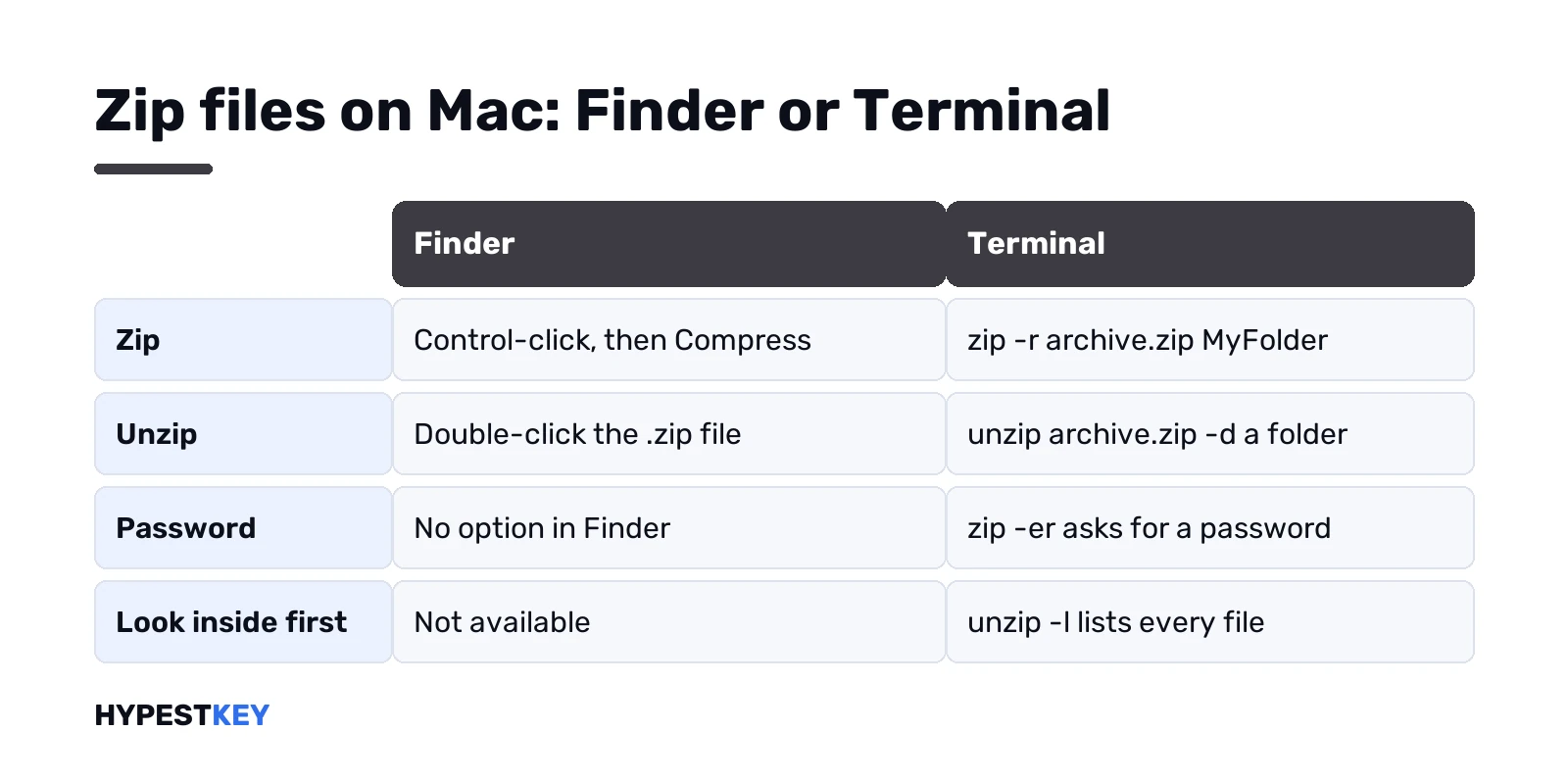
Zip a folder and everything in it:
zip -r archive.zip MyFolderUnzip into a folder of your choice:
unzip archive.zip -d ~/Desktop/unzippedWant exactly what Finder makes? The ditto manual says this command builds an archive “similarly to the Finder’s Compress functionality”:
ditto -c -k --sequesterRsrc --keepParent MyFolder MyFolder.zipTip. Drag the folder from Finder into the Terminal window instead of typing its name. Terminal fills in the full path, spaces and all.
Why the zip is barely smaller
Zipped a folder of photos and saved almost nothing? Expected. Microsoft’s own help page says JPEG images are already highly compressed, so a zip of them ends up about the same size as the originals.
- Text, spreadsheets, Word files: these shrink well.
- Photos, videos, music: barely. They’re compressed already.
So for a huge video, zipping is about bundling files into one, not saving space. To send it, we’d share a cloud link instead of an attachment.
Look inside a zip before you unzip it
Big archive, one file needed? Peek first. In Terminal this prints every name inside, with sizes and dates:
unzip -l archive.zipThen pull out just the one file you want:
unzip archive.zip "Report.docx" -d ~/DesktopSending a folder to someone? Hidden .DS_Store files tag along. Harmless, but untidy. The -x flag from the zip manual leaves them out:
zip -r archive.zip MyFolder -x "*.DS_Store"We’d use this one for anything going to a Windows user or onto a website.
Why Safari unzips downloads by itself
Downloaded a .zip in Safari and found a folder instead? Normal. Apple’s Safari guide says Safari decompresses files such as .zip files after it downloads them.
Where did it land? Downloads, unless you changed it. Safari, Settings, General, then the File download location menu. Apple adds a catch: move the file afterwards and Safari’s download list can’t find it anymore.
Chrome or Firefox? They just save the .zip. Double-click it yourself, as above. And for archives from a site you don’t know, we’d scan or skip them rather than open them on autopilot.
Password-protected zip files on a Mac
Finder’s Compress has no password option. Terminal does. The -e flag asks for a password twice and hides it while you type:
zip -er secret.zip MyFolderUnzipping it in Terminal? The unzip tool prompts for the password, and nothing comes out without it.
A word of honesty from the zip manual itself. It calls this standard zip encryption “relatively weak” and suggests stronger tools when security really matters. So for a holiday photo folder, fine. For tax papers or client data, we’d use an encrypted disk image or a tool with AES encryption instead.
Send the password in another channel. A text message, a call. Never in the same email as the archive.
When a zip won’t open
Apple names two usual suspects. We’d add a third.
- Not enough free space. The unzipped files need room. Clear some, try again.
- A damaged archive. Ask the sender to zip it again and resend.
- Half a download. Check the file size against what the site says, and download it again if it’s smaller.
Error after error with one archive? Try Terminal’s unzip command from above. It prints what it can’t read, file by file, which beats a vague pop-up.
And if the file ends in .rar or .7z, it isn’t a zip at all. Different story, next section.
RAR, 7z and other archives on Mac
Archive Utility is happy with .zip. Other formats are hit and miss, so here’s what works without a download first.
macOS ships with tar, built on libarchive. Its manual says it reads and writes 7-Zip archives and reads RAR version 3 archives. One line in Terminal:
tar -xf archive.7zNewer RAR files use RAR 5. Not in libarchive’s list. For those we’d take The Unarchiver from the Mac App Store. Free. Its listing names RAR, RAR 5 included, plus 7-Zip, Tar, Gzip and more. It opens archives; it doesn’t make them.
Details for each format live on our pages on how to open RAR files on Windows and Mac and how to open 7z files and use 7-Zip.
Zip files on iPhone and iPad
Same idea, in the Files app. Apple’s steps on iPhone:
- Open Files and go to a location, say On My iPhone or iCloud Drive.
- More button, then Select.
- Pick one or more files.
- More button again, then Compress.
One file gives a .zip with the same name. Several give Archive.zip, like on the Mac. On iPad it’s Select, choose the files, More, Compress.
To unzip, tap the archive. Files creates a folder with the contents. Apple keeps the full steps on its ZIP files on iPhone or iPad page.
Sending a Mac zip to a Windows PC
Zips made on a Mac open fine on Windows. One quirk, though. The ditto manual explains that Mac metadata goes into a subfolder called __MACOSX inside the archive.
A Windows user sees that folder after extracting. Harmless. They can delete it. We’d mention it in the email so nobody wonders what it is.
On the PC side, Extract All in File Explorer does the unzipping. Our guide on how to unzip files on Windows covers it, plus RAR and 7z in newer Windows 11.
Moving lots of files to a new computer? Zipping a few folders helps, but our guide to moving Office to a new computer covers the license side too.
Windows programs that arrive as a zip
Some Windows programs arrive as a zip, sometimes with an .exe inside. You can unzip it on the Mac, but the .exe won’t run there.
- A virtual machine. Our page on a Windows virtual machine on Mac compares the options.
- Parallels in particular: Parallels Desktop for Mac, editions and setup.
- Free routes first? See our list of free Windows emulators for Mac.
- Windows itself: how to install Windows 11 on a Mac, or make a bootable Windows 11 USB on a Mac.
Inside the VM, Windows unzips with File Explorer just like a PC does.
Zipping Word documents to send off? We’d tidy them first with our tips on deleting pages in Word on a Mac. No Office on the Mac yet? Browse Office for Mac keys. Or take Office Home and Business 2024 for PC or Mac: one-time purchase, instant to email.
Related guides
FAQ
How do I zip a file on my Mac?
Control-click it in Finder and choose Compress. A .zip with the same name appears right next to the original file.
Why does Compress make a file called Archive.zip?
Because you selected several items. macOS bundles them into one archive named Archive.zip, which you can rename like any file.
Can I put a password on a zip in Finder?
Nope, Finder has no option for it. Use zip -e in Terminal, and keep in mind standard zip encryption is fairly weak.
Where is Archive Utility on a Mac?
It's hidden in the system's CoreServices folder. Press Command and Space, type Archive Utility, and Spotlight opens it.
My zip file won't open, what now?
Check free disk space first. Then download it again, or ask the sender to zip it again, since the archive may be damaged.
Can a Mac open RAR and 7z files?
Partly. The built-in tar command reads 7z and older RAR files, and The Unarchiver from the App Store handles RAR 5.
What is the __MACOSX folder in a zip?
Mac metadata that macOS stores inside the archive. On Windows it's harmless, and the person can simply delete it.