Short answer: Outlook keeps asking for password when its saved sign-in no longer matches your account. We'd check the password on the web first, then remove old Outlook entries from Windows Credential Manager. Gmail or Yahoo may want an app password. Still looping? Untick Always prompt for logon credentials. Test Safe Mode. Then a new profile.
Outlook keeps asking for password when the password it saved no longer matches your mail account, or when the sign-in token behind it is stale or broken. Usually a quick fix. Confirm the password on the web, clear the old saved entry, sign in once more.
| What you notice | Likely cause | What to try first |
|---|---|---|
| Prompt right after you changed the password elsewhere | Outlook still holds the old one | Type the new password, tick Remember |
| Correct password, still rejected | Old entry in Windows Credential Manager | Remove the Outlook and Office entries |
| Gmail, Yahoo or iCloud account refuses the normal password | Provider wants an app password or browser sign-in | App password or “Sign in via browser” |
| Prompt on every start, work account | Profile setting or authentication method | Logon network security, modern authentication |
| “Trying to connect…” with a loop of prompts | Profile or Exchange connection problem | Microsoft’s password diagnostic, new profile |
| Mac asks for the keychain again and again | Duplicate tokens or Office moved out of Applications | Always Allow, clean the keychain entries |
Why Outlook keeps asking for password
Outlook doesn’t really keep your password in its own head. It hands it to Windows, or to a token service, and asks for it back each time it connects.
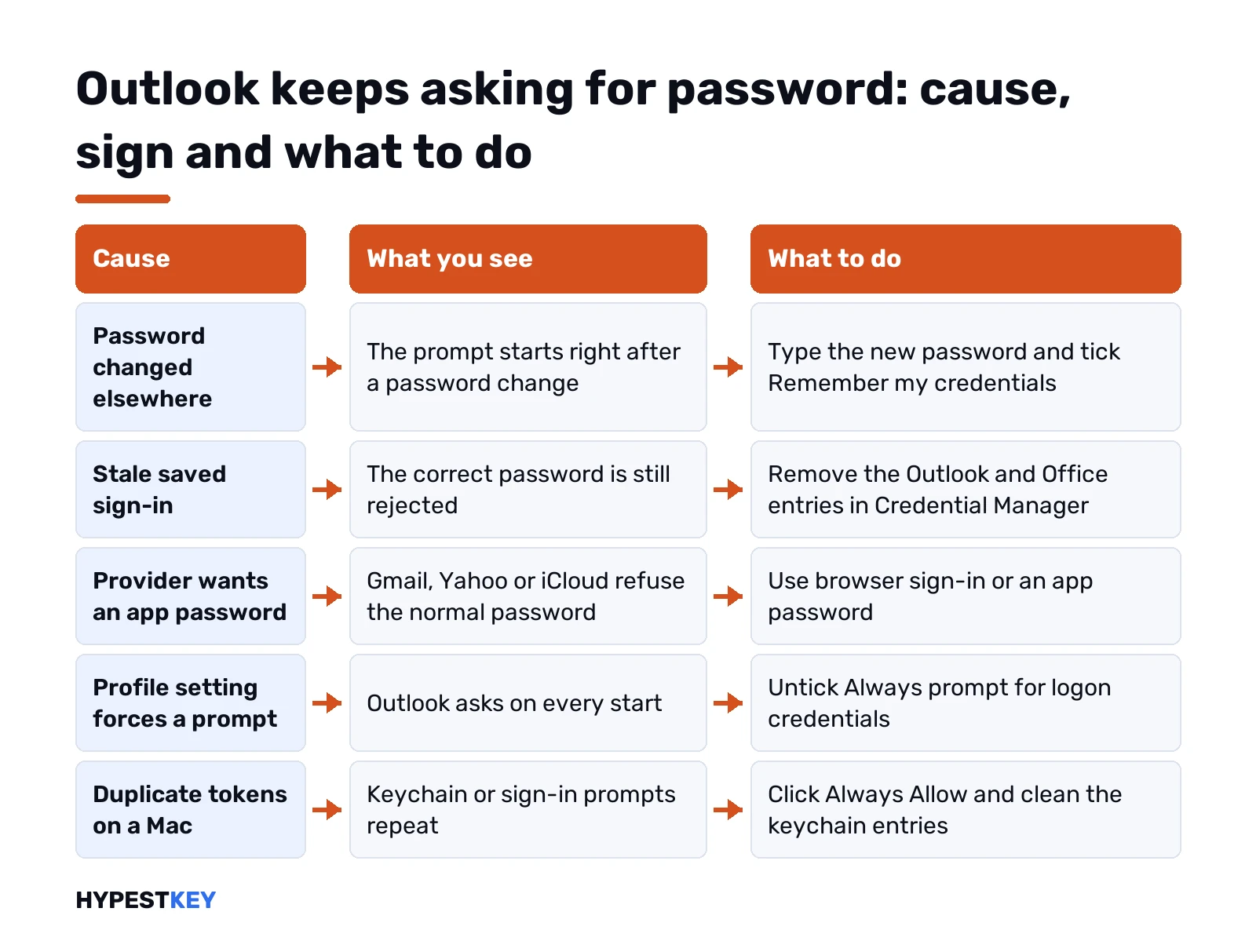
So the prompt shows up whenever that hand-off fails. Password changed on the web but not in Outlook. A company policy that expired it last night. A saved entry that’s corrupted. Or the mail server wants a different kind of sign-in than the one Outlook is offering. We see the first two far more often than anything exotic.
One more thing before the fixes. This prompt has nothing to do with your Windows sign-in. If it’s the Windows password you’ve lost, our guide to resetting a Windows 11 password is the right page.
Check the password itself first
Boring, yes. Still the most common fix.
- Open your mail in a browser. Outlook.com, Gmail, your company’s web mail, whatever you use.
- Sign in with the same address and password.
- Works there? The password is fine, so go to the next section.
- Fails there too? Reset it with the provider first.
Small stuff trips people up. Caps Lock. A keyboard layout that switched. The user name, where we’d always type the full email address, not just the part before the @. Passwords are case sensitive too.
Changed the password recently? Outlook doesn’t learn about it on its own. Provider first. Then the new password in Outlook. Tick Remember my credentials when the prompt offers it.
An old Outlook password in Windows Credential Manager
Here’s the one we’d try next. Windows keeps a copy of the Outlook sign-in, and a stale copy wins over the new password you just typed.
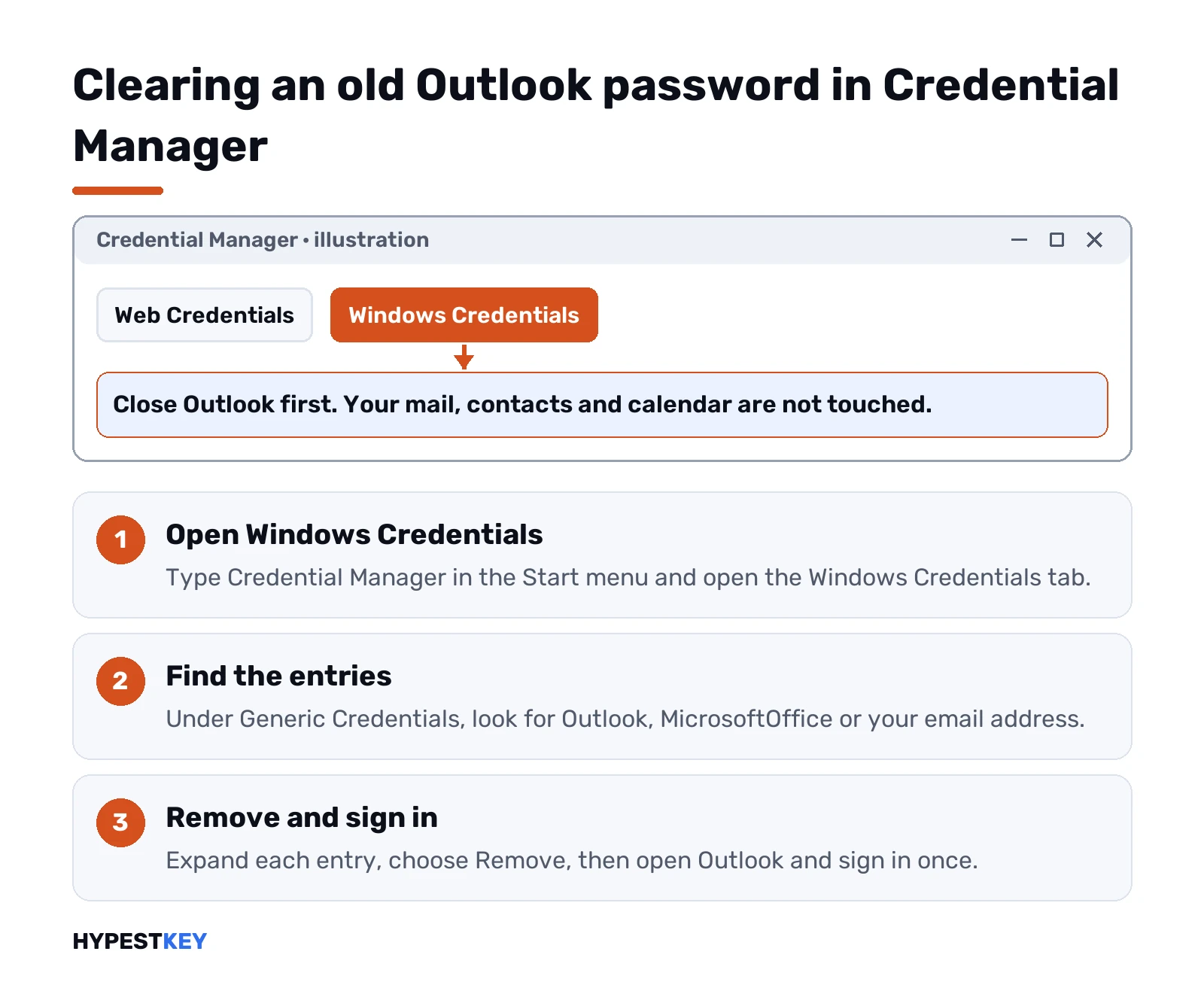
- Close Outlook.
- Start menu. Type Credential Manager, open it.
- Windows Credentials.
- Under Generic Credentials, look for entries with Outlook, MicrosoftOffice or your email address in the name.
- Expand each one. Remove.
- Open Outlook and sign in fresh.
Nothing is lost. Mail, contacts and calendar stay where they are; you only throw away the saved keys. Expect one prompt after that, then quiet.
Gmail, Yahoo and iCloud: app passwords and browser sign-in
Different story with outside providers. Some of them stopped accepting your normal password from desktop mail apps.
- Gmail in classic Outlook. Newer builds open a browser window instead. Sign in there and tick the box that gives Microsoft access to your mail; skip it and the loop starts.
- Gmail with an app password. Only possible with 2-Step Verification on. Google makes a 16-digit code, and that goes into Outlook instead of your Gmail password.
- Yahoo, iCloud, AOL and some ISPs. Same idea. App password from the provider’s security page.
Did you skip the Gmail access box the first time? Click Retry in the error bar. Didn’t take? Then the longer route:
- Google account, Security. Remove Microsoft’s access there.
- Credential Manager. Delete the Google IMAP entries.
- Back in Outlook, the Sign in via browser bar. Tick the access box this time.
Google’s own help on signing in with app passwords walks through creating one.
Remember password and “Always prompt for logon credentials”
Two settings that can force the prompt on purpose.
First one. In the password box, the Remember my credentials checkbox. If nobody ticked it, Outlook asks every time, and that’s by design.
Second one, on Exchange and Microsoft 365 accounts in classic Outlook:
- File. Account Settings. Account Settings again.
- Pick the account. Change.
- More Settings. Security tab.
- Untick Always prompt for logon credentials.
Older Outlook builds show one more list on that tab, Logon network security. For Microsoft 365 mailboxes it should say Anonymous Authentication. Can’t find the list? Fine. Outlook 2016 and newer builds of 2013 dropped it.
Outlook keeps asking for password on a Microsoft 365 or Exchange account
Work and school accounts on a Microsoft 365 plan add a layer. Typical picture: “trying to connect…” and the prompt, again and again. Cancel it and we’d bet you see this: “The connection to Microsoft Exchange is unavailable. Outlook must be online or connected to complete this action.”
What we’d do, in order:
- Run Microsoft’s own check, “Diag: Outlook keeps asking for my password”, from the troubleshooting article. It tests the account and suggests a fix.
- Update Office. Old builds had sign-in bugs that later updates fixed. Our guide on updating Microsoft Office shows where the button is.
- Ask IT. Password expiry, multi-factor rules and conditional access live on their side.
Special case. Your mailbox moved to Microsoft 365 from an on-premises Exchange server, or one profile mixes both. We’ve seen Outlook fall back to an old sign-in method there and skip modern authentication. The documented fix, a registry value:
HKEY_CURRENT_USER\Software\Microsoft\Exchange
DWORD: AlwaysUseMSOAuthForAutoDiscover
Value: 1
Back up the registry before you touch it, and on a company PC let IT make that change.
Office itself asking you to sign in, not just Outlook? Then it may be a license problem. Our pages on “Sorry, we can’t set up your account” and the Unlicensed Product message cover that side.
Add-ins, updates and Outlook Safe Mode
An add-in can trigger its own sign-in box that looks just like Outlook’s. Meeting add-ins and CRM connectors are the usual suspects.
Test it. Close Outlook, press Win and R, then run:
outlook.exe /safeNo prompts in Safe Mode? Then an add-in is the cause. File, Options, Add-ins, Go next to COM Add-ins, and switch them off one at a time until the prompt stops.
Still prompting even in Safe Mode? A Quick Repair of Office from Settings, Apps, Installed apps is the next cheap step. Our Click-to-Run guide explains Quick Repair versus Online Repair.
Create a new Outlook profile
When the prompts survive everything above, we’d suspect the profile itself. Building a new one doesn’t delete mail on the server.
- Close Outlook.
- Control Panel. Mail. Show Profiles.
- Add. Give it a name. Add your account again.
- Pick Always use this profile and select the new one.
- Start Outlook.
POP accounts are the exception. Mail there lives in a local .pst file. Note where it sits before you switch, then open it in the new profile.
New profile loops too? Then we’d blame the Office install. Remove it fully with the Microsoft Office uninstall tool. Then reinstall from scratch with our Microsoft 365 install guide.
New Outlook for Windows and Outlook on the web
The new Outlook works differently. No profiles, no Credential Manager tricks.
In the new app: Settings. Accounts. Remove the account, add it again. Outlook on the web rarely loops like this. When it does, we’d clear the browser’s cookies for the sign-in page and try a private window.
Not sure which Outlook you have? A toggle that says New Outlook in the top corner gives it away.
Outlook password prompts on a Mac
On a Mac the prompt is often for the keychain, not the mail account. Two causes.
- Office moved out of Applications. Put the apps back in the default Applications folder.
- Keychain access denied once. Click Always Allow. It can ask up to three times per app.
Repeated sign-in prompts with a Microsoft 365 account come from duplicate tokens in the keychain. The workaround: quit every Office app, open Keychain Access, then delete these:
- Items found by searching Exchange for your account.
- Items of the ADAL type found by searching adal.
- Microsoft Office Identities Cache 2 and Microsoft Office Identities Settings 2.
Outlook asks you to sign in once when it starts. After that it should stay quiet. This affects every Office app that uses modern sign-in, so Word and Excel may ask once too.
When the prompts mean something else
Worth a pause here. A password box that won’t go away can also be a sign that someone changed your password, or that the account got locked after too many tries.
- Password not accepted on the web either, and you didn’t change it. Reset it and check the account’s recent activity.
- Locked out. Stop retrying from Outlook; each try can extend the lock.
- Prompt asking for a password on a page you don’t recognise. Close it. Real Microsoft sign-in uses its own login page.
Need Microsoft’s people for a work account? Our page on contacting Microsoft support lists the routes.
And if you’re setting up Outlook on a new PC anyway, our Office Home and Business 2024 key includes Outlook for one PC or Mac and arrives instant to email. Comparing that with a subscription? See Microsoft 365 vs Office 2024.
The full Microsoft write-up is Outlook continually prompts for password, and their general list sits on Troubleshoot Outlook email setup.
FAQ
Why does Outlook keep asking for my password when it's correct?
Usually a stale saved copy. Remove the Outlook and Office entries in Windows Credential Manager, then sign in again once.
Will clearing Credential Manager delete my emails?
No. It only removes saved sign-in data, so your mail, contacts and calendar stay exactly where they were.
My Gmail password won't work in Outlook, what now?
Use the browser sign-in and tick the Microsoft access box, or create a Gmail app password with 2-Step Verification on.
Does a new Outlook profile remove my mail?
Not for Microsoft 365, Exchange or IMAP accounts, since mail stays on the server. POP users should keep their .pst file.
Can an add-in cause the password prompt?
Yes. Start Outlook in Safe Mode, and if the prompt disappears, switch COM add-ins off one at a time.
Why does my Mac keep asking for the keychain password?
Office may sit outside the Applications folder, or keychain access was denied. Move it back and click Always Allow.
Is the prompt the same as my Windows password?
No. Outlook asks for your email account password, which is separate from the password you use to sign in to Windows.