
 Microsoft Windows
 Microsoft Office
 Office for Mac
 Windows Server
So you popped open Task Manager and saw “Microsoft Office Click-to-Run” sitting there at 50, 60, maybe 70% CPU. Your laptop sounds like a jet engine. You have not even opened Word. Office Click to Run causes this, and yeah, it is a known problem that Microsoft has not bothered to properly fix since like 2020.
I wrote this after spending a Saturday night reading through Microsoft Q&A threads. Glamorous, I know.
What Is Microsoft Office Click to Run?
Basically the installer and updater for Office. Microsoft started using it around 2010, and by 2016 every consumer version shipped this way. 365 subscription? No choice, it is C2R.
Picture it like video streaming. You hit install, Word opens in about 90 seconds, and the rest of Office downloads behind the scenes. Once that finishes, the OfficeClickToRun.exe process sticks around. It never leaves. It checks for updates 24/7 whether you want it to or not.
How It Actually Works
Microsoft built it on top of App-V (application virtualization). Office runs inside its own sandbox with its own files and its own settings. Nothing else on your PC touches it. I have had clients install sketchy ERP software that breaks everything, and Office still worked because of this isolation.
The other thing people do not know: you can run Office 2019 and Office 2024 side by side on one machine. Tested it last year on a client workstation. Both versions opened fine. The old MSI installer could never do that.
File path if you want to check: C:\Program Files\Common Files\Microsoft Shared\ClickToRun\OfficeClickToRun.exe
Sometimes the process shows up as “Microsoft Office C2R (SxS)” which just means it is staging an update.
C2R vs MSI Installation
Office used to ship as MSI packages. Regular Windows Installer. Now everything is C2R. You cannot have both on the same machine. If you try, Windows throws an error. Microsoft documented this but people still run into it all the time.
| Feature | C2R | MSI |
|---|---|---|
| Speed | Apps usable in minutes | Wait for full download |
| Updates | Automatic, background | Manual through Windows Update |
| Disk space | About half | Full size |
| Sandbox | Yes | No, installs into Program Files |
| Run 2 versions | Yes | No |
| Repair | Quick + Online | Old-style repair |
| Available in 2026 | Office 2016-2024, M365 | Volume licenses only |
How to Check Which One You Have
Word > File > Account. Look at the right side. See “Click-to-Run” next to the build number? That is C2R. No text there? MSI.
Alternative: Control Panel > Programs and Features > right-click Microsoft Office > Change. Two repair options (Quick and Online) = C2R. Different dialog = MSI. If you are shopping for a new license, we compared Office 2024 Home vs Home and Business.
Why Is Office Click to Run Using High CPU?
OfficeClickToRun.exe at 40-70% CPU, fan spinning, no Office apps even open. A few possible causes:
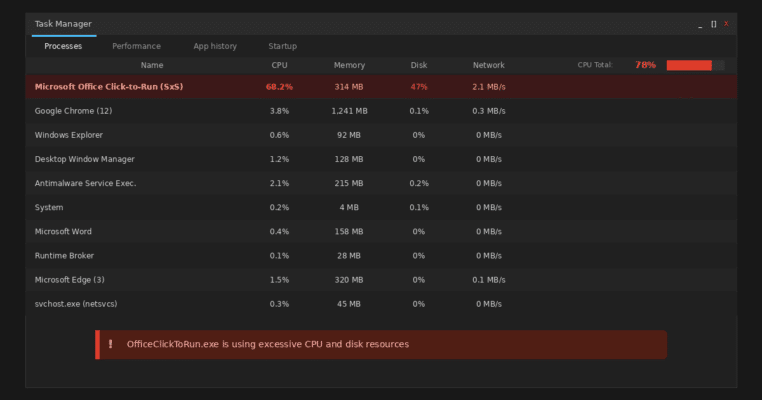
- Background update downloading. Normal. Should stop in 30-60 min. If it does not, something is stuck.
- Bad cache files. Stored in
C:\Users\[Username]\AppData\Local\Microsoft\Office\Spwand the OfficeFileCache folder. Corruption = infinite retry loop. - Metered connection flag. Windows thinks your Wi-Fi is metered. The service freaks out. One toggle fix.
- OneDrive sync loop. OneDrive and the updater share background resources. If OneDrive gets stuck, it drags everything down.
- Broken update loop. Update fails. Service retries. Fails. Retries. CPU pays the price.
- Post-upgrade mess. Just went Win10 to Win11? Service might be rebuilding components.
How to Fix Office Click to Run High CPU Usage
Start from the top. First three fix it for most people.
This video from Iviewgle walks through the three quickest fixes.
Step 1: Wait (30-60 min)
If a legit update is downloading, killing the process just delays it. Close Office apps, wait an hour, recheck. CPU below 5%? Done.
Step 2: Kill and Restart Office Apps
Ctrl + Shift + Esc. End Task on every Office process. Wait a minute. Reopen what you need.
Step 3: Force Manual Update
The auto-updater gets stuck sometimes. Force it manually: Word > File > Account > Update Options > Update Now. Takes 10-15 min. Reboot after.
We have a full Office version history if you need to look up yours.
Step 4: Metered Connection Toggle
I read a thread where a guy spent 3 hours debugging this. Turned out his laptop was on a phone hotspot. Windows flagged it metered. He flipped one switch and CPU dropped to normal in 10 seconds.
Settings > Network and Internet > your connection > “Set as metered connection” > Off.
Step 5: Delete the Cache
services.msc> find “Microsoft Office Click-to-Run Service” > right-click > Stop.- Go to
C:\Users\[You]\AppData\Local\Microsoft\Office\Spw. Delete everything. - Then
C:\Users\[You]\AppData\Local\Microsoft\Office\16.0\OfficeFileCache. Delete everything. (The 16.0 folder might have a different number.) - Go back to Services, start the service again.
- Reboot.
Credit: a user called PatrikZeman on Microsoft Q&A. Hundreds of “this worked” replies.
Step 6: Repair Office
Control Panel > Programs and Features > Microsoft Office > Change.
Try Quick Repair first, takes a few minutes. If nothing changes, go back and run Online Repair. That one pulls fresh files from Microsoft. Takes longer but catches more stuff.
Step 7: Pause OneDrive
Right-click OneDrive in your tray > Settings > Pause Syncing > 8 hours. CPU dropped? OneDrive was the problem. Reset it: %localappdata%\Microsoft\OneDrive\onedrive.exe /reset
Step 8: Compatibility Mode (Post-upgrade Fix)
Upgraded to Windows 11 recently? Try this. In Task Manager, right-click the Click-to-Run process > Properties > Compatibility tab > check “Run in compatibility mode for: Windows 8.”
Yeah, Windows 8. On a Windows 11 box. Makes no sense but multiple people on elevenforum.com confirmed it works. If you just did a clean Win11 install, worth a shot.
Step 9: Full Reinstall
Save your product key before starting this.
- Control Panel > Programs and Features > Uninstall Microsoft Office.
- Download SaRA (Microsoft Support and Recovery Assistant). It cleans leftover junk.
- Reinstall from your Microsoft account or with your key.
Thinking about switching from 365 to a one-time license? We did the subscription vs buying math.
How to Disable Microsoft Office Click to Run
If you pay for 365, do not do this. Your apps will probably stop opening. Perpetual key owners (2019, 2021, 2024) should be fine, but no more security patches.

Through Windows Services
- Win+R >
services.msc> Enter. - Find “Microsoft Office Click-to-Run Service.”
- Right-click > Properties > Startup type: Disabled.
- Hit Stop. Then Apply > OK.
- Reboot.
Set it back to Automatic if you change your mind later.
Manual Startup (The Compromise)
Same steps but pick Manual instead of Disabled. The service stays off until you open an Office app, then it starts itself. No CPU waste when Office is closed. Lots of sysadmins on TenForums swear by this.
Just Kill Auto-Updates
Maybe the service is fine but the constant patching annoys you. Open Word > File > Account > Update Options > Disable Updates. Do it in every Office app (annoying, I know, but that is how it works). You can still hit Update Now manually whenever.
High Disk Usage from the Service
Same culprit, different symptom. 100% disk in Task Manager. Way more common on HDDs than SSDs because the read/write speeds cannot keep up. Same fixes apply. But honestly if you are still on a spinning drive in 2026, an SSD upgrade fixes this and about 50 other problems.
Can You Uninstall It?
No. It is part of Office. Uninstalling it means uninstalling everything. The only way to run Office without it is an MSI installer, which is volume-license-only. Not available to regular consumers since 2016.
Just disable or set to Manual. Our Office 2024 review covers the latest standalone option if you want to switch versions.
Is OfficeClickToRun.exe Malware?
No. Legit Microsoft file. But malware does sometimes use similar names. Check the location: right-click the process > “Open file location.” If it opens to C:\Program Files\Common Files\Microsoft Shared\ClickToRun\ you are fine. Anywhere else? Run a scan.
Two Different EXE Files
OfficeClickToRun.exe = the main background service. Always running. OfficeC2RClient.exe = shows up during installs, repairs, and updates. Temporary. If the client exe is eating CPU, an update is probably installing. Use the same steps from above.
Why Does It Keep Coming Back After I Kill It?
Task Scheduler. Microsoft set up scheduled tasks that relaunch the service about once an hour. Killing the process does nothing long-term.
To actually stop it:
- Open Task Scheduler > Task Scheduler Library > Microsoft > Office.
- Disable everything you see there (“Office Automatic Updates 2.0” etc).
- Then disable the service in Services too.
It stays dead now. But no more auto-maintenance either.
Common Error Messages
“Something Went Wrong” Opening Office
Disabled the service and now Word will not open? Expected behavior for 365 subscriptions. Go to Services, set the startup type to Manual, start the service. Apps should open again.
Perpetual key and still broken? Online Repair: Control Panel > Programs and Features > Microsoft Office > Change > Online Repair.
“Click-to-Run Installer Encountered a Problem”
Old MSI Office still on the machine. Uninstall it completely, reboot, try again.
“Extensibility Component” Blocking 64-bit
A 32-bit leftover is blocking your 64-bit install. Go to Programs and Features, find “Microsoft Office Click-to-Run Extensibility Component,” remove it.
Cursor Flickering (2026 Bug)
Started showing up around January 2026. Mouse cursor flips between normal and busy every 2-3 seconds. Traced to the SxS process. Online Repair fixes it. Some people found that Outlook indexing was the real cause. Turning off indexing for Outlook in Windows Search settings stopped the flicker.
Quick Reference
| Goal | How |
|---|---|
| Check if you have C2R | Office app > File > Account > look for “Click-to-Run” |
| Fix high CPU | Wait, restart apps, manual update, clear cache, repair |
| Disable the service | services.msc > Startup type: Disabled |
| Manual start only | services.msc > Startup type: Manual |
| Kill auto-updates only | Office app > File > Account > Update Options > Disable |
| Clear the cache | Stop service, delete Spw + OfficeFileCache, restart |
| Verify it is not malware | Right-click process > Open file location |
| Stop it from restarting | Task Scheduler > Microsoft > Office > Disable tasks |
FAQ
What is Microsoft Office Click to Run?
Office Click to Run (C2R) is how Microsoft installs and updates Office since 2010. It streams the apps to your PC so you can start using Word or Excel before the full download finishes. After installation it stays running in the background to push patches and handle repairs.
Why is Office Click to Run using so much CPU?
Usually it is downloading an update. That should stop after 30 to 60 minutes. If it does not, the cause is likely corrupted cache files, a metered connection flag on your Wi-Fi, or a stuck update loop. The fixes above cover all of these.
Is it safe to disable Microsoft Office Click to Run?
Depends on your license. Microsoft 365 subscribers might not be able to open Office at all after disabling it. If you own a perpetual key (Office 2019, 2021, 2024), your apps will still open but you lose automatic security updates. Setting startup to Manual instead of Disabled is the safer option.
How do I disable Office Click to Run on Windows?
Win+R, type services.msc, hit Enter. Find Microsoft Office Click-to-Run Service, right-click, Properties, set Startup type to Disabled, click Stop, then Apply and OK. Reboot.
Can I uninstall Microsoft Office Click to Run?
No. It is built into Office itself. Removing it means removing your entire Office installation. The only way to get Office without C2R is an MSI installer, which Microsoft only offers through volume licensing.
What is the OfficeClickToRun.exe file?
The background process that handles Office updates and repairs. Sits at C:\Program Files\Common Files\Microsoft Shared\ClickToRun\. Legit Microsoft file, not malware. If you see it somewhere else on your system, run a scan.
What is the difference between Click to Run and MSI?
C2R streams Office and lets you use it while the download finishes. MSI needs the full download first. C2R also runs Office in a sandbox so it does not conflict with other software. Microsoft made C2R the default since Office 2016. MSI is only available for volume license customers now.
Why does Click to Run keep restarting after I stop it?
Task Scheduler. Microsoft set up tasks that relaunch it about every hour. To kill it for real, open Task Scheduler, go to Microsoft > Office, disable those tasks, and then disable the service in services.msc.
Last updated: April 2026
