
 Microsoft Windows
 Microsoft Office
 Office for Mac
 Windows Server
TL;DR: The Microsoft Office uninstall tool comes in three working flavors in April 2026. Get Help (built into Windows 10 and 11), SetupProd_OffScrub.exe (old download, Microsoft has not killed the link yet), and SaRAcmd for command-line use. Office 2024 only plays with the last one. The standalone SARA GUI was put to sleep on March 10, 2026. Try Control Panel first, it still handles most cases. Everything below covers what to do when Control Panel chokes.
So you need the Microsoft Office uninstall tool because Control Panel gave up, or you are jumping between Office versions, or activation is stuck in a loop. Good news: a free Microsoft utility still handles this in April 2026. Bad news: it now comes in three different flavors and one of them cannot even touch Office 2024. I have burned through all three this month on client machines, so I can tell you which one works and which wastes an afternoon.
The SARA GUI everyone used for years got killed on March 10, 2026. Microsoft rolled it into the Get Help app. SetupProd_OffScrub.exe is still downloadable, no clue when they will pull that plug too. And if you are stuck with Office 2024, forget the friendly wizards, none of them handle it. You are looking at the enterprise command-line tool or a script off GitHub. That is the reality right now.
Quick Reference: Which Microsoft Office Uninstall Tool Do You Need?
Before you download anything, look at this table. It saves maybe 20 minutes of trial and error.
| Your Situation | Best Tool in 2026 | Works on Office 2024? |
|---|---|---|
| Normal uninstall, Office opens fine, just want it gone | Control Panel or Settings > Apps | Yes |
| Uninstall errors, stuck at some percentage, or greyed out button | Get Help app (built-in troubleshooter) | No |
| Want a full scrub before reinstalling, 365 or 2021 or 2019 | SetupProd_OffScrub.exe (while it still works) | Partial |
| IT admin, scripted, or Office 2024 stuck on a machine | SaRA Enterprise CMD (SaRAcmd.exe) |
Yes |
| Power user, corrupted install, multiple versions, all versions | Office Scrubber script from GitHub (community) | Yes |
Never done this before? Go try Method 1 first, then Method 2 if that choked. Honestly, 80% of readers never make it past that second option. Landed here from a Google search specifically because Control Panel spit out an error? Yeah, skip past those and hop straight to Method 3 or the command-line option in Method 4.
Before You Run the Microsoft Office Uninstall Tool: 5-Minute Checklist
Skip this part and you will regret it. I have watched people lose custom dictionaries, Outlook signatures, and working activations, all because nobody spent five minutes on prep first.
- Save your product key if you have a perpetual license. Office 2019 or 2021 perpetual, lose the key and you cannot reinstall. Pull it from your HypestKey order email, or run
wmic path softwarelicensingservice get OA3xOriginalProductKeyin an elevated prompt. - Make sure your Microsoft account login actually works. Subscription Office ties your license to whatever Microsoft account you registered with, not to a key. Forgotten the password? Reset it right now while the world still works. Trust me, doing a reset later when Word refuses to open and you’ve forgotten which of your three email addresses you used is a whole afternoon you don’t want.
- Back up NORMAL.DOTM plus Outlook signatures. A full scrub kills both of them. Three clients this year lost signatures that way. Grab copies of
%APPDATA%\Microsoft\Templatesand%APPDATA%\Microsoft\Signatures, paste them anywhere outside your user folder. Takes ten seconds, saves an hour of rebuilding your email signature from a screenshot. - Send Outlook mailbox to a PST file. Inside Outlook it’s buried under File, then Open and Export, then Import/Export (not Import Export, Microsoft loves the slash), then “Export to a file”, then “Outlook Data File (.pst)”. For IMAP accounts the server keeps your actual emails safe, so the main value here is local rules, local contacts, calendar items created offline. Still worth the five minutes even on IMAP.
- Kill every Office process before running anything. So Word goes, Excel goes, Outlook goes. Teams also. OneDrive too. Plus whatever’s sitting in the system tray pretending it’s idle. Alt+F4 works for the visible apps. Then pop Task Manager (Ctrl+Shift+Esc), go find
outlook.exe,winword.exe,OfficeClickToRun.exeif they’re hiding in the process list, End Task each one. Locked files are the single biggest reason uninstalls freeze at the 73% mark (which is always 73%, somehow). - Disconnect OneDrive sync if you are changing accounts. Skip if you are keeping the same Microsoft account on reinstall.
- Plug in the laptop. A scrub that hits power-save sleep mid-run is the worst way to corrupt the Windows Installer database. Ask me how I know.
Checklist done? Pick the method below that fits and go. The whole thing including prep takes maybe 20 minutes on a reasonable machine.
Video Walkthrough: Watch Someone Run the Microsoft Office Uninstall Tool
Reading steps is one thing. Watching the dialogs flash by in real time on somebody else’s Windows 11 install is a lot faster. The clip below covers the SetupProd_OffScrub.exe path from download to restart. That’s the flow most of you will actually be running.
Your case doesn’t match the video (older Office, different error, stuck on 2024)? Scroll back up, pick whichever method fits your situation.
What the Office Uninstall Tool Actually Does
Short version of the problem: Programs and Features is lazy. It rips the .exe files off disk. It deletes some shortcuts from your Start menu. Then it closes the dialog box and declares victory. But honestly, a pretty large trail of garbage stays behind. Your custom NORMAL.DOTM template (the one that makes new Word documents use your weird font size preference). A bunch of registry keys parked down at HKEY_LOCAL_MACHINE\SOFTWARE\Microsoft\Office with serial numbers from the previous install. Those SPP license tokens Windows stores for validation. A couple of scheduled tasks that Click-to-Run leaves running forever. Also, if you dig into %APPDATA%\Microsoft\Office, there’s a small mountain of configuration files nobody ever cleans up.
Is any of that a problem? Well, depends. Reinstalling the same Office version over the top of all those leftovers? Nope, no conflict, it’ll come back clean. Jumping to a different edition though? Switching from the 32-bit install your IT gave you to 64-bit for big Excel files? Or debugging some weird activation loop where Word insists your license is invalid? Every one of those files turns into a potential tripwire.
Which is why the Office uninstaller exists. Goes way harder than Programs and Features. It clears all those leftovers. Yanks the product keys from Windows activation. Drops the scheduled tasks. Basically leaves Office in “never installed here” state on the machine. Something Control Panel simply won’t do for you. Meanwhile your documents are untouched the whole time, because they live under Documents or up in OneDrive, nowhere near where Office installs itself. Nothing you wrote is going anywhere during this.
Three real-world scenarios where this matters: uninstalls that died halfway, corrupted installations stuck in activation pop-up hell, and architecture swaps where the old 32-bit build won’t let 64-bit install over the top. Outside those three? Don’t bother with the scrub. Control Panel is plenty.
Method 1: Control Panel (The Normal Way)
Boring, but try it first anyway. Because eight times out of ten this finishes the job and you never need to scroll down to the rest of the article.
- Windows key. Type control panel. Enter.
- Click Programs. Then click Programs and Features.
- Scan the list for whichever Office thing you’ve got installed. The wording will depend on what Microsoft sold or shipped on your machine. Some possibilities: “Microsoft 365 Apps for enterprise” (work/business flavor), or “Office Home & Business 2021” (the retail box version), or “Office Professional Plus 2019” (volume license for companies), or “Microsoft Office Home 2024” (the newer perpetual one). There are other weirder names too depending on OEM deals. If you can’t find it at all, you might be on a Microsoft Store install, which shows up under Apps instead.
- Right-click whichever entry matches. Hit Uninstall from the context menu. Confirm at the prompt if Windows asks.
- Go make a coffee. Two to five minutes on an SSD. Twice that on a tired HDD.
- Restart afterwards. Seriously. Files that running services are holding onto only let go on reboot, so skipping this part defeats half the point.
On Windows 11 specifically there’s a faster route. Open Settings (keyboard shortcut is Win+I if you’re into shortcuts). Go to Apps, then Installed apps. Scroll or search until you spot Office. Click the three-dot menu on that row, select Uninstall from the popup. Same ending result as the Control Panel flow. Nowadays this Settings path genuinely is faster, because over the past few Windows releases Microsoft has been quietly making Control Panel harder to reach.
Important catch that burns people: if Office came to you as a bundle, like Microsoft 365 Family, or Office Home and Student, or 365 Business Standard, then you cannot uninstall individual apps out of it. For instance you can’t keep Excel but remove just Word. The whole suite is a single installed entity from Windows’ perspective. It’s all or nothing. Standalone purchases of Project and Visio are the exception, those two install and uninstall on their own.
Method 2: Get Help App (The 2026 Recommended Microsoft Office Uninstall Tool)
Microsoft’s current official answer for “my Control Panel uninstall died” is the Get Help app. That app, by the way, is already on every Windows 10 and Windows 11 PC ever shipped, so you don’t need to install anything new. Buried inside Get Help there’s a specific workflow they labeled the Microsoft 365 uninstall troubleshooter. Weird name, does what it says.
- Windows key. Start typing Get Help. Open the app when it appears.
- Up top, search for Uninstall Microsoft Office (or Uninstall Microsoft 365, either works).
- Click the troubleshooter result. Hit Yes to launch it.
- Sit back. The thing scans your PC, figures out if you’ve got Click-to-Run, MSI, or Microsoft Store install, and handles the removal end-to-end.
- Click through whatever prompts appear. Reboot when told.
If you’re a home user running this in April 2026, this is hands down the smoothest option available. 365 subscription stuff? Handled. Office 2021 perpetual? Handled. Old 2019 Home and Student? Handled. Even 2016 which is basically in hospice care, still handled. No technical questions asked during the whole flow. So then: what’s the catch?
The catch is Office 2024. This Get Help troubleshooter flat-out will not touch it. Microsoft hasn’t added 2024 support into the flow and they’re not giving out ETAs. So if your PC is on 2024, you already know, jump down to Method 4.
Separate gotcha: Get Help needs the internet to even load the uninstall scenario. On a plane? Behind a corporate firewall that blocks Microsoft telemetry? The app just spins forever. Hit this exact problem at a client site last month and had to fall back on Method 4.
Method 3: SetupProd_OffScrub.exe (The Legacy Download)
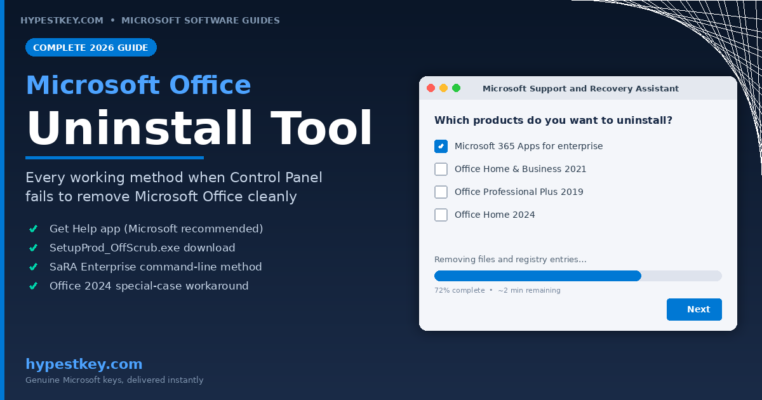
SetupProd_OffScrub.exe is the old reliable Microsoft Office uninstall tool every older tutorial points at. Under the hood it’s really just an installer. It deploys the Microsoft Support and Recovery Assistant onto your PC and then triggers the Office Scrub scenario from there. Is SARA officially deprecated? Yes. Is the download link still alive in April 2026? Also yes. So you can still scrub basically anything with it. That includes 365 subscription, Office 2021 perpetual, 2019, 2016, even the ancient 2013 and 2007 installs you sometimes find on forgotten boxes in the back of small offices. Same blind spot as Get Help though, Office 2024 gets scrubbed only partway.
How you actually run it:
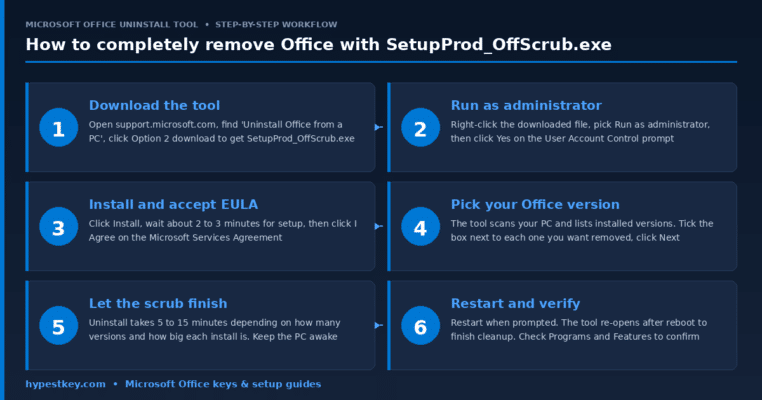
- Browser to support.microsoft.com. Search “Uninstall Office from a PC”.
- On that page, scroll past the first block until you see Option 2: Completely uninstall Office with the uninstall support tool.
- Hit Download. The file lands in Downloads as
SetupProd_OffScrub.exe. Size is around 50 MB. - Right-click that file. Run as administrator. UAC prompt pops up, click Yes.
- Click Install. Wait roughly 2 or 3 minutes. Sometimes less on fast machines.
- On the Microsoft Services Agreement screen, click I Agree.
- It scans. It lists every Office product it finds. Tick the box for each version you want removed. Next.
- Read the warning screen, check the “yes, really” box, Next.
- Now wait. Scrub runs between 5 and 15 minutes. The window will look dead halfway through. Don’t click it. Don’t close it. Just let it run.
- Restart when it asks. It will re-launch itself after reboot to finish the final pass.
- When you see “Uninstall successful”, close it.
The big win of SetupProd_OffScrub.exe over Control Panel is token cleanup. If Word ever refused to activate because Windows still thought an older license was valid, this is the specific tool that fixes it. Ali Tajran (Microsoft MVP) has a deep blog post on this edge case if you want more background reading.
Method 4: SaRA Enterprise Command Line (For Admins and Office 2024)
If you manage a fleet of machines, or you hit the Office 2024 wall, this is your only real option. The Enterprise flavor of the Microsoft Office uninstall tool is a command-line utility called SaRAcmd.exe, still published and still getting updates on Microsoft’s Learn site. Latest package as I’m writing this is SaRACmd_17_01_3954_000.zip, dated 12/9/2025.
Quick walkthrough:
- Open Microsoft Learn. Search: “How to run the Enterprise version of Microsoft Support and Recovery Assistant”.
- Grab the ZIP. Unpack it somewhere sensible,
C:\Tools\SaRACmdworks fine. - Launch Command Prompt as administrator. Not the regular one. If you forget the elevation step, the tool returns error code 10 and quits. Made this mistake myself more than once.
cd C:\Tools\SaRACmd- Run whichever command matches your goal (see below).
Wipe every Office version off the box:
SaRAcmd.exe -S OfficeScrubScenario -AcceptEula -OfficeVersion All
Just Microsoft 365 Apps:
SaRAcmd.exe -S OfficeScrubScenario -AcceptEula -OfficeVersion M365
Only one specific version, say 2021:
SaRAcmd.exe -S OfficeScrubScenario -AcceptEula -OfficeVersion 2021
Valid inputs for -OfficeVersion cover pretty much everything Microsoft has shipped this century. You can pass All for nuclear option, or M365 for just the subscription variant, or any specific year like 2024, 2021, 2019, 2016, or go ancient with 2013, 2010, 2007. SaRA also writes its logs into %localappdata%\SaRALogs automatically. Which becomes super useful when you’re running SaRAcmd against a remote PC via PowerShell Remoting and need to pull back the logs afterward to see what actually happened.
One warning worth bolding: multiple Office versions on the same machine + no -OfficeVersion flag = tool quits with a “please specify” error. Pass it an exact version. Or pass it All. Guessing isn’t an option.
Method 5: Office Scrubber (Community Script for Stubborn Cases)
Not a Microsoft tool, technically. But it wraps Microsoft’s own OffScrub VBS scripts in a friendly batch menu. Lives on GitHub at abbodi1406/BatUtil. I only grab this one when SaRA’s already failed and I’m running out of ideas. When literally everything else has quit, this usually gets the job done.
- Download the ZIP off the BatUtil GitHub repo.
- Unpack to
C:\temp\OfficeScrubber. Anywhere else works too, but temp is fine. - Find
OfficeScrubber.cmd, right-click, pick Run as administrator. - You’ll get a text menu once it loads. It covers pretty much every Office generation ever made. Click-to-Run flavor for the modern ones (so 365 subscription, plus 2024, 2021, 2019, 2016, and 2013 in C2R form). Then the MSI versions of 2016 and 2013 which were the enterprise installer format before Click-to-Run ate the world. And older still, Office 2010, then 2007, then (amazingly) even 2003. Plus one entry for the UWP Store version on Windows 10 and 11.
- Number keys toggle entries on and off. Anything with a
{*}marker next to it was actually detected on your system. - Pick the scrub action from the menu. It fires off the official Microsoft OffScrub VBS script per version.
- Reboot after it’s done.
Bonus feature nobody else offers: this script can wipe just the license tokens without removing Office at all. So it sounds niche, yet it saves hours sometimes. For example, last November a client’s Office 2021 kept dropping to “product deactivated” state after every reboot. A token wipe fixed it in under 2 minutes. But a full reinstall would’ve eaten 45 and might not have worked anyway.
Office 2024 Is a Special Case
Calling this out in its own section because it’s where the most people I know have gotten stuck this year. Office 2024 hit the market on October 1, 2024. It’s been in the wild for about 18 months as I’m writing this, and honestly the uninstall ecosystem around the Microsoft Office uninstall tool has just not caught up with it yet. Here’s the actual state of things:
- Control Panel: works on Click-to-Run and MSI. Start here always.
- Get Help app: doesn’t work at all on 2024. Microsoft’s own documentation literally says so.
- SetupProd_OffScrub.exe: half-works. It sees Office 2024, starts scrubbing, but leaves bits behind. Seen licenses survive a full scrub more than once.
- SaRA CMD with
-OfficeVersion All: yes. Reliable. This is the method. - Office Scrubber script: yes. Handles 2024 the same way it handles other modern C2R versions.
So the short version: if Office 2024 is on your machine and Control Panel refuses, then skip straight to Method 4 or Method 5. Because the GUI options will just waste your time. Yes it’s annoying, but it’s been annoying for 18 months now, and that’s just where the ecosystem sits in April 2026. Hopefully Microsoft patches this someday.
What the Uninstaller Leaves Behind (and How to Check)
Honest truth: even a decent scrub misses something occasionally. Here’s my personal post-uninstall checklist. Runs about 2 minutes. Catches whatever’s still hiding.
- Start menu: give it a scroll. Word, Excel, PowerPoint, Outlook, Publisher, Access, OneNote. If any of those icons are still showing, something’s still installed or a tile didn’t die. Dead tiles are easy, right-click and remove them.
- Programs and Features: pop open Control Panel. No leftover entries for Microsoft 365, Microsoft Office, Skype for Business, or the legacy Teams classic should still appear.
- File system: open File Explorer. Paste each of these into the address bar. Every one should either be empty or not exist:
C:\Program Files\Microsoft OfficeC:\Program Files (x86)\Microsoft Office%APPDATA%\Microsoft\Office%LOCALAPPDATA%\Microsoft\Office
- Registry: if you know regedit well enough, check
HKEY_LOCAL_MACHINE\SOFTWARE\Microsoft\OfficeandHKEY_CURRENT_USER\Software\Microsoft\Office. That Office key should be empty or just not there. Not comfortable editing the registry? Skip this step entirely, you can absolutely wreck a Windows install poking around in regedit blind. - Microsoft Store: pop an elevated PowerShell and run
Get-AppxPackage -name "Microsoft.Office.Desktop". Nothing should come back. If it does, pipe the output intoRemove-AppxPackage. - Scheduled Tasks: fire up Task Scheduler, drill into Microsoft\Office. The Click-to-Run updater task should be gone from that folder.
Still seeing leftovers at this stage? Fire up Method 5 (Office Scrubber) one more time. That always finishes the job.
When the Uninstaller Still Fails
A handful of things make every method above choke. Listing them in the order I actually see them most often:
Office files are locked by a running process. Close every Office app (Word, Excel, Outlook, Teams, OneDrive). Open Task Manager, kill any outlook.exe, winword.exe, excel.exe, OfficeClickToRun.exe that are still alive. Close the tray icon too. Then retry. Solves it 9 times out of 10.
Pre-installed OEM Office that reinstalls every login. Some new Dell, HP, and Lenovo laptops ship with a Microsoft Store stub that quietly reinstalls Office 2021 or 2024 every time a new user logs in. The stub itself is the problem. Remove it with PowerShell:
Get-AppxPackage -name "Microsoft.Office.Desktop" | Remove-AppxPackage
Run that for each user account, or use -AllUsers from an elevated prompt with admin rights.
Corrupt MSI cache. If the error points at C:\Windows\Installer, your MSI cache is missing or damaged. Microsoft’s “Fix problems that block programs from being installed or removed” troubleshooter patches this in one pass.
Work or school account lock. If the machine is joined to an Azure AD tenant and your IT team pushed Office through Intune, the uninstall gets blocked at policy level. Either IT has to release it, or the machine has to leave the tenant first.
Common Microsoft Office Uninstall Errors and How to Fix Them
If you landed on a specific error code, here are the ones I see most often and what actually fixes them. Microsoft’s own error pages are often circular, so skip those.
| Error | What it means | Fix |
|---|---|---|
| Couldn’t uninstall Office | Generic Control Panel failure, usually a locked file | Reboot. Close all Office processes in Task Manager. Retry. Still failing? Run SetupProd_OffScrub.exe as administrator. |
| Error 30015-6 | Setup cannot access the Click-to-Run install folder | Disable antivirus for 10 minutes. Retry. Some security suites lock the ProgramData\Microsoft\ClickToRun folder during uninstall. |
| Error 30174-8 | Network issue during Click-to-Run removal | Check internet connection. Disable VPN. The scrub calls back to Microsoft CDN to confirm the version manifest. |
| Error 30088-4 | Windows Installer database is corrupted | Run the “Fix problems that block programs from being installed or removed” troubleshooter from Microsoft Support. Fixes the MSI cache in one pass. |
| Error 30029-28 | Click-to-Run service is stuck | Open services.msc, find Microsoft Office Click-to-Run Service, right-click, Restart. Then retry the uninstall. |
| Error code 10 (SaRA CMD) | Command prompt was not run as administrator | Close the CMD window, right-click Command Prompt, pick Run as administrator, re-enter the SaRAcmd command. |
| “This action is only valid for products that are currently installed” | Orphan Office registry entry without the actual files | Skip the Control Panel entry and run the SaRA Enterprise CMD with -OfficeVersion All. It forces a registry cleanup. |
| Uninstall greyed out in Settings > Apps | OEM pre-install via Microsoft Store (not user-removable) | Use the PowerShell method: Get-AppxPackage -name "Microsoft.Office.Desktop" | Remove-AppxPackage in an elevated window. |
One last thing. If the uninstall gets stuck at some weird percentage (73%, 82%, pick one) for more than 15 minutes, do not force-kill the process. Windows task scheduler sometimes runs Office update tasks mid-uninstall and those just take time. Wait another 10 minutes. If it is still frozen, reboot, then run SetupProd_OffScrub.exe with fresh logs.
Switching Between 32-bit and 64-bit Office
This is the single most common reason people search for the Microsoft Office uninstall tool in the first place. Quick version: Microsoft does not let you upgrade 32-bit Office to 64-bit directly. You must uninstall the 32-bit version completely and install the 64-bit version from scratch. Plain Control Panel usually leaves registry entries that make the 64-bit installer refuse to start. That is when you pull out SetupProd_OffScrub.exe or SaRA CMD for a full scrub first. After the scrub plus a reboot, the 64-bit install proceeds like a fresh machine. For a full walkthrough of the next step, see our Office 2021 installation guide (same steps apply to 2019 and 2024).
Uninstalling Office on a Mac
Different tool, different path, same goal. The Windows uninstall tools above do not run on macOS. On a Mac you drag the Office apps from /Applications to the Trash, then run the Microsoft Office License Removal Tool from Microsoft Support to clear licensing data from ~/Library. Mac Office leaves a lot less junk behind than Windows Office, so a clean uninstall is faster. If you need keys for the Mac side, check Office for Mac products at hypestkey.com.
Final Tips From Two Dozen Office Removals This Year
A short list of things I wish I had known before the first time I ran the Microsoft Office uninstall tool:
- Back up
NORMAL.DOTMand your custom Outlook signatures before running any scrub. Scrub tools wipe them. They live in%APPDATA%\Microsoft\Templatesand%APPDATA%\Microsoft\Signatures. - Your product key stays linked to your Microsoft account for subscription Office, and gets released for perpetual licenses like Office 2019 or 2021 once you sign back in. You do not need to re-enter the key after a clean reinstall.
- Do not run two uninstall methods at the same time. If Control Panel is stuck, cancel it first, then run Get Help. Running both makes things worse.
- The scrub does not remove OneDrive, Teams, or Skype for Business. Those are separate and have their own uninstallers. If you want a truly clean Office-free PC, remove them manually from Settings.
- On Windows 10, support ended October 14, 2025. Microsoft still lets the uninstall tools run on Win10, but no fixes are coming. If you are on Windows 10 and the tool breaks, the fix is upgrading to Windows 11 or wiping the box.
Once Office is off, if you are reinstalling a fresh copy, grab a genuine product key from the Microsoft Office category at hypestkey.com. The process is the same whether you are going back to 2021 or jumping to 2024. For a full writeup of setup steps after removal, see our Microsoft Office 2021 installation guide. If you are new to Office 2024, there is a separate Office 2024 product page with download details, and you can reach our team through the Microsoft Support contact guide if anything else goes wrong. For the official Microsoft documentation on this whole topic, check the Microsoft Support uninstall page.
Frequently Asked Questions
What is the Microsoft Office uninstall tool?
It is a free Microsoft utility that removes Office 365, Microsoft 365, and Office 2016 through 2021 from Windows when the normal uninstaller fails or leaves files and registry entries behind. In 2026 it exists as the Get Help app troubleshooter, the legacy SetupProd_OffScrub.exe download, and the SaRA Enterprise command-line version.
Where do I download SetupProd_OffScrub.exe?
Open the Microsoft Support page titled “Uninstall Office from a PC”, scroll to Option 2 (Click-to-Run or MSI), and click the Download button. The file is about 50 MB and is digitally signed by Microsoft Corporation. Do not download it from third-party sites since they sometimes bundle adware.
Is the Microsoft Office uninstall tool still available in 2026?
Yes, but the standalone SaRA tool was deprecated on March 10, 2026. Microsoft now points home users to the Get Help app built into Windows 10 and 11. The Enterprise command-line version is still published and updated on Microsoft Learn, with the latest package dated December 9, 2025.
Does the Office uninstaller delete my documents?
No. The tool removes applications, licensing tokens, templates, and registry entries. Your Word, Excel, and PowerPoint files stay on disk and on OneDrive. Microsoft Support explicitly states this, but back up anything you care about before running any uninstall, just to be safe.
Can the Microsoft Office uninstall tool remove Office 2024?
The Get Help troubleshooter cannot remove Office 2024 as of April 2026. For Office 2024 you must use Control Panel first. If that fails, fall back to the SaRA Enterprise command-line tool with the -OfficeVersion All flag or the community Office Scrubber script.
Why does Office keep coming back after uninstalling?
Pre-installed OEM Office uses a Microsoft Store delivery hook that reinstalls on new user logins. Remove it with PowerShell by running Get-AppxPackage -name "Microsoft.Office.Desktop" | Remove-AppxPackage from an elevated prompt. Run it for every user profile on the machine.
How long does the Microsoft Office uninstall tool take?
The scrub usually finishes in 5 to 15 minutes depending on how many Office versions are installed and how fast the disk is. A mandatory restart at the end adds another few minutes. On slow HDDs or a machine with 2 or 3 stacked Office versions, allow 30 minutes total.
Last updated: April 2026
