Short answer: Office 365 install limit reached shows up when your account is already active on the maximum number of devices. Home plans: five sign-ins at once. Business plans: five desktops per user. One-time Office: one PC. We'd sign out of an old device on your account page, wait if needed, then press Try again.
Office 365 install limit reached means your account already has Office activated or signed in on the maximum number of devices, so the new one can’t join. The fix: free a slot. Sign out of Office on a device you no longer use, then press Try again.
| Your plan | The limit | How to free a slot |
|---|---|---|
| Microsoft 365 Personal or Family | Install on all your devices, signed in on five at once | Sign out of an old device on the Installs page |
| Microsoft 365 Family, shared | Five sign-ins for each person, on their own account | Each person manages their own devices |
| Microsoft 365 Business or Enterprise apps | Five desktops, five tablets, five phones per user | Deactivate under Install status, or ask the admin |
| One-time Office, Home or Home and Business | One PC or one Mac | Deactivate the old install, then move the license |
| Office for Mac bought as a single license | A one-time install | Manage it on your account page, then retry |
Why you see “Office 365 install limit reached”
Office counts where it’s activated. Not where it’s merely installed.
Each time you sign in to Word or Excel on a computer, that device takes a seat on your account. New laptop. Reinstalled Windows. A virtual machine, or a work PC you used once. Each can still hold a seat long after you stopped using it. We see this a lot after a PC swap, when the old machine sits in a cupboard still signed in.
The wording changes with the product. “Install limit reached”, “Installation limit reached” on a Mac, or a dialog asking you to deactivate first. Same idea behind each.
How many devices each plan allows
The rules moved over the years, which is why old forum answers contradict each other.
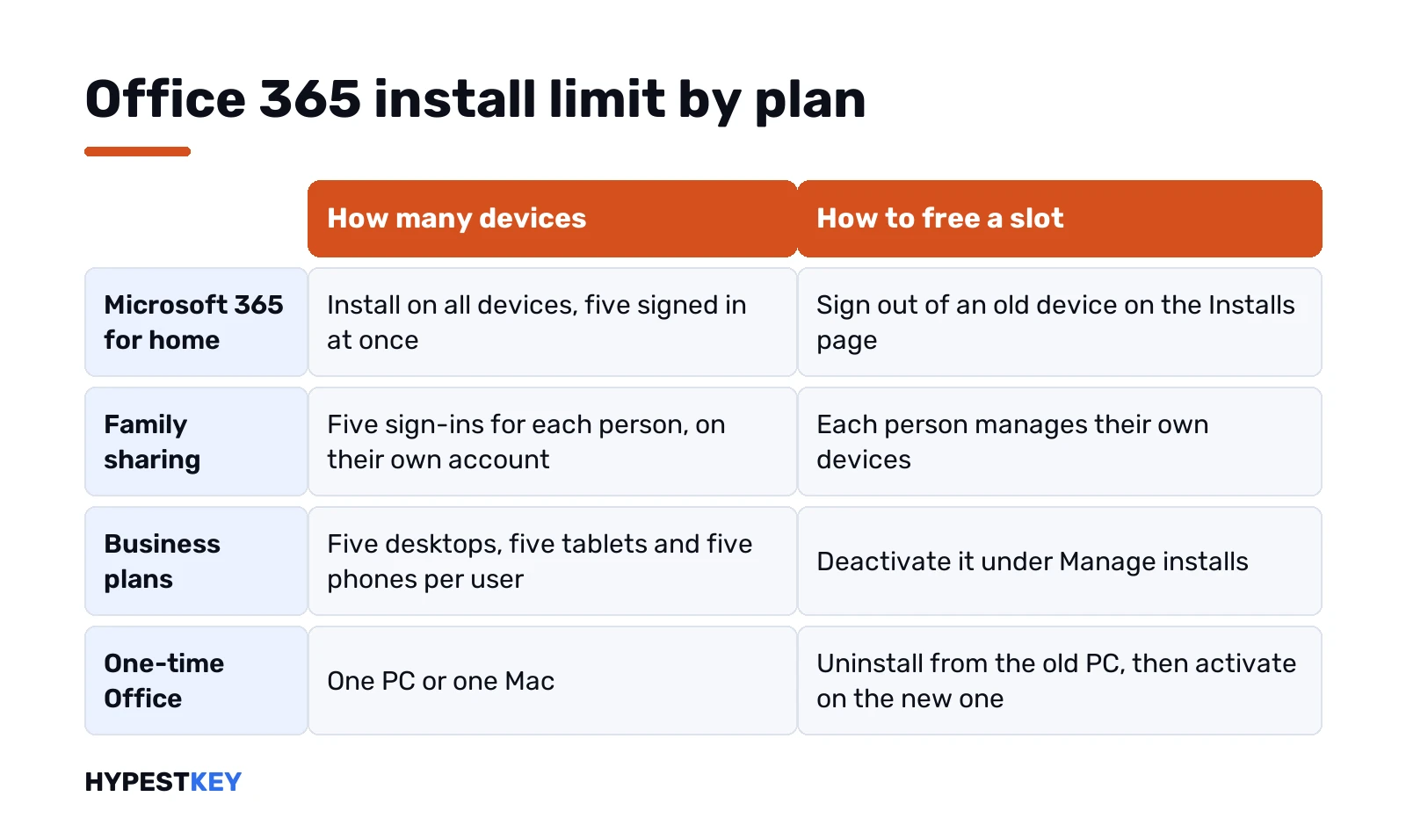
- Microsoft 365 for home. Install on as many PCs, Macs, tablets and phones as you like. Signed in on five at the same time. A sixth sign-in pushes one of the others out automatically.
- Family sharing. Every person you share with uses their own Microsoft account and gets their own five. One person’s devices never eat another’s seats.
- Business and enterprise plans. Up to five desktops or laptops, five tablets and five mobile devices per licensed user.
- One-time purchase Office. One computer. That’s the license, not a technical glitch.
Older help pages still say you can activate Office on up to five computers and must deactivate one to add a sixth. Classic Office 365 rule. We still see the “limit reached” dialog follow it on some plans.
Not sure which plan you have? Our explainer what is Microsoft 365 sorts out the plan names.
Fix the Office 365 install limit on a home plan
Home and Family plans manage devices through your Microsoft account.
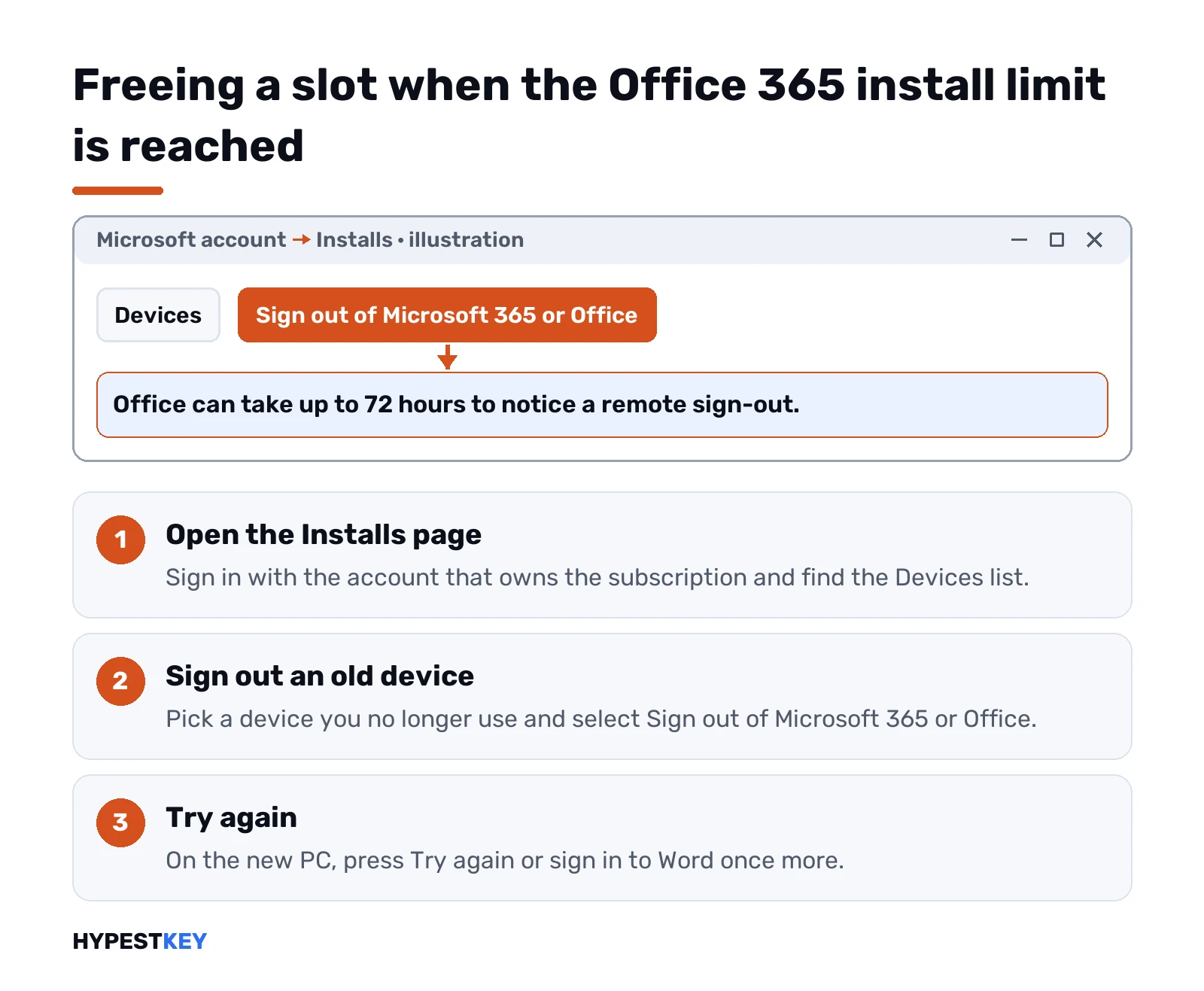
- Open the Microsoft account Installs page in a browser. Sign in with the account that owns the subscription.
- Find the Devices list.
- Pick an old device. Select Sign out of Microsoft 365 or Office.
- Back on the new PC, press Try again in the limit dialog, or close Word and sign in again.
Patience matters here. Office can take up to 72 hours to notice a remote sign-out. If the new device still refuses, wait, then try again; we wouldn’t sign out of more devices in the meantime.
Have the old computer at hand? Faster route. In any Office app on it: File, Account, Sign out. Close all Office apps afterwards.
Device names in the list are often cryptic. DESKTOP plus random letters? Typical Windows default. Check a PC’s real name under Settings, System, About before you guess.
Deactivate an install on a business account
Work and school accounts use a different page.
- Sign in at office.com with your work or school account.
- Open your account page, then the Install status tile.
- Manage installs.
- Deactivate the computers you no longer use.
Deactivating doesn’t remove Office from that computer and doesn’t touch your documents. Office there switches into reduced functionality mode: files open and print, but editing and new documents are blocked until someone signs in with a valid license.
Newer builds of the business apps are friendlier. A new device no longer has to wait for a manual deactivation. Past ten activated devices, the one used least recently is deactivated automatically. Windows only, though. On a Mac we’d still clean up by hand.
Can’t see the tile at all? Your admin may have hidden self-service installs. Then the request goes to IT, and from the admin side the same Manage installs page does the job. Our page on Microsoft 365 Business Standard covers what that plan includes.
Office install limit reached on a Mac
On a Mac the message reads “Installation limit reached”, with a note that the account was used to activate Office on the maximum number of computers.
Two different situations hide behind it:
- Subscription. Same fix as above. Sign out of an old device on your account page, come back, retry activation.
- Office for Mac bought as a single license. That license is a one-time install. Already used on another Mac? You’d need to remove it there first, or buy a second license.
Moving Office to a new Mac or PC in general is covered in our guide to transferring Office to a new computer.
One-time Office keys and the “already used” message
A product key for Office Home 2024 or Home and Business 2024 isn’t a subscription seat. It’s one device.
So the message you meet there is usually a different one. The key won’t redeem a second time. Or activation fails on the new PC. Our page on “This product key has already been used” explains what’s allowed. For a computer swap we’d do it in this order: uninstall Office from the old PC, then install and activate on the new one with the same Microsoft account. Our Office uninstall tool guide shows the clean way to remove it.
Volume keys have their own counter. A MAK key that ran out shows activation error 0xC004C020, not this dialog.
When the Office 365 install limit message won’t go away
Freed a slot and still blocked? Run through these.
- Wrong account. Personal and work accounts each have their own device list. Check which one Office is signed in with under File, Account.
- Stale sign-in on the new PC. Sign out of Office, close every app, sign in again.
- Remote sign-out still pending. Up to 72 hours, as above.
- Old Office left over. A previous version or a trial can grab the activation first. Remove it, then reinstall from our Microsoft 365 install guide.
- Subscription lapsed. Then the apps fall into reduced functionality and the Unlicensed Product banner appears instead.
Shared PC in an office or a classroom? That’s a job for shared computer activation, a business setting where several users sign in on one machine without eating each other’s seats. IT turns it on during deployment.
Stop hitting the limit again
- Sign out before you sell or wipe a PC. File, Account, Sign out. Takes ten seconds.
- Clean the device list twice a year. Anything you don’t recognise, sign out.
- Virtual machines count. Each one that signs in takes a seat.
- Phones and tablets. On a home plan they share the five sign-ins with your computers.
Tired of counting seats? A one-time license sits on one device, so we’ve never seen it ask anyone to juggle sign-ins. We compare both routes in Microsoft 365 vs Office 2024. Our Office Home and Business 2024 key covers one PC or Mac, instant to email. Leaving the subscription? Here’s how to cancel Microsoft 365.
Microsoft’s own pages for this: Sign out of Office and, for business plans, licensing and activation in Microsoft 365 Apps.
FAQ
How many devices can I install Microsoft 365 on?
On a home plan, all your devices, with five signed in at once. Business plans allow five desktops, five tablets and five phones per user.
Does deactivating Office delete my files?
No. Office stays installed and your documents stay put, but that device can only view and print until someone signs in again.
I signed out remotely, why am I still blocked?
Office can take up to 72 hours to notice a remote sign-out. Wait, then sign in again on the new device.
Do family members share my five devices?
No. Each person you share with signs in with their own Microsoft account and gets their own five sign-ins.
Can I move a one-time Office license to a new PC?
Usually yes. Uninstall Office from the old PC first, then install and activate it on the new one with the same account.
Do phones and tablets count toward the limit?
On home plans they share the five sign-ins with computers. Business plans count tablets and phones separately from desktops.
What does the Mac version of the error say?
It reads "Installation limit reached". Sign out of an old device on your account page, then come back and retry activation.