Short answer: To disable Copilot in Windows 11, uninstall the Copilot app under Settings, Apps, Installed apps. Then remap the Copilot key under Text input. On Pro we'd add an AppLocker rule so updates can't bring it back. Word, Excel and Edge each have a separate Copilot switch. Recall goes through Windows features.
To disable Copilot in Windows 11, uninstall the Copilot app from Settings and remap the Copilot key, because Copilot is now an ordinary app rather than a built-in pane. Pro adds AppLocker to keep it from coming back. Word, Excel, Edge and Recall each have their own switch.
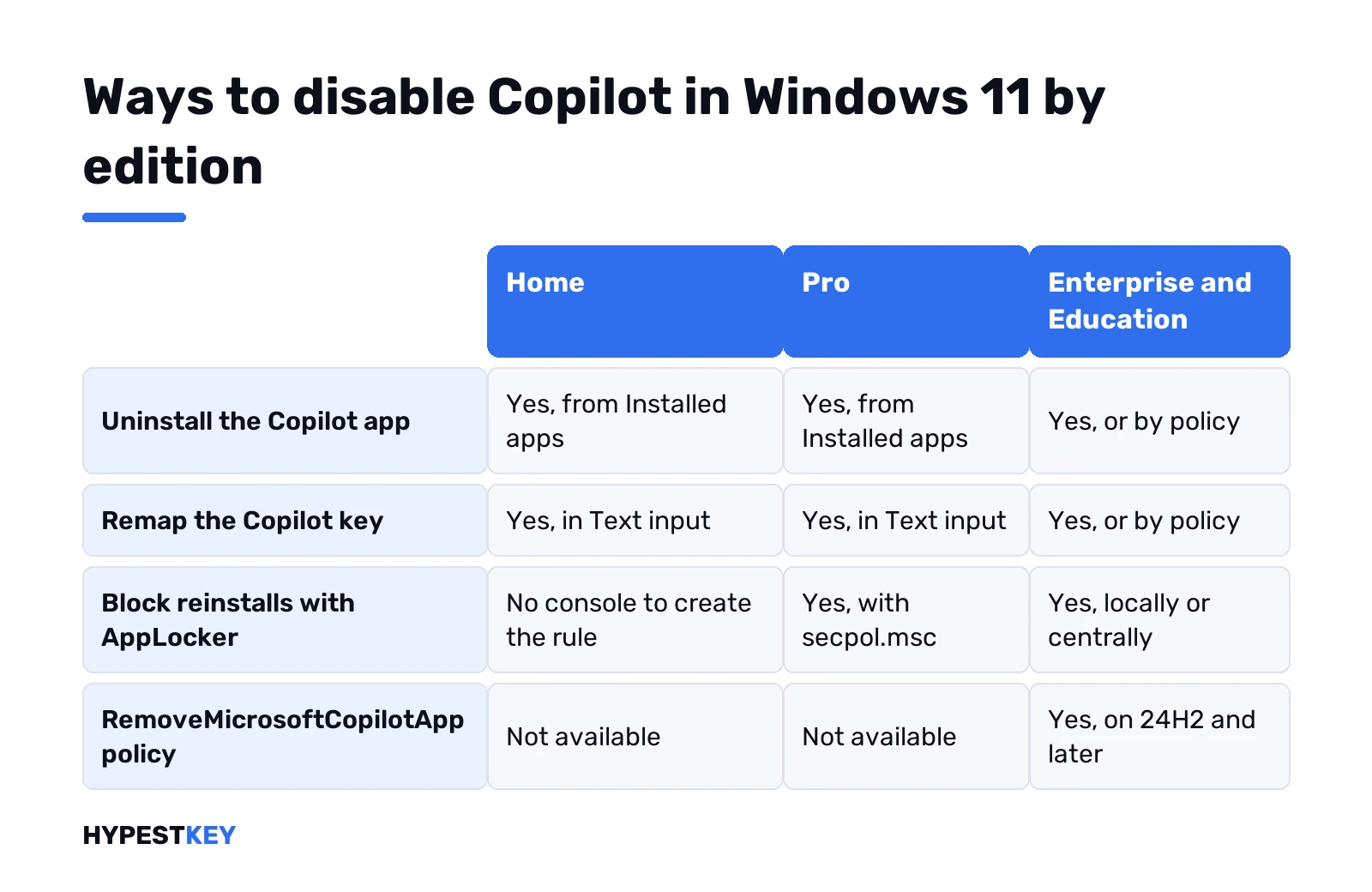
| Where Copilot appears | How to turn it off | Editions |
|---|---|---|
| Copilot app on the taskbar and in Start | Settings, Apps, Installed apps, Uninstall | All |
| Copilot key or Win + C | Settings, Personalization, Text input, Customize Copilot key | All |
| App reinstalled by updates | AppLocker rule for the MICROSOFT.COPILOT package | Pro, Enterprise, Education |
| Managed PCs | RemoveMicrosoftCopilotApp policy | Enterprise, Education |
| Word, Excel, PowerPoint, OneNote | File, Options, Copilot, clear Enable Copilot | Microsoft 365 apps |
| Microsoft Edge | Settings, Appearance, Copilot and sidebar | All |
| Recall on Copilot+ PCs | Turn Windows features on or off, clear Recall | Copilot+ PCs |
Where Copilot sits in Windows 11 now
Early Windows 11 builds had a Copilot sidebar baked into the shell. That’s gone. Microsoft replaced it with the Microsoft Copilot app, and updates rolled the app out across Windows 11 and Windows 10.
So “Copilot” on a typical PC now means several separate things:
- The Copilot app, pinned to the taskbar on new PCs.
- The Copilot key on newer keyboards. Win + C does the same on older ones.
- Copilot buttons inside Office apps, if you have Microsoft 365.
- The Copilot icon in Edge.
- Recall and Click to Do, only on Copilot+ PCs.
Each has its own off switch. We’d go through them in the order of the table, and stop once the parts that bother you are gone.
Work PC signed in with a company account? The IT admin side is managed centrally, and local changes may be overwritten. Ask your IT team first.
Unpin or hide the Copilot icon
The lightest touch. Copilot stays installed, you just stop seeing it.
- Right-click the Copilot icon on the taskbar.
- Unpin from taskbar.
- Open Start, right-click Copilot there too, Unpin from Start.
Older Windows 11 builds had a Copilot switch under Settings, Personalization, Taskbar. Current builds pin it like any other app. Unpinning replaces that switch.
Taskbar layout in general is covered in our Windows 11 quick access settings guide.
Uninstall the app to disable Copilot on Windows 11
The real fix for most home users. Microsoft’s own admin guide lists uninstalling as the first method.
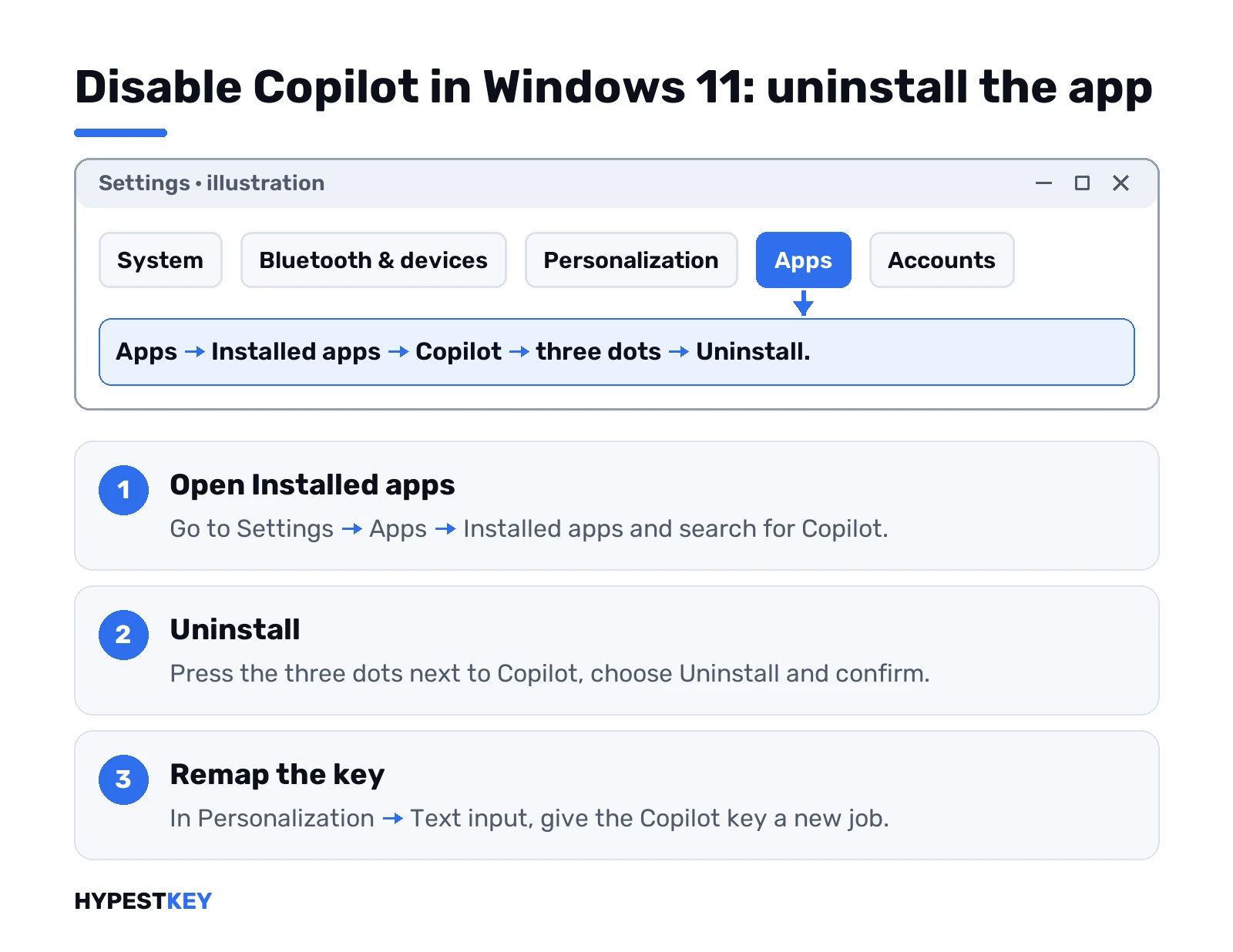
- Settings, Apps, Installed apps.
- Search for Copilot.
- Three dots on the right, Uninstall, confirm.
Prefer PowerShell? Microsoft gives these two lines for the same job:
$packageFullName = Get-AppxPackage -Name "Microsoft.Copilot" | Select-Object -ExpandProperty PackageFullName
Remove-AppxPackage -Package $packageFullName
Nothing else breaks. Windows, Office and your files don’t depend on it. Want it back later? It’s a free app in the Microsoft Store.
One trap. The Office hub app, once called Microsoft 365, now carries a Copilot name too. Different package from Microsoft.Copilot. Leave it if you open Word or Excel from there.
Stop Copilot from starting with Windows
Kept the app but don’t want it running in the background? Startup is the place.
- Settings, Apps, Startup.
- Find Copilot in the list.
- Switch it off.
Not in the list? Then it doesn’t start on its own on your PC. Nothing to do.
Remap the Copilot key or Win + C
Newer keyboards have a dedicated Copilot key. Uninstalling the app doesn’t give that key a new job. Remapping does.
- Settings, Personalization, Text input.
- Customize Copilot key on keyboard.
- Pick Search, or Custom and choose any app from the list.
Only apps that register for the key show up under Custom. Microsoft says the app’s maker has to add support for it.
Keys that annoy you in general? We’ve written about disabling the Windows key and where the Windows key sits on different keyboards.
Disable Copilot in Windows 11 Pro with AppLocker
Updates can reinstall the app. On Pro, an AppLocker rule stops that for good: the app can’t be installed, and if it’s there, it can’t start.
Microsoft recommends AppLocker over the old Copilot policy. Enforcement no longer depends on Enterprise either: since update KB5024351, every Windows 11 edition can enforce it. Home lacks the console to create the rule, though.
- Press Win + R, type secpol.msc, Enter.
- Application Control Policies, AppLocker, Packaged app Rules.
- Right-click, Create Default Rules. Skip this and every other Store app gets blocked too.
- Right-click again, Create New Rule. Action: Deny. User: Everyone.
- Use the publisher values below, then Create.
Publisher:        CN=MICROSOFT CORPORATION, O=MICROSOFT CORPORATION, L=REDMOND, S=WASHINGTON, C=US
Package name:     MICROSOFT.COPILOT
Package version:  * (and above)
AppLocker only enforces rules while the Application Identity service runs. Set it to start automatically from an administrator Command Prompt:
sc.exe config appidsvc start= auto
sc.exe start appidsvc
Restart and try to open Copilot. A message saying your administrator blocked the app means it worked.
On Home and want this? Our guide on upgrading Windows 11 to Pro keeps your files and apps. The edition differences are in Windows 11 Home vs Pro.
The old Turn off Windows Copilot policy and registry value
Most guides still send you here. Worth knowing what it does today.
The Group Policy sits at User Configuration, Administrative Templates, Windows Components, Windows Copilot, Turn off Windows Copilot. Its registry twin:
HKEY_CURRENT_USER\Software\Policies\Microsoft\Windows\WindowsCopilot
TurnOffWindowsCopilot = 1 (DWORD)
Microsoft marks this policy deprecated. It controlled the old Copilot pane, and the documentation says it doesn’t cover the new Copilot app. Upgrades from an image with the old pane? Still covered.
So on Home, the registry tip from older articles won’t remove the app. Uninstall plus a remapped key is the honest answer there.
Disable Copilot on Windows 11 Home: the full checklist
Home has no Group Policy editor and no AppLocker console. Still, four steps cover nearly everything:
- Uninstall the Copilot app from Installed apps.
- Remap the Copilot key to Search, or to an app you use.
- Hide the Copilot button in Edge.
- Clear Enable Copilot in each Office app you have.
Then the check after each feature update, see the last section. That’s the whole job on Home, no registry editing needed.
Third-party “debloat” scripts promise more. We’d leave them alone: they change things nobody documents, and the next update can undo or break them.
Enterprise and Education: the RemoveMicrosoftCopilotApp policy
Managed fleets get a cleaner tool on Windows 11 version 24H2 and later. RemoveMicrosoftCopilotApp, in the WindowsAI policy area. It uninstalls the consumer Copilot app. Only on devices that meet three conditions, though:
- Microsoft 365 Copilot and Microsoft Copilot are both installed.
- The user didn’t install the Copilot app personally.
- Nobody launched it in the last 28 days.
Users can still reinstall it. For a hard block, admins pair it with the AppLocker rule above. Our Enterprise vs Pro comparison covers which edition gets which policies.
Turn off Copilot in Word, Excel, PowerPoint and OneNote
Separate from Windows. Each app has its own checkbox, and Microsoft’s Office Copilot page describes it.
- Open the app, for example Word.
- File, Options, Copilot.
- Clear Enable Copilot, OK, restart the app.
Repeat in each app and on each PC. The setting doesn’t travel with your account. On a Mac it lives under Preferences, Authoring and Proofing Tools, Copilot.
No checkbox? Update Office first. Still nothing, then the indirect way: File, Account, Account Privacy, Manage Settings, and clear “Turn on experiences that analyze your content”. That also turns off other online features, so we’d use it only as a fallback.
The web and mobile versions have no such switch. More on the subscription itself in what Microsoft 365 is and the Office versions overview.
Hide Copilot in Microsoft Edge
Edge carries its own Copilot button. Hiding it takes a minute:
- Edge, Settings, Appearance, Copilot and sidebar.
- Under App specific settings, select Copilot.
- Switch off Show Copilot button on the toolbar.
On the same page you can stop Copilot from using page content. Admins have a HubsSidebarEnabled policy that blocks the whole sidebar, Copilot included.
Recall and Click to Do on Copilot+ PCs
Only Copilot+ PCs have these. Recall saves snapshots of the screen so you can search what you’ve seen. Saving is off until you opt in.
To pause or stop it: Settings, Privacy & security, Recall & snapshots. To remove the feature completely:
- Search the taskbar for Turn Windows features on or off.
- Clear Recall.
- Restart. Saved snapshots are deleted.
Click to Do analyses what’s on screen when you call it up. Admins can switch it off with the Disable Click to Do policy.
Will Copilot come back after a Windows 11 update?
It can. Microsoft’s admin guide says Windows updates installed the app automatically on PCs without a blocking policy. That’s why it points admins to AppLocker.
Our routine after each big update:
- Check Installed apps for Copilot.
- Check the Copilot key mapping.
- Check the Edge and Office switches once.
Two minutes, and nothing on your PC depends on Copilot staying. For apps worth keeping instead, see our best apps for Windows 11 and productivity tools lists.
Need Pro for the AppLocker route? We sell a Windows 11 Pro key, retail, one PC, instant to email.
FAQ
can i fully remove copilot from windows 11
Mostly, yes. Uninstall the app, remap the key, and on Pro block the package with AppLocker.
does the registry trick still work
Not for the new app. TurnOffWindowsCopilot is deprecated and covered only the old Copilot pane.
is it safe to uninstall the copilot app
Yes. Windows, Office and your files don't depend on it, and the Store has it if needed.
my laptop has a copilot key, can it do something else
Sure. Settings, Personalization, Text input, Customize Copilot key on keyboard, then pick Search or Custom.
how do i stop copilot in word
File, Options, Copilot, then clear Enable Copilot and restart Word. Repeat in Excel and PowerPoint.
will a windows update reinstall copilot
It can happen. An AppLocker rule on Pro, Enterprise or Education keeps the app blocked after updates.
is recall the same thing as copilot
No. Recall belongs to Copilot+ PCs only, and you remove it under Turn Windows features on or off.