Short answer: Disable the Windows key with Microsoft PowerToys: Keyboard Manager, Remap a key, map Win to Disable. It works while PowerToys runs. For a permanent block, add a Scancode Map value and restart. Group Policy only turns off Windows key shortcuts, so Start still opens.
To disable the Windows key, the simplest route is Microsoft PowerToys: open Keyboard Manager, choose Remap a key, and map Win to Disable. For a block that also holds in games and for every user, a Scancode Map registry value does it at system level. Group Policy only turns off the shortcuts.
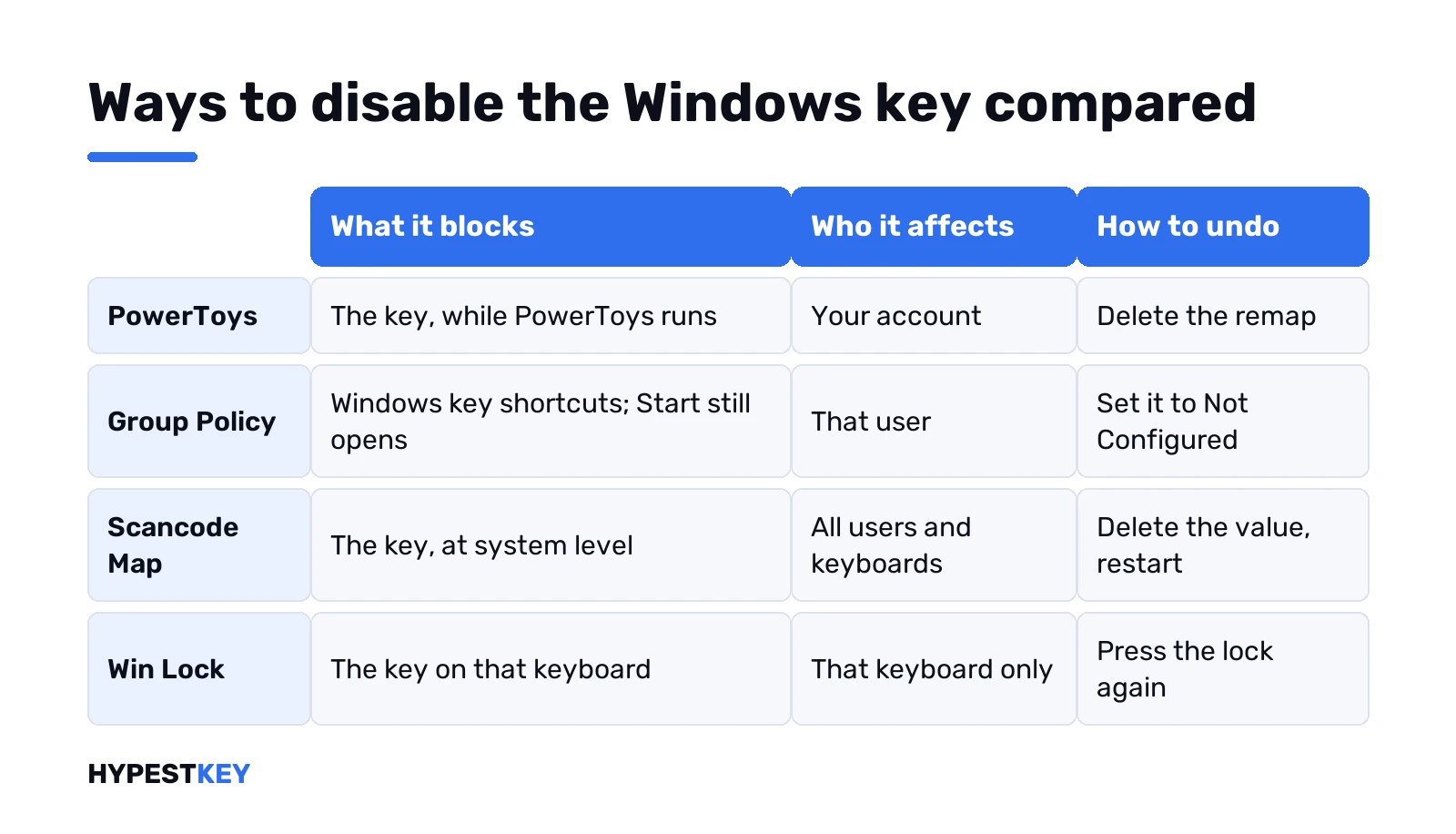
| Method | What it blocks | Who it affects | Undo |
|---|---|---|---|
| PowerToys Keyboard Manager | The key itself, while PowerToys runs | Your account | Delete the remap or close PowerToys |
| Group Policy: Turn off Windows Key hotkeys | Windows + letter shortcuts; Start still opens | The user the policy applies to | Set the policy back to Not Configured |
| Scancode Map in the registry | The key itself, at system level | All users, all keyboards | Delete the value, restart |
| AutoHotkey script | The key, while the script runs | Your account | Exit the script |
| Win Lock on the keyboard | The key, in hardware or firmware | That keyboard | Press the lock again |
Ways to disable the Windows key, compared
Pick by reason. Gamers who keep tabbing out by accident want a hard block that doesn’t touch frame rates. Office machines often only need the shortcuts gone. Kiosks and shared PCs? We’d want a block that survives any user signing in.
- Quick and reversible: PowerToys.
- Shortcuts only, Start stays: Group Policy.
- Permanent, system-wide: Scancode Map.
- Only while a game runs: a Win Lock key or an AutoHotkey script.
Two keys, by the way. Many keyboards have a left and a right Windows key. Block both, or the right one keeps opening Start. Not sure your keyboard has two? Our keyboard tester shows every key it registers.
Disable the Windows key with PowerToys
PowerToys comes from Microsoft and is free. Keyboard Manager is the part we need:
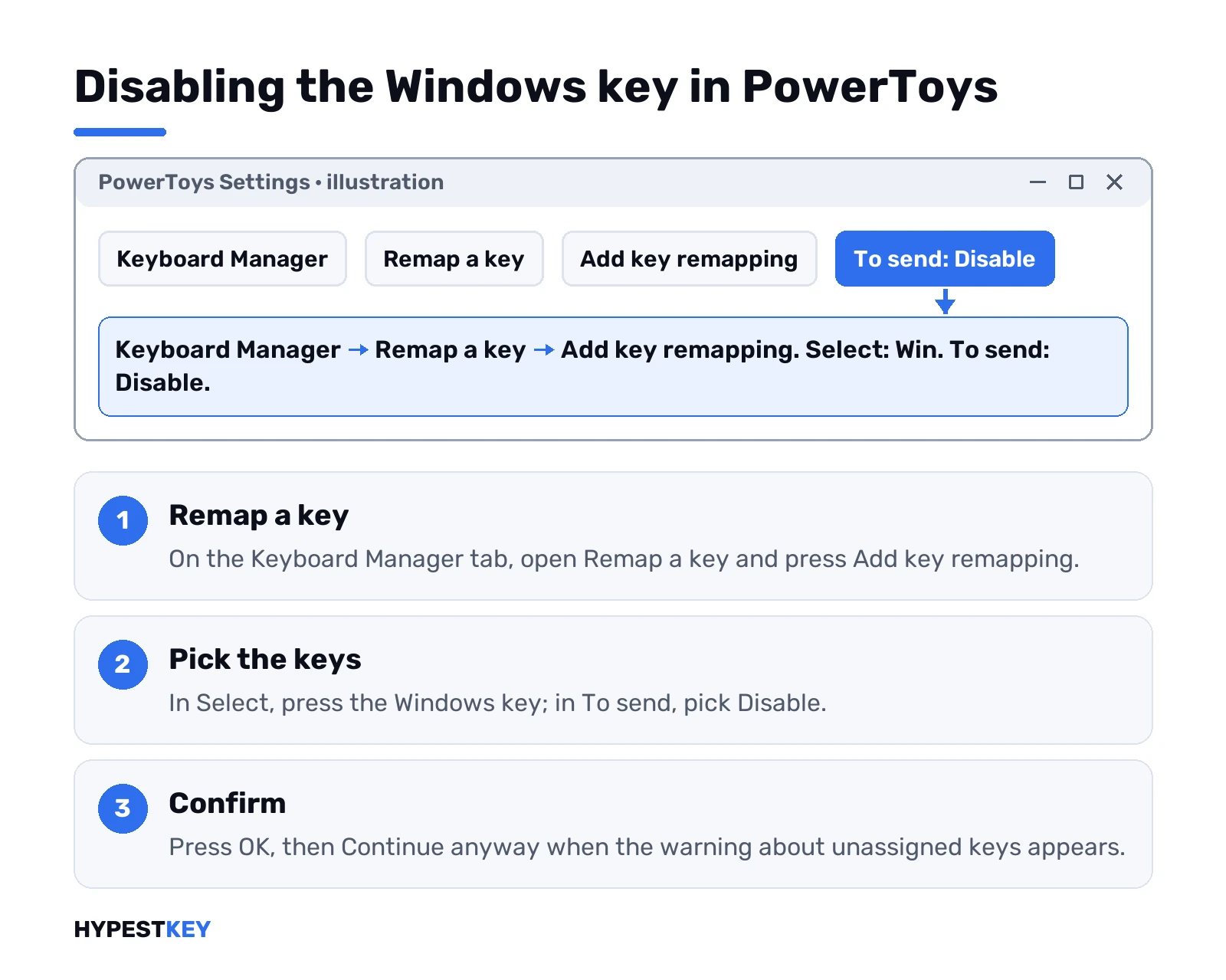
- Install PowerToys and open its Settings.
- Keyboard Manager tab. Make sure it’s switched on.
- Remap a key, then Add key remapping.
- In the Select column, press the Windows key or pick Win from the list.
- In the To send column, pick Disable.
- OK. A warning lists keys without an assignment. Continue anyway.
It works at once, no restart. Add a second row for the right Windows key if your keyboard has one.
The catches, straight from the Keyboard Manager documentation:
- PowerToys has to run in the background. Close it and the key comes back.
- No effect on the sign-in screen or on password prompts.
- Apps running as administrator ignore the remap unless PowerToys runs as administrator too.
- Microsoft advises against Keyboard Manager while gaming, since the interception can cost frames.
- Windows + G may still open Xbox Game Bar. Game Bar can be switched off in Settings.
That gaming note is why we’d send gamers further down this page.
Group Policy: turn off Windows key shortcuts only
This one is narrower than people expect. The policy Turn off Windows Key hotkeys kills combinations like Windows + R and Windows + E. The key on its own still opens Start.
- Windows + R, type
gpedit.msc, Enter. - User Configuration > Administrative Templates > Windows Components > File Explorer.
- Turn off Windows Key hotkeys. Enabled. OK.
- Sign out and back in.
The Group Policy editor exists on Pro, Enterprise and Education. Home doesn’t have it. The policy reference shows the value it writes, NoWinKeys, under the user’s Explorer policies key. We’d use this command prompt line when the editor isn’t at hand:
reg add "HKCU\Software\Microsoft\Windows\CurrentVersion\Policies\Explorer" /v NoWinKeys /t REG_DWORD /d 1 /fHome user who wants the policy route? Our Windows 11 Home vs Pro comparison shows what Pro adds, and the Windows 11 editions overview covers the bigger ones.
Disable the Windows key for every user in the registry
The Scancode Map value tells Windows to treat a physical key as something else, or as nothing. It lives at machine level. All users, all keyboards. No app has to keep running.
The scan codes come from Microsoft’s own table: E0 5B for the left Windows key, E0 5C for the right one. We mapped both to zero in the documented scan code mapper format, and that gives this value. From an administrator command prompt:
reg add "HKLM\SYSTEM\CurrentControlSet\Control\Keyboard Layout" /v "Scancode Map" /t REG_BINARY /d 00000000000000000300000000005BE000005CE000000000 /fThen restart. The mapping only loads at boot.
We’d make a restore point in Windows 11 first. One wrong byte can scramble a key you need. If that happens, Safe Mode plus the delete command below gets you out.
SharpKeys, a free open-source tool, writes the same value through a small window. Handy if hex makes you nervous.
AutoHotkey for gaming sessions
Want the key dead only while you play? A two-line AutoHotkey script does it. Save this as a .ahk file and run it:
LWin::Return
RWin::Return
Quit the script from its tray icon and both keys work again. We’d check a game’s rules on scripts before running one next to it. Tuning other things for play? The FPS calculator is on the same tools shelf.
Win Lock and game mode on the keyboard
Plenty of gaming keyboards ship with this built in. A Win Lock key, an Fn combination, or a game mode in the maker’s app.
Nothing to install, nothing in the registry. The flip side: it’s per keyboard. Plug in another one and the key works again. The manual of your model names the exact combination; we won’t guess at it here.
Turning the Windows key back on
Undo matches the method:
- PowerToys: delete the Win row in Remap a key, or switch Keyboard Manager off.
- Group Policy: set Turn off Windows Key hotkeys back to Not Configured, then sign out.
- AutoHotkey: exit the script.
- Win Lock: press the lock combination again.
For the registry values, delete them and restart:
reg delete "HKCU\Software\Microsoft\Windows\CurrentVersion\Policies\Explorer" /v NoWinKeys /f
reg delete "HKLM\SYSTEM\CurrentControlSet\Control\Keyboard Layout" /v "Scancode Map" /f
Key still dead after all that? Test it in the online keyboard tester. No signal there points to the keyboard itself, not Windows.
Things you can’t block this way
Some combinations belong to Windows. PowerToys can’t remap Windows + L or Ctrl + Alt + Del at all. We’d use a Scancode Map or a Win Lock to take the whole key away, Windows + L included.
And think about what you lose. Windows + Shift + S for screenshots, Windows + V for clipboard history, Windows + Space for languages. We show the routes that don’t need the key in our pages on taking screenshots on Windows, Print Screen not working and Windows 11 keyboard layouts.
Moving from Home to Pro for Group Policy? The Home to Pro upgrade guide explains the switch. Our Windows 11 Pro key comes as a Retail license, sent instantly to your email.
Related guides
FAQ
how do i turn off the windows key while gaming
A Win Lock key on the keyboard is the cleanest. Otherwise a Scancode Map value or a small AutoHotkey script; Microsoft advises against PowerToys during games.
Does Group Policy disable the key completely?
Nope. It turns off Windows key shortcuts like Windows + R, but the key alone still opens Start.
Can I do this on Windows Home?
Yes. PowerToys, AutoHotkey and the Scancode Map all work on Home; only the Group Policy editor is missing.
Do I need to restart?
Depends. PowerToys and AutoHotkey act at once, the policy needs a sign-out, the Scancode Map needs a restart.
The Windows key stopped working on its own, why?
Usually a Win Lock got pressed or a remap tool is running. Check the keyboard lock first, then PowerToys and the registry values.
Can I disable just the left Windows key?
Yes. Map only the left Win in PowerToys, or use only LWin in the AutoHotkey script.