Short answer: Print Screen not working on Windows 11 usually comes down to three things. The Fn key, a setting, or an app that claimed the key. We try Fn first, then the setting, then close OneDrive and capture tools. Windows + Shift + S works in the meantime.
Print Screen not working on Windows 11 usually isn’t a broken key. On a laptop the key often needs Fn. A Windows setting may send it to the Snipping Tool instead of the clipboard. A cloud or capture app may have claimed the shortcut.
We work through those in order, and the key comes back in nearly every case.
- Press Fn + Print Screen, or toggle Fn Lock, on a laptop.
- Check the Print Screen setting under Settings, Accessibility, Keyboard.
- Close OneDrive, Dropbox and capture tools, then test again.
- Repair the Snipping Tool under Installed apps.
- Check that the Screenshots folder exists and isn’t redirected.
- Test the key itself on an online keyboard tester.
- Use Windows + Shift + S meanwhile; it doesn’t depend on the key.
The shortcuts and the setting are documented on Microsoft’s pages Keyboard shortcut for print screen and Use Snipping Tool to capture screenshots.
First, what “not working” means
The key can fail in four different ways, and each points to a different cause.
| What you see | Most likely cause |
|---|---|
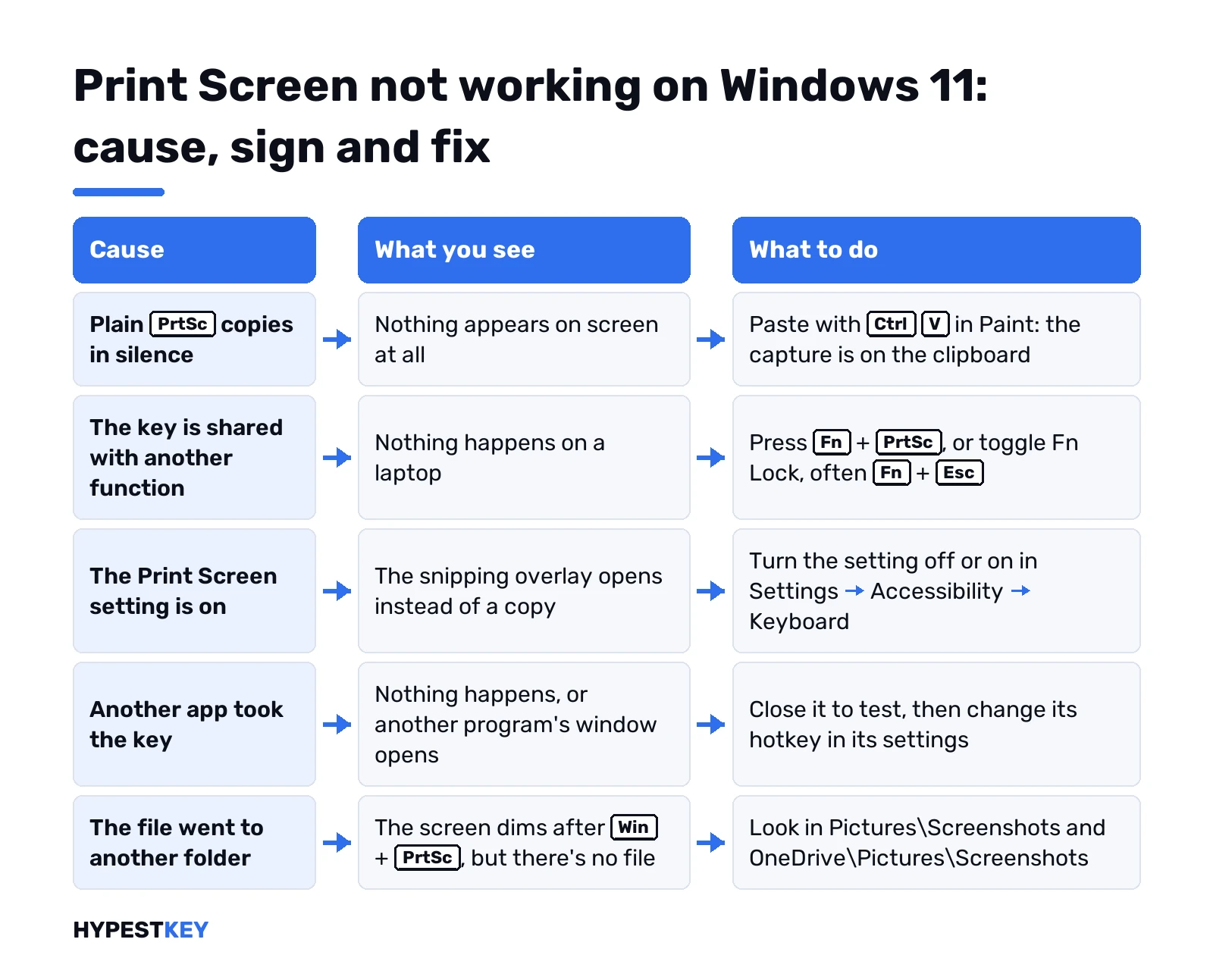
| Nothing happens at all | Fn key, a disabled key, or another app swallowing the shortcut |
| The snipping overlay opens instead of a copy | The Windows 11 Print Screen setting is on |
| The screen dims, but there’s no file | Windows + Print Screen worked; the folder is elsewhere |
| Another program’s window opens | That program took the key |
A plain Print Screen never shows anything on screen. It copies to the clipboard in silence, and many “it doesn’t work” reports end with Ctrl + V in Paint.
The Fn key on laptops
On many laptops Print Screen shares a key with Insert, Delete or a media function. The printed label shows which one needs Fn.
| Try | Why |
|---|---|
| Fn + Print Screen | The key is shared |
| Fn Lock, often Fn + Esc | It flips the top row between functions and shortcuts |
| Fn + Windows + Space | Microsoft’s shortcut for devices without a Print Screen key |
Two laptop makers’ keyboards are covered in our guides to screenshots on an HP laptop and on a Dell laptop.
The Windows 11 Print Screen setting
Windows 11 can bind the key to the Snipping Tool. With the switch on, a tap opens the overlay from Windows + Shift + S instead of copying the whole screen.
- Open Settings with Windows + I.
- Go to Accessibility, then Keyboard.
- Find Use the Print screen key to open screen capture.
- Switch it off for the classic copy, or on if the key should open the overlay and doesn’t.
Either state is fine. The setting only has to match what you expect from the key.
How to fix Print Screen not working on Windows 11 when an app took the key
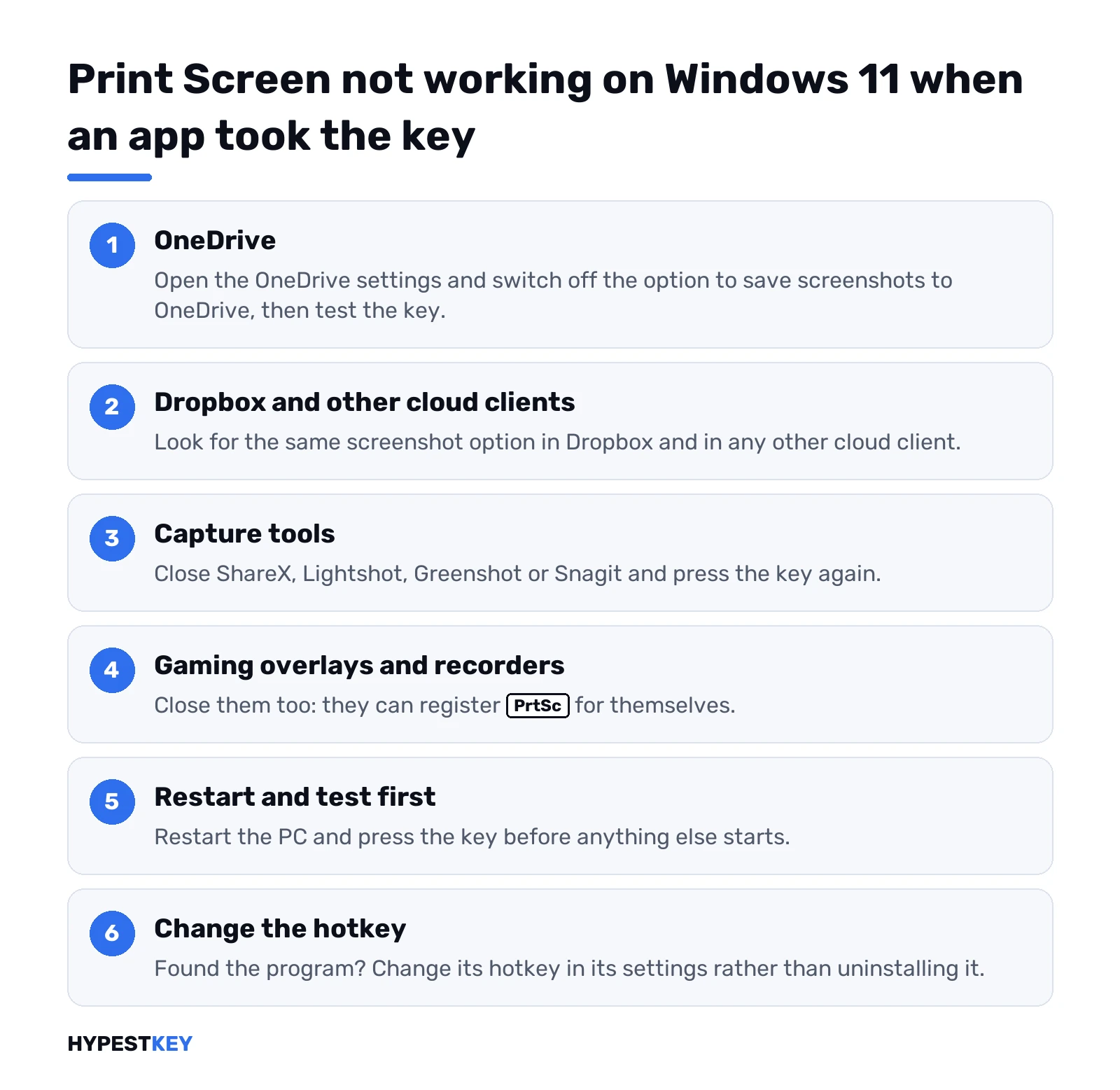
Several programs register Print Screen for themselves. The key then does what that program wants.
- Open the OneDrive settings and look for the option to save screenshots to OneDrive; switch it off to test.
- Do the same in Dropbox and any other cloud client.
- Close capture tools such as ShareX, Lightshot, Greenshot or Snagit and test again.
- Close gaming overlays and recorders.
- Restart the PC and press the key before anything else starts.
- Found the program? Change its hotkey in its settings rather than uninstalling it.
| Kind of app | Examples |
|---|---|
| Cloud storage | OneDrive, Dropbox |
| Capture tools | ShareX, Lightshot, Greenshot, Snagit |
| Gaming software | Overlays and recorders |
Repairing the Snipping Tool
When the key is set to open the overlay and nothing appears, the app itself may be damaged.
| Step | Where |
|---|---|
| Open Settings, Apps, Installed apps | Windows 11 |
| Find Snipping Tool and open its menu | The three dots |
| Select Advanced options, then Repair | Keeps the app’s data |
| Still broken? Select Reset | Returns the app to defaults |
| Update the app | Microsoft Store, Library, Get updates |
Windows + Shift + S depends on the same app. If both fail, the repair is the right place to start.
The screen dims and nothing is saved
A dim flash after Windows + Print Screen means the capture worked. The file is somewhere; the question is where.
| Check | Detail |
|---|---|
| Pictures\Screenshots | The default folder |
| OneDrive\Pictures\Screenshots | When OneDrive backs up Pictures |
| The folder was moved | Properties of the folder, Location tab, Restore Default |
The folders for every method are listed in where screenshots go on Windows 11.
Testing whether the Print Screen key is working on Windows 11
Before blaming Windows, we check whether the key sends anything at all.
- Open our free online keyboard tester.
- Press Print Screen, then Fn + Print Screen.
- If neither lights up, the keyboard or its Fn mode is the problem, not Windows.
- On a laptop, plug in any USB keyboard and press its Print Screen key.
A key that works on the tester and fails on the desktop is a software matter: the setting or an app from the sections above.
Keyboard driver and Windows updates
Rarely, the keyboard driver is the cause. Device Manager lists it under Keyboards.
| Step | Where |
|---|---|
| Open Device Manager | Right-click Start |
| Expand Keyboards, right-click the keyboard | Update driver, or Uninstall device and restart |
| Install Windows updates | Settings, Windows Update |
After a restart Windows reinstalls a removed keyboard driver by itself. Nothing is lost by trying.
Taking screenshots while Print Screen is not working on Windows 11
None of this has to stop a capture today.
| Need | Without the Print Screen key |
|---|---|
| Part of the screen | Windows + Shift + S |
| Whole screen as a file | Fn + Windows + Space, or Full screen mode in the Snipping Tool |
| One window | Windows + Shift + S, Window mode |
| The active app, no overlay | Windows + Alt + Print Screen through Game Bar, if that key works |
| A video | Windows + Shift + R |
All methods, with their folders, are in how to screenshot on Windows. Recording is covered in how to screen record on Windows 11.
More keyboard trouble? See changing the keyboard layout in Windows 11 and Windows 11 Quick Settings. We’d try safe mode to see whether a third-party program is behind it, and a factory reset of Windows 11 only as the last step.
The key works the same on every edition: see our overview of the Windows 11 editions. For a new PC we send the Windows 11 Pro key instant to email, and every edition is under Windows 11 keys.
Common mistakes when Print Screen is not working on Windows 11
- Declaring the key dead without trying Fn.
- Expecting plain Print Screen to show something on screen.
- Uninstalling the Snipping Tool instead of repairing it.
- Searching the old Pictures path after OneDrive moved it.
- Installing a second capture tool on top of the first.
Related guides
- How to Screenshot on a Surface
- How to Screenshot on a Lenovo Laptop
- How to Screenshot on an Asus Laptop
- How to disable the Windows key
Terms used on this page
| Term | Meaning |
|---|---|
| Fn Lock | A laptop switch that fixes the top row to either functions or shortcuts |
| Overlay | The dimmed screen with the toolbar the Snipping Tool shows |
| Hotkey | A key combination a program registers for itself |
| Clipboard | Where copied content waits until you paste it |
| Repair, Reset | The two fixes Windows offers for an installed app |
FAQ
Why is Print Screen not working on Windows 11?
Most often the laptop needs Fn. Otherwise the Print Screen setting sends the key to the Snipping Tool, or another app took it. We check those three before anything else.
Why does Print Screen open the Snipping Tool?
Because the setting "Use the Print screen key to open screen capture" is on. It sits under Settings, Accessibility, Keyboard. Switch it off, and the key copies the screen again.
Print Screen does nothing. Is the key broken?
Rarely. Plain Print Screen copies to the clipboard in silence, so paste with Ctrl + V to check. We'd test the key on an online keyboard tester before replacing anything.
How do I take a screenshot if Print Screen doesn't work?
Press Windows + Shift + S and drag over the area. Microsoft's shortcut page also gives Fn + Windows + Space for devices without the key. We'd use those while the key is being sorted out.
Which apps take over the Print Screen key?
OneDrive and Dropbox, with their screenshot options; capture tools such as ShareX, Lightshot, Greenshot and Snagit; gaming overlays. Changing the hotkey inside the app gives the key back.
Windows + Print Screen dims the screen, but no file appears. Why?
The capture worked and was saved somewhere else. With OneDrive backing up Pictures, the file is in OneDrive\Pictures\Screenshots. We'd also check whether the folder was moved.