Short answer: To screenshot on a Surface, press Power and Volume Up together; the file lands in Pictures\Screenshots. With a keyboard, Windows + Shift + S captures any area. We list the older button pairs for Pro 4 and Pro 3 models.
To take a screenshot on a Surface, press Power and Volume Up together. The screen dims, and the picture is saved to Pictures\Screenshots. With a keyboard attached we use Windows + Shift + S for any area. A Surface Pen does it with a double-click. Older models use other buttons, listed below.
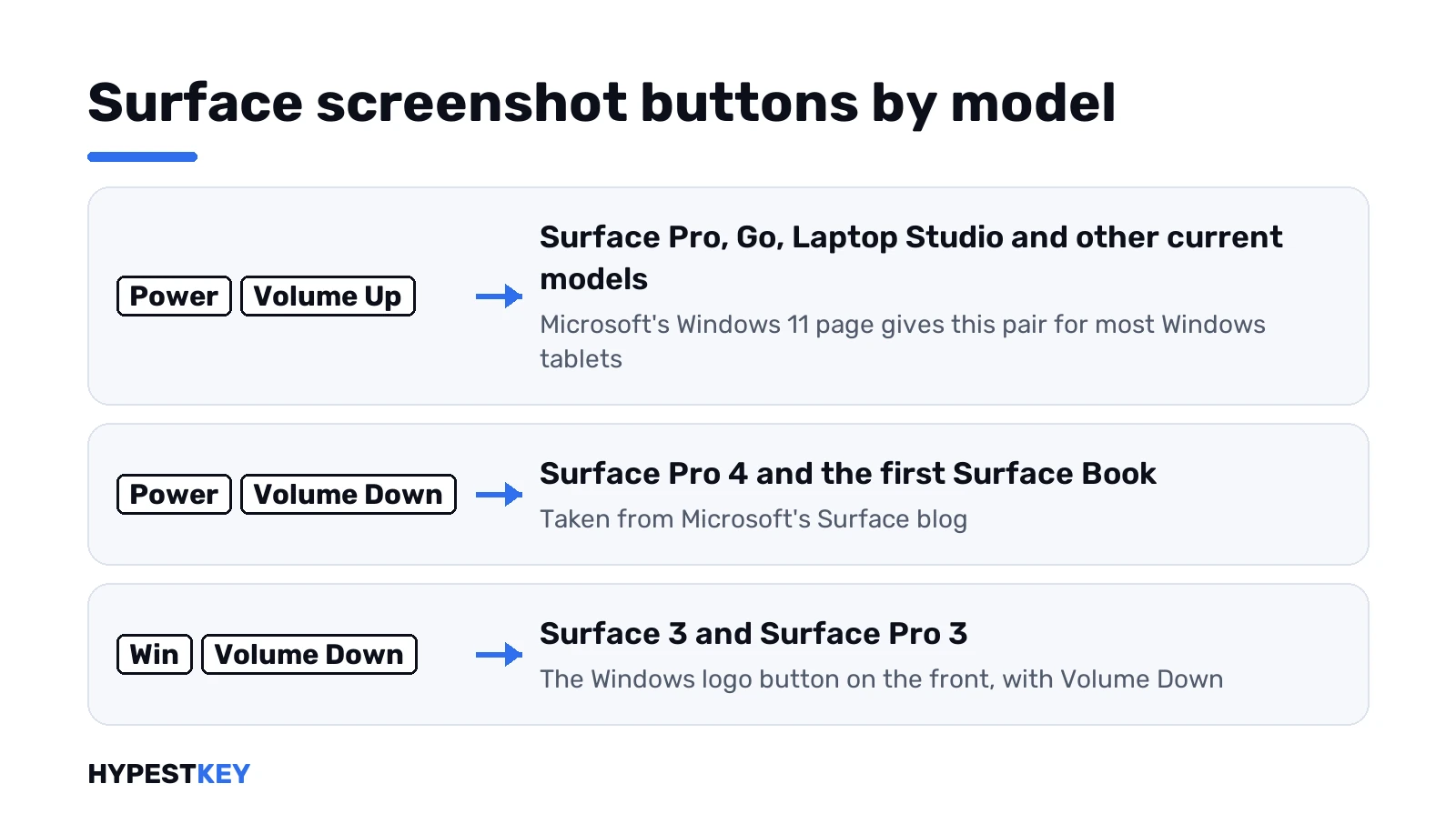
- Power + Volume Up: current Surface models, no keyboard needed.
- Windows + Shift + S: any area, with the Type Cover or Surface Laptop keyboard.
- Fn + Windows + Space: the whole screen as a file, on keyboards without a Print Screen key.
- Surface Pen: double-click the top button, when it’s set to take screenshots.
- Older buttons: Windows logo + Volume Down on Surface 3 and Pro 3; Power + Volume Down on Surface Pro 4 and the first Surface Book.
The combinations come from three Microsoft pages. The Windows 11 screenshot page gives Power + Volume Up for Windows tablets. The Print Screen shortcut page gives Fn + Windows + Space. We took the older models from a Microsoft Surface blog post.
Which buttons on which model
| Model | Buttons | Source |
|---|---|---|
| Surface Pro, Go, Laptop Studio and other current models | Power + Volume Up | Microsoft’s Windows 11 page: most Windows tablets |
| Surface Pro 4, first Surface Book | Power + Volume Down | Microsoft’s Surface blog |
| Surface 3, Surface Pro 3 | Windows logo on the front + Volume Down | Microsoft’s Surface blog |
If one combination does nothing on your device, try the other. The two button pairs are the only difference between generations.
How to screenshot on a Surface without the keyboard
- Show on screen what you want to capture.
- Press the Power button and the Volume Up button at the same time, briefly.
- Watch the screen dim for a moment: that’s the capture.
- Open File Explorer, Pictures, Screenshots to find the PNG file.
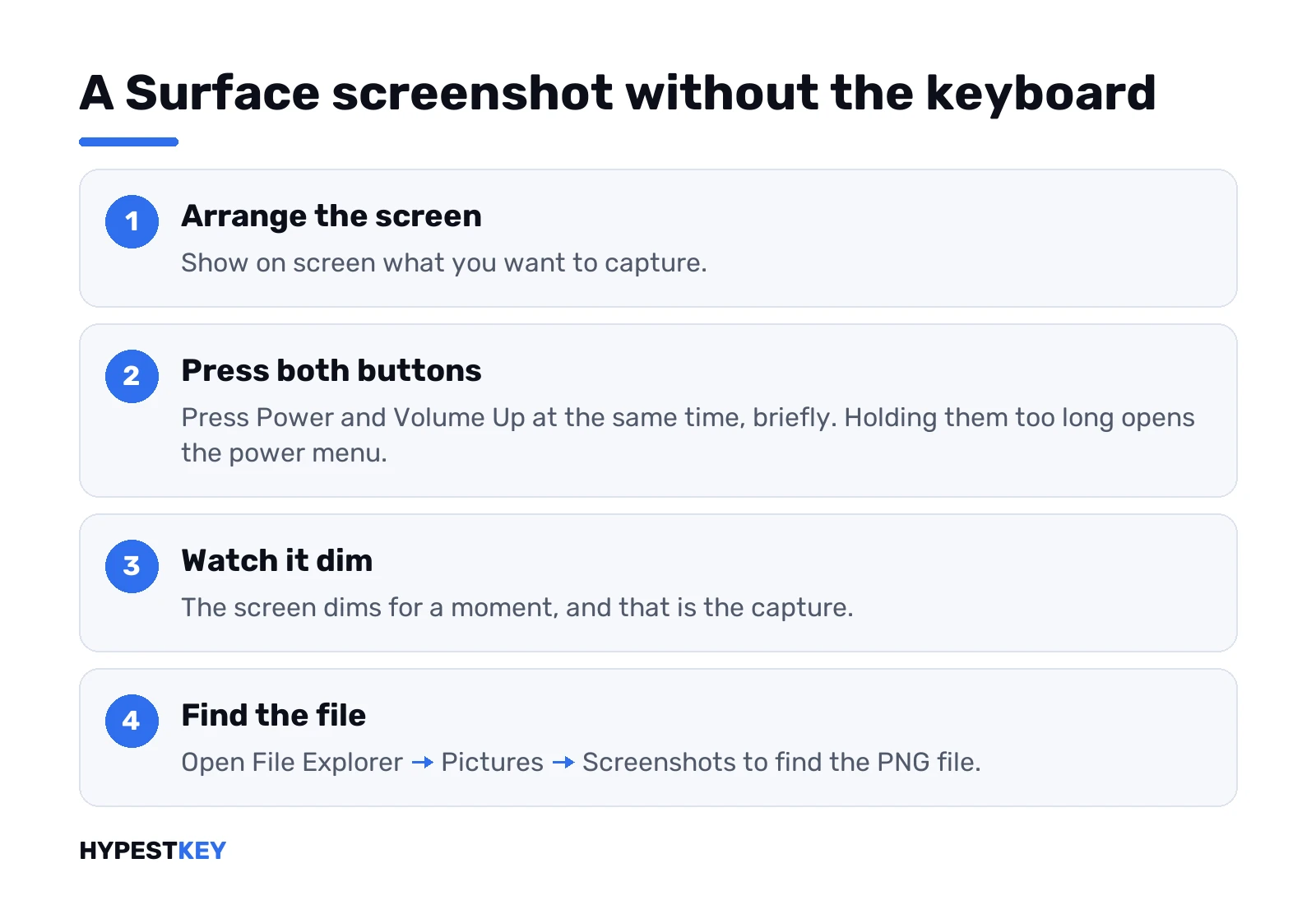
Holding the buttons too long opens the power menu or changes the volume. A short press of both together is what works.
With the Type Cover or a Surface Laptop keyboard
Attached keyboards turn the Surface into an ordinary Windows PC for captures.
| Keys | Result |
|---|---|
| Windows + Shift + S | Rectangle, window, full screen or freeform; clipboard, and a file on Windows 11 |
| Fn + Windows + Space | Whole screen saved as a file, when the keyboard has no Print Screen key |
| Windows + Print Screen | Whole screen as a file, on keyboards that have the key |
| Alt + Print Screen | The active window to the clipboard |
Many Type Covers have no separate Print Screen key. Microsoft’s shortcut page names Fn + Windows + Space for that case, and the file goes to the same Screenshots folder.
The Surface Pen
The top button of the pen can take a screenshot. Microsoft’s blog describes a double-click that captures the screen and lets you crop with the pen at once.
| Step | Where |
|---|---|
| Open Settings, Bluetooth and devices, Pen and Windows Ink | Windows 11 |
| Under the pen shortcuts, set Double-click to Screen snipping | The top button |
| Double-click the top of the pen | The snipping overlay opens |
The pen then draws the selection, which is the natural way to cut a diagram out of a page.
Surface keyboard shortcuts from Microsoft’s Surface page
Microsoft’s own Surface article lists a few combinations that exist on Surface keyboards and not on a generic PC.
| Keys | Result |
|---|---|
| Windows + Snipping key | A screenshot, on keyboards with a Snipping key |
| Fn + Spacebar | A Windows screen snip |
| Fn + Alt + Spacebar | The active window to the clipboard |
One warning from the same page. Power + Volume Up doesn’t work on a Surface Laptop, so there it’s the keyboard or nothing. And on a Surface Duo? Volume Down + Power.
The Fn key itself locks too. One press, LED on. The top row then stays in F-key mode until Fn again. Sources: Take a screenshot or record your screen on Surface and special keys on Surface keyboards. Folders for every method are in where screenshots go on Windows 11.
When the screenshot buttons on a Surface don’t work
| Symptom | What to try |
|---|---|
| Nothing happens | The other button pair for your generation; a shorter press of both together |
| The power menu opens | Power was held too long; press both at once and release |
| The volume changes | Volume Up was pressed first; press both together |
| Screen dims, no file | Look in OneDrive\Pictures\Screenshots |
| Keyboard keys fail | Reattach the Type Cover; test the keys on our online keyboard tester |
A key that fails on any keyboard is covered in Print Screen not working on Windows 11.
Related guides
- All methods for any Windows PC: how to screenshot on Windows.
- Video instead of a picture: how to screen record on Windows 11.
- Settings on a touch screen: Windows 11 Quick Settings.
- Keyboard in another language: changing the keyboard layout in Windows 11.
- How to Screenshot on an HP Laptop
- How to Take a Scrolling Screenshot on Windows
Surface devices ship with Windows 11 Home or Pro; our overview of the Windows 11 editions shows what Pro adds. For a move from Home to Pro we send the Windows 11 Pro key instant to email, and every edition is under Windows 11 keys.
Common mistakes when you screenshot on a Surface
- Holding the buttons until the power menu appears.
- Using the Pro 3 combination on a current model.
- Looking in Pictures while OneDrive moved the folder.
- Pressing Fn + Space on a Type Cover and expecting a file.
Terms used on this page
| Term | Meaning |
|---|---|
| Type Cover | The detachable keyboard of Surface Pro and Surface Go |
| Surface Pen | Microsoft’s stylus, with a button on the top end |
| Screen snipping | The Snipping Tool overlay, the same as Windows + Shift + S |
| Folder backup | The OneDrive feature that moves Pictures into OneDrive |
FAQ
How do I screenshot on a Surface?
Press Power and Volume Up together. The screen dims and the picture is saved to Pictures\Screenshots. We use Windows + Shift + S when the keyboard is attached.
How do I screenshot on a Surface Pro without the keyboard?
Power + Volume Up on current models. On a Surface Pro 4 it's Power + Volume Down. On a Pro 3 we press the Windows logo on the front plus Volume Down, as Microsoft's Surface blog describes.
Does the Type Cover have a Print Screen key?
Many don't. Microsoft's shortcut page gives Fn + Windows + Space for keyboards without the key. Windows + Shift + S works on every keyboard as well.
Can the Surface Pen take a screenshot?
Yes. Set the pen's double-click to Screen snipping under Pen and Windows Ink, then double-click the top button. We'd crop the selection with the pen itself.
Where do Surface screenshots go?
To Pictures\Screenshots, or to OneDrive\Pictures\Screenshots when OneDrive backs up Pictures. Game Bar captures go to Videos\Captures.
Why does nothing happen when I press the buttons?
Usually the press was too long, or the pair is the wrong one for the model. We press both briefly at the same time, and try the other pair if the first does nothing.