Short answer: For a scrolling screenshot on Windows, use the browser. Edge has Capture full page under Ctrl + Shift + S. Firefox has Save full page, and Chrome's developer tools have "Capture full size screenshot". The Snipping Tool can't scroll. For other apps we use ShareX, which scrolls and stitches.
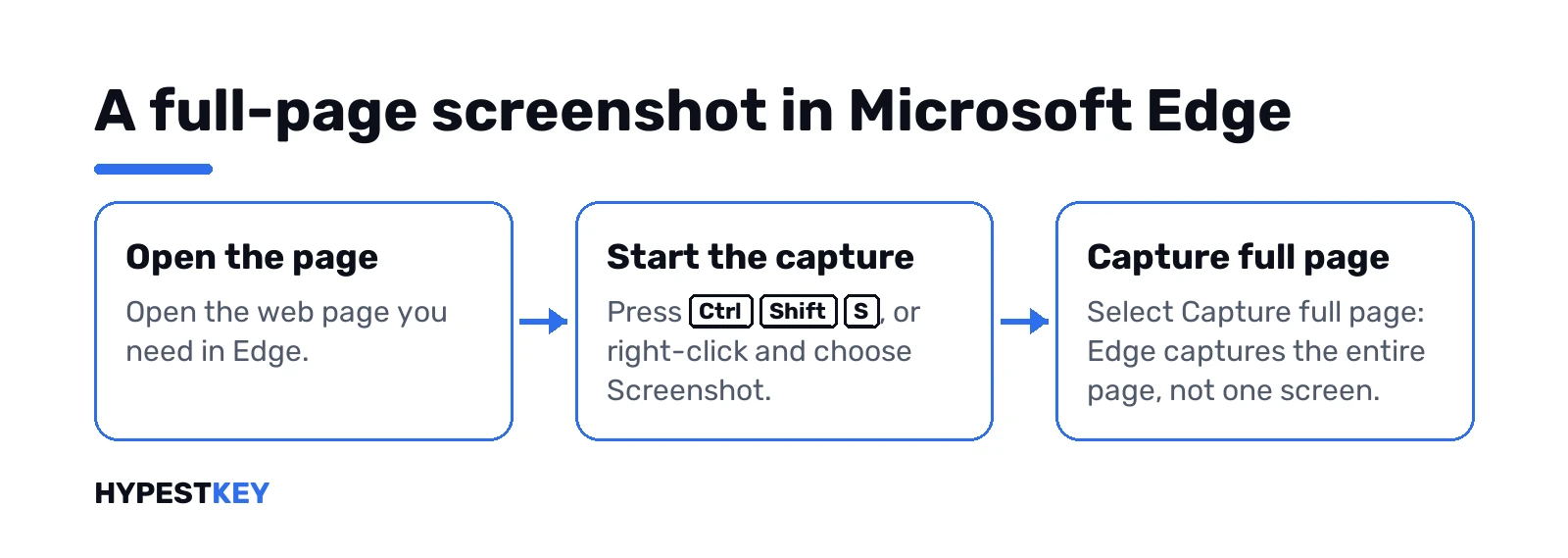
A scrolling screenshot on Windows needs a browser or a free tool, because the Snipping Tool captures only what’s on screen. In Microsoft Edge we press Ctrl + Shift + S and choose Capture full page. Firefox and Chrome capture a whole page too.
For other apps we use ShareX, which scrolls the window and stitches the pieces.
- Microsoft Edge: Ctrl + Shift + S, then Capture full page.
- Firefox: right-click the page, Take Screenshot, then Save full page.
- Chrome: developer tools, Ctrl + Shift + P, “Capture full size screenshot”.
- Any app: ShareX, free, with its scrolling capture.
- Documents: print or export to PDF instead of a picture.
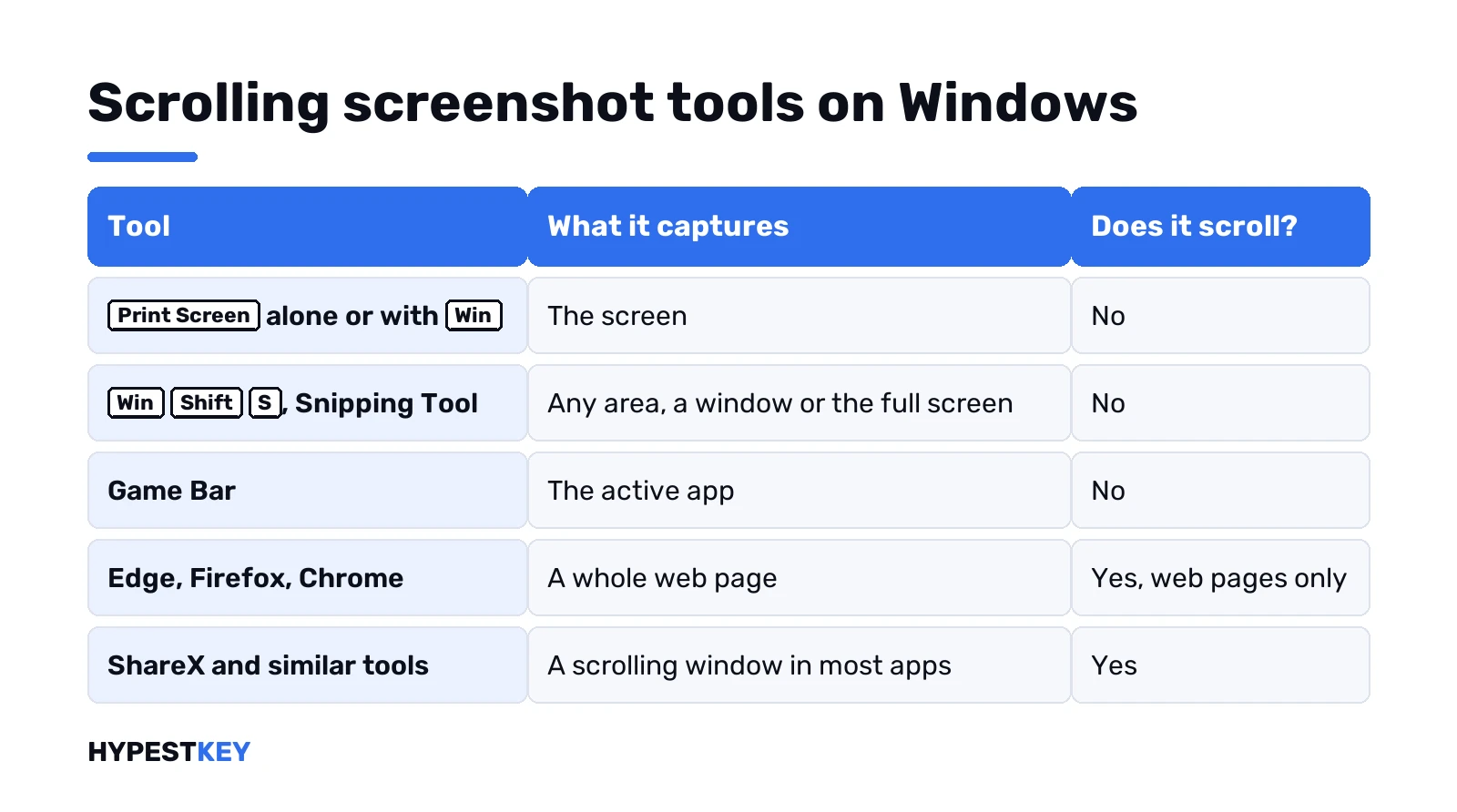
Microsoft’s Snipping Tool page lists the modes the tool has: freeform, rectangle, window, full screen and video. A scrolling mode isn’t among them. The browsers do this job.
What Windows itself can’t do
| Tool | Captures | Scrolls? |
|---|---|---|
| Print Screen, Windows + Print Screen | The screen | No |
| Windows + Shift + S, Snipping Tool | Any area, window, full screen | No |
| Game Bar | The active app | No |
| Edge, Firefox, Chrome | A whole web page | Yes, web pages only |
| ShareX and similar | A scrolling window in most apps | Yes |
So the question splits in two. A web page: use the browser. Anything else: a tool.
How to take a scrolling screenshot on Windows in Microsoft Edge
- Open the page in Edge and let it load fully.
- Press Ctrl + Shift + S. The Web capture bar appears.
- Select Capture full page.
- Edge shows the whole page in its editor; mark it up with the pen if you like.
- Select Save, or Copy to put it on the clipboard.
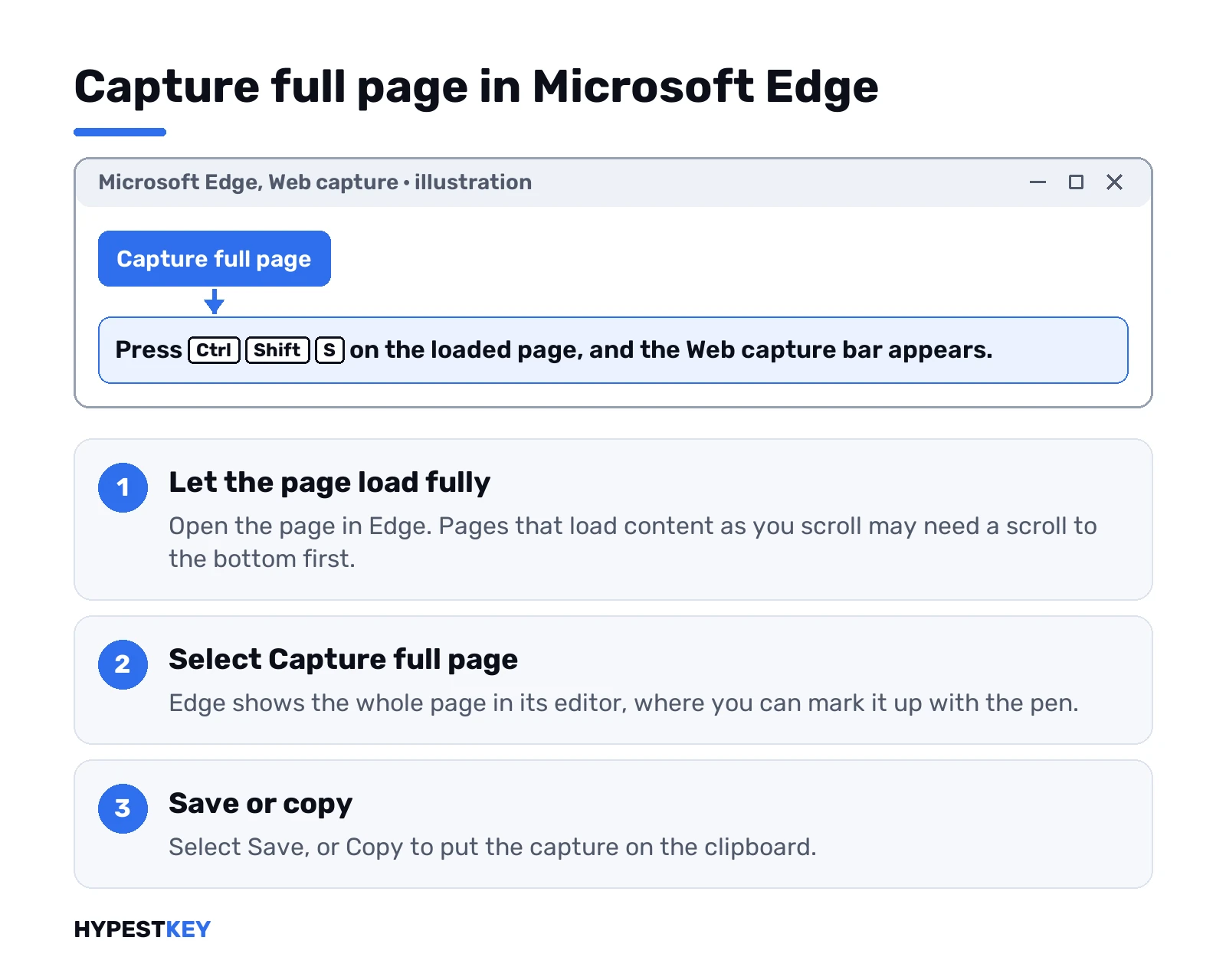
Edge is on every Windows 11 PC, which makes this the route we suggest first. Pages that load content as you scroll may need a scroll to the bottom before the capture.
Scrolling screenshot on Windows in Firefox
| Step | Where |
|---|---|
| Right-click an empty part of the page | Or press Ctrl + Shift + S |
| Select Take Screenshot | The page dims |
| Select Save full page | Top right of the overlay; Save visible captures the screen only |
| Select Download, or Copy | The file goes to the Downloads folder |
No extension is needed. You get a PNG of the entire page, however long.
Scrolling screenshot on Windows in Chrome
Chrome hides the same function in its developer tools.
| Step | Keys |
|---|---|
| Open developer tools | Ctrl + Shift + I |
| Open the command menu | Ctrl + Shift + P |
| Run the capture | Type “Capture full size screenshot” and press Enter |
| Find the file | The Downloads folder |
For a one-click version, extensions such as GoFullPage add a button to the toolbar. Extensions see the pages you capture, so we’d stick to well-known ones.
Any other app with ShareX
For a long chat, a settings page or a document, a browser doesn’t help. ShareX, free and open source, scrolls a window and stitches the pieces.
- Install ShareX from its official site or the Microsoft Store.
- Open the window you want to capture and scroll to the top.
- In ShareX, select Capture, then Scrolling capture.
- Click the window. ShareX scrolls it and takes a picture at each step.
- Check the stitched result and save it.
Windows with their own scroll bars inside, such as some chat apps, can confuse the stitching. A second pass with a slower scroll usually fixes it.
| Tool | Price | Scrolling capture |
|---|---|---|
| ShareX | Free | Yes, any window |
| PicPick | Free for home use | Yes, Scrolling Window |
| Snagit | Paid | Yes, with the panoramic capture |
When a PDF is better
A long document isn’t a picture problem. Print it to PDF and the whole thing is kept, text included.
| What | How |
|---|---|
| A web page | Ctrl + P, choose Save as PDF |
| A Word or Excel file | File, Save As, PDF |
| Any app with a Print command | Print to Microsoft Print to PDF |
The PDF keeps the text searchable, which no screenshot does without extra work.
Related guides
- Every capture method: how to screenshot on Windows.
- Where the files land: where screenshots go on Windows 11.
- A video instead of a picture: how to screen record on Windows 11.
- The key that does nothing: Print Screen not working on Windows 11.
- On a tablet: screenshots on a Surface.
- How to Screenshot on an HP Laptop
- How to Screenshot on a Dell Laptop
- How to Screenshot on a Lenovo Laptop
- How to Screenshot on an Asus Laptop
Browsers and the Snipping Tool behave the same on every edition: see our overview of the Windows 11 editions. For a new PC we send the Windows 11 Pro key instant to email, and every edition is under Windows 11 keys.
Common mistakes with a scrolling screenshot on Windows
- Trying the Snipping Tool for a long page and stitching screenshots by hand.
- Choosing Save visible in Firefox instead of Save full page.
- Capturing a page before it finished loading its lower parts.
- Installing an unknown extension for a one-off capture.
- Screenshotting a document that could have been a PDF.
Terms used on this page
| Term | Meaning |
|---|---|
| Scrolling screenshot | A capture of content longer than the screen, made by scrolling and stitching |
| Web capture | Edge’s built-in screenshot feature |
| Developer tools | The panel in Chrome and Edge for inspecting pages |
| Stitching | Joining several captures into one image |
FAQ
How do I take a scrolling screenshot on Windows?
In Edge, press Ctrl + Shift + S and select Capture full page. Firefox and Chrome have their own full-page captures. For an app that isn't a browser, we use ShareX.
Can the Snipping Tool take a scrolling screenshot?
No. Microsoft's page lists freeform, rectangle, window, full screen and video modes, and none of them scrolls. We'd use a browser or ShareX instead.
How do I screenshot a whole web page in Chrome?
Open developer tools with Ctrl + Shift + I. Press Ctrl + Shift + P, type "Capture full size screenshot" and press Enter. The file lands in Downloads. An extension such as GoFullPage does it in one click.
Does Windows 11 have a built-in scrolling screenshot?
Not in Windows itself. Microsoft Edge, which comes with Windows 11, has Capture full page for web pages. We count that as the built-in route.
What is the best free tool for scrolling screenshots?
ShareX, in our view: free, open source, and its scrolling capture works in most windows. PicPick is free for home use as well.
Why is my scrolling screenshot cut off or repeated?
The page loaded more content while scrolling, or the window has an inner scroll bar. We scroll to the bottom first, then capture, and let a tool scroll more slowly.