Short answer: To screenshot on a Lenovo laptop, press Windows + Shift + S and drag over the area. Windows + PrtSc saves a file instead. On a ThinkPad we find PrtSc between the right Alt and Ctrl. On an IdeaPad it's in the top row and often needs Fn. Fn + Esc toggles FnLock.
To screenshot on a Lenovo laptop, start with where Lenovo put PrtSc. On a ThinkPad we find it at the bottom, between the right Alt and Ctrl. On a T14s, Fn + PrtSc opens the Snipping Tool. Windows + PrtSc saves the whole screen as a file.
An IdeaPad has it in the top row, and we often need Fn there. Fn + Esc flips FnLock. Windows + Shift + S works on every model.
- PrtSc: the whole screen to the clipboard; add Fn if the key is shared.
- Windows + PrtSc: the whole screen saved as a PNG file at once.
- Alt + PrtSc: only the active window, to the clipboard.
- Fn + PrtSc: opens the Snipping Tool on ThinkPads whose guide lists it.
- Fn + Windows + Space: a saved screenshot on keyboards without the key.
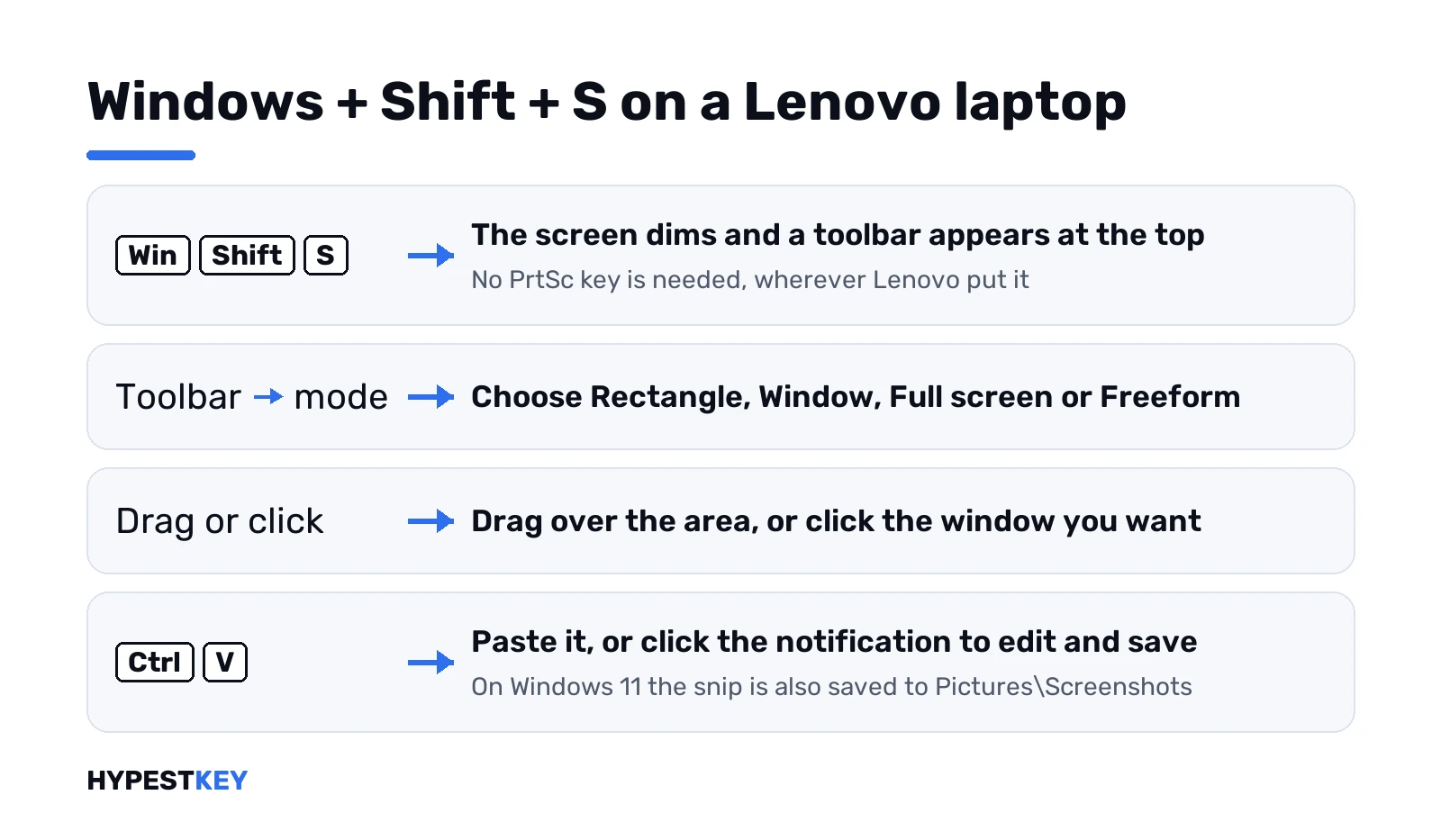
- Windows + Shift + S: part of the screen, a window or the full screen.
- Snipping Tool: delays, text actions and screen recording.
- Windows + Alt + PrtSc: the active app through Xbox Game Bar.
The shortcuts are Microsoft’s, from Keyboard shortcut for print screen and Use Snipping Tool to capture screenshots.
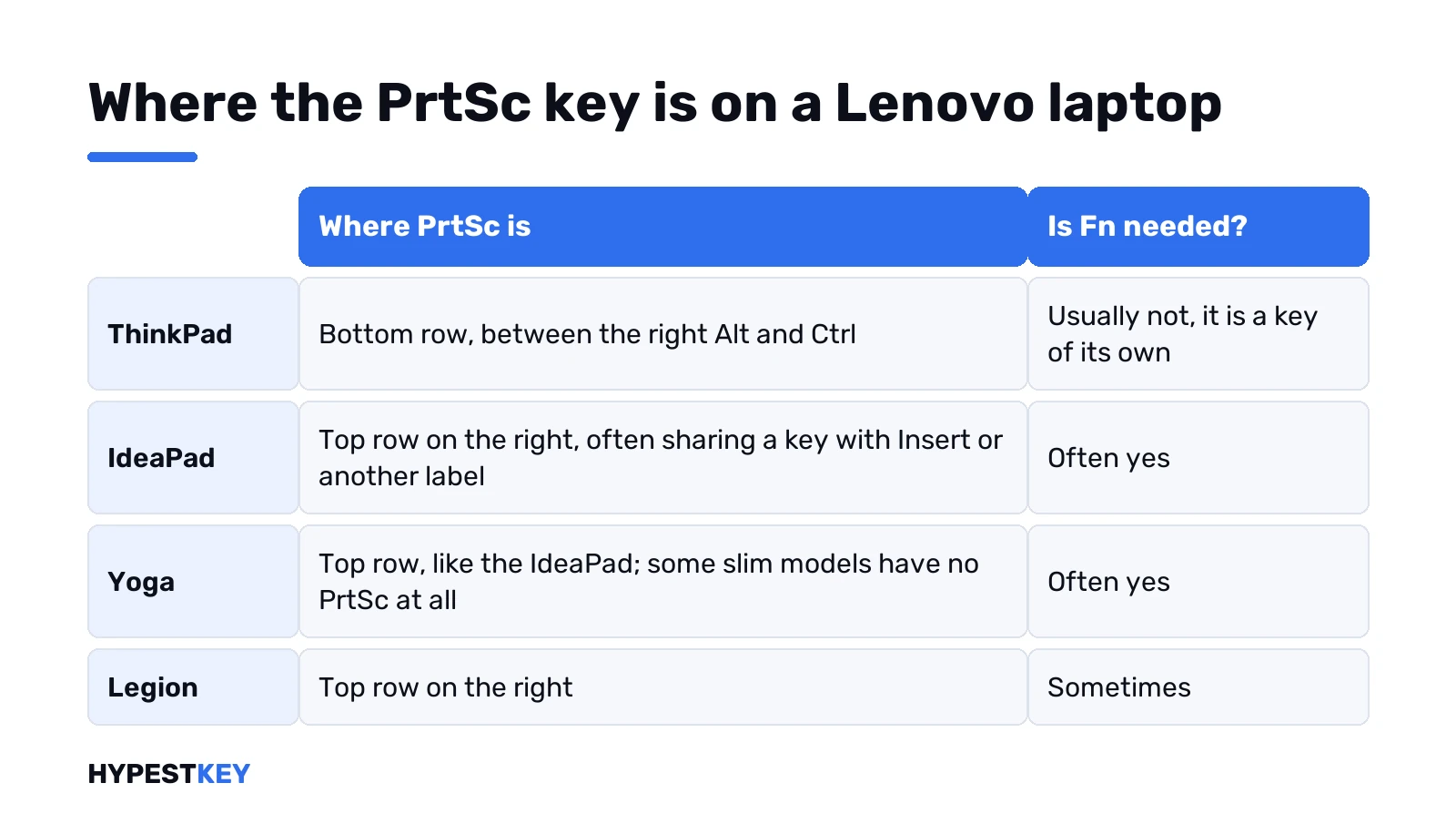
Finding the key on a ThinkPad, an IdeaPad or a Yoga
| Line | Where PrtSc is | Fn needed? |
|---|---|---|
| ThinkPad | Bottom row, between the right Alt and Ctrl | Usually not; it’s a key of its own |
| IdeaPad | Top row on the right, often sharing a key with Insert or another label | Often yes |
| Yoga | Top row, like the IdeaPad; some slim models have no PrtSc at all | Often yes |
| Legion | Top row on the right | Sometimes |
The printed label decides. A PrtSc printed in a second colour, under another function, needs Fn.
FnLock with Fn + Esc
Lenovo laptops have a lock for the Fn layer. Fn + Esc switches it, and on ThinkPads a small light on the Esc key shows the state.
| FnLock | Top row | A shared PrtSc |
|---|---|---|
| Off | Special functions first; F-keys need Fn | Needs Fn |
| On | F-keys first; functions need Fn | Works without Fn |
A shortcut that worked yesterday and not today usually points here. Fn + Esc once, and it’s back.
ThinkPad shortcuts from Lenovo’s user guide
Every Lenovo model gets a user guide with a shortcut table. Here’s the one for the ThinkPad T14s Gen 1 and X13 Gen 1. Other ThinkPads? Check yours, rows differ.
| Keys | What the guide says |
|---|---|
| Fn + PrtSc | Opens the Snipping Tool program |
| Fn + Esc | Switches F1 to F12 between the standard function and the icon printed on each key |
| Fn + S | Works as SysRq on a full keyboard |
| Fn + K | Works as Scroll Lock |
| Fn + Left or Right arrow | Home and End |
So on a ThinkPad, PrtSc alone copies the screen. Add Fn and the Snipping Tool opens instead. Handy, once you know.
The same guide sends you to Control Panel for the F-key behaviour. Keyboard, or Lenovo – Keyboard Manager, and pick the option there. Source: Lenovo, Use the keyboard shortcuts.
PrtSc shortcuts to screenshot on a Lenovo laptop
| Keys | Result | With a shared key |
|---|---|---|
| PrtSc | Whole screen to the clipboard | Fn + PrtSc |
| Windows + PrtSc | Whole screen saved as a PNG file | Fn + Windows + PrtSc |
| Alt + PrtSc | Active window to the clipboard | Fn + Alt + PrtSc |
A clipboard capture shows nothing on screen. Paste it with Ctrl + V into Paint or a chat to see it.
C:\Users\YourName\Pictures\ScreenshotsWith OneDrive’s folder backup on, Pictures sits inside OneDrive. Every folder by method is in where screenshots go on Windows 11.
Hotkey mode on IdeaPad laptops
IdeaPads add one more switch, and it lives in the UEFI/BIOS setup. Lenovo calls it the hotkey mode setting.
| Hotkey mode | Top row pressed alone | With Fn held |
|---|---|---|
| Enabled | The hotkey printed as an icon | F1 to F12 |
| Disabled | F1 to F12 | The hotkey |
Keys that don’t share a spot with F1 to F12 ignore the setting. Lenovo says to press those with Fn every time. A PrtSc living on such a key? Fn, always.
The rest is plain Windows. Snipping Tool, Game Bar and recording are covered for any PC in how to screenshot on Windows.
Yoga in tablet mode
With the keyboard folded behind the screen, the keys are off. Open the Snipping Tool from Start and drag the selection with a finger, or with the pen on models that have one.
Microsoft gives Power + Volume Up for most Windows tablets. Whether a particular Yoga responds to it depends on the model, so we try it once and fall back to the Snipping Tool.
When the screenshot key does nothing on a Lenovo laptop
| Symptom | Cause | Fix |
|---|---|---|
| Nothing happens | Shared key, or FnLock set the other way | Fn + PrtSc, or Fn + Esc |
| The snipping overlay opens | The Windows 11 Print Screen setting | Settings, Accessibility, Keyboard |
| Another program opens | That program took the key | Change its hotkey |
| Screen dims, no file | OneDrive moved Pictures | Look in OneDrive\Pictures\Screenshots |
| The key never registers | Keyboard | Test it on our online keyboard tester |
The full list of fixes, in order, is in Print Screen not working on Windows 11.
Related guides
- Every method for any PC: how to screenshot on Windows.
- Other makes: HP, Dell and Asus.
- Tablets without a keyboard: screenshots on a Surface.
- Keys in another language: changing the keyboard layout in Windows 11.
- How to Take a Scrolling Screenshot on Windows
Lenovo ships laptops with Windows 11 Home or Pro; our overview of the Windows 11 editions shows the difference. For a laptop that should move up, we send the Windows 11 Pro key instant to email; every edition is under Windows 11 keys.
Common mistakes when you screenshot on a Lenovo laptop
- Looking for PrtSc in the top row of a ThinkPad.
- Pressing a shared PrtSc without Fn.
- Toggling FnLock by accident with Fn + Esc.
- Expecting plain PrtSc to show something on screen.
Terms used on this page
| Term | Meaning |
|---|---|
| PrtSc | Lenovo’s label for the Print Screen key |
| FnLock | The switch, Fn + Esc on Lenovo, that fixes whether the top row needs Fn |
| Clipboard | Where copied content waits until you paste it |
| Overlay | The dimmed screen with the toolbar the Snipping Tool shows |
FAQ
How do I screenshot on a Lenovo laptop?
Press Windows + Shift + S and drag over the area. Or press Windows + PrtSc to save the whole screen as a file. We add Fn when the PrtSc key is shared with another function.
Where is the Print Screen key on a ThinkPad?
In the bottom row, between the right Alt and Ctrl keys. It's a key of its own there, so no Fn is needed.
Where is the Print Screen key on an IdeaPad?
In the top row on the right, often on a shared key. If PrtSc is printed in a second colour, we hold Fn with it.
Why doesn't PrtSc work on my Lenovo laptop?
Usually the key is shared and needs Fn, or FnLock was toggled with Fn + Esc. The Windows 11 setting that opens the Snipping Tool is the next thing we check.
Where do screenshots go on a Lenovo laptop?
Windows + PrtSc and the Snipping Tool save to Pictures\Screenshots. Game Bar saves to Videos\Captures. With OneDrive backup on, Pictures is inside OneDrive.
How do I screenshot on a Lenovo laptop without a Print Screen key?
Microsoft's shortcut page gives Fn + Windows + Space. Windows + Shift + S works on any keyboard, and we'd make that the habit.