Short answer: Screenshots on Windows 11 go to Pictures\Screenshots when taken with Windows + Print Screen or the Snipping Tool. Game Bar captures go to Videos\Captures. Plain Print Screen copies to the clipboard only. With OneDrive backup on, Pictures sits inside the OneDrive folder.
Where screenshots go on Windows 11 depends on the key you pressed. Windows + Print Screen and the Snipping Tool save to the Screenshots folder inside Pictures. Game Bar saves to the Captures folder inside Videos. Plain Print Screen and Alt + Print Screen save nothing. The picture waits on the clipboard.
| Method | Where the screenshot goes |
|---|---|
| Windows + Print Screen | Pictures\Screenshots, as a PNG file |
| Windows + Shift + S, Snipping Tool | Clipboard, and Pictures\Screenshots when auto-save is on |
| Print Screen, Alt + Print Screen | Clipboard only; no file |
| Game Bar, Windows + Alt + Print Screen | Videos\Captures |
| Snipping Tool video, Windows + Shift + R | Where you save it; the app asks |
| Fn + Windows + Space | Pictures\Screenshots, like Windows + Print Screen |
The folders come from Microsoft’s pages Keyboard shortcut for print screen and Use Snipping Tool to capture screenshots.
Pictures\Screenshots: where most screenshots go on Windows 11
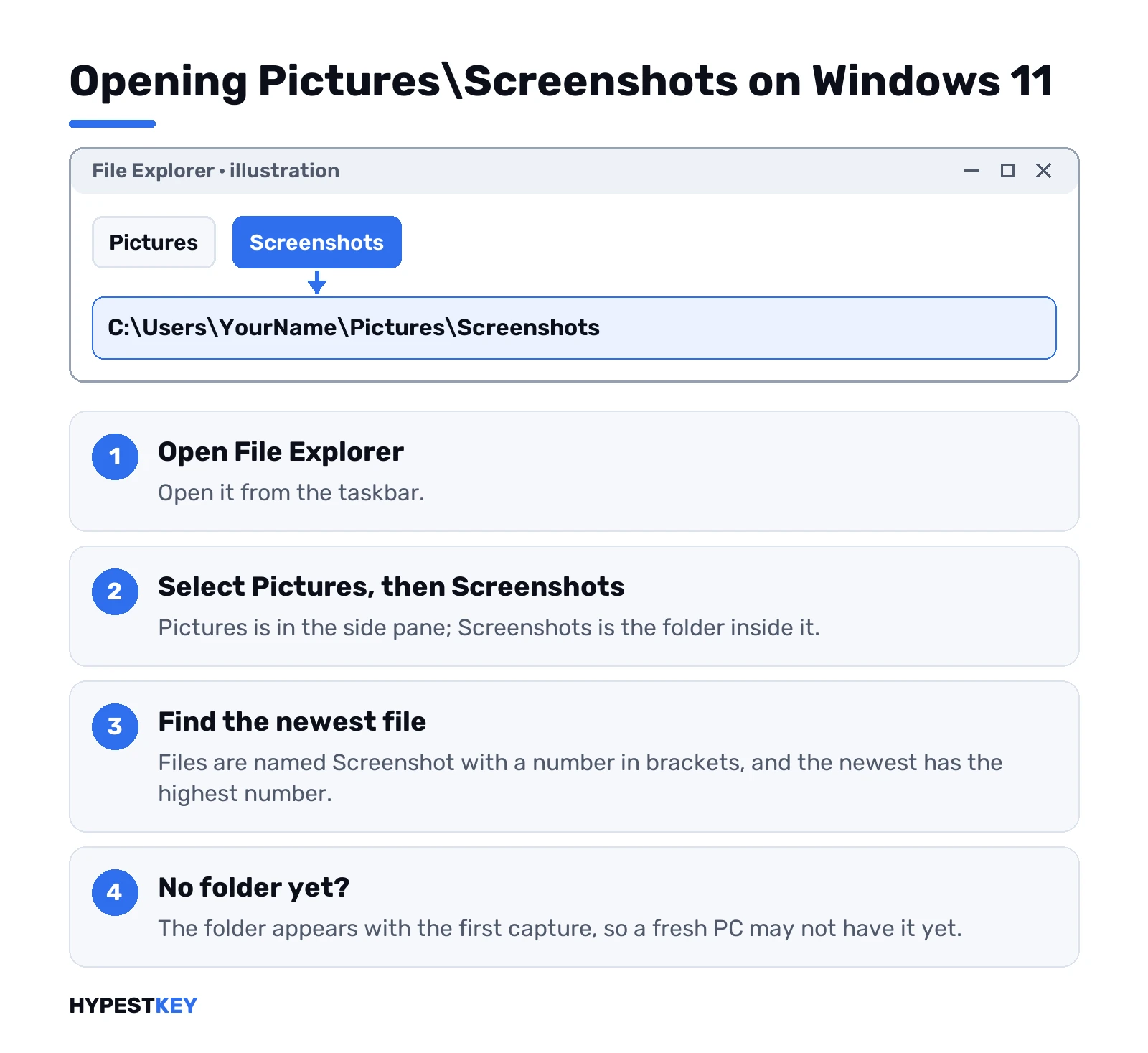
Microsoft’s instruction for finding it: open File Explorer from the taskbar, select Pictures in the side pane, then open Screenshots.
C:\Users\YourName\Pictures\ScreenshotsThe files are named Screenshot followed by a number in brackets. Windows counts up from the last one, so the newest file has the highest number.
The folder appears with the first capture. On a fresh PC that has never saved one, Pictures has no Screenshots folder yet, and that’s normal.
Snipping Tool: clipboard plus a file
Windows + Shift + S puts the snip on the clipboard first. On Windows 11 the Snipping Tool also saves a copy to the Screenshots folder, as long as its auto-save setting is on.
| Setting in the Snipping Tool | Where |
|---|---|
| Automatically save original screenshots | See more, Settings |
| The folder for those files | The same page; Change lets you pick another |
| Save as for one capture | The Save button in the editor |
If a snip is nowhere to be found, that toggle is the first thing we check. With it off, the snip lived only on the clipboard and was replaced by the next copy.
Game Bar: a different folder
Captures made with Xbox Game Bar don’t go to Pictures at all.
C:\Users\YourName\Videos\CapturesPictures from Windows + Alt + Print Screen and recordings from Windows + Alt + R both land there. We open the folder from the Gaming section of Settings.
How to find where screenshots go on Windows 11 in seconds
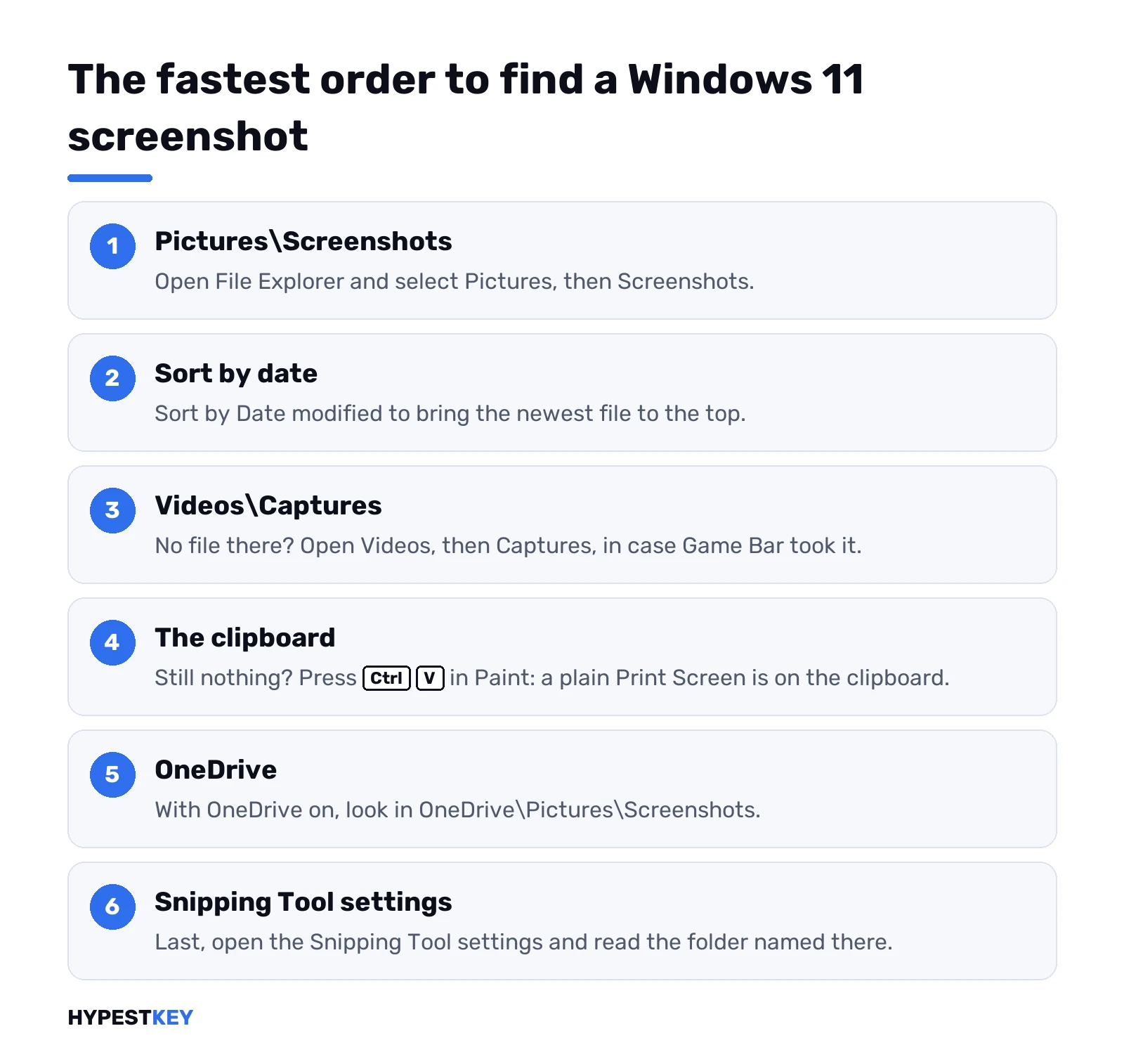
When a capture seems lost, this order finds it quickest.
- Open File Explorer and select Pictures, then Screenshots.
- Sort by Date modified to bring the newest file to the top.
- No file there? Open Videos, then Captures, in case Game Bar took it.
- Still nothing? Press Ctrl + V in Paint: a plain Print Screen is on the clipboard.
- With OneDrive on, look in OneDrive\Pictures\Screenshots.
- Last, open the Snipping Tool settings and read the folder named there.
OneDrive moves the folder
With OneDrive’s folder backup on, Pictures lives inside OneDrive. The Screenshots folder goes with it.
| OneDrive state | Path of the screenshots |
|---|---|
| Backup of Pictures off | C:\Users\YourName\Pictures\Screenshots |
| Backup of Pictures on | C:\Users\YourName\OneDrive\Pictures\Screenshots |
| “Save screenshots I capture to OneDrive” on | OneDrive\Pictures\Screenshots, synced to other devices |
The upside: a capture from the work PC is on the phone a minute later. The downside: people search the old path and find an empty folder.
Changing where screenshots go on Windows 11
Two folders, two ways to move them.
| Folder | How to move it |
|---|---|
| Pictures\Screenshots | Right-click the folder, Properties, Location tab, Move, choose the new place |
| Snipping Tool’s save folder | Snipping Tool, See more, Settings, change the folder under auto-save |
| Videos\Captures | Right-click the folder, Properties, Location tab, Move |
The Location tab also offers Restore Default, for when a move went wrong.
Screenshots from other apps
Programs that take their own captures keep their own folders. The ones we’re asked about most:
| App | Default place |
|---|---|
| Microsoft Edge, Web capture | Asks where to save, or copies to the clipboard |
| Steam | Its own screenshots folder, shown through View, Screenshots in Steam |
| Teams, Discord and other chat apps | Pasted straight into the message; no file on disk |
| ShareX, Lightshot and similar tools | A folder set in the tool’s own settings |
When a capture tool is installed, it may also take over the Print Screen key. Then the file follows that tool’s rule, not Windows’.
Clipboard: the capture that isn’t a file
Print Screen and Alt + Print Screen copy, they don’t save. The picture exists only until the next copy replaces it.
Windows + V opens the clipboard history. Turn it on once, and the last few copied pictures stay available. We’d paste into Paint and save as PNG when a capture has to be kept.
PNG or JPEG for screenshots on Windows 11
Every method above writes PNG files. Saving a copy from Paint or the Snipping Tool editor lets you pick the format, and the choice matters more than it looks.
| Format | Good for | Why |
|---|---|---|
| PNG | Screens, dialogs, text | Keeps text sharp; the default for Windows captures |
| JPEG | Photos | Smaller files; text gets soft edges |
Related guides
- Every capture method in one place: how to screenshot on Windows.
- The key does nothing: Print Screen not working on Windows 11.
- Video instead of a picture: how to screen record on Windows 11.
- Faster access to Settings: Windows 11 Quick Settings.
- Keys in the wrong place: changing the keyboard layout in Windows 11.
- A PC that needs a reinstall anyway: factory reset Windows 11.
- How to Screenshot on a Surface
- How to Screenshot on an HP Laptop
- How to Screenshot on a Dell Laptop
- How to Screenshot on a Lenovo Laptop
- How to Screenshot on an Asus Laptop
The folders are the same in every edition: see our overview of the Windows 11 editions. For a new PC we send the Windows 11 Pro key instant to email, and every edition is under Windows 11 keys.
Common mistakes when finding where screenshots go on Windows 11
- Looking in Pictures after a Game Bar capture.
- Expecting a file from plain Print Screen.
- Searching the old Pictures path while OneDrive moved the folder.
- Switching off auto-save in the Snipping Tool and forgetting it.
- Moving the folder to a drive that is later unplugged.
Terms used on this page
| Term | Meaning |
|---|---|
| Clipboard | Where copied content waits until you paste it |
| Auto-save | The Snipping Tool setting that writes every snip to a folder |
| Game Bar | The Xbox overlay in Windows with its own capture tools |
| Folder backup | The OneDrive feature that moves Pictures, Desktop and Documents into OneDrive |
| Location tab | The folder property that lets a system folder be moved |
FAQ
Where do screenshots go on Windows 11?
Pictures\Screenshots for Windows + Print Screen and for the Snipping Tool with auto-save on. Game Bar captures go to Videos\Captures. We'd check the clipboard for plain Print Screen.
Why is there no Screenshots folder in Pictures?
Windows creates it with the first saved capture. Press Windows + Print Screen once and the folder appears. If OneDrive backs up Pictures, we'd look inside OneDrive\Pictures instead.
Where does the Snipping Tool save screenshots?
To the Screenshots folder in Pictures, when its auto-save setting is on. Microsoft's page says the setting and the folder can be changed under See more, Settings. The snip is also on the clipboard.
Where do Game Bar screenshots go?
To the Captures folder inside Videos, together with Game Bar recordings. The Gaming section of Settings shows the folder and can open it.
How do I change where screenshots are saved on Windows 11?
Right-click the Screenshots folder, open Properties, select the Location tab and Move. For the Snipping Tool, change the folder in its own settings. We'd keep both on a drive that stays connected.
Why does Print Screen not save a file?
Plain Print Screen copies the screen to the clipboard; it never writes a file. We paste it into Paint and save, or press Windows + Print Screen for a file. Windows + V shows the clipboard history.