Short answer: To screenshot on Windows, press Windows + Shift + S and drag over the area you need. Windows + Print Screen saves the full screen as a PNG file. Alt + Print Screen copies only the active window. On Windows 11 we use Windows + Shift + R to record the screen.
To screenshot on Windows 10 or 11, press Windows + Shift + S and drag over the area you want. The capture lands on the clipboard. Print Screen copies the whole screen. Windows + Print Screen saves it as a PNG file.
The Snipping Tool adds delays, text extraction and screen recording, and we use it for everything else.
- Windows + Shift + S: capture a rectangle, a window, the full screen or a freeform shape.
- Print Screen: copy the whole screen to the clipboard, then paste with Ctrl + V.
- Windows + Print Screen: save the whole screen as a PNG file at once.
- Alt + Print Screen: copy only the active window.
- Snipping Tool app: delayed captures, text actions, settings for the save folder.
- Windows + Shift + R: record a video of part of the screen on Windows 11.
- Xbox Game Bar: Windows + Alt + Print Screen for a picture of the active app, Windows + Alt + R for a recording.
Every shortcut on this page is taken from Microsoft’s own pages: Use Snipping Tool to capture screenshots, Keyboard shortcut for print screen and How to take screenshots on Windows 11. We drew the pictures below as schemes of the keys and screens; they aren’t photographs.
Every built-in method at a glance
The methods differ in two things. What they capture: the whole screen, one window or a selected area. And where the result goes: a file, or only the clipboard.
| Shortcut or tool | What it captures | Where it goes | Windows version |
|---|---|---|---|
| Print Screen | Whole screen, all monitors | Clipboard; a setting can make it open the Snipping Tool instead | 10 and 11 |
| Windows + Print Screen | Whole screen | PNG file in Pictures\Screenshots | 10 and 11 |
| Alt + Print Screen | Active window only | Clipboard | 10 and 11 |
| Windows + Shift + S | Rectangle, window, full screen or freeform | Clipboard; Windows 11 also saves to Pictures\Screenshots | 10 and 11 |
| Windows + Shift + R | Screen recording of an area | Video file from the Snipping Tool | 11 |
| Windows + Alt + Print Screen | Active window or game, via Game Bar | PNG in Videos\Captures | 10 and 11 |
| Fn + Windows + Space | Whole screen, on keyboards without a Print Screen key | File, as with Windows + Print Screen | 10 and 11 |
If you learn only one, make it Windows + Shift + S. We reach for it before anything else.
How to screenshot on Windows with Windows + Shift + S
- Press Windows + Shift + S. The screen dims, and a small toolbar appears at the top.
- Pick a mode on the toolbar: Rectangle, Window, Full screen or Freeform.
- Drag over the area you need, or click the window you want.
- Paste the capture anywhere with Ctrl + V: a chat, an email, a document.
- Click the notification in the corner to mark up, crop or save the image.
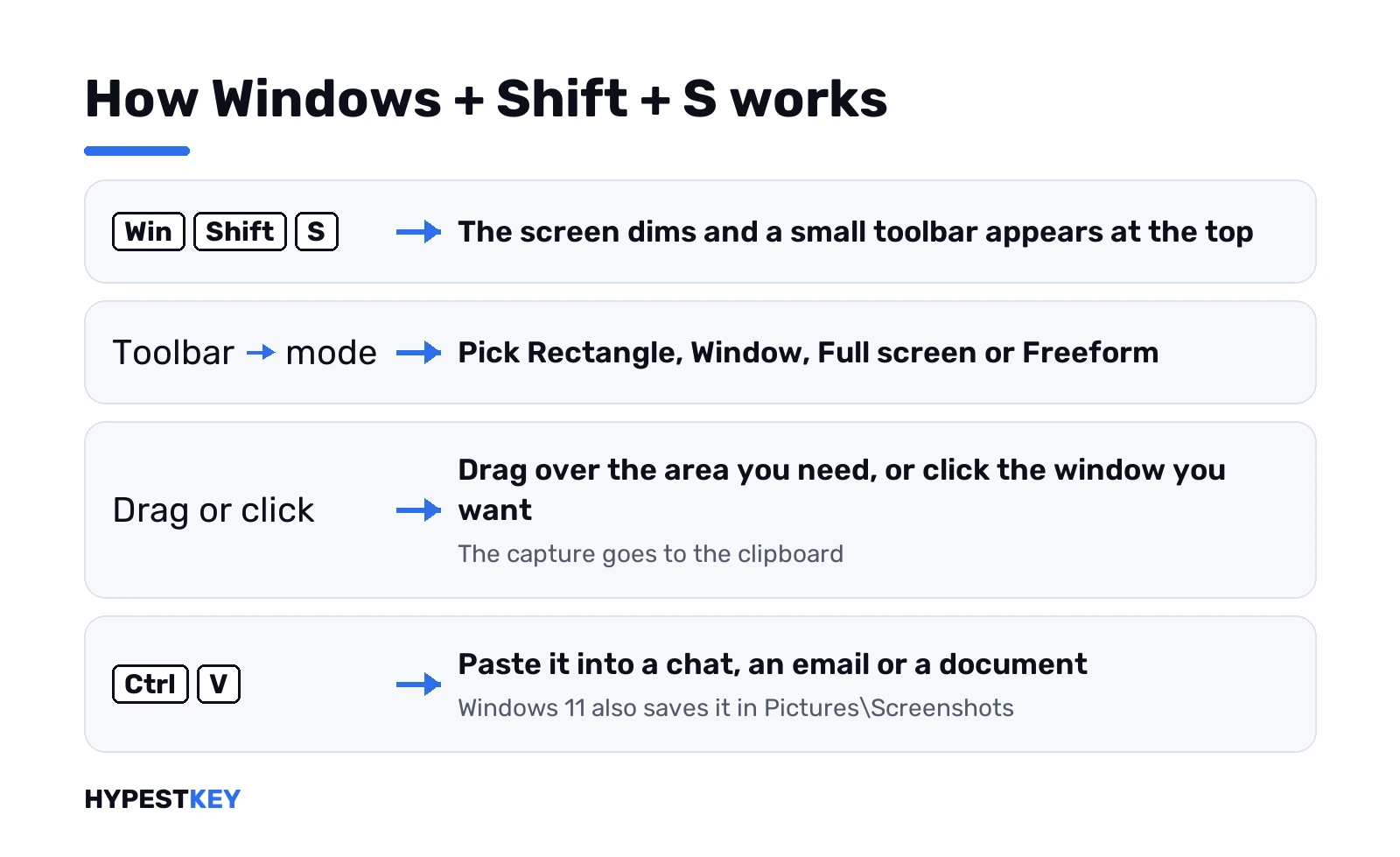
On Windows 11 the snip is also saved automatically, in the Screenshots folder inside Pictures. A setting in the app changes that folder.
This is the shortcut that sticks. No more giant captures of a messy desktop with fifteen browser tabs on show. Need one error message? Drag a box around it.
| Mode | What it does | When to use it |
|---|---|---|
| Rectangle | Drag a box | The default; it handles nearly everything |
| Window | Click any window to capture just that one, borders included | Dialogs and app windows |
| Full screen | Same result as Print Screen | The whole desktop |
| Freeform | Draw any shape | Rarely; it’s there if you need it |
The notification after each capture opens the snip in the editor. Enough for a bug report or a quick how-to for a colleague.
| Editor tool | What it’s for |
|---|---|
| Pen and Highlighter | Arrows, circles and marks around the thing that matters |
| Shapes | Boxes, arrows and emojis |
| Image crop | Cutting away everything else |
| Text actions | Copying text out of the picture, or redacting it |
| Edit with Paint | Resizing and further changes |
| Save as | Writing an extra copy to a folder of your choice |
Screenshot on Windows with the Print Screen key
The key near F12 has been there the whole time. Microsoft notes it may be labelled Print Screen, PrtSc, PrtScn or PrntScrn. Pressed alone, it copies the whole screen to the clipboard.
Then you paste with Ctrl + V. Into Paint, an email or a chat.
| Keys | Result |
|---|---|
| Print Screen | Whole screen to the clipboard |
| Windows + Print Screen | Whole screen saved as a PNG file |
| Alt + Print Screen | Only the active window, to the clipboard |
| Fn + Print Screen | The same, on laptops where the key is shared |
| Fn + Windows + Space | A screenshot on devices without a Print Screen key |
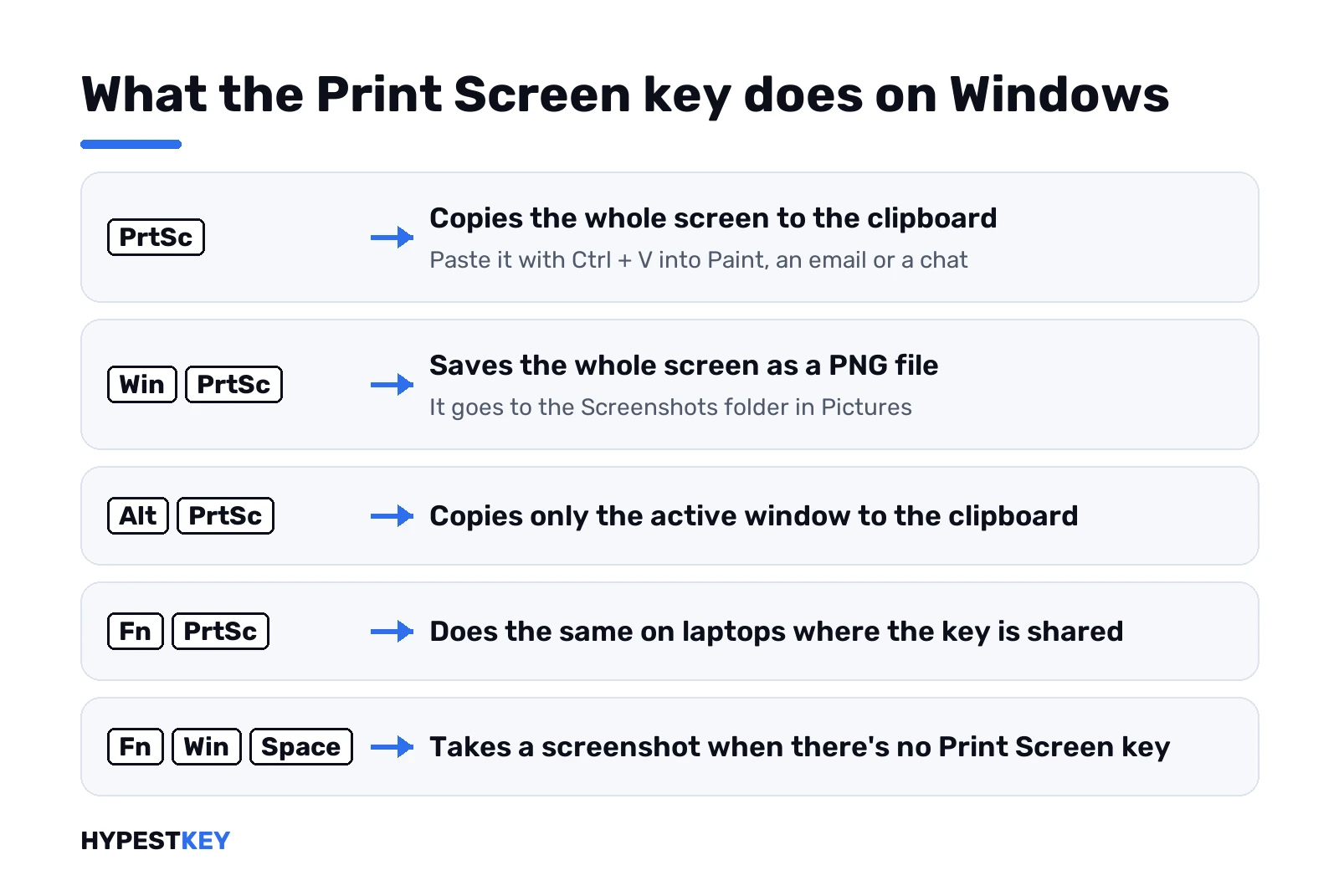
The catch with plain Print Screen is the extra step. The image sits on the clipboard until you paste it somewhere. Fine for a quick chat message, annoying if you capture things all day.
To get a file straight away:
- Press Windows + Print Screen. The screen dims briefly.
- Open File Explorer, select Pictures in the side pane and open Screenshots.
- Find the newest file. They’re numbered in order.
C:\Users\YourName\Pictures\Screenshots\Screenshot (1).pngLaptops and the Fn key
On many laptops Print Screen shares a key with something else. Then you hold Fn as well. Plenty of people decide the keyboard is broken before they find that out.
Some keyboards also have an Fn Lock that flips the top row. If nothing happens, try the shortcut with and without Fn. Microsoft’s own fallback for keyboards without the key is Fn + Windows + Space.
Four makers have their own pages here: HP, Dell, Lenovo and Asus laptops.
The Print Screen setting on Windows 11
Windows 11 has a switch that makes the Print Screen key open the snipping overlay instead of copying the screen. On many PCs it’s on. Then a tap on the key shows the overlay.
Want the copy-everything behaviour instead? One switch in Settings does it.
- Open Settings with Windows + I.
- Go to Accessibility, then Keyboard.
- Switch Use the Print screen key to open screen capture on or off.
Windows 10 has the same idea. The option sits under Settings, Ease of Access, Keyboard, as the Print Screen shortcut.
Print Screen does nothing at all? Test the key first on our free online keyboard tester. If the key doesn’t register there, it’s the keyboard or the Fn setting, not Windows.
Clipboard history keeps more than one capture
A second capture normally replaces the first one on the clipboard. Windows + V opens the clipboard history. Turn it on once, and the last few copied pictures stay available to paste.
How to screenshot one window on Windows
Two ways, and both leave the rest of the desktop out of the picture.
- Click the window so it’s active.
- Press Alt + Print Screen. The window goes to the clipboard.
- Paste it with Ctrl + V where it’s needed.
Or press Windows + Shift + S, choose Window mode and click the window. That route also leaves a file on Windows 11.
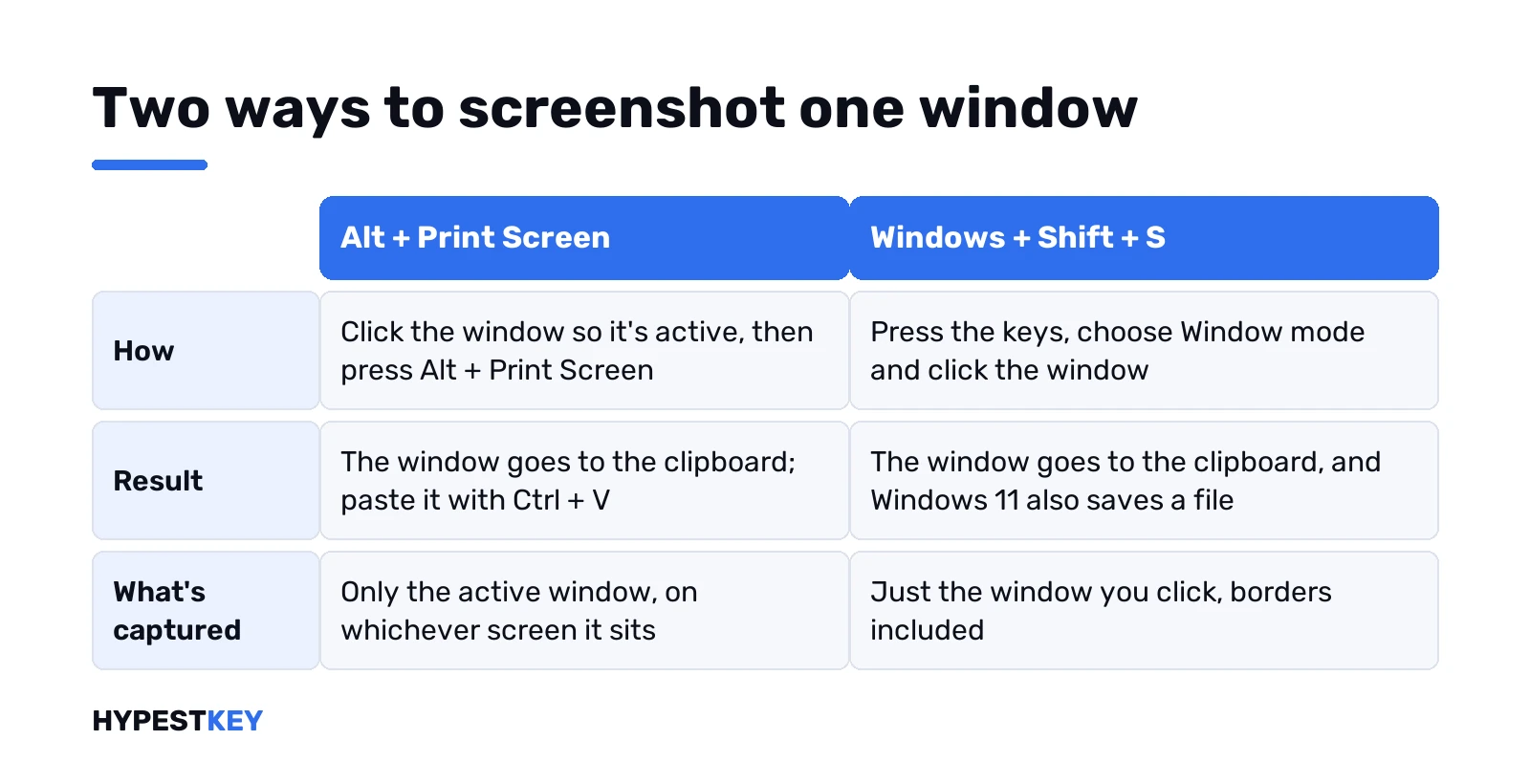
With several monitors, Alt + Print Screen captures the window on whichever screen it sits. That’s the quickest way to leave the other monitor out.
What the Snipping Tool app adds
Four things that the shortcuts alone don’t offer.
- A capture delay.
- Screen recording.
- Text extraction.
- Settings for the save folder.
For years Windows had two apps for the same job: the old Snipping Tool and the newer Snip & Sketch. On Windows 11 there’s one Snipping Tool. On Windows 10 both apps may still be around, and we’d use either.
| Shortcut inside the app | What it does |
|---|---|
| Alt + M | Choose a snipping mode |
| Alt + N | New snip in the same mode as the last one |
| Alt + D | Delay the capture by 1 to 5 seconds |
| Ctrl + C | Copy the snip to the clipboard |
| Ctrl + S | Save the snip |
A delayed capture
This is the fix for menus that vanish as soon as you click elsewhere.
- Open the Snipping Tool from Start.
- Select Delay and choose, for example, 5 seconds.
- Select the snipping mode, then New. The countdown starts.
- Within those seconds, open the drop-down or right-click menu you need.
- When the overlay appears, drag over the area.
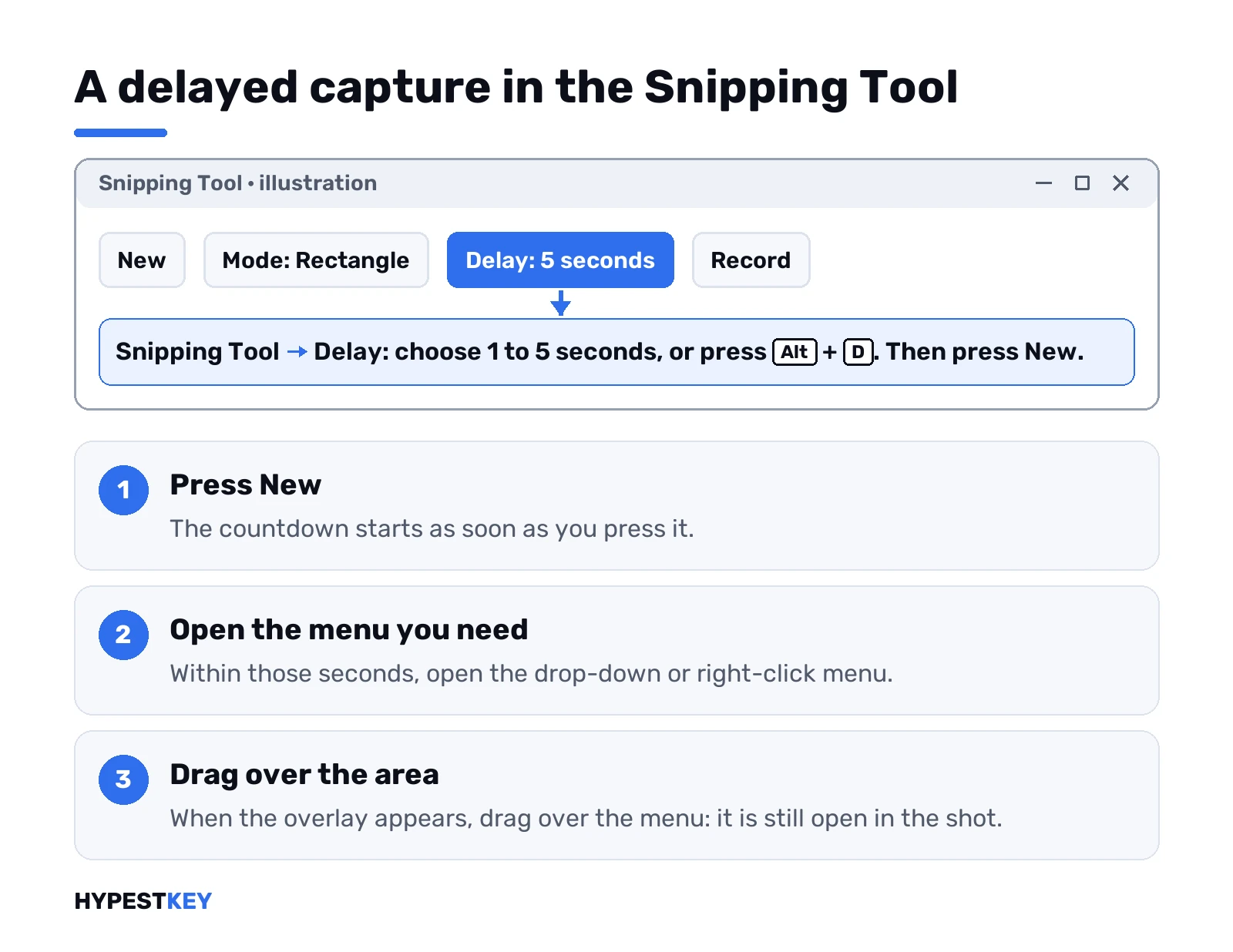
The timer ends, the overlay appears, and the menu is still open. Handy for anyone who documents software.
Copying text out of a picture
Take an image snip and select Text actions. The tool recognises the text in the picture. You can select and copy it, or redact details such as email addresses and phone numbers before sharing.
We use it for error codes. No retyping a long 0x number from a dialog: snip it, copy the text.
Copilot+ PCs
Microsoft lists two extras that exist only on a Copilot+ PC. Perfect screenshot tightens the capture area around the content on screen. Color picker reads the exact colour value of any pixel.
On other PCs those buttons aren’t there. We cover which PCs qualify in our Windows 11 requirements guide.
Screenshots inside a Remote Desktop session
Print Screen inside a Remote Desktop window can catch the wrong desktop. Remote Desktop has its own pair of keys for that.
| On a local PC | Inside Remote Desktop | What lands on the clipboard |
|---|---|---|
| Print Screen | Ctrl + Alt + Plus sign | The entire client window area |
| Alt + Print Screen | Ctrl + Alt + Minus sign | The active window within the session |
Which side gets the ordinary Windows keys? A setting decides. Remote Desktop Connection, Show Options, Local Resources tab.
The drop-down there is called Apply Windows key combinations, with three choices.
- On this computer. Your own PC keeps Print Screen.
- On the remote computer. The session gets it.
- Only when using the full screen. Whoever has the full screen wins.
On a server we’d paste into Paint inside the session, save, then copy the file out. The key list is on Microsoft Learn, Remote Desktop Services shortcut keys.
Want video instead of stills? See how to screen record on Windows 11.
Xbox Game Bar captures
Game Bar captures the active app or game, as a picture or as a video. It works in most apps, games or not.
| Keys | What happens |
|---|---|
| Windows + G | Opens the Game Bar overlay; the camera icon in the Capture widget takes a picture |
| Windows + Alt + Print Screen | Captures the active window without opening the overlay |
| Windows + Alt + R | Starts and stops a recording of the active app |
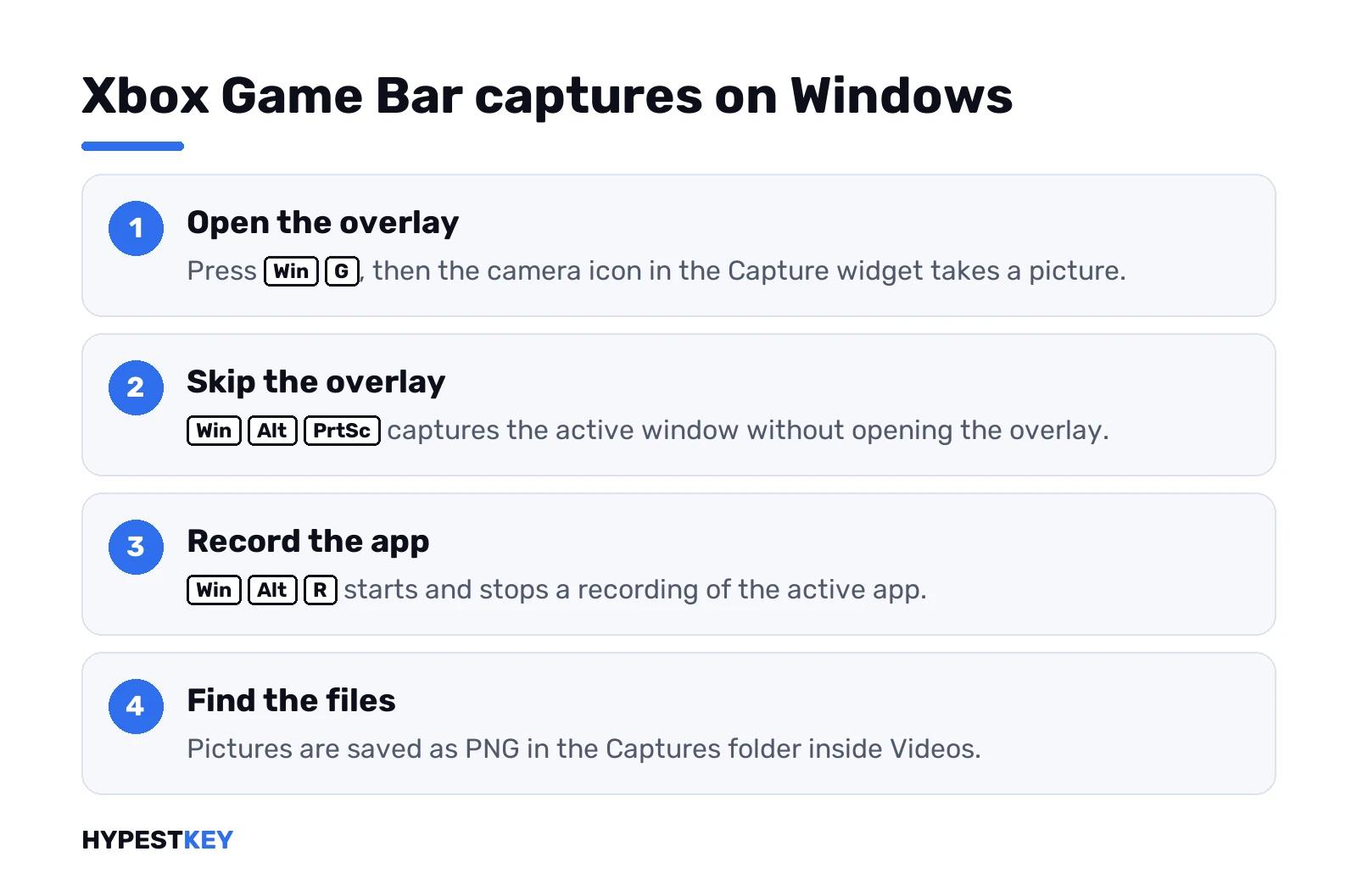
Files are saved as PNG, in the Captures folder inside Videos.
Two limits. Game Bar doesn’t capture the desktop or File Explorer itself. And its recordings follow one app window. For anything that spans windows, we use the Snipping Tool recorder.
Gaming laptops often ship the maker’s own overlay, and it may claim the same keys as Game Bar. Its settings show which keys it took.
Screenshot on Windows without a Print Screen key
Plenty of compact keyboards skip the key. Nothing’s lost.
| Keys or route | Result |
|---|---|
| Fn + Windows + Space | The full screen as a file in Screenshots, Microsoft’s fallback for devices without PrtScn |
| Windows + Shift + S | The snipping overlay, no Print Screen needed |
| The Snipping key | The same overlay, on keyboards that have one |
| Snipping Tool on the taskbar | One click or one tap |
Pinning takes ten seconds. Search for snipping tool in Start, then Pin to taskbar.
No keyboard at all? Hardware buttons, then. Power + Volume Up on most Windows tablets. Surface models changed the pair between generations; every pair is in how to screenshot on a Surface.
Screenshot on Windows straight into Word, Excel, Outlook or PowerPoint
No shortcut, no pasting. Office has a Screenshot button of its own.
- Insert tab.
- Screenshot. It sits in the Illustrations group, or under Images in PowerPoint.
- Pick a window from Available Windows, or choose Screen Clipping.
Screen Clipping turns the screen white and the pointer into a cross. Drag over the part you need. It lands in the document as a picture, ready for the picture tools: crop, border, a shadow if you must.
Two limits. Minimized windows don’t show up in the gallery, and it’s one screenshot at a time.
Handy for a manual, a report or an email reply that needs the error dialog in it.
A web page? Bring the browser window forward first, then go back to the document and press Screenshot. That window comes first in the gallery. Details are on Microsoft’s page, Insert a screenshot or screen clipping.
Need a page taller than the screen? Different job, covered in scrolling screenshots on Windows.
Third-party tools worth knowing
In most cases you never need one. Windows covers nearly everything. Two are worth knowing all the same.
| Point | ShareX | Lightshot |
|---|---|---|
| Price | Free, open source | Free |
| Strength | Scrolling captures, automation, uploads to many cloud services | One-click capture and quick sharing links |
| Extras | Timed captures, recording to GIF or video, text recognition | Copy, save or share in one more click |
| Pick it for | Power | Simplicity |
ShareX is the Swiss Army knife, with an interface built by engineers for engineers. Lightshot is the simple one.
Many of these tools take over the Print Screen key when installed. If your shortcuts suddenly behave differently, check the tool’s hotkey settings first.
Saving, sharing and editing a Windows screenshot
Click the notification after Windows + Shift + S and the snip opens in the Snipping Tool. On Windows 11 the useful buttons are these.
| Button | What it gives you |
|---|---|
| Save as | A second copy, anywhere; the auto-saved one stays where it is |
| See More, then Share | Hands the snip to another app |
| Edit, then Edit with Paint | Resize, colour, text |
| Pen, Highlighter, Shapes, Image crop | Quick marks before sending |
| Right-click the saved file, then Print | A paper copy |
Windows 10 is plainer. Save Snip, a Send Snip arrow for sharing, Edit with Paint 3D.
Before sharing, text actions are worth a look. Copy all text pulls the words out of the picture; Quick redact blacks out email addresses and phone numbers in one click.
The automatic save can be switched off or pointed at another folder: See More, then Settings. We’d leave it on. A snip you forgot to save is still there tomorrow.
Which folder each method uses, and how OneDrive moves it, is in where screenshots go on Windows 11.
More than one monitor
With several monitors, Print Screen and Windows + Print Screen capture all screens together. You get one wide image. Half of it is often empty space.
| Goal | Keys |
|---|---|
| All monitors in one image | Print Screen or Windows + Print Screen |
| One monitor | Windows + Shift + S, then drag across that screen |
| One app | Alt + Print Screen, whichever screen the window is on |
Rarely is the wide image what you want. We press Windows + Shift + S and drag, every time.
Screenshot on Windows 10 and Windows 11: what differs
Same keys, mostly. The tools behind them changed.
Even the buttons got renamed. Mode on Windows 10, Snipping Mode on 11, and New starts the snip on both.
| Feature | Windows 11 | Windows 10 |
|---|---|---|
| Windows + Shift + S | Snip on the clipboard and saved to Screenshots | Snip on the clipboard until you save it from the notification |
| Snip types | Rectangle, Window, Full screen, Freeform, plus video | Rectangular, Window, Full-screen, Free-form |
| Video | Windows + Shift + R, or Record in the app | Not in the Snipping Tool; Game Bar does it |
| Text actions | Copy all text, Quick redact | None |
| Marking up | Pen, Highlighter, Shapes, Eraser, crop | Pen, Highlighter, Eraser |
| Open menus | Delay | Delay, or Ctrl + PrtSc |
| Further editing | Edit with Paint | Edit with Paint 3D |
| Saving | Automatic, plus Save as | The Save Snip button |
| Sharing | See More, then Share | The Send Snip arrow |
| Copilot+ extras | Perfect screenshot, Color picker, on Copilot+ PCs | None |
Ctrl + PrtSc is the Windows 10 trick worth keeping. Snipping Tool open, the menu you want open too, then Ctrl + PrtSc. The screen goes grey with the menu still showing. Pick the mode and snip it.
Windows 10 also keeps an option for HTML saves. Options, then Include URL below snips. Only matters if you save snips as HTML, which few people do.
Text recognition runs on the PC itself, by the way, so nothing gets uploaded when you copy text out of a picture.
For anyone on Windows 10 still, moving to 11 brings the recorder and text actions with no extra install.
Keys doing nothing at all, on either version? The fixes, in order, are in Print Screen not working on Windows 11.
Which method for which job
| Job | Method |
|---|---|
| Most captures | Windows + Shift + S; it grabs exactly the area you need |
| Full screen saved as a file, no extra clicks | Windows + Print Screen |
| One window | Alt + Print Screen |
| Delays, text, a different save folder | Snipping Tool app |
| A video of part of the screen | Windows + Shift + R on Windows 11 |
| Recording a single app, or any video on Windows 10 | Game Bar |
| Full web pages | Edge’s Capture full page |
| Scrolling captures elsewhere, uploads | ShareX |
| A tablet without a keyboard | Power + Volume Up |
Habits that save time
- Name the important ones. “Chrome_login_error” beats a numbered file every time.
- PNG for screens, JPEG for photos. PNG keeps text sharp.
- One tool, learned well. Better than switching between five.
- Clean the folder now and then. That error message from three months ago is generally safe to delete.
- Crop at capture time. Drag the box tight, and there’s nothing to fix in Paint later.
- Check before you share. Open tabs, names and email addresses end up in pictures more often than people expect.
Two more small time-savers people fumble with daily: our guides to Windows 11 Quick Settings and changing the keyboard layout in Windows 11. We cover a keyboard in the wrong language in changing the Windows 11 display language.
Thinking about leaving the older system behind? We compare the two in Windows 11 vs Windows 10; the newer capture app is one of the changes. The editions don’t differ here: every one of the Windows 11 editions has the same Snipping Tool, and so do both sides of Windows 11 Home vs Pro.
Setting up a new PC for all of this? Our Windows 11 Pro key arrives instant to email, and every edition is under Windows 11 keys.
Related guides
Terms used on this page
| Term | Meaning |
|---|---|
| Snip | A capture made with the Snipping Tool |
| Overlay | The dimmed screen with the toolbar that Windows + Shift + S opens |
| Clipboard | Where copied content waits until you paste it |
| Print Screen | The key labelled PrtSc, PrtScn or PrntScrn |
| Game Bar | The Xbox overlay in Windows with its own capture tools |
| Text actions | The Snipping Tool feature that reads text out of a picture |
| Copilot+ PC | A Windows 11 PC with the hardware for Microsoft’s AI features |
FAQ
How do I screenshot on Windows?
Press Windows + Shift + S, choose a mode and drag over the area. Windows 11 also saves it as a file. For the whole screen as a file, we press Windows + Print Screen.
Where do my screenshots go on Windows 11?
Into the Screenshots folder inside Pictures, for Windows + Print Screen and the Snipping Tool. Game Bar captures go to Captures inside Videos. If OneDrive backs up Pictures, we'd look in the OneDrive Pictures folder first.
How do I screenshot only one window?
Click the window and press Alt + Print Screen. The picture of that window goes to the clipboard. Or press Windows + Shift + S, choose Window mode and click the window.
Why does Print Screen open the Snipping Tool instead of taking a screenshot?
Because the Print Screen setting is on. It sits under Settings, Accessibility, Keyboard, as "Use the Print screen key to open screen capture". Switch it off, and the key copies the whole screen again.
How do I take a screenshot on a laptop without a Print Screen key?
Microsoft's shortcut page gives Fn + Windows + Space for devices without the key. Windows + Shift + S works on any keyboard as well. We'd try Fn + Print Screen first on laptops where the key is shared.
Can I take a scrolling screenshot on Windows?
Not with the Snipping Tool. For web pages, Microsoft Edge has a Capture full page option. For other apps, we'd use a free tool such as ShareX, which scrolls the window and stitches the capture together.
How do I record my screen on Windows without extra software?
On Windows 11 press Windows + Shift + R, select an area and press Start. On Windows 10 we use Xbox Game Bar: Windows + Alt + R starts and stops the recording there.
How do I screenshot on a Surface?
Press Power and Volume Up together. Microsoft gives that combination for most Windows tablets. With a keyboard attached, Windows + Shift + S works as on any PC.