Short answer: Where is the Windows key: bottom row, left of the space bar, between Ctrl and Alt. It carries the Windows logo. Laptops place it between Fn and Alt. Full-size keyboards often have a second one on the right. Apple keyboards have none: Command does its job.
Where is the Windows key: in the bottom row of the keyboard, left of the space bar, between Ctrl and Alt. It carries the four-pane Windows logo. Full-size keyboards often add a second one right of the space bar. On a laptop, look between Fn and Alt. Press it once and Start opens.
| Keyboard | Where to look | What it looks like |
|---|---|---|
| Full-size desktop keyboard | Bottom row, between left Ctrl and left Alt; often a second one between right Alt and the Menu key | Windows logo |
| Laptop | Bottom row, usually between Fn and Alt; one key only | Windows logo |
| Multi-device keyboard | Bottom row, left of Alt or Option | Sometimes a Windows label and a Mac label on one key |
| Apple keyboard | No Windows key: Command does its job | ⌘ |
| Chromebook | No Windows key: Search or Launcher does a similar job | Magnifier or launcher icon |
Quick check: press it again. Start closes.
Where is the Windows key on a keyboard
Bottom left, mostly. Count from the corner: Ctrl, then the Windows key, then Alt, then the space bar. That order holds on nearly every desktop keyboard sold for Windows PCs.
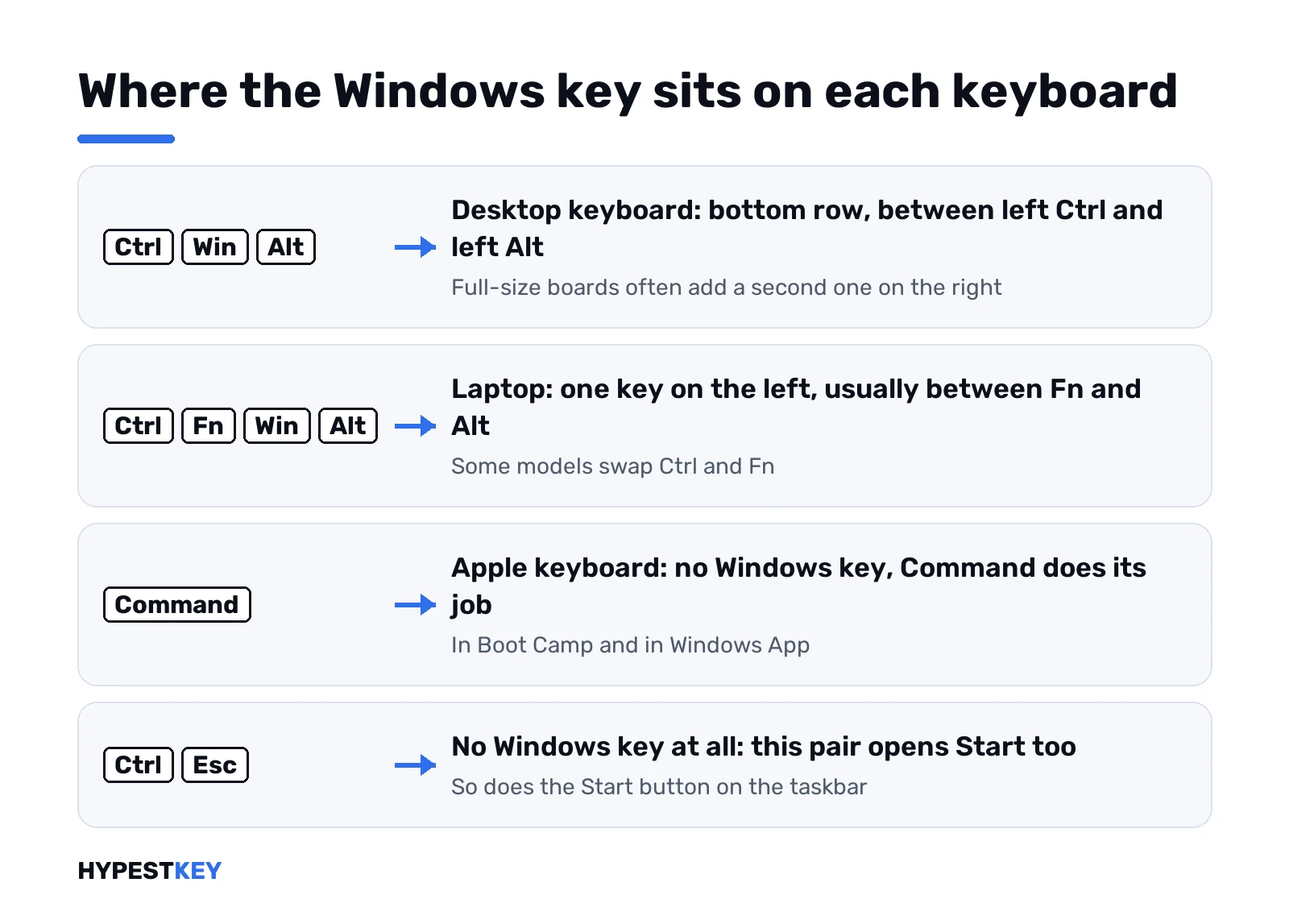
The second key on the right side is optional. Plenty of compact keyboards drop it to make room for arrows. Where it exists, it sits between the right Alt and the Menu key, the one with a little list icon.
The logo itself changed over the years. Older boards show a wavy flag, newer ones four flat squares. Same key, same job. Not sure which key you’re looking at? Our online keyboard tester lights up every key you press, so one tap answers it.
Where is the Windows key on a laptop
One key, left side. Laptops rarely have room for a second one. On most models the row goes Ctrl, Fn, Windows key, Alt. Some swap Ctrl and Fn, so the Windows key can end up next to either.
Gaming laptops are the odd ones. Some of them have a way to lock the Windows key so it can’t pop Start in the middle of a game. A key that looks right but does nothing may simply be locked. The manual of your model names the combination.
Brand quirks around Fn? We cover them on our laptop pages. See keys on a Dell laptop, shortcuts on an HP laptop and ThinkPad and IdeaPad keys. Surface? Usual layout, and our Surface keyboard guide shows the rest.
Multi-device keyboards with two labels
Some keyboards serve Mac and Windows alike. Two names per key, then. So the bottom-row key left of Alt often carries a Windows label and a Mac label at once. On a Windows PC, that key works as the Windows key.
Two snags we’d rule out first. The keyboard may be paired to the wrong device channel, so the press goes to a tablet instead of the PC. Or its companion app may have the key remapped. Check both before blaming the hardware.
Where the Windows key is on a Mac keyboard
Nowhere, strictly. Apple keyboards have no Windows key. Command takes its place:
- Windows through Boot Camp on an Intel Mac. Command acts as the Windows logo key, and left Option acts as Alt, per Apple’s Boot Camp keyboard page.
- Windows App on a Mac. Command stands in for the Windows key inside the remote session.
- A Windows virtual machine on the Mac. Each app handles the mapping its own way; our page on running Windows in a virtual machine on Mac covers the options.
The reverse case comes up too. A keyboard made for Windows plugged into a Mac works fine, and macOS reads its Windows logo key as Command. The Alt key becomes Option.
Chromebooks and the Search key
Chromebooks skip the Windows key as well. Their Search or Launcher key opens search and your apps. Plug in an external Windows keyboard and the Windows key between Ctrl and Alt works as that Search or Launcher key, per Google’s Chromebook keyboard help.
Missing Caps Lock on a Chromebook? Alt plus Search toggles it.
No Windows key, or it does nothing
Old keyboard without one, or a broken key? Ctrl + Esc opens Start too. The Start button on the taskbar does the same job with the mouse.
A key that’s there but dead usually has a reason in software. The usual suspects:
- a Win Lock or game mode on the keyboard itself;
- a remap in Microsoft PowerToys or in the keyboard maker’s app;
- the Group Policy Turn off Windows Key hotkeys, which kills combinations like Windows + R;
- a Scancode Map entry in the registry that maps the key to nothing.
We’d test the key in the keyboard tester first. Press registers there? Then the hardware is fine and the block sits in Windows. Start opens, a shortcut doesn’t? We’d suspect the policy. Booting into Windows 11 Safe Mode takes most third-party remappers out of the picture for a quick test.
Windows key shortcuts worth knowing
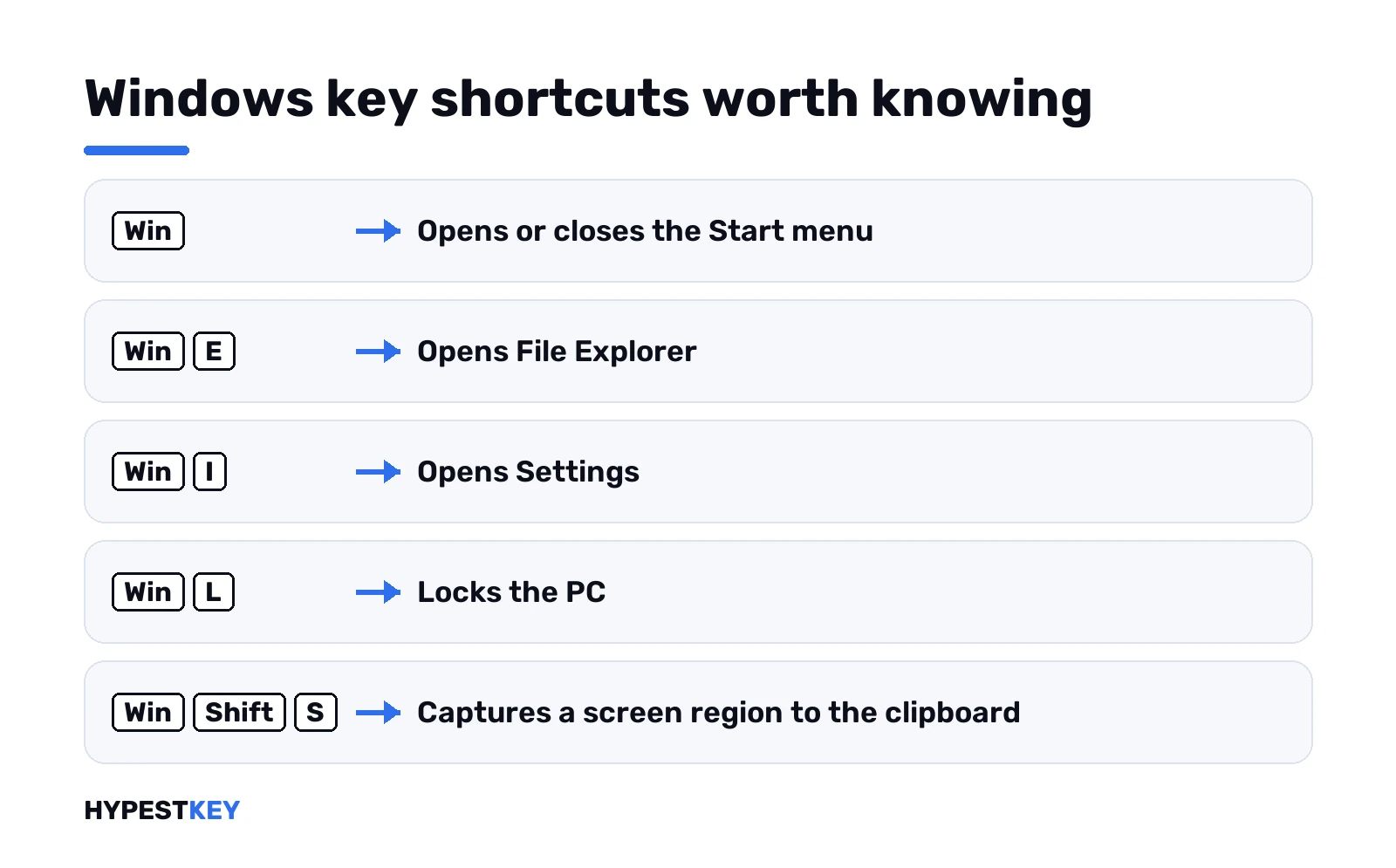
Alone, the key opens Start. Combined, it runs half of Windows. From Microsoft’s own keyboard shortcuts list, the ones we use most:
| Shortcut | What it does |
|---|---|
| Windows + D | Show or hide the desktop |
| Windows + E | Open File Explorer |
| Windows + I | Open Settings |
| Windows + L | Lock the PC |
| Windows + R | Open the Run dialog |
| Windows + S | Open search |
| Windows + V | Clipboard history, once it’s turned on |
| Windows + X | Quick Link menu, same as right-clicking Start |
| Windows + Tab | Task View |
| Windows + Shift + S | Capture a screen region to the clipboard |
| Windows + PrtScn | Save a full screenshot to Pictures\Screenshots |
| Windows + period | Emoji panel |
We gave the screenshot pair its own page: every built-in way to screenshot on Windows. PrtScn silent? Then our fix list for Print Screen not working on Windows 11 is next. Windows + Space switching languages on you? That’s in Windows 11 keyboard layout settings.
The Copilot key next to it
Newer laptops may add a Copilot key to the same bottom row. It doesn’t replace the Windows key. Under the hood it sends a Windows key combination. Remapping tools see a shortcut, not a key. Windows + C opens Copilot where it’s available, and search where it isn’t.
Want it to do something else? Settings > Personalization > Text input > Customize Copilot key on keyboard.
One last mix-up. Some people searching for the Windows key mean the product key. The 25-character license code, that is. Different thing entirely; our Windows product key page deals with that one. Need a license for a new PC? Our Windows 11 Pro key comes as a Retail license, sent instantly to your email.
Related guides
FAQ
what does the windows key even look like
A small logo of four squares, or a wavy flag on older boards. It sits next to Ctrl in the bottom row.
my laptop has only one, is that normal
Yes. Most laptops keep just the left one, between Fn and Alt, to save space for other keys.
Is there a Windows key on a Mac keyboard?
Nope. Command does the job in Boot Camp and in remote sessions, and Option acts as Alt.
The key does nothing, what now?
Test it in a keyboard tester first. If the press shows up, look for a Win Lock, a remap tool or a Group Policy that blocks it.
Can I open Start without the Windows key?
Yes. Ctrl + Esc opens Start, and so does clicking the Start button on the taskbar.
Is the Copilot key the same thing?
Nope. It's a separate key that sends its own shortcut, often Windows + C, and opens Copilot.
Where is the Windows key on a Chromebook?
There isn't one. The Search or Launcher key does that work, and an external Windows key acts as Search.