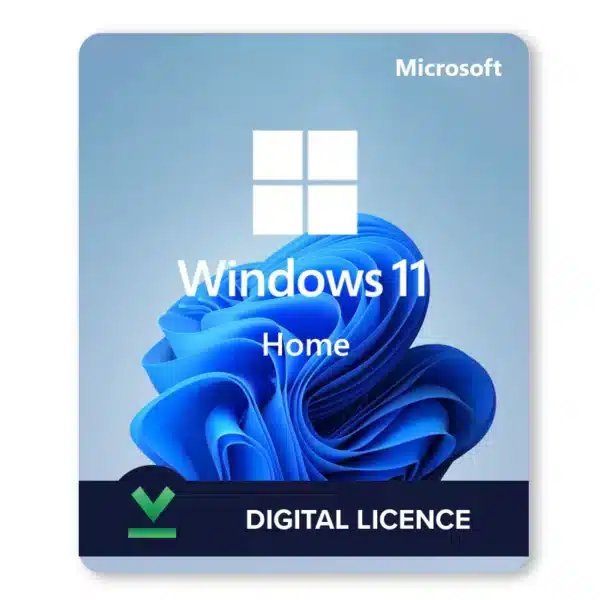



Windows 11 Home is the standard consumer edition of Windows 11, built for personal laptops and desktops: browsing, streaming, gaming, school work and Office. Our Windows 11 Home key is a genuine retail license for one PC that activates online with Microsoft. Pay, get the key by email, enter it in Settings, and Windows is activated a couple of minutes later. No subscription, no expiry date, and no account to create on HypestKey.
Key takeaways
- Genuine retail license for one 64-bit PC, one-time purchase.
- Activates on a fresh install or on a PC that shows “Activate Windows”.
- Your PC needs TPM 2.0, Secure Boot and a supported CPU.
- Retail means you can move it to a new PC later.
What Is a Windows 11 Home Key?
A Windows 11 Home key is a 25-character product key that licenses Windows 11 Home on one computer. Microsoft’s activation servers check it, then record a digital license for that PC, so later reinstalls activate on their own. The key covers every Windows 11 Home update Microsoft releases for supported versions, including the current 25H2 and 26H2.
Who is it for? Anyone who built a new PC, replaced a drive, or bought a laptop without a working license. Also anyone stuck with the “Activate Windows” watermark after a reinstall.
What’s New in Windows 11 Home?
Windows 11 Home replaces the Windows 10 look with a centered Start menu, rounded windows and Snap Layouts for arranging apps side by side. It adds a Widgets panel, a redesigned Microsoft Store, and gaming features from Xbox Series X: DirectX 12 Ultimate, Auto HDR and DirectStorage. Most Windows 10 programs run on it unchanged.
The Start button moved to the middle of the taskbar (you can drag it back to the left in Settings). Hover over the maximize button and Snap Layouts appear, handy when you’re juggling a browser, a document and a chat window at once.
Gamers get the most out of it. Auto HDR brightens older DirectX 11 and 12 games on an HDR screen. DirectStorage cuts loading times in games that support it, provided you have an NVMe SSD.
Windows 11 Home System Requirements
Windows 11 Home needs a compatible 64-bit processor with 2 or more cores at 1 GHz or faster, 4 GB of RAM, 64 GB of storage, UEFI firmware with Secure Boot, TPM 2.0 and a DirectX 12 graphics card. Setup also requires an internet connection and a Microsoft account. Run Microsoft’s PC Health Check app before you buy.
| Component | Minimum for Windows 11 Home |
|---|---|
| Processor | 1 GHz or faster, 2+ cores, compatible 64-bit CPU or SoC |
| RAM | 4 GB (8 GB feels much better) |
| Storage | 64 GB or larger |
| System firmware | UEFI with Secure Boot capability |
| TPM | Trusted Platform Module 2.0 |
| Graphics | DirectX 12 or later with a WDDM 2.0 driver |
| Display | 720p, larger than 9 inches diagonally, 8 bits per color channel |
| Internet and account | Internet and a Microsoft account required during setup |
Source: Microsoft, Windows 11 specifications.
The TPM 2.0 requirement typically catches people out most. To check it, press Win + R, type tpm.msc and press Enter: “Specification Version: 2.0” means you’re fine. If the console says no TPM was found, look in the BIOS for “PTT” (Intel) or “fTPM” (AMD) and switch it on. There’s no 32-bit Windows 11, so a 32-bit-only machine can’t run it. Full detail is in our Windows 11 requirements guide.
How Do You Buy and Download Windows 11 Home?
Add Windows 11 Home to your cart and pay by card, Apple Pay or Google Pay. The key is emailed instantly after payment along with a link to Microsoft’s official Windows 11 download page and activation instructions. You don’t need an account with us. Download the installer or Media Creation Tool from Microsoft and you’re ready.
- Add the product to your cart and pay.
- Your key arrives by email right after payment and is shown on screen.
- Open the Microsoft download link from the email.
- Use the Installation Assistant to upgrade, or the Windows 11 Media Creation Tool to build a bootable USB.
Still nothing after 15 minutes? Check the spam folder, then contact support@hypestkey.com or the live chat and we’ll resend it.
How Do I Activate Windows 11 Home?
Open Settings, choose System, then Activation, click Change product key, enter your 25-character Windows 11 Home key and select Next. Windows contacts Microsoft and shows “Windows is activated” in under a minute. If Settings fails, you can activate from an admin terminal with slmgr, or by phone with slui 4.
Method 1: Settings (the easy way)
- Press Windows + I to open Settings.
- Go to System > Activation.
- Next to Change product key, click Change.
- Type your Windows 11 Home product key and click Next, then Activate.
- Wait for “Windows is activated”. It usually takes less than a minute.
Method 2: Command line
- Right-click Start and choose Terminal (Admin).
- Run
slmgr /ipk XXXXX-XXXXX-XXXXX-XXXXX-XXXXXwith your real key. - Run
slmgr /atoto activate online. - Run
slmgr /xprto confirm the machine is permanently activated.
Method 3: Phone activation (when online activation fails)
- Press Win + R, type
slui 4and press Enter. - Select your country or region.
- Call the number shown and read out the installation ID, or follow the link if Windows offers online phone activation.
- Enter the confirmation ID you receive and click Activate Windows.
Tip: Most activation errors come from a typo or from a key for a different edition. A Home key won’t activate Windows 11 Pro. If you see an error code, our guide to fixing Windows 11 activation errors lists the common ones.
How Do You Upgrade to Windows 11 Home?
From Windows 10 Home on compatible hardware, the move to Windows 11 Home is an in-place upgrade that keeps your files and apps. From Windows 7 or 8.1 there is no direct path worth taking: back up, boot from a USB stick and do a clean install, entering your key during setup.
From Windows 10: the smoothest path, since Windows 10 support ended on October 14, 2025.
- Back up your files first. Seriously, don’t skip this.
- Download the Windows 11 Installation Assistant from Microsoft.
- Run it and follow the prompts; your files and apps stay in place.
- After the upgrade, enter your key in Settings > System > Activation if Windows asks for one.
From Windows 7 or 8.1: a clean install works far better.
- Back up everything you want to keep.
- Create a bootable USB stick (8 GB or larger) with the Media Creation Tool.
- Restart the PC and boot from the USB stick.
- Choose Custom: Install Windows only and select the target drive.
- Enter your Windows 11 Home key when setup asks for it, or choose “I don’t have a product key” and activate later in Settings.
Old hardware from the Windows 7 era generally fails the TPM 2.0 and CPU requirements, so in most cases run PC Health Check first.
Windows 11 Home vs Pro: Which One Do You Need?
Windows 11 Home covers everything a personal PC does: apps, games, browsing, Office, Microsoft Store. Windows 11 Pro adds business tools on top: BitLocker encryption, Remote Desktop hosting, Hyper-V, Windows Sandbox and Group Policy. If none of those matter to you, Home is the economical choice.
| Feature | Windows 11 Home | Windows 11 Pro |
|---|---|---|
| Games, Office, browsing, Store apps | Yes | Yes |
| BitLocker drive encryption | No (device encryption on some PCs) | Yes |
| Remote Desktop host | No (client only) | Yes |
| Hyper-V and Windows Sandbox | No | Yes |
| Group Policy, domain join | No | Yes |
Need any of the Pro features? Go for a Windows 11 Pro key instead. You can also upgrade Home to Pro later with a Pro key, without reinstalling. Other editions, including the N versions, are in the Windows 11 category.
Delivery and Support
Your Windows 11 Home key is emailed instantly after payment, with no account needed. If anything goes wrong during installation or activation, write to support@hypestkey.com or use the live chat with your order number and a screenshot. Something went wrong? We’ll help you fix it or send a replacement key.
HypestKey is a trusted reseller with genuine keys and has been selling Microsoft licenses since 2020, with 30,000+ delivered. Whether you’re working from home, gaming or just browsing, you’ll be running an activated Windows 11 Home before your coffee gets cold.
Delivery and activation
Visa, Mastercard and other cards, Apple Pay, Google Pay, processed by Stripe. Guest checkout, prices in USD.
Instant delivery to your email: the key is sent automatically as soon as your payment is confirmed. In rare cases (high demand or a fraud check) it can take up to 24 hours.
Check your spam folder first. Still no email? Write to support@hypestkey.com with your order number and we will resend it.
FAQ
How do I activate Windows 11 Home with this key?
Open Settings > System > Activation, click Change next to Change product key, enter the 25-character key and select Next. Windows contacts Microsoft and shows "Windows is activated" in about a minute.
Is a Windows 11 Home key a lifetime license?
Yes. It is a one-time purchase with no subscription and no expiration date, and Windows keeps getting updates for as long as Microsoft supports your version.
Can I move Windows 11 Home to a new PC?
Yes. It's a retail license, so you can transfer it: deactivate or wipe Windows on the old PC, then enter the same key on the new one. It covers one PC at a time.
Will this key activate Windows 11 Pro?
No. A Home key activates only Windows 11 Home. If Pro is installed, either reinstall Home or buy a Windows 11 Pro key instead.
Can I upgrade from Windows 10 Home without losing files?
Yes, if your PC meets the Windows 11 requirements. Run the Windows 11 Installation Assistant from Microsoft; it keeps files and apps. Back up anyway before you start.
How fast will I receive the key?
The key is emailed instantly after payment and shown on screen after checkout. In rare cases a fraud check can delay it. Nothing after 15 minutes? Check spam, then contact us.
What if my key doesn't activate?
We will help you fix it. Email support@hypestkey.com or use the live chat with your order number and a screenshot of the error, and we'll get activation working or send a replacement.