Short answer: You can transfer a Windows license to a new PC when it's a Retail license. I'd check the channel with one command, remove the key from the old computer, then enter it on the new one. A preinstalled OEM license stays with the PC it came on.
You can transfer a Windows license to a new PC, as long as it’s a Retail one. Remove the key from the old computer. Type it into the new one. A license that came preinstalled stays with the machine it shipped on.
So the first job isn’t moving anything. It’s finding out which kind you have. I’ll show the check, the move, and what to do when the new PC says no.
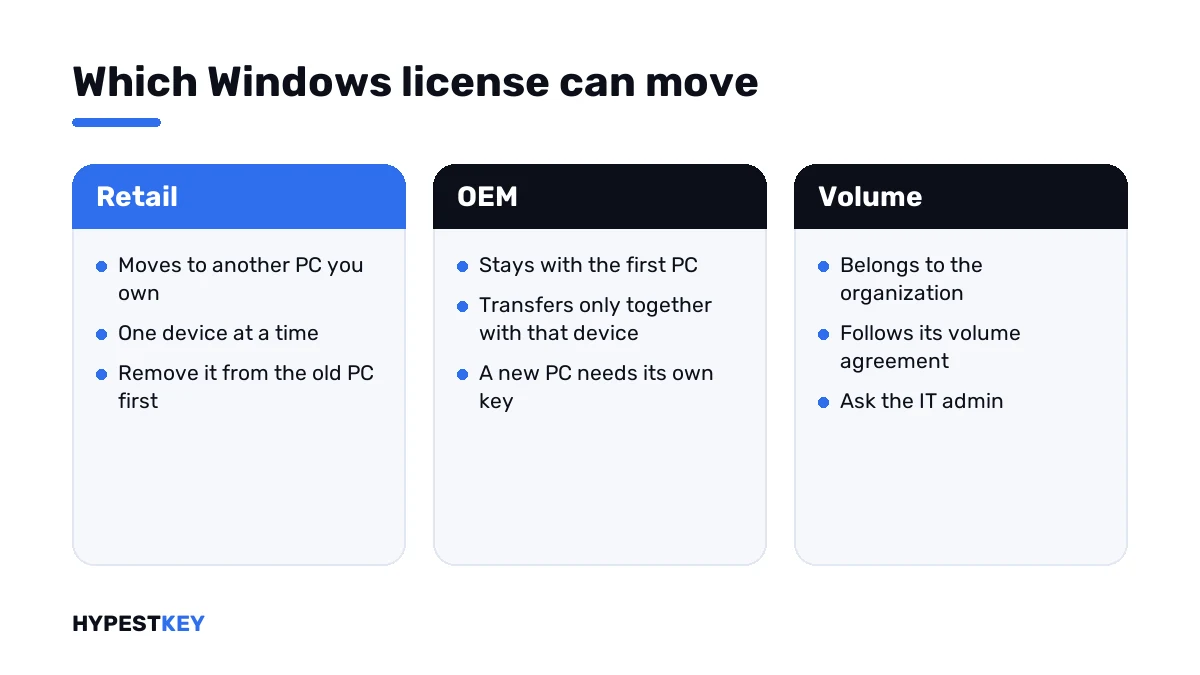
| Your license | Can it move? | What to do |
|---|---|---|
| Retail, bought as a key or a box | Yes, to another device you own | Remove it from the old PC, enter it on the new one |
| OEM, preinstalled by the PC maker | Only together with that PC | Buy a key for the new PC |
| Digital license linked to your Microsoft account | Depends on what it was built on | Check the channel first |
| Volume, from an employer or school | It follows the organization’s agreement | Ask the IT admin |
First, check what kind it is
One command on the old PC. No administrator window needed.
slmgr /dliA small window opens. Read the Description line.
| The Description line ends with | Kind | Movable |
|---|---|---|
| RETAIL channel | Retail | Yes |
| OEM_DM channel or OEM_SLP channel | Preinstalled by the manufacturer | No |
| VOLUME_MAK channel or VOLUME_KMSCLIENT channel | Volume licensing | Not yours to move |
One caution. That line reflects the key that’s installed right now, not a receipt. Keep the order email as well.
All three kinds are compared in Retail vs OEM vs Volume license.
What Microsoft’s terms say
The rule comes from section 4 of the Microsoft license terms. Short quotes, so nobody has to take my word for it.
| Case | The terms say |
|---|---|
| Preinstalled software | “you may transfer the license to use the software directly to another user, only with the licensed device.” |
| Stand-alone software, the Retail kind | “you may transfer the software to another device that belongs to you.” |
| Every move | “you must remove the software from the prior device.” |
| Sharing | “You may not transfer the software to share licenses between devices.” |
Germany and a few other countries fall outside this section. Local law decides there. Volume customers follow their volume agreement, not these terms.
The terms set no number of moves. One device at a time is the limit that matters.
Where the key is hiding
Lost the 25 characters? Start with the order email. A boxed copy has them on a card inside.
Bought an upgrade in the Microsoft Store app? Then there’s no key at all. That purchase lives on your account, and the section on that further down is yours.
The system itself only shows the last five characters. One more check tells you what the motherboard carries:
(Get-CimInstance -ClassName SoftwareLicensingService).OA3xOriginalProductKeyRun it in PowerShell. A key in the answer was put there by the PC maker, so it’s OEM and stays with that board. An empty line? No factory key on that board.
How to transfer a Windows license to a new PC
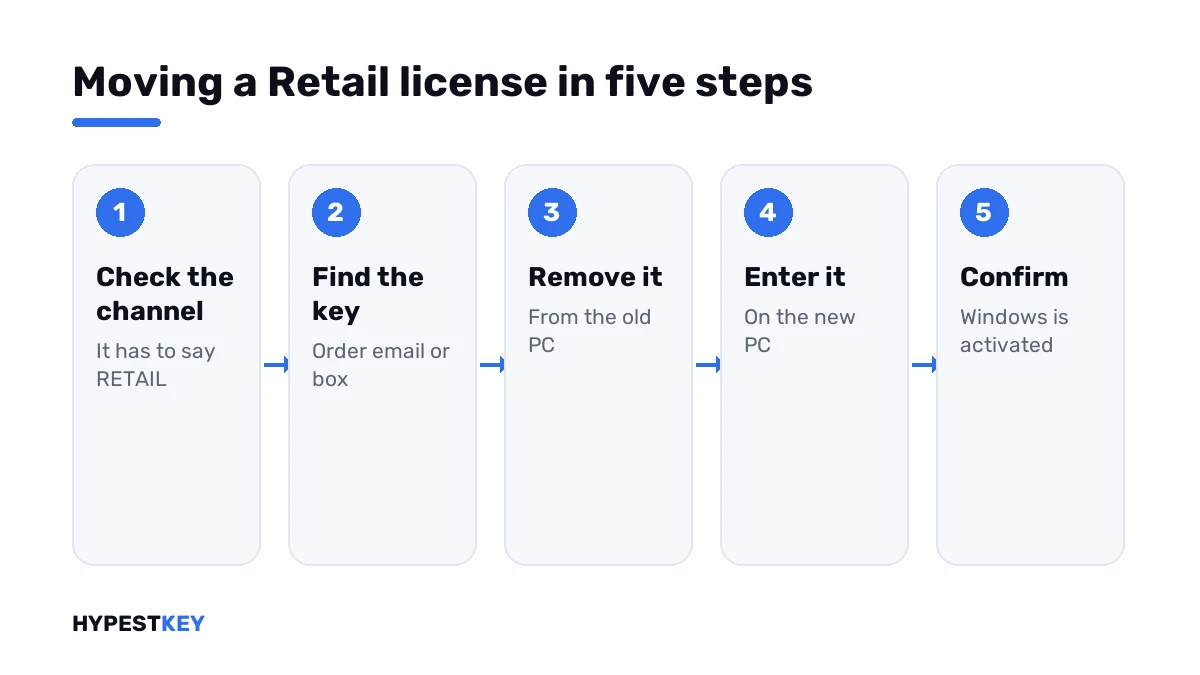
Retail confirmed? Then it’s five steps. Have the 25-character key ready before you touch the old PC.
- Find the key. It’s in the order email, or on the card in the box.
- On the old PC, open Command Prompt as administrator and remove the key. The two commands are below.
- Restart the old PC. It now reports itself as unlicensed.
- On the new PC, install the same edition. Then open Settings, System, Activation and press Change next to Change product key.
- Type the key and press Activate. Wait for “Windows is activated”.
The two commands for step 2. The first uninstalls the key, the second wipes it from the registry.
slmgr /upk
slmgr /cpky
A note on honesty. Microsoft documents both commands but publishes no step-by-step for moving a license. This sequence is what admins have used for years, and it does what the terms ask: the key leaves the old device.
On Windows 10 the last stretch reads differently. Settings, Update & Security, Activation, then Change product key.
Prefer commands on the new PC too? Same two as always, in an administrator window.
slmgr /ipk XXXXX-XXXXX-XXXXX-XXXXX-XXXXX
slmgr /ato
Four moves people actually make
| Old PC | New PC | What works |
|---|---|---|
| Self-built desktop with a Retail Pro key | New self-built desktop, empty drive | Clean install of Pro, then the key. The classic case |
| Any PC with a Retail Pro key | Laptop that shipped with Home | Enter the Pro key in Settings. The laptop switches to Pro, and the key now lives there |
| Laptop with its factory license | Anything | Nothing moves. The new PC keeps its own license or needs a key |
| PC with a Retail key that goes to a relative | Your new PC | Remove the key first. The relative’s PC then needs a license of its own |
The second row surprises people. A new laptop already has a license, so the old key isn’t needed to make it work. I’d only move it when the old key is Pro and the laptop came with Home.
How long does all this take? The commands, a minute. The activation, usually another one. A clean install on the new machine is the slow part, and I’d set aside an evening for that.
When the old PC is dead
You can’t run anything on it. Fine. It isn’t using the key either.
Enter the key on the new PC as usual. If activation refuses because the key is still tied to the old hardware, go the offline route through the Product Activation Portal. The steps are in our Windows 11 activation guide.
Digital license and a Microsoft account
No key anywhere, just a status line that mentions a digital license linked to your Microsoft account. Then the Activation troubleshooter is your tool.
- On the new PC, open Settings, System, Activation and press Troubleshoot.
- Choose “I changed hardware on this device recently” and sign in.
- Tick “This is the device I’m using right now” and press Activate.
Microsoft describes this flow for a hardware change on the same device, a new motherboard for instance. On a replacement PC, I’d expect it to work only with a Retail license behind it. An OEM license in that list won’t come across.
It also needs the same edition and the same account as before.
Clear the old PC from your account
Sold or scrapped the old machine? I’d take it off the device list too.
- Sign in to your Microsoft account on the web and open Devices.
- Pick the old PC and choose Remove device.
This tidies the list the troubleshooter shows you. It doesn’t pull the key out of that PC, so we’d still run the uninstall step first.
Errors after the move
| Code | Microsoft’s meaning, shortened | What to do |
|---|---|---|
| 0xC004C008 | The key has already been used on another device | Remove it from the old PC or activate offline; see the 0xC004C008 guide |
| 0xC004F213 | No product key was found on the device | Enter the key under Change product key; see the 0xC004F213 guide |
| 0xC004F211 | The hardware of the device has changed | Run the Activation troubleshooter |
| 0xC004C003 | The key was marked invalid | See the 0xC004C003 guide |
| 0x803F7001 | No valid license found | See the 0x803F7001 guide |
Other codes live in the activation errors list.
When the key can’t move
OEM on the old machine? Then the new PC needs its own key. That’s not a trick of ours. It’s section 4 again.
Need a key that actually sticks? Ours is Windows 11 Pro, emailed the second you pay. Staying on the older system? Windows 10 Pro is there too. We’re a trusted reseller with genuine keys.
The two kinds, side by side and in more detail: OEM vs Retail keys explained.
Before you wipe the old PC
| Do | Why |
|---|---|
| Save the key from the order email | The new PC needs the same 25 characters |
| Note the edition, Home or Pro | The new install has to match |
| Link the license to your Microsoft account | It helps if activation gets stuck later |
| Move Office separately | It has its own license; see our guide to moving Office to a new computer |
| Price the old machine | The PC price calculator gives a starting number for a listing |
Doing a fresh install on the new machine? The clean install guide covers the USB stick and the setup screens.
Mistakes we see most
| Mistake | Better |
|---|---|
| Trying to move the key that came with a laptop | It’s OEM; check the channel first |
| Leaving the key active on both PCs | One device at a time: remove it from the old one |
| Installing Home on the new PC with a Pro key in hand | Install the edition the key is for |
| Losing the order email | Save the key somewhere before the old PC goes |
| Calling the phone number on screen | Use the Product Activation Portal |
The first one is by far the most common in our chat. A laptop key looks like any other key, and nothing on the sticker says it can’t travel.
Where these steps apply
Windows 11 and Windows 10, Home and Pro, with a Retail key. Command names and quotes come from Microsoft’s pages as they read in November 2026.
Sources I checked the steps against:
- Microsoft Learn: Slmgr.vbs options
- Microsoft Support: Reactivating Windows after a hardware change
- Microsoft Support: Get help with Windows activation errors
Words on this page
| Word | Short explanation |
|---|---|
| Retail | Stand-alone software bought as a key or a box; it can move to another device you own |
| OEM | Software preinstalled by the PC maker; it stays with that device |
| Channel | The word in the license information window that names the kind of key |
| Digital license | Activation without a key, associated with the hardware |
| Product Activation Portal | Microsoft’s site for offline activation, the replacement for the phone call |
FAQ
Can I transfer my Windows 11 license to another computer?
Yes, if it's a Retail license. Remove the key from the old PC and enter it on the new one. A preinstalled OEM license stays with its machine.
How do I know if my license is Retail or OEM?
Run the license information command from the first section. The Description line ends with RETAIL channel or with an OEM name.
How many times can I move a Retail key?
The terms set no number. They do say one device at a time, and the software has to leave the old one first.
Can I use the same key on two PCs?
No. The terms forbid sharing a license between devices. The second activation usually fails with 0xC004C008.
My old computer died. Can I still use the key?
Yes, with a Retail key. Enter it on the new PC. If it refuses, activate through the Product Activation Portal.
Does an OEM license move with a new motherboard?
Usually not. The license belongs to the original device, and a new board reads as a new device. Activation then asks for a key again.
Do I need to reinstall Windows on the new PC?
No. Change the product key in Settings. A Pro key even switches a Home install to Pro after a restart.