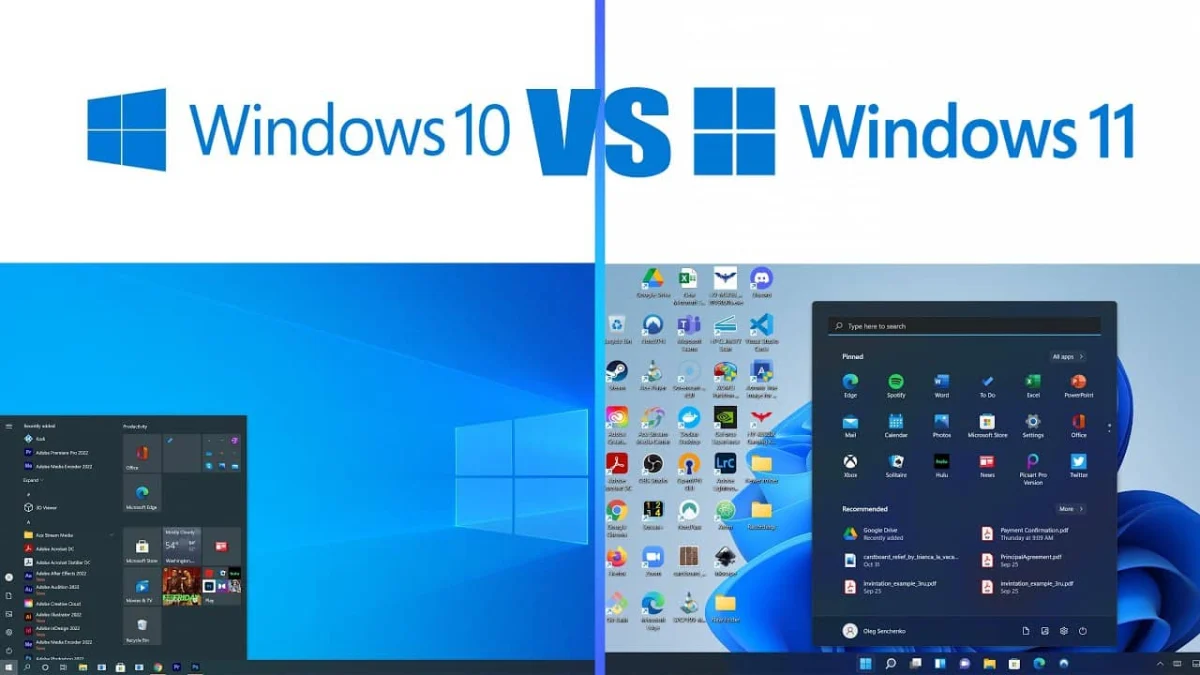
Short answer: In the Windows 11 vs Windows 10 choice, the newer system wins. Say your PC has TPM 2.0, UEFI that is Secure Boot capable and a CPU on Microsoft's list. Then the upgrade is free and keeps your files and apps. I'd run PC Health Check to find out.
In the Windows 11 vs Windows 10 choice, the newer system wins. That’s our verdict for 2026.
It’s faster on modern hybrid CPUs, better at window management and more secure by default.
If your PC meets the requirements, upgrading is worth it. It costs nothing on an eligible Windows 10 PC.
We ran both systems side by side for a long time. A newer laptop had Windows 11, and an older desktop and a family laptop stayed on Windows 10.
This page shows what really differs, where the newer system is better and where it annoys. We also cover the hardware wall and a way to decide for each PC.
- The newer system needs TPM 2.0, a UEFI PC that is Secure Boot capable and a 64-bit CPU on Microsoft’s list.
- It also needs 4 GB of RAM and 64 GB of storage.
- The upgrade from an activated Windows 10 PC that meets the requirements is free. It keeps your files and apps.
- The newer system wins on Snap Layouts, hybrid CPU scheduling, security defaults and gaming features like Auto HDR.
- Android apps on Windows 11 are gone.
Windows 11 vs Windows 10: the main differences
Windows 11 gets monthly security updates and a yearly feature update. It has a redesigned interface and better multitasking.
Its hardware requirements are stricter, and stronger security is turned on by default.
| Area | Windows 10 | Windows 11 |
|---|---|---|
| Latest version | 22H2 (final) | 25H2 |
| Feature updates | None | Once a year |
| Hardware | Runs on nearly any PC from the last 15 years | TPM 2.0, Secure Boot capable UEFI, 64-bit CPU on Microsoft’s list |
| Minimum RAM / storage | 1 GB (32-bit) or 2 GB (64-bit) / 32 GB | 4 GB / 64 GB |
| 32-bit version | Yes | No, 64-bit only |
| Start menu and taskbar | Live tiles, left-aligned | Centered by default (can move left), pinned apps and recommendations |
| Window management | Basic snapping | Snap Layouts and Snap Groups |
| Gaming extras | DirectStorage (basic) | Auto HDR, DirectStorage with an optimized storage stack |
| Android apps | No | No longer |
The requirements, and will your PC qualify
In practice, the CPU and TPM rules decide for an older PC.
| Component | Windows 11 minimum |
|---|---|
| Processor | 1 GHz or faster, 2+ cores, 64-bit, on Microsoft’s CPU list |
| RAM | 4 GB |
| Storage | 64 GB or larger |
| Firmware | UEFI, Secure Boot capable |
| TPM | Trusted Platform Module 2.0 |
| Graphics | DirectX 12 compatible, WDDM 2.0 driver |
| Display | 720p, larger than 9 inches diagonally |
| Home edition setup | Internet connection and Microsoft account |
The source is the Microsoft Windows 11 specifications page.
Generally, Intel 8th generation Core and AMD Ryzen 2000 series or newer processors are on the list. We have a 7th-gen Intel desktop that isn’t, though it runs Windows 10 just fine.
Versions from 24H2 on also need a CPU with the SSE4.2 and POPCNT instructions. That rules out some very old hardware entirely.
The PC Health Check app tells you in a minute if a PC qualifies. On the family laptop, it failed on the processor.
The TPM is the other common blocker, though often it’s just switched off.
On many desktops from 2017 onward, firmware TPM only needs to be enabled in the BIOS. Intel calls it PTT, and AMD calls it fTPM.
The same goes for Secure Boot. The PC has to be Secure Boot capable, but Secure Boot doesn’t have to be on.
Our page on how to enable Secure Boot shows the BIOS steps. The full list is in our Windows 11 requirements guide.
A PC below the requirements
Technically it installs, through workarounds that skip the hardware checks. Microsoft doesn’t back that.
Microsoft says such devices aren’t guaranteed to receive updates, including security updates. It also shows a watermark and a warning.
For a main PC, that makes it a poor alternative to fresh hardware.
We tried it on an old spare machine. It installed and ran fine for daily browsing.
Still, I wouldn’t do it on a computer that holds anything important. One feature update that refuses to install is enough to leave you stranded.
In many cases you find out at the worst moment.
Speed: is the newer system faster
On modern hardware, Windows 11 is generally a little faster. Its scheduler understands hybrid processors with performance and efficiency cores.
Intel 12th generation and newer chips are the example. The system also wakes from sleep more quickly and keeps background tasks in check better.
On older PCs the difference is small, and sometimes Windows 10 feels lighter.
We found our newer laptop snappier on Windows 11, thanks to its Intel hybrid CPU. That showed most with a video editor and far too many browser tabs open.
Thread Director sends background work to the efficiency cores. The performance cores stay free for what you’re doing.
Windows 10 never got that tuning. Battery life improved noticeably for us too.
Sleep and wake were the most obvious difference. The Windows 10 laptop sometimes took ages to wake and occasionally needed a reboot.
On Windows 11 it comes back almost instantly. Random fan spins from mystery background CPU spikes also became rarer.
On the older desktop, though, we saw no real difference. That matches what most people report.
It’s no magic speed boost for old hardware. A PC that’s slow on Windows 10 will typically be slow on Windows 11 as well.
An SSD or more RAM will do far more than the operating system.
| Hardware | What we saw |
|---|---|
| Laptop with an Intel hybrid CPU | Snappier under load, faster wake, better battery life |
| Older desktop | No real difference |
| Any slow PC | An SSD or more RAM helps more than the system version |
Features that make a difference
These are the ones that matter most in daily use.
| Feature | What it gives you |
|---|---|
| Snap Layouts and Snap Groups | A quick way to arrange windows |
| Virtual desktops | Separate wallpapers for each desktop |
| Touch and pen | A better experience on tablets |
| File Explorer tabs | Fewer open windows |
| Microsoft Store | A much improved app shop |
The redesigned Start menu and centered taskbar get the attention. They’re mostly a matter of taste.
Snap Layouts and Snap Groups
Hover over a window’s maximize button, and a set of layouts appears. You get halves, thirds or quarters, depending on screen size.
We use the three-pane layout all the time: code editor on the left, browser top right, terminal bottom right.
Snap Groups then remember the arrangement. Clicking one of those windows in the taskbar brings back the whole set.
Windows 10 has basic snapping, but going back to it feels clumsy.
Virtual desktops, tabs and touch
Virtual desktops got better. Each can have its own wallpaper, so a work desktop can stay plain while a personal one gets the cat picture.
File Explorer finally has tabs, which saves a stack of open windows.
Touch stopped being an afterthought, with bigger targets and better gestures. On a Surface the system is now usable with no keyboard.
The tablet mode in Windows 10 was painful by comparison.
Design: the new look
The first boot looks like a macOS clone. There’s a centered taskbar, a floating Start menu without live tiles, rounded corners everywhere and softer sounds.
Our muscle memory protested for about a week.
You can move the taskbar icons back to the left. The switch sits under Settings, Personalization, Taskbar, Taskbar behaviors.
Dark mode is far more consistent too. In Windows 10, half the dialogs stayed white.
Microsoft Store and apps
The Store in Windows 10 was widely ignored. In Windows 11 it’s usable: faster and cleaner.
It carries regular desktop apps, not just the old UWP apps.
- Firefox
- OBS Studio
- VLC
App updates happen quietly in the background.
One correction applies to older articles, including the first version of this one. Running Android apps through the Amazon Appstore is over.
Microsoft has ended the Windows Subsystem for Android.
Security
The newer system is more secure. Its hardware baseline lets Microsoft turn on protections by default.
| Item | Details |
|---|---|
| Hardware baseline | TPM 2.0, Secure Boot capable UEFI, newer CPUs |
| On by default | Virtualization-based security and memory integrity on hardware that qualifies, device encryption on more PCs, Windows Hello sign-in |
Virtualization-based security isolates sensitive parts of the system in protected memory. So malware has a harder time reaching credentials or the kernel.
Windows 10 could do this too, but rarely had it enabled. On fresh Windows 11 PCs it’s usually on out of the box.
Device encryption is more common as well. Clean installs of recent versions turn it on automatically on hardware that qualifies.
That includes the Home edition, as long as you sign in with a Microsoft account.
With device encryption on, your BitLocker recovery key is saved to your Microsoft account. I’d check it at account.microsoft.com before swapping hardware or resetting the BIOS. A TPM change then can’t lock you out.
We also found Windows Hello face and fingerprint sign-in more reliable. The Windows 10 laptop used to forget a face after certain updates.
Privacy settings are more detailed too, with clearer descriptions of each permission.
Gaming
For gaming, the newer system is the better choice in 2026.
| Feature | What it does |
|---|---|
| Auto HDR | Adds HDR to many DirectX 11 and 12 games on an HDR display |
| DirectStorage | An optimized storage stack for faster loading from NVMe SSDs |
| Hybrid CPUs | Better scheduling across performance and efficiency cores |
Many fresh games and anti-cheat systems also target Windows 11 first.
Auto HDR surprised us most. Older titles look noticeably richer on an HDR monitor, with nothing changed in the game.
DirectStorage technically exists on Windows 10 as well. Microsoft built the faster storage stack into Windows 11, though, and only a limited number of games use it so far.
The Xbox app and Game Pass feel more native too. An Xbox controller pairs faster, with fewer random disconnects.
A friend who plays competitive shooters swears input feels quicker on Windows 11. We can’t measure that, so take it as one person’s impression.
How to upgrade
Your files, apps and activation carry over.
- Run PC Health Check and fix any TPM or Secure Boot item it flags in the BIOS.
- Make sure Windows 10 is on version 2004 or later. Version 22H2 is best.
- Back up your documents to an external drive or OneDrive.
- Open Settings, Update & Security, Windows Update and select Check for updates.
- When “Upgrade to Windows 11 is ready” appears, choose Download and install.
- Let the PC restart several times.
If no offer appears, download the Installation Assistant from Microsoft’s download page.
Afterwards, look under Settings, System, Activation. A digital license moves over automatically.
Your current edition decides the edition you get: Home becomes Home, and Pro becomes Pro.
| The in-place upgrade keeps | Still worth doing |
|---|---|
| Your files | A backup, in case the upgrade fails or the disk acts up |
| Your apps and most settings | A note of the apps you rely on |
| Your activation | A look at the Activation page afterwards |
For a fresh start, our page on a clean Windows 11 installation covers the USB method.
A rollback option stays for 10 days. After that, our page on going back from Windows 11 to Windows 10 explains a clean downgrade.
Need a key? Our Windows 11 Pro key comes as a genuine license. We email it instantly after payment.
It’s handy for a fresh build or a PC that never had an activated Windows 10.
Upgrade or stay
Upgrade if your PC meets the requirements. It’s free, and it’s better on almost every front.
Stay on Windows 10 only if the PC can’t run the newer system and you need a while before replacing it.
Workarounds for PCs below the requirements are best kept to spare machines.
| Your situation | Best move |
|---|---|
| PC passes PC Health Check | Upgrade to Windows 11 now, free |
| Fails only on TPM or Secure Boot | Enable fTPM/PTT and UEFI in the BIOS, then upgrade |
| Fails on the processor | Plan a replacement PC |
| Old PC used offline for one task | Windows 10 can stay, ideally disconnected from the internet |
| Building or buying a PC | Windows 11; Pro if you need BitLocker management, Remote Desktop host or Hyper-V |
| Business with many PCs | A staged rollout of Windows 11 |
Not sure about the edition? Our comparison of Windows 11 Home vs Pro breaks it down.
After a long stretch of daily use, Windows 11 feels like a more polished younger sibling of Windows 10. One that went to design school.
It’s an evolution, not a revolution. We run it on all our main machines and haven’t looked back.
The family laptop that failed the check is getting a replacement.
Mistakes we see most
- Expecting the upgrade to speed up an old PC.
- Giving up when PC Health Check fails, with the TPM only switched off in the BIOS.
- Thinking Secure Boot has to be on. The PC only has to be capable.
- Skipping the backup because the upgrade keeps files.
- Forcing the install on a main PC below the requirements.
- Waiting past day 10 to decide about going back.
- Counting on Android apps that are no longer there.
- Buying a new license for a PC whose digital license would have moved over.
Terms used on this page
| Term | Meaning |
|---|---|
| TPM 2.0 | The security chip or firmware that stores keys apart from normal memory |
| fTPM, PTT | Firmware TPM on AMD and Intel boards |
| Secure Boot | The UEFI feature that blocks unsigned boot code |
| PC Health Check | Microsoft’s app that tests a PC against the requirements |
| Hybrid CPU | A processor with performance cores and efficiency cores |
| Thread Director | Intel’s guidance that helps the scheduler place work on the right cores |
| Snap Layouts | The preset window arrangements on the maximize button |
| Snap Groups | Remembered sets of snapped windows |
| Auto HDR | HDR added automatically to many older games |
| DirectStorage | Faster game loading straight from NVMe SSDs |
| In-place upgrade | An upgrade that keeps files, apps and most settings |
| Installation Assistant | Microsoft’s tool that upgrades the PC it runs on |
| Digital license | An activation tied to your hardware |
A few cases from support
The laptop that failed on the CPU
PC Health Check refuses a family laptop on the processor. No setting fixes that. The owner keeps it going and shops for a replacement.
The TPM that was only off
A 2018 desktop fails the check on TPM. The firmware TPM is disabled in the BIOS. Enabled, the PC passes and upgrades for free.
The spare machine
We force the install on an old spare PC. It browses fine. We still wouldn’t trust it with anything important.
The expected speed boost
Someone upgrades a slow desktop hoping for speed. It’s just as slow. An SSD makes the real difference.
The second thoughts
A user dislikes the new taskbar after a week. The Go back option is still there on day eight. One setting moves the icons left, and the upgrade stays.
Where we tested this
| Item | Details |
|---|---|
| Upgrade path | Windows 10 Home and Pro 22H2 upgraded in place to Windows 11 24H2 and 25H2 |
| Hardware | A laptop with an Intel hybrid (12th generation or newer) CPU, and an older 7th-generation Intel desktop that fails the check |
| Menu paths | Written as they appear in Windows 10 22H2 and Windows 11 25H2; on 24H2 they are the same |
FAQ
Is the Windows 11 upgrade still free in 2026?
Yes, for a PC running an activated copy of Windows 10 that meets the requirements. The upgrade comes through Windows Update or the Installation Assistant. I'd expect the digital license to carry over to the matching edition.
What happens if I keep using Windows 10?
It keeps working. Over time, browsers, apps and drivers stop being built for it. I'd plan the move before that turns urgent.
Will my files and programs be deleted when I upgrade to Windows 11?
No. An in-place upgrade keeps your files, apps and most settings. I'd still make a backup, because a failed upgrade or a disk problem can happen. A clean install, by contrast, does erase the drive.
Can I go back to Windows 10 after upgrading?
Yes, within 10 days of the upgrade. Open Settings, System, Recovery and choose Go back. After those 10 days the rollback files are removed. Then I'd need a clean install from USB to get back.
Why does PC Health Check say my PC can't run Windows 11?
Three reasons are common: a processor off Microsoft's list, TPM 2.0 switched off in the BIOS, or legacy BIOS mode. TPM and UEFI can often be fixed in the firmware settings. A CPU that isn't on the list can't be fixed, so I'd check that first.
Is Windows 11 slower than Windows 10 on older PCs?
Usually the difference is small. On older hardware the newer system isn't faster, and on modern hybrid CPUs it's generally a bit quicker. I'd put an SSD and 8 GB or more of RAM far ahead of the version.