Short answer: Windows 11 for gaming performs the same on Home and Pro. Both get DirectX 12 Ultimate, Auto HDR, DirectStorage, Game Mode and the Xbox app. Frame rates match on identical hardware. Pro adds Hyper-V, Windows Sandbox, BitLocker and Remote Desktop hosting, so you'd pick it only if you need those tools.
Windows 11 for gaming works the same on Home and Pro: same games, same DirectX 12 Ultimate, Auto HDR and DirectStorage, same frame rates on the same hardware. Pro only adds work tools like Hyper-V, BitLocker and Remote Desktop hosting. For a pure gaming PC, Home is enough.
| Gaming question | Windows 11 Home | Windows 11 Pro |
|---|---|---|
| Games, DirectX 12 Ultimate, Auto HDR, DirectStorage | Yes | Yes |
| Game Mode, Xbox Game Bar, Xbox app, PC Game Pass | Yes | Yes |
| Maximum RAM | 128 GB | 2 TB |
| Hyper-V and Windows Sandbox | No | Yes |
| BitLocker, Remote Desktop host, domain join | No | Yes |
| Who we’d give it to | Gamers, streamers on one PC | Gamers who also run VMs or work from this PC |
Windows 11 for gaming: Home or Pro, the short answer
Home. For most people, anyway.
The edition label doesn’t touch the graphics stack. Both editions use the same drivers, the same DirectX and the same Xbox apps, so a game sees no difference. The money you’d spend on Pro buys more in a faster SSD or a better GPU.
Pro earns its place when the gaming PC is also a work PC. We mean virtual machines, an encrypted drive for client files, remote access from a laptop. That’s the list.
Windows 11 Home vs Pro for gaming: what really differs
Not performance. Capacity and tools.
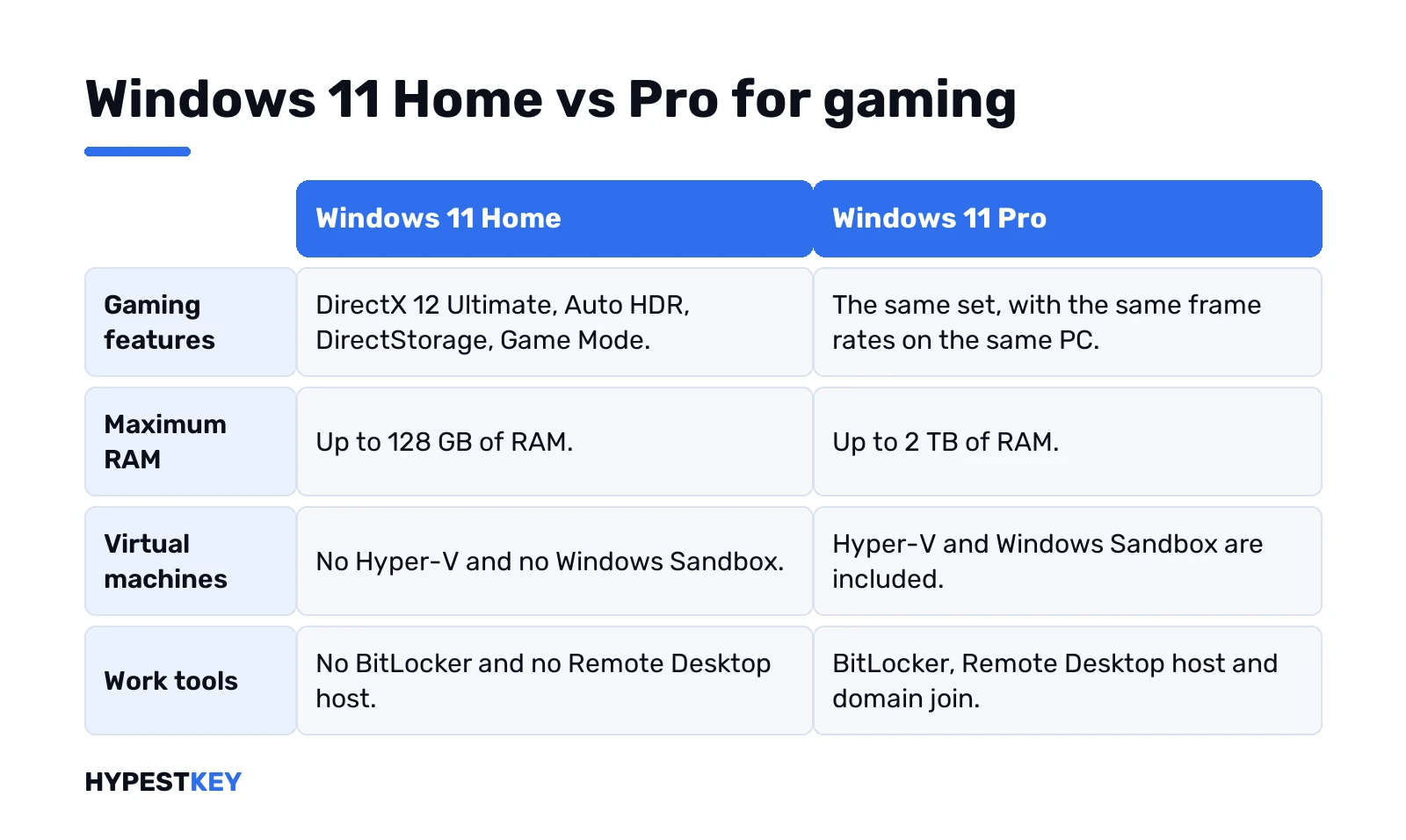
- RAM ceiling. Microsoft’s memory limits table puts Home at 128 GB and Pro at 2 TB. No game comes close to 128 GB.
- Hyper-V. Pro and Enterprise only. Home can’t install it.
- Windows Sandbox. Same story, not on Home.
- BitLocker and Remote Desktop host. Pro adds both, plus joining a work domain.
Everything a game calls is on both. Our full Windows 11 Home vs Pro comparison covers the business side, and the guide to all Windows 11 editions has the rest of the family.
Pro features a gamer might use
A few, for some people. We’d go through them honestly.
- Hyper-V. Handy for testing mods or a second OS. It needs a 64-bit CPU with SLAT and at least 4 GB of memory, per Microsoft’s Hyper-V setup page.
- Windows Sandbox. Opens a throwaway desktop. Good for a tool you don’t trust yet; close it and everything inside is gone.
- BitLocker. Full-drive encryption. Our BitLocker on Windows 11 guide explains the recovery key part, which matters more than the switch.
- Remote Desktop host. Lets you reach the gaming rig from another PC. Not for streaming games, though.
Note the trade-off on Hyper-V. Some virtualization apps clash with it, so we’d leave it off unless you need VMs.
Built-in gaming features on both editions
This is where the newer system shines. All of it ships on Home and Pro alike.
| Feature | What it does | What it needs |
|---|---|---|
| DirectX 12 Ultimate | Ray tracing for reflections, shadows and refractions | Supported games and graphics chips, current drivers |
| Auto HDR | Turns SDR games into HDR | An HDR monitor, games on DirectX 11 or later |
| DirectStorage | Shorter loading times | An NVMe SSD, a DirectX 12 GPU with Shader Model 6.0, games that use the API |
| Optimizations for windowed games | Lower latency in windowed DirectX 11 and later games | A switch in graphics settings |
These come from Microsoft’s Windows 11 PC gaming page. Notice the pattern: hardware and the game itself decide, not the edition.
Game Mode and the graphics switches
Two places in Settings. Both take a minute.
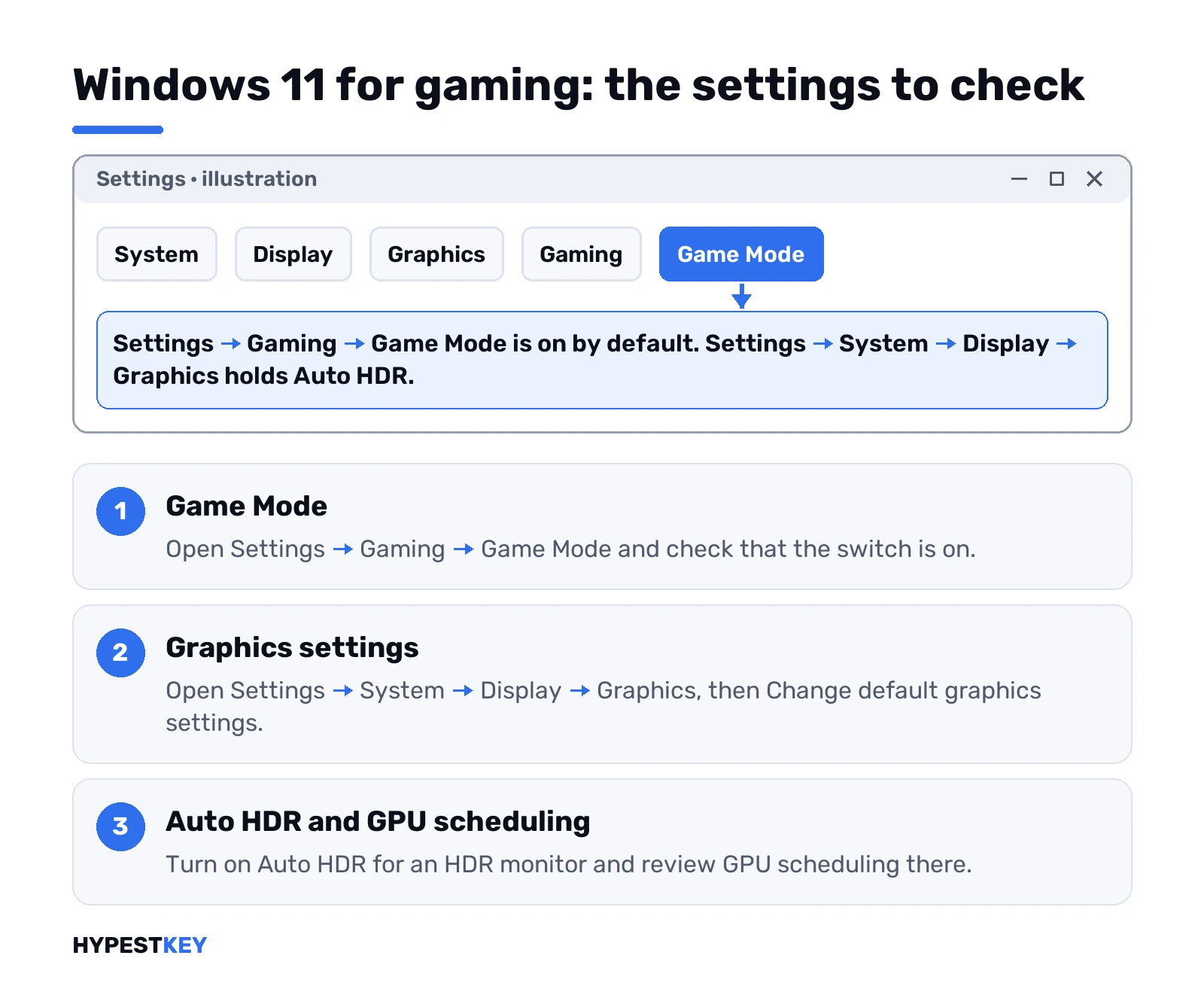
- Settings, Gaming, Game Mode. On by default. It pushes background work aside while you play.
- Settings, System, Display, Graphics. Here live hardware-accelerated GPU scheduling, optimizations for windowed games and Auto HDR, under “Change default graphics settings”.
Then the graphics driver. Straight from NVIDIA, AMD or Intel, kept current. DirectX 12 Ultimate features need it anyway.
Curious whether the hardware is the limit, not Windows? Our bottleneck calculator and the FPS calculator give a rough picture. The monitor refresh rate test shows whether 144 Hz is really 144.
Checking DirectStorage on your PC
Quick one. Press Win + G for the Xbox Game Bar.
Gear icon. Then “Gaming Features”. It lists whether your drive and GPU qualify. An old SATA drive won’t, an NVMe SSD usually will.
Game Bar, the Xbox app and PC Game Pass
Built in, same on both editions.
Game Bar handles volume, music and a performance overlay without leaving the game. The Xbox app is where PC Game Pass lives. You’d pay for Game Pass separately. The catalog? It changes over time and by region.
What the PC needs
Windows 11 runs on 64-bit processors only. No 32-bit version exists.
Beyond that, the usual list. TPM 2.0, Secure Boot capable firmware, a supported CPU. We cover the details in our Windows 11 requirements guide, and what TPM 2.0 is explains the chip people get stuck on. Games add their own needs. Check each store page.
Planning RAM? We’d size it with the RAM calculator rather than guess.
Windows 11 vs Windows 10 for gaming
Auto HDR is Windows 11 only. DirectStorage and the windowed-game optimizations sit on the Windows 11 feature list too.
So on a PC that passes the requirements, we’d game on 11. Our Windows 11 vs Windows 10 comparison goes through everything else that changes.
N editions and gaming
One trap. N editions ship without the media components.
Microsoft’s pack page is blunt about it. Without the Media Feature Pack, Game Bar and Game DVR don’t work properly on N. Install the pack from Optional features and restart. Our page on the Windows N edition has the steps.
Moving from Home to Pro later
No reinstall needed. Games and saves stay.
Settings. System. Activation. “Change product key”, then the 25-character Pro key. The PC restarts as Pro. If you’re setting up a new rig from scratch, installing Windows 11 on a new PC and activating Windows 11 cover the full path.
Which Windows 11 edition to buy for a gaming PC
- Just games, Discord, a browser. Home.
- Streaming from the same PC. Still Home. Streaming apps don’t ask for Pro.
- Games plus VMs, Sandbox or client work. Pro.
- A workstation board with huge RAM. Look at Pro for Workstations vs Pro.
Our pick for a plain gaming build is a Windows 11 Home key, a genuine retail license sent instant to email. Need the extras? The Windows 11 Pro key is the same deal.
Related guides
FAQ
Does Pro give more FPS than Home?
No. Same drivers, same DirectX, same games, so frame rates match on the same hardware.
Is Home enough for a gaming PC with 64 GB of RAM?
Yes. Home handles up to 128 GB of RAM, twice that amount, and every gaming feature is included.
Can I use Hyper-V on Home for a test VM?
Nope. Hyper-V and Windows Sandbox are Pro features, so you'd need to upgrade the edition first.
Where do I turn on Game Mode?
Settings, Gaming, Game Mode. It should be on by default, so usually there's nothing to do.
Auto HDR isn't showing up, why?
It needs an HDR monitor and a game on DirectX 11 or later. Then look in Settings, System, Display, Graphics.
Will I lose my games going from Home to Pro?
No. It's a key change in Settings, Activation, with a restart, and games and saves stay where they are.
Is Game Bar broken on my N edition?
Probably the missing Media Feature Pack. Install it from Optional features, restart, and Game Bar works normally.