Short answer: To see what version of Windows you have, press Win + R, type winver and press Enter. The About box shows version, OS build and edition. For 32-bit or 64-bit, open Settings, System, About. Then the build: you'd read 22000 or higher on Windows 11, and below 20000 on Windows 10.
To answer “what version of Windows do I have”, press Win + R, type winver and press Enter: the About Windows box shows the version, the OS build and the edition in one line or two. Need 32-bit or 64-bit too? Settings, System, About has that, plus everything winver shows.
| Method | How to open it | What it shows |
|---|---|---|
| winver | Win + R, type winver, Enter | Version, OS build, edition |
| Settings, About | Start, Settings, System, About | Edition, version, OS build, system type, RAM, processor |
| System Information | Search for msinfo32 | OS name, version, build, BIOS mode and more |
| Command line | systeminfo in Command Prompt or PowerShell | OS Name and OS Version lines |
| Licensing details | slmgr /dlv | The edition ID, for example EnterpriseS on LTSC |
What version of Windows do I have: the four quick checks
Four places, same answer. They differ in how much they show. Microsoft’s own page on finding the Windows version makes the same point: each method gives a different set of details.
- winver. Fastest. A small box, nothing else.
- Settings, About. The one we’d open first on a laptop you just bought.
- System Information. Handy when a requirement check also needs BIOS mode.
- Command line. For remote sessions, scripts, or a support chat where you paste text.
Pick by what you need next. Buying a key? Edition matters most. Planning an upgrade? Version and build.
Check your Windows version with winver
Keyboard first. Win + R opens Run.
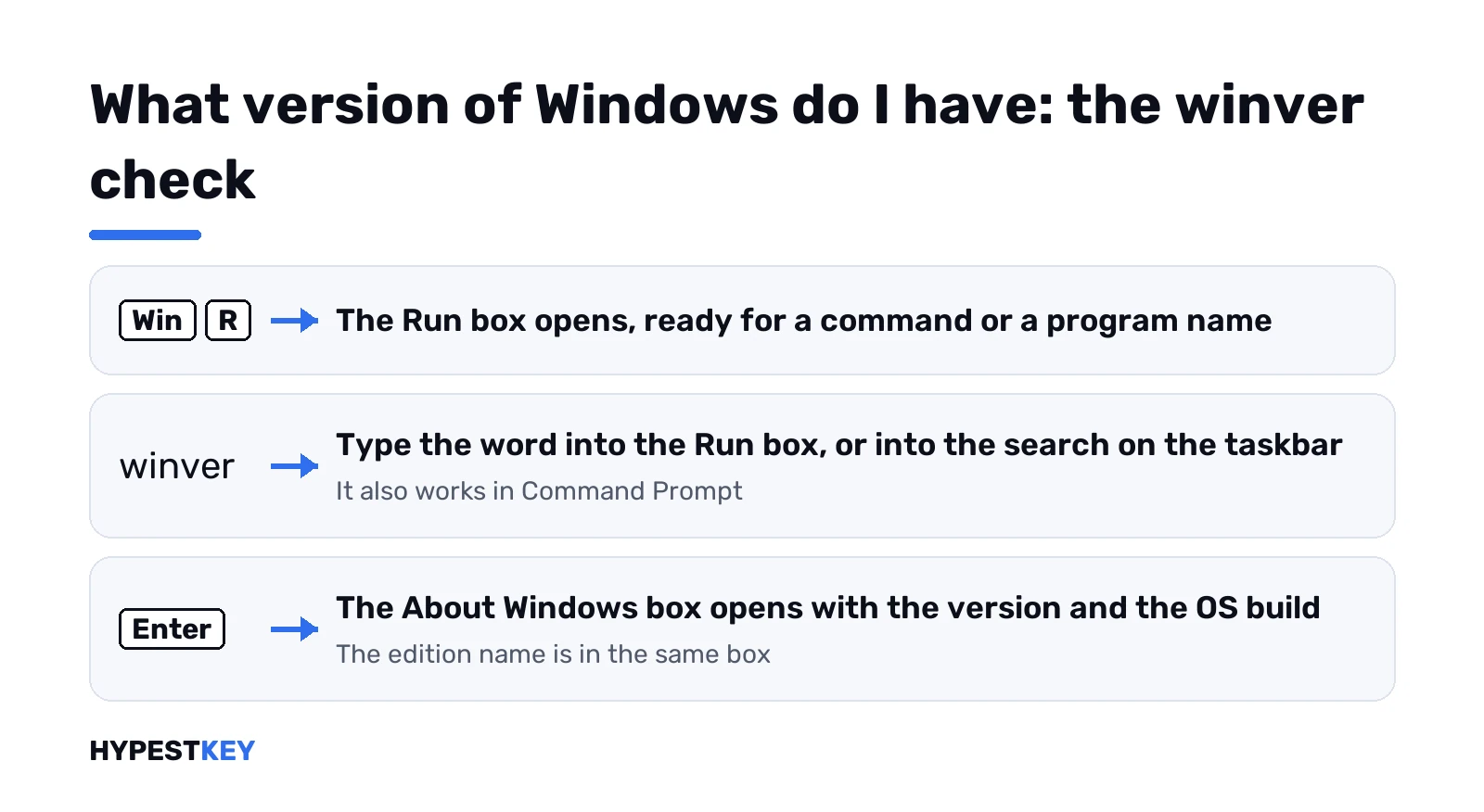
Then type this and press Enter:
winverThe About Windows box opens. Top line: the version and the OS build, something like Version 24H2 next to an OS Build number. The edition name is in the same box, a little lower.
No Run box? Type winver straight into the search on the taskbar. Same result. It also works from a Command Prompt window, so we’d keep it in mind for remote help.
Settings, System, About: edition, version and build
Right-click Start. Settings. System. About.
Two blocks matter here:
- Device specifications. Processor, installed RAM and System type. That last line says 32-bit or 64-bit.
- Windows specifications. Edition, Version and OS build.
We’d trust this page over any third-party tool. Microsoft’s own help article on the About page points to the same screen.
Edition, version and OS build: what each line tells you
People mix these three up all the time. Fair enough, they sit right next to each other.
| Line | Example | What it answers |
|---|---|---|
| Edition | Windows 11 Pro | Which licence you need. Home, Pro, Enterprise, Education and so on |
| Version | 24H2 | Which yearly feature update is installed |
| OS build | 26100.xxxx | The exact patch level. The part after the dot grows with monthly updates |
| System type | 64-bit operating system | Which installer and which apps fit |
For keys, only the edition counts. A Pro key won’t activate Home, and the reverse doesn’t work either. Our guide to the Windows 11 editions walks through all of them, and Windows 11 Home vs Pro covers the pair most people choose between.
Windows 10 or Windows 11? The build number decides
Short rule. Windows 11 builds start at 22000. Windows 10 builds stay below 20000.
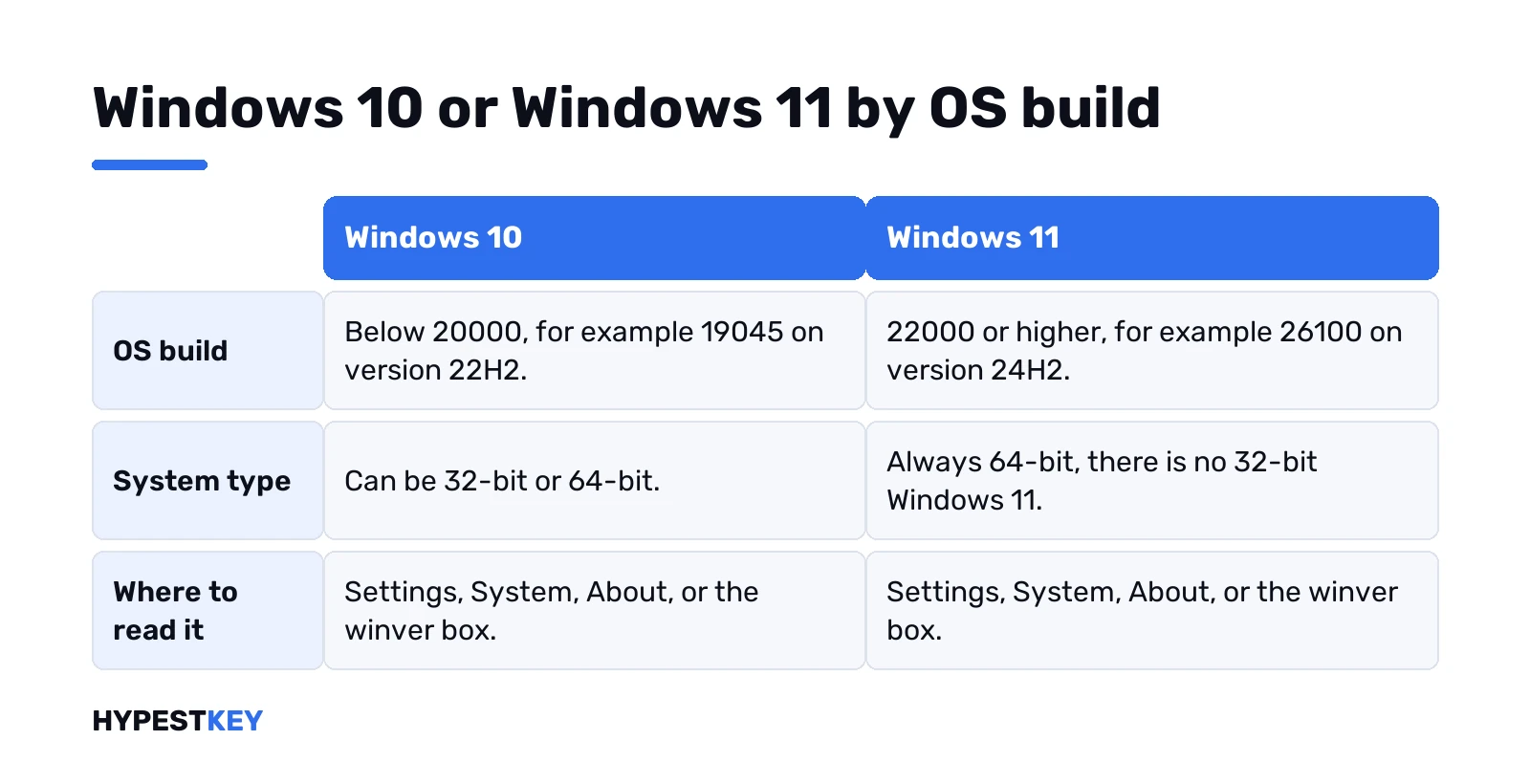
So an OS build of 19045 means Windows 10, and 26100 means Windows 11. The edition line usually says it outright as well. We’d still look at the build, since it can’t be misread.
Moving from one to the other? Read our Windows 11 vs Windows 10 comparison first, then the Windows 11 requirements for your hardware.
Windows version and build numbers at a glance
Here’s the lookup table, taken from Microsoft’s Windows 11 release information and the matching Windows 10 page. Match the first five digits of your OS build.
| Windows | Version | OS build starts with |
|---|---|---|
| Windows 11 | 26H2 | 26300 |
| Windows 11 | 26H1 | 28000 |
| Windows 11 | 25H2 | 26200 |
| Windows 11 | 24H2 | 26100 |
| Windows 11 | 23H2 | 22631 |
| Windows 11 | 22H2 | 22621 |
| Windows 11 | 21H2 | 22000 |
| Windows 10 | 22H2 | 19045 |
| Windows 10 | 21H2, also LTSC 2021 | 19044 |
| Windows 10 | 21H1 | 19043 |
| Windows 10 | 20H2 | 19042 |
| Windows 10 | 2004 | 19041 |
| Windows 10 | 1909 | 18363 |
| Windows 10 | 1809, also LTSC 2019 | 17763 |
| Windows 10 | 1607, also LTSB 2016 | 14393 |
Notice the two numbering styles. Older releases used year and month, newer ones use the half of the year. Nothing to worry about there.
Is my Windows 32-bit or 64-bit?
Settings, System, About again. Look at System type under Device specifications.
It reads something like “64-bit operating system, x64-based processor”. On Windows 11 the answer is always 64-bit, because there’s no 32-bit Windows 11 at all. On Windows 10 both exist.
On older machines a 32-bit copy is possible. The processor part of the same line tells you, x64-based or x86-based.
Finding the Windows version from Command Prompt or PowerShell
Good for remote work. Open either window and run:
systeminfo | findstr /B /C:"OS Name" /B /C:"OS Version"Two lines come back. OS Name holds the edition, OS Version holds the build number.
Want the full licensing picture instead? This one opens a small window:
slmgr /dlvIt shows the edition ID among other licence details. On an LTSC machine it reads EnterpriseS, which is how we’d spot LTSC fast.
And System Information? Type msinfo32 in the search box. OS Name and Version sit near the top of System Summary. A few rows down you’ll find BIOS Mode and Secure Boot State, handy for a TPM 2.0 and Secure Boot check.
Home, Pro, N or LTSC: reading the edition
The edition line is plain text. Still, a few names cause questions in our chat.
- Pro N or Home N. No built-in media apps. Our Windows N edition explainer has the details.
- LTSC. Built for specialised devices. Microsoft Store and Edge, among many in-box apps, aren’t included.
- Pro for Workstations. A separate edition with its own key.
- Home with an S mode note. Apps only from the Store until you switch out.
Home and want Pro features? Upgrading Home to Pro needs only a Pro key, no reinstall.
Windows in a virtual machine on a Mac
Same steps, inside Windows. A Mac itself runs macOS, so there’s no Windows version to find on it until you install one.
Running Windows in a VM? Open it. Press Win + R there, or use the About page. Our page on running a Windows virtual machine on a Mac covers the setup side.
What to do once you know your Windows version
Usually one of three things. Check that it’s activated, upgrade, or buy the right key.
- Activation. Settings, System, Activation. Our guide to checking Windows activation status explains each message.
- Upgrade. On build 19045 with hardware that passes, we’d move on. The Windows 11 activation guide covers what happens after.
- Office. Different product, different check. See all Microsoft Office versions for that.
Need a licence for the edition you found? We sell a Windows 11 Pro key as a genuine retail licence, instant to email.
Related guides
FAQ
Fastest way to see my Windows version?
Win + R, then winver and Enter. The About Windows box shows version, OS build and edition.
Is it Windows 10 or 11, how can I tell for sure?
Look at the OS build. Windows 11 starts at 22000, Windows 10 stays below 20000.
Where do I see 32-bit or 64-bit?
Settings, System, About. The System type line under Device specifications says it.
Edition and version, what's the difference?
Edition is Home, Pro and so on, and decides which key fits. Version is the feature update, like 24H2.
Can I check the version from Command Prompt?
Yes. Run systeminfo and read the OS Name and OS Version lines in the output.
My PC says EnterpriseS, what is that?
That's the edition ID of LTSC. It ships without many in-box apps, including Microsoft Store.
Does the version tell me if Windows is activated?
No. Activation has its own check in Settings, System, Activation, with a separate status line.