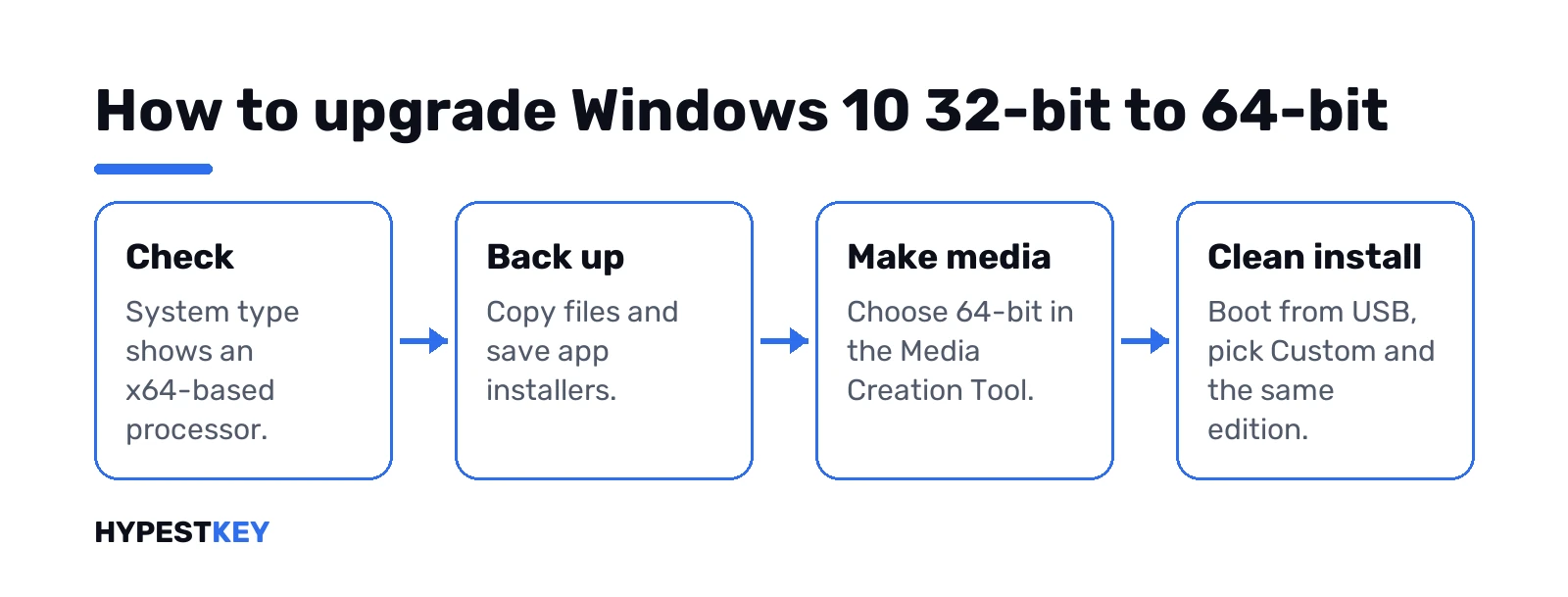
Short answer: Upgrade Windows 10 32 bit to 64 bit only with a clean install, we'd say, since no in-place path exists. Check that System type shows an x64-based processor. Back up your files. Build 64-bit media with the Media Creation Tool, boot from it, choose Custom and the same edition. The license activates again; programs need reinstalling.
To upgrade Windows 10 32 bit to 64 bit you need a clean install, because Microsoft has no in-place switch between the two architectures. The drive gets reformatted. Files come back from a backup, apps get reinstalled. Same edition, same license, and on most PCs from the last decade the processor is already 64-bit.
- Check the processor. Settings, System, About. “x64-based processor” next to System type means you can switch.
- Back up everything. Files, browser data, licence keys for paid apps.
- Collect 64-bit drivers. Network adapter first, the rest after.
- Make 64-bit media. Media Creation Tool, USB stick of 8 GB or more.
- Boot from the stick and choose Custom. Delete the old partitions, install to the empty space.
- Skip the product key if Windows was activated. Activation comes back on its own once you’re online.
Check whether your PC can run 64-bit Windows 10
One screen tells you both things. Settings, then System, then About.
Look at the line called System type under Device specifications. It shows two values side by side: the operating system and the processor. The combination you hope for is “32-bit operating system, x64-based processor”. That PC can take 64-bit Windows 10 today.
- 32-bit operating system, x64-based processor. Good news. Carry on with this guide.
- 32-bit operating system, x86-based processor. The chip itself is 32-bit. No upgrade is possible on this machine.
- 64-bit operating system, x64-based processor. You’re already there. Nothing to do.
Almost all modern devices have a CPU that can run 64-bit Windows. Old netbooks and cheap tablets? Those are the usual exceptions. Want to double-check what you run before touching anything? We cover winver, build numbers and editions in our guide on what version of Windows you have.
What really changes between 32-bit and 64-bit Windows 10
Memory is the big one. A 32-bit copy of Windows 10 stops at 4 GB of RAM, whatever the edition.
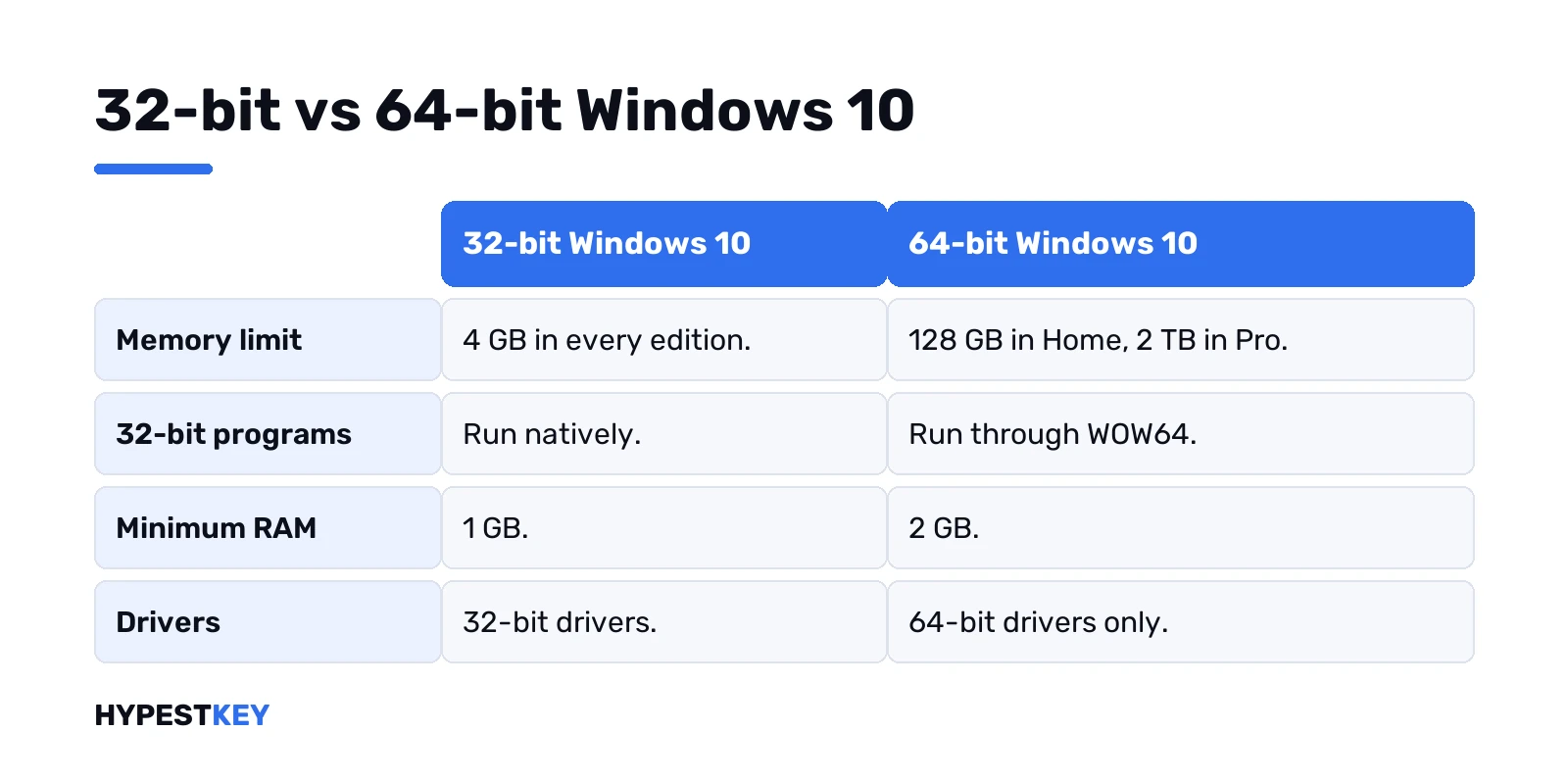
| Windows 10 edition | Memory limit, 32-bit | Memory limit, 64-bit |
|---|---|---|
| Home | 4 GB | 128 GB |
| Pro | 4 GB | 2 TB |
| Education | 4 GB | 2 TB |
| Pro for Workstations | 4 GB | 6 TB |
| Enterprise | 4 GB | 6 TB |
8 GB installed on a 32-bit system? Half of it sits idle. Worse, in fact. Graphics cards and other devices map memory below the 4 GB line, and a 32-bit client copy loses that part too.
- Programs. 32-bit apps keep running on 64-bit Windows through WOW64, built in and switched on by default. Their folder is Program Files x86, next to the normal one.
- Old 16-bit apps. These won’t start on 64-bit Windows at all. Very old installers sometimes hide one inside.
- Drivers. Every driver on 64-bit Windows has to be a 64-bit version, and kernel-mode drivers must be signed. A 32-bit printer or scanner driver won’t load.
- Per-app memory. A 32-bit program normally gets 2 GB of address space. On 64-bit Windows it can reach 4 GB if it’s built for it.
The benefit shows up mostly from about 4 GB of RAM and above. Below that, we’d still switch, but don’t expect miracles.
Before you upgrade Windows 10 32 bit to 64 bit: backups, drivers and the key
The install wipes the system drive. Everything not copied elsewhere is gone, so this part matters more than the install itself.
- Files. Documents, Desktop, Pictures, Downloads. An external drive or OneDrive both work.
- Browser. Sign in to sync, or export bookmarks and passwords.
- Apps. Write down what you use. Save the installers and licence keys for paid software.
- Office. Note how it’s licensed. Picking the bitness of Office comes later, see Office 32-bit vs 64-bit.
- Drivers. Download the 64-bit network driver from the PC maker’s site and keep it on the USB stick or a second one.
- Windows key. Check activation first. Sign in with a Microsoft account so the digital license is linked to it.
Not sure whether your copy is activated? Our activation status check shows where to look. A product key is worth having too; here’s how to find the Windows 10 product key before the drive is erased.
Make 64-bit Windows 10 installation media
Download the Media Creation Tool from Microsoft’s Windows 10 download page. Run it as an administrator.
- Accept the licence terms.
- Pick “Create installation media for another PC”.
- Set language, edition and architecture. Choose 64-bit, not 32-bit.
- Choose a USB flash drive of at least 8 GB. Anything on it gets deleted.
Architecture is the classic trap here. Pick 32-bit by habit and you’ve built the same system again. Prefer an ISO? Pick it in the last step and write it to a stick later. We go through every screen in our Media Creation Tool guide. The stick itself: creating a bootable Windows 10 USB. Other official options are on our Windows 10 download page.
Clean install of 64-bit Windows 10, step by step
Running the 64-bit setup from inside 32-bit Windows doesn’t work. You boot from the stick instead.
- Plug in the USB drive and restart. Open the boot menu or change the boot order; entering the BIOS or UEFI shows the keys for most brands.
- Pick language and keyboard, then Install now.
- Activation screen: choose “I don’t have a product key” if this PC was activated before. Otherwise type your key.
- Choose the same edition you had. Home stays Home, Pro stays Pro.
- Choose Custom, not Upgrade.
- Delete the partitions of the old system drive, select the unallocated space, then Next.
- Finish the setup screens and sign in with your Microsoft account.
Careful with step six. Delete only the partitions on the drive that held Windows. A second data disk should stay untouched; we’d unplug it during setup if that’s practical.
After the first desktop appears, run Windows Update a few times. It pulls most drivers. Install the network driver from your stick if Wi-Fi is missing, then restore files and reinstall apps.
Activation after the switch to 64-bit
The license doesn’t care about bitness. It covers the edition on that device.
Reinstall the same edition and skip the key during setup. Windows activates online after the install, as long as it was activated on this hardware before. Used a key originally? Then you may need that same key again. Settings, Update and Security, Activation shows the result.
If the edition differs, activation fails, so choose carefully in step four. We explain the two kinds of license in digital license vs product key. Want Pro features while you’re at it? Do that after the install, see upgrading Windows 10 Home to Pro.
Can you upgrade Windows 10 32-bit to 64-bit without losing data or programs?
Programs, no. Data, yes, if you back it up first.
There’s no supported way to keep installed apps through the switch. Microsoft’s 32-bit and 64-bit Windows FAQ describes the change as reformatting the disk, installing 64-bit Windows and reinstalling everything you had. Tools that promise an in-place swap aren’t a Microsoft method, and we wouldn’t trust one with a system drive.
No USB stick? An ISO burned to a DVD works. An online-only route doesn’t exist; every path goes through installation media.
From 32-bit Windows 10 straight to Windows 11
Windows 11 has no 32-bit version at all. Every install is 64-bit.
So a 32-bit Windows 10 PC can’t reach Windows 11 through Windows Update. A clean install can. If the hardware meets the Windows 11 requirements, we’d go straight to it and reinstall only once. Still deciding? We weigh it up on whether to upgrade to Windows 11. Broader routes: how to upgrade to Windows 10.
When staying on 32-bit Windows 10 makes sense
Rarely. Still, a few cases.
- An x86-based processor. No choice there.
- 2 GB of RAM or less. The 64-bit system needs 2 GB minimum versus 1 GB for 32-bit, and the gain is small.
- A 16-bit program you can’t replace. 64-bit Windows won’t start it.
- A device with only a 32-bit driver. Old scanners and lab equipment, mostly.
Anything else, we’d move to 64-bit. Minimum storage is 32 GB for newer Windows 10 versions either way.
Common mistakes when you upgrade Windows 10 32 bit to 64 bit
- Choosing 32-bit in the tool. You get the same system back.
- Picking Upgrade instead of Custom. Setup from inside Windows can’t change architecture.
- A different edition. Home license, Pro install, no activation.
- No network driver. Without it, Windows Update can’t fetch the rest.
- Deleting the wrong partition. Check sizes twice before you press Delete.
No license at all, or a PC that never had one? A retail Windows 10 Pro key covers both 32-bit and 64-bit installs and is sent instantly to email; Windows 10 Home works the same way.
FAQ
Is there an in-place upgrade from 32 bit to 64 bit?
No. Microsoft only supports a clean install, which reformats the system drive and means reinstalling apps afterwards.
Do I need a new product key for 64-bit Windows 10?
Usually not. The same edition on the same PC activates again, either through the digital license or with the key you used before.
Will my files survive the switch?
Only the ones you back up. The install deletes the system partition, so copy documents and photos to an external drive or OneDrive first.
How do I know my processor supports 64-bit?
Settings, System, About. If System type mentions an x64-based processor, the chip can run 64-bit Windows 10.
Will my old 32-bit programs still work?
Most of them, yes. Windows runs them through WOW64, but 16-bit programs and 32-bit drivers won't work on the 64-bit system.
Can I go from 32-bit Windows 10 to Windows 11?
Only with a clean install, since Windows 11 exists in 64-bit only and needs hardware that meets its requirements.
How big does the USB stick need to be?
At least 8 GB. Everything on the stick gets erased when the Media Creation Tool writes the installer.