Short answer: How to enter BIOS on Windows 11 or 10: open Settings and go to Recovery. Restart now next to Advanced startup. Then Troubleshoot, Advanced options, UEFI Firmware Settings, Restart. No Windows? Tap the setup key at power-on, often F2, Del, F10 or Esc. We'd check the logo screen for it. Surface uses volume up plus power.
How to enter BIOS on Windows 11 or 10: open Settings, go to Recovery, choose Restart now next to Advanced startup, then Troubleshoot, Advanced options, UEFI Firmware Settings and Restart. No timing needed. The other route is the setup key at power-on, usually F2, Del, F10 or Esc.
| Method | Works when | What you do |
|---|---|---|
| Windows Settings | Windows starts and the PC boots in UEFI mode | Recovery, Advanced startup, UEFI Firmware Settings |
| Shift + Restart | You reach the Start menu or the sign-in screen | Hold Shift, click Restart, then the same menu |
| shutdown command | You can open Command Prompt or Run | shutdown /r /fw /t 0 |
| Setup key at power-on | Always, if you catch the moment | Tap F2, Del, F10 or Esc right after power-on |
| Surface volume button | Microsoft Surface | Hold volume up, press and release power |
How to enter BIOS from Windows Settings
Modern PCs run UEFI firmware. People still call it BIOS, and Windows calls the option UEFI Firmware Settings. Same thing for our purposes.
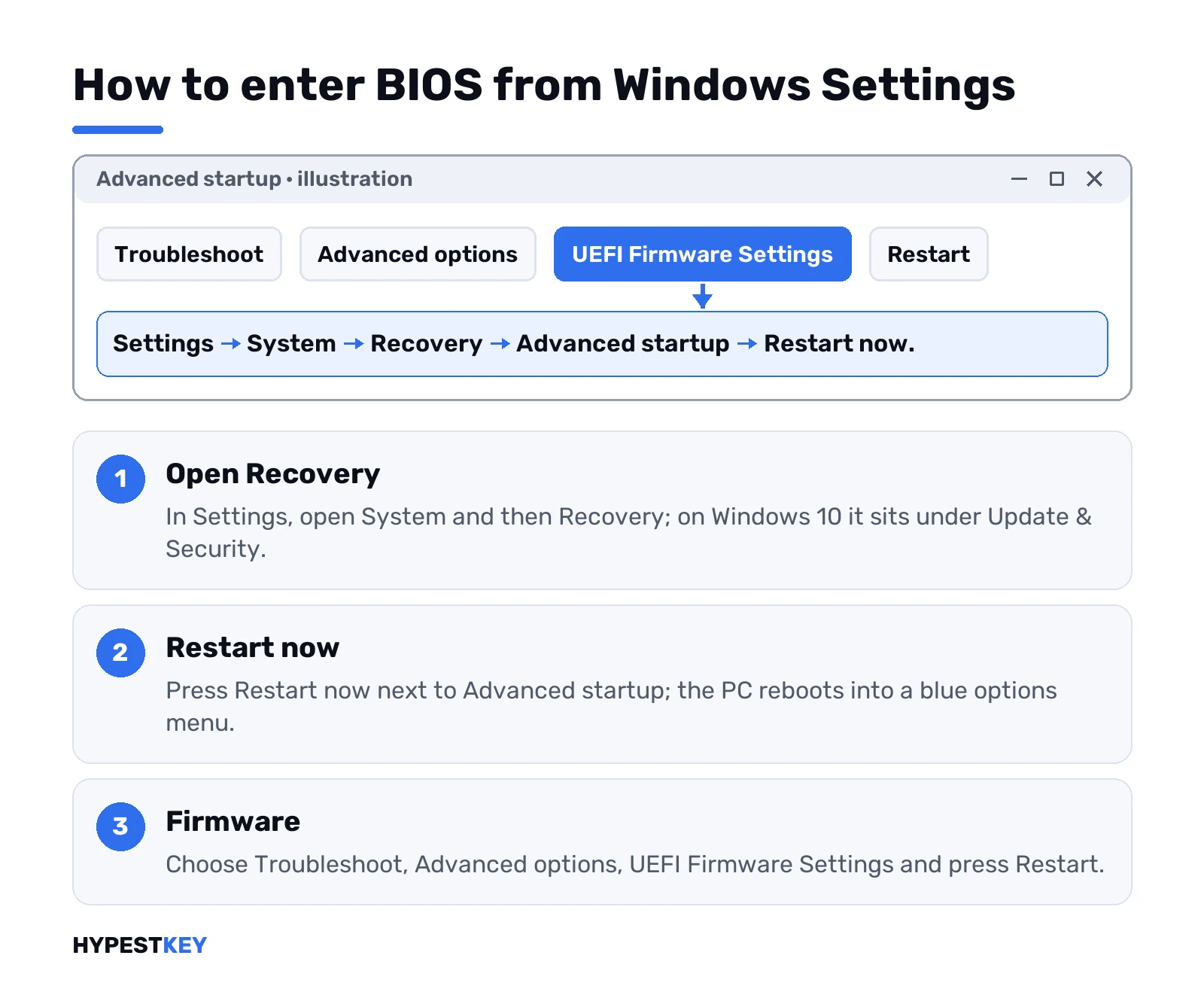
On Windows 11:
- Start, then Settings.
- System, then Recovery.
- Next to Advanced startup, press Restart now. Confirm.
- Blue screen with options: Troubleshoot.
- Advanced options, then UEFI Firmware Settings.
- Restart. The PC boots straight into firmware setup.
Quicker door to the same menu: hold Shift while you click Restart. Works from the Start menu power button and from the sign-in screen.
On Windows 10 the start is different. Settings, Update & Security, Recovery. From Advanced startup on, the menu is identical.
Save your work first. The restart is immediate, and open apps close without asking twice. We’d also note the BitLocker recovery key somewhere before touching firmware options; our BitLocker guide for Windows 11 shows where it lives.
The shutdown command that skips the menus
Faster still. One line in Command Prompt, PowerShell or the Run box:
shutdown /r /fw /t 0Restart, then straight to firmware. The shutdown command reference says the firmware switch only works combined with a shutdown option, which is why the restart flag sits next to it. Got an error? Open the prompt as administrator and run it again.
Prefer the recovery menu instead? This one lands on the Advanced boot options screen:
shutdown /r /o /t 0Handy as a desktop shortcut on a PC you tune often.
Enter BIOS on Windows 10: Settings, Shift + Restart and keys
BIOS controls your hardware before Windows loads: boot order, virtualization, Secure Boot, fan curves. Newer machines use UEFI. It does the same job with a friendlier interface and mouse support.
People still call both “BIOS”.
Through Settings
Same path Safe Mode uses, different destination.
- Open Settings, Update & Security, Recovery.
- Click Restart now under Advanced startup.
- Pick Troubleshoot, Advanced options, UEFI Firmware Settings.
- Click Restart.
The PC restarts straight into the firmware. No timing required.
With Shift + Restart
- Hold Shift and click Restart, in the Start menu or on the sign-in screen.
- Pick Troubleshoot, Advanced options, UEFI Firmware Settings, Restart.
With the BIOS key at startup
The old-school method. Press the right key right after power-on, before Windows loads. Keys can differ between models, so we’d check the first screen or the manual.
| Brand | BIOS / UEFI setup key | One-time boot menu |
|---|---|---|
| Dell | F2 | F12 |
| HP | Esc, then F10 | F9 |
| Lenovo | F1 or F2 | F12 |
| ASUS | F2 or Del | Esc or F8 |
| Acer | F2 or Del | F12 |
| MSI | Del | F11 |
| Microsoft Surface | Hold Volume Up, press Power | Hold Volume Down, press Power (boots USB) |
Tap the key repeatedly as soon as you hit power. Modern PCs boot fast, and the window is often only a second or two.
From the command line
- Press Windows + R, or open Command Prompt.
- Run the command below.
- The PC restarts into the blue “Choose an option” menu.
- Pick Troubleshoot, Advanced options, UEFI Firmware Settings, Restart.
shutdown /r /o /f /t 0Enter BIOS with a key at startup
The classic way. Power off fully, press the power button, then tap the setup key about once a second until the firmware screen shows. ASUS asks you to hold F2 instead. Brand table below.
Missed it and Windows loaded? Restart and try again. Fast SSD machines leave a very short window.
- Boots too fast to catch? HP’s advice is to turn off Fast Startup, or to use the Settings route instead.
- Wireless keyboard ignored? Plug in a wired USB one for this. Some receivers wake up too late.
- Not sure the key even registers? Our online keyboard tester settles it in seconds.
Many PCs print the key on the logo screen, something like “Press F2 to enter Setup”. Look for it before guessing.
BIOS keys by PC brand
From the makers’ own support pages. Models differ, so treat this as the first thing to try:
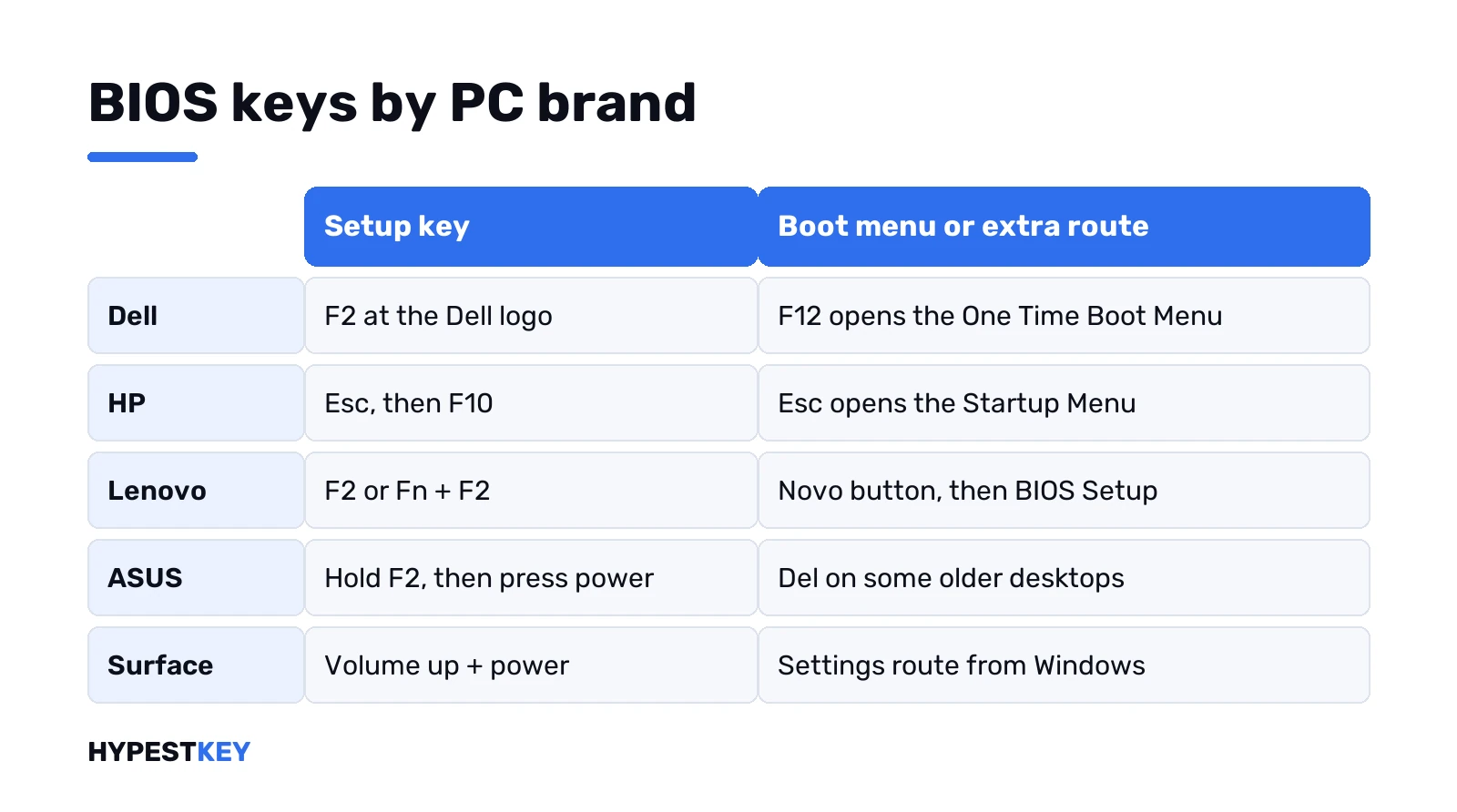
| Brand | Setup key | Boot menu or extra route |
|---|---|---|
| Dell | F2, tapped once a second at the Dell logo | F12 opens the One Time Boot Menu with a BIOS Setup entry |
| HP | Esc, then F10 | Esc opens the Startup Menu first |
| Lenovo | F2 or Fn + F2 on many laptops | Novo button, then BIOS Setup; or F12 and Enter Setup |
| ASUS | Hold F2, then press power | Del on some older desktops |
| Acer | F2 or Del | Settings route from Windows |
| Microsoft Surface | Volume up + power | Settings route from Windows |
A custom desktop takes the key of its motherboard, not the case. Del is common there, and the board manual names it.
Lenovo’s Novo button deserves a word. A tiny pinhole or button near the power key, pressed with the PC off. You’d use a paper clip on some models.
Surface: volume up, not a function key
Surface devices have no setup key at all. Shut the Surface down. Hold volume up, press and release power, keep holding volume up until the UEFI screen appears. The logo shows first; don’t let go there.
The Settings route works on Surface too. Microsoft’s Surface UEFI page warns about one thing we’d repeat: a UEFI password you set yourself can’t be reset by Microsoft. Write it down.
When UEFI Firmware Settings is missing
You open Advanced options and the tile isn’t there. Three usual reasons:
- The PC boots in Legacy BIOS mode, not UEFI. Windows can only hand off to UEFI firmware.
- Windows sits on an MBR disk that came from an old install. Same story.
- The Windows Recovery Environment is switched off or damaged, so Advanced startup itself fails.
Check the mode first. Press Win + R, type msinfo32, look at BIOS Mode. “Legacy” there explains everything. The key at power-on still works in that case. Moving the disk to GPT and UEFI is a separate job, and our Secure Boot guide covers how that ties in.
When the BIOS key doesn’t work
| Problem | Usual reason | Fix |
|---|---|---|
| The BIOS key doesn’t work | Fast startup | Turn it off in Power Options, or use UEFI Firmware Settings from Windows |
| “UEFI Firmware Settings” is missing | The PC boots in legacy BIOS mode | Use the keyboard key at startup |
Turning fast startup off
Fast startup is probably on. Windows resumes too quickly for key presses to register. Here’s how to disable it.
- Open Control Panel, then Power Options.
- Click “Choose what the power buttons do” on the left.
- Click “Change settings that are currently unavailable” at the top.
- Untick “Turn on fast startup” and click Save changes.
Shut down fully, then power on and press the key.
A restart also skips fast startup. A shutdown doesn’t. That’s why the key often works after Restart and fails after power-off.
The key pressed too late
Someone hammers F2 after a shutdown and always ends up in Windows. Fast startup resumes too quickly. Through UEFI Firmware Settings in the recovery menu, the firmware opens on the first try.
BIOS or UEFI: which firmware your PC has
BIOS is the original PC firmware. UEFI is its modern replacement. It became standard on new PCs around the Windows 8 launch in 2012.
| Point | UEFI |
|---|---|
| Startup | Faster |
| Disks | Boots from GPT disks larger than 2 TB |
| Security | Supports Secure Boot |
| Interface | Usually a graphical menu with mouse support |
Both are opened the same way at startup. Any PC made in the last decade almost certainly has UEFI. Sometimes a “CSM” or legacy compatibility mode is switched on.
For Safe Mode it doesn’t matter which one you have. For the “UEFI Firmware Settings” shortcut in Windows, it does.
Enter BIOS when Windows won’t start
No desktop, no Settings. Two ways in.
First, the key at power-on. It doesn’t care about Windows at all.
Second, the recovery menu. After two failed starts in a row, Windows opens the recovery environment by itself. From there it’s Troubleshoot, Advanced options, UEFI Firmware Settings. Stuck on a black screen? We’d hold the power button to force a shutdown, power on, and repeat once more.
A bootable USB stick gets you the same menu. Build one with our bootable Windows 10 USB guide or the Windows 11 Media Creation Tool walkthrough. Boot from it. Repair your computer. Need Safe Mode instead of firmware? See Windows 11 Safe Mode or Safe Mode on Windows 10.
Booting from USB and virtualization in BIOS
To boot from a USB drive, enter BIOS and find Boot Order or Boot Priority. Move the USB device to the top and save. On most systems that’s F10.
Or skip BIOS entirely with the one-time boot menu key, such as F12. That’s the easier option for installing Windows on a new PC. Tap the key right after power-on and pick the USB stick. The permanent boot order stays as it was.
| Setting | What it’s called | Where to look |
|---|---|---|
| Boot order | Boot Order or Boot Priority | The Boot tab |
| Virtualization on Intel boards | VT-x or Intel Virtualization Technology | Advanced, CPU Configuration, sometimes Security |
| Virtualization on AMD boards | AMD-V or SVM Mode | Advanced, CPU Configuration, sometimes Security |
Virtualization is needed for virtual machines and for a few Windows features.
- Hyper-V, VMware and VirtualBox.
- WSL 2.
- Windows Sandbox.
- Android emulators.
While you’re in the firmware, the Secure Boot setting sits nearby too. Our guide to enabling Secure Boot explains when to turn it on and how to check its state from Windows.
What to change once you’re in the BIOS
Most visits are for one of four jobs:
- Boot order. Put the USB stick first to install Windows; our install from USB through BIOS guide walks through it.
- Secure Boot. Needed for Windows 11 and some games.
- TPM. Often called fTPM on AMD or PTT on Intel; our TPM 2.0 explainer says what to look for.
- Virtualization. Intel VT-x or AMD SVM, for virtual machines and WSL.
Change one thing, save and exit, usually F10. PC refuses to boot after that? We’d go back in and load the defaults. The full Windows 11 hardware list sits in our Windows 11 requirements guide.
Firmware ready and a clean install ahead? We send our Windows 11 Pro key as a Retail license, instant to email.
Related guides
FAQ
which key opens bios on my laptop
Depends on the brand. Dell uses F2, HP uses Esc then F10, ASUS uses F2, Lenovo often F2 or the Novo button.
Can I get into BIOS without restarting?
Nope. Firmware settings only load before Windows starts, so every method ends with a restart or a cold boot.
UEFI Firmware Settings isn't in Advanced options, why?
Usually the PC boots in Legacy mode or from an MBR disk. Check BIOS Mode in msinfo32 and use the startup key instead.
The key does nothing, Windows just loads
Restart rather than shut down, tap the key once a second from power-on, and try a wired keyboard.
Is there a command to boot into BIOS?
Yes. Run shutdown /r /fw /t 0 in an administrator Command Prompt and the PC restarts into firmware setup.
How do I open BIOS on a Surface?
Shut it down, hold volume up, press and release power, and keep holding until the UEFI screen shows.
Will changing BIOS settings delete my files?
No, files stay on the disk. A wrong boot or storage mode can stop Windows from starting, so change one thing at a time.