Short answer: To upgrade Windows 10 Home to Pro, open Settings, Update & Security, Activation, press Change product key and enter a Pro key. The PC restarts once and runs Pro. No reinstall, and files and apps stay. The Microsoft Store sells the same change as a digital license.
To upgrade Windows 10 Home to Pro you don’t reinstall anything. Open Settings, go to Update & Security, then Activation, press Change product key and type a Pro key. One restart later the PC runs Pro. Files and apps stay where they were.
That’s the happy path. The other one ends in error 0xC004F050 and a lot of swearing. I’ll cover both, plus the Store route and the commands people ask about.
| Question | Short answer |
|---|---|
| Reinstall needed | No. Microsoft’s own page calls it changing the edition without reinstalling |
| What you need | A Windows 10 Pro key or a Store purchase, and an administrator account |
| Restarts | One |
| Files and apps | They stay |
| Going back to Home | No path back without a clean install |
| Home not activated yet | Microsoft recommends activating Home first |
How to upgrade Windows 10 Home to Pro with a key
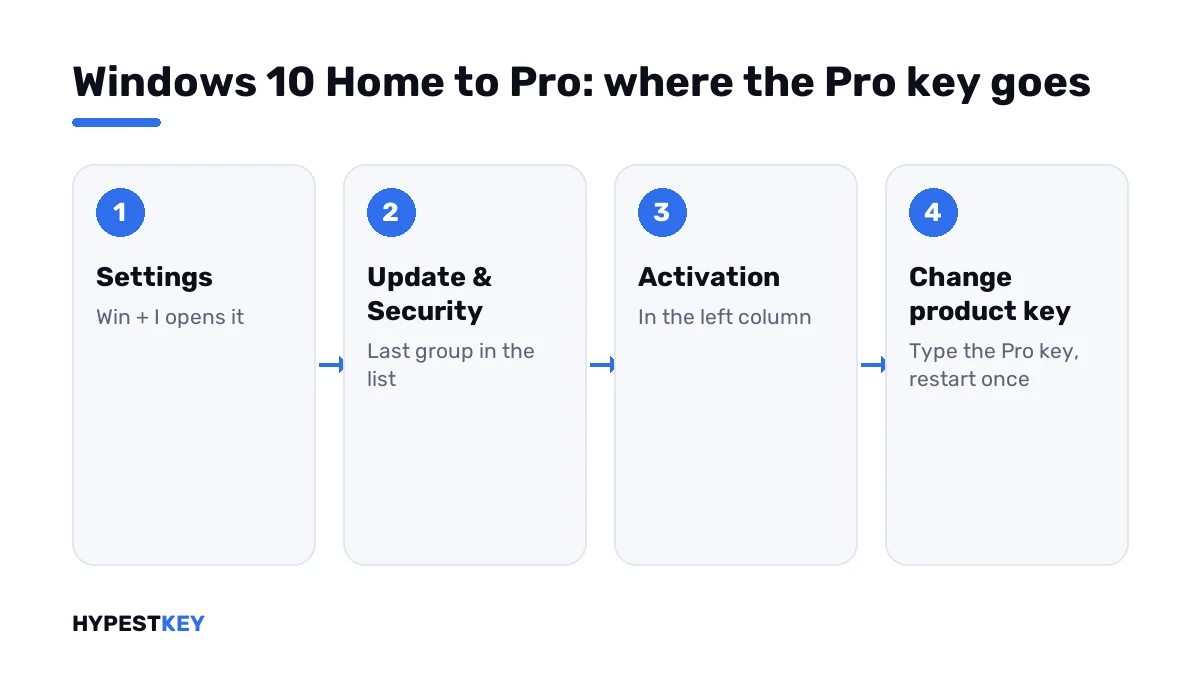
Five clicks and a restart. Sign in as an administrator first.
- Open Settings. Win + I does it.
- Go to Update & Security.
- Choose Activation in the left column.
- Press Change product key.
- Type the 25-character Pro key and press Next.
- Confirm the edition change and let the PC restart.
After the restart, go back to the same page. It should read Windows 10 Pro, with “Windows is activated” under it.
Too many clicks? Win + R, then this. It lands on the Activation page.
ms-settings:activationBefore you start
| Check | Why |
|---|---|
| Home is activated | Microsoft recommends activating it first; an unactivated Home makes the errors harder to read |
| You’re signed in as an administrator | The Change product key link needs it |
| The PC is online | Activation of the new key runs on Microsoft’s servers |
| The key is copied, not retyped | B and 8 look alike at midnight |
| A laptop is plugged in | There’s a restart in the middle |
The restart itself is short. A progress screen, a reboot, a “working on features” screen, then your desktop again. Nothing asks for a USB stick or a language.
The Store route
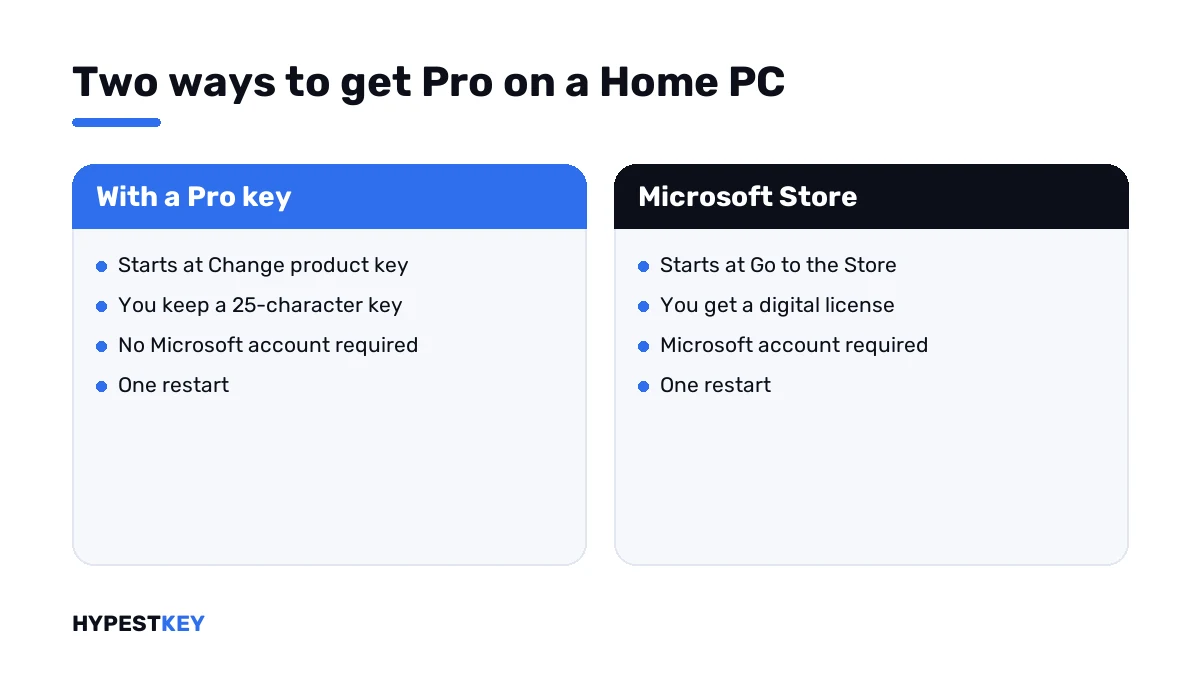
No key in hand? The same Activation page has a Go to the Store link. You buy the Pro edition while signed in with a Microsoft account, then the Store installs it and restarts the PC.
You end up with a digital license on that account. No 25 characters to keep safe. Link missing? Then the edition is already Pro, or nothing is offered for that install.
| Pro key | Microsoft Store | |
|---|---|---|
| Where it starts | Change product key | Go to the Store |
| What you pay for | A key you keep | A digital license on your Microsoft account |
| Microsoft account | Not required | Required |
| Restarts | One | One |
| After a reinstall | Type the key again | Sign in and go online |
The Store shortcut, for the impatient:
ms-windows-store://windowsupgrade/When the Pro key is refused
You type a perfectly good Pro key. Home throws 0xC004F050 back. Per Microsoft, that code says the key can’t be used to activate this install. Sometimes the activation servers were just busy, so I’d try once more first.
Still refused? Here’s the two-stage route. Microsoft’s pages don’t describe it, but it’s widely used, and it’s what I’d try second.
- Disconnect the PC from the internet.
- On the Activation page, enter the generic Windows 10 Pro key. It switches the edition and activates nothing.
- Let the PC restart. It now runs Pro, not activated.
- Reconnect, press Change product key again and type your own Pro key.
The generic key is public. It sits in the table on our free Windows 10 and Windows 11 keys page, with the note that it activates nothing by itself.
| Code | Microsoft’s meaning, shortened | First move |
|---|---|---|
| 0xC004F050 | The key can’t be used to activate this install | Retry, then the two-stage route; see the 0xC004F050 guide |
| 0x803FA067 | Same group as the code above | Same moves |
| 0xC004F210 or 0xC004F212 | The key is for a different edition | Check that the key says Pro, not Enterprise or Education |
| 0xC004F213 | No product key was found on the device | Enter the key again; see the 0xC004F213 guide |
| 0xC004F034 | Invalid key, or a key for a different version | See the 0xC004F034 guide |
Commands people ask about
Short answer: the Settings page is the route Microsoft lists for this pair of editions. The command-line column in its table says no.
| Command | What it’s for | Home to Pro |
|---|---|---|
| changepk.exe /ProductKey | Microsoft’s general edition-change tool | Not listed by Microsoft for this pair; forum reports say it often works anyway |
| slmgr /ipk | Installs a key | Fine for the last stage, once the PC already runs Pro |
| DISM /Online /Set-Edition | Changes the edition of a running system | Windows Server only |
| DISM /Online /Get-TargetEditions | Lists the editions this install can become | Works, handy as a check |
That last one is worth running if you’re unsure. It prints the editions your install is allowed to turn into. Use an administrator window.
DISM /Online /Get-TargetEditionsWhat you get for it
Pro isn’t faster. It adds tools the smaller edition doesn’t have.
- BitLocker drive encryption.
- Remote Desktop host.
- Hyper-V.
- Group Policy.
- Joining a company domain.
| Feature | Home | Pro |
|---|---|---|
| BitLocker drive encryption | No | Yes |
| Remote Desktop: connect to this PC | No | Yes |
| Remote Desktop: connect from this PC | Yes | Yes |
| Hyper-V virtual machines | No | Yes |
| Group Policy editor | No | Yes |
| Join a company domain | No | Yes |
| Games, browsers, Office | Same | Same |
Need none of those? Then stay where you are and keep the money. The full comparison is in Windows 10 Home vs Pro.
The key itself
Need a key that actually sticks? Ours is Windows 10 Pro, emailed the second you pay. We’re a trusted reseller with genuine keys.
Building a second PC instead? A Windows 10 Home key covers a fresh install, and every edition sits in the Windows 10 keys section.
On the newer system the menus differ. See how to upgrade to Windows 11 Pro.
After the switch
| Check | Where |
|---|---|
| Edition reads Windows 10 Pro | Settings, System, About |
| Status reads “Windows is activated” | Settings, Update & Security, Activation |
| BitLocker shows up | Control Panel, System and Security |
| Your files are where you left them | They should be; the edition change doesn’t touch them |
Moving that key to another PC one day? A Retail key can go. The how is in transferring a Windows license to a new PC.
Not activated after the restart? Start with our Windows 10 activation guide.
Mistakes we see most
| Mistake | Better |
|---|---|
| Buying a Windows 11 key for a Windows 10 PC and hoping | Buy the key for the system that’s installed |
| Clean-installing Pro and losing a weekend | Change the edition in place |
| Changing the edition of an unactivated Home | Activate Home first, as Microsoft recommends |
| Typing an Enterprise or Education key | Those are other editions; 0xC004F210 follows |
| Expecting a way back to Home | There’s none short of a clean install |
The clean install is the sad one. People back up, wipe, reinstall and spend a weekend on something the Activation page does in ten minutes.
Where these steps apply
Windows 10 Home, current builds. Menu names come from Microsoft’s pages as they read in November 2026.
Sources I checked the steps against:
- Microsoft Support: Upgrade Windows Home to Windows Pro
- Microsoft Learn: Windows edition upgrade
- Microsoft Learn: DISM Windows edition-servicing options
- Microsoft Support: Get help with Windows activation errors
Words on this page
| Word | Short explanation |
|---|---|
| Edition | Home, Pro, Enterprise and so on; a key works for one of them |
| In place | Changed on the running system, with files and apps left alone |
| Generic key | A public key that switches the edition and activates nothing |
| Digital license | Activation without a key, kept on Microsoft’s side for that PC |
| Target edition | An edition the current install is allowed to turn into |
FAQ
Can I upgrade Windows 10 Home to Pro without reinstalling?
Yes. Enter a Pro key under Change product key and restart once. Microsoft's own page describes it as changing the edition without reinstalling.
Will I lose my files or apps?
No. The edition changes in place, so files, apps and settings stay. I'd still keep a backup, as before any system change.
Why doesn't my Pro key work on Home?
Usually error 0xC004F050. Try again in case the servers were busy. Then switch the edition with the generic Pro key and enter your own key afterwards.
Can I upgrade for free with the generic key?
No. The generic key changes the edition to Pro and leaves it unactivated. You still need a real Pro key to activate.
Can I use a Windows 11 Pro key?
Don't count on it. Buy the key for the system that's installed, and the edition change stays simple.
How long does the upgrade take?
A few minutes plus one restart on most PCs. It isn't a reinstall, so nothing gets copied back.
Can I go back from Pro to Home?
Not in place. Microsoft lists no downgrade path, so Home comes back only with a clean install.