Short answer: The 0xC004F212 activation error says the product key isn't compatible with the installed edition of Windows. It usually follows a reinstall with the wrong edition chosen. I'd run the Activation troubleshooter to see which edition is licensed, then install that edition or enter a key for the current one.
The 0xC004F212 activation error says the product key used on this device isn’t compatible with the edition of Windows that’s installed. We mostly see it right after a reinstall, when the wrong edition was picked from the list.
| Situation | Fix |
|---|---|
| Reinstalled and picked an edition by guess | Run the Activation troubleshooter; it names the edition your license is for |
| Typed a key from an order | Compare the edition in the order with the edition on the PC |
| Key from a list or an unknown seller | Ask the seller which edition it is for, or use a different key |
Your install itself is fine. It runs, updates and keeps your files. It just can’t be activated with that key.
What 0xC004F212 stands for
The wording on Microsoft’s activation errors page is short. The product key used on this device isn’t compatible with this edition.
Microsoft then describes the classic way into it. When you reinstall with a digital license, setup asks which edition to install. Pick another one than you’re licensed for, and this code can follow.
Its advice has three parts.
- Contact the store or company where you bought Windows.
- Enter a different product key.
- Run the troubleshooter, which reports a digital license for another edition and tells you how to install it.
Causes
| Cause | Detail |
|---|---|
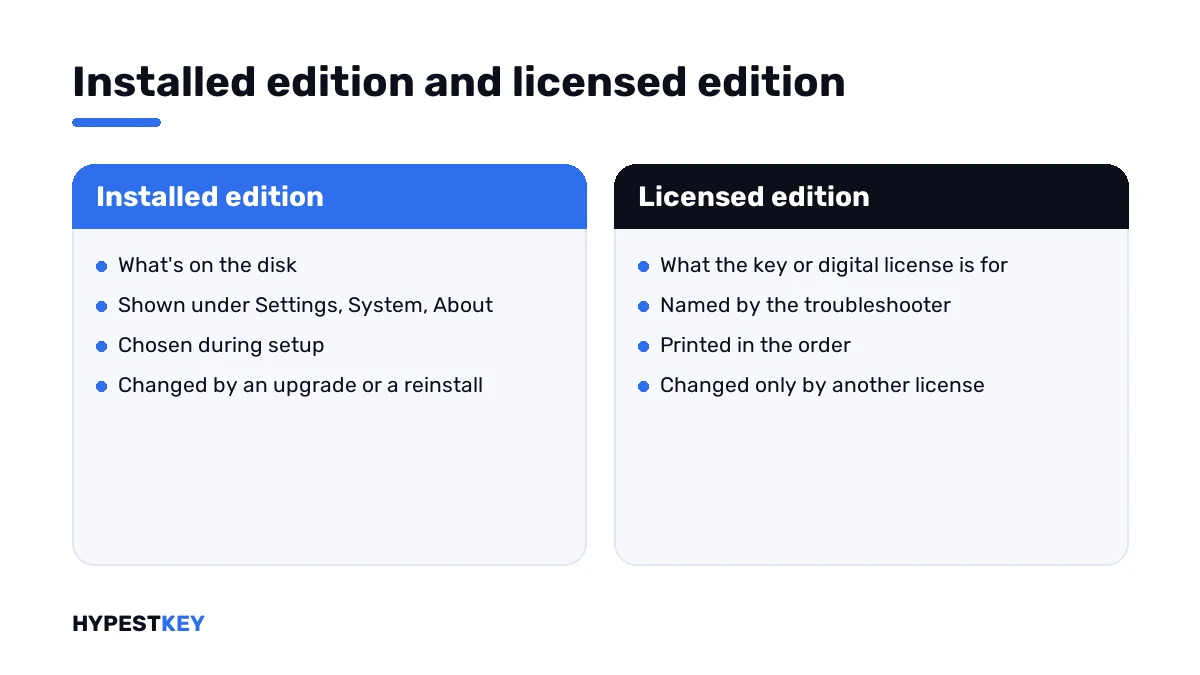
| Wrong pick during setup | “I don’t have a product key” was pressed, then Pro was chosen on a PC licensed for Home |
| Key for another edition | A Home key on Pro, a Pro key on Pro N, an Education key on Home |
| Key for another product | A Windows Server or Office key typed into the Windows field |
| Old key on a new system | A Windows 7 or Windows 8 key on a fresh Windows 11 install |
| Company media at home | The stick installs Enterprise, and your key is Pro |
How to fix the 0xC004F212 activation error
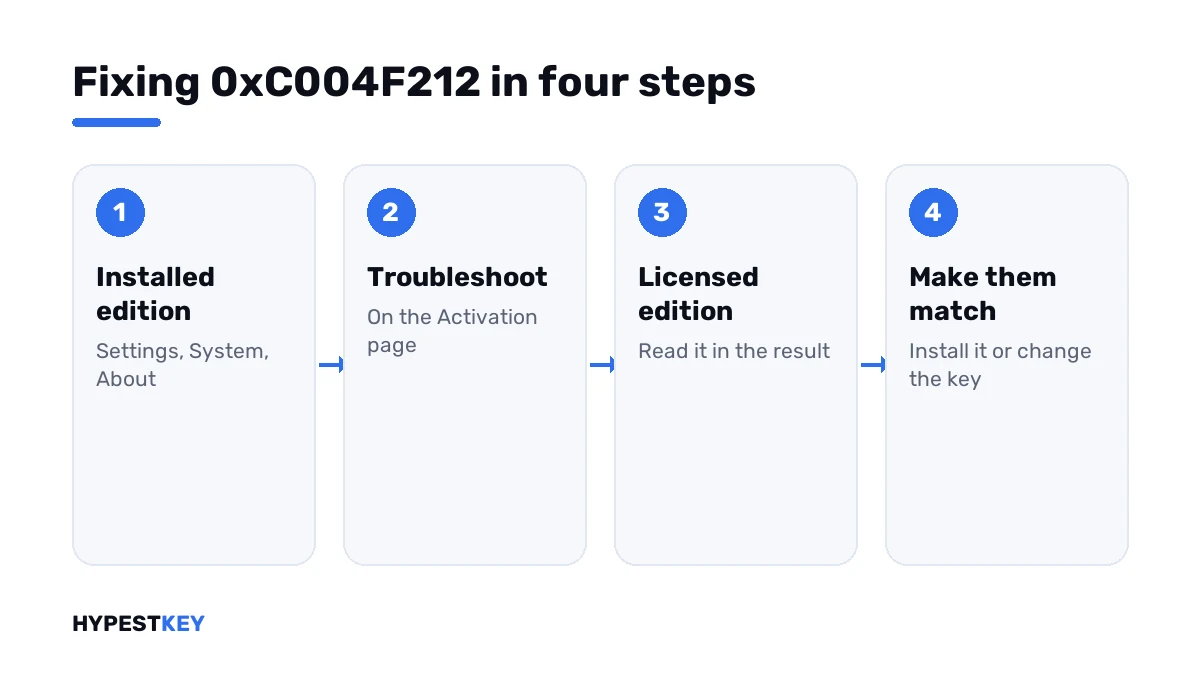
The troubleshooter does the detective work, so it comes first.
- Open Settings, System, About and note the installed edition.
- Open Settings, System, Activation and press Troubleshoot.
- If it finds a digital license for another edition, read which one and follow its instructions to install that edition.
- If it finds nothing, look at your key’s edition in the order email.
- Key for a higher edition than installed: press Change product key, enter it and let Windows upgrade.
- Key for a lower or different edition: reinstall that edition, then activate.
- Key and installed edition are the same and it still fails: contact the seller with the code and a screenshot.
From the command line:
slmgr /dli
slmgr /upk
slmgr /ipk XXXXX-XXXXX-XXXXX-XXXXX-XXXXX
slmgr /ato| Line | What it does |
|---|---|
slmgr /dli |
Shows the installed edition and the last five characters of the current key |
slmgr /upk |
Removes the key that doesn’t fit |
slmgr /ipk |
Installs the key typed after it |
slmgr /ato |
Asks for activation |
Reading the edition pair
Once you know both editions, the table below gives the move.
| Installed | Key or license is for | Move |
|---|---|---|
| Pro | Home | Reinstall Home, or get a Pro key |
| Home | Pro | Enter the Pro key; no reinstall |
| Pro N | Pro | Reinstall Pro |
| Enterprise | Pro | Reinstall Pro from Microsoft’s own media |
| Home Single Language | Home | Reinstall plain Home, or ask the seller for a matching key |
Not sure where your key came from or what it’s for? Our ShowKeyPlus guide shows how to read the installed key and the one stored in the firmware, each with its edition.
Rather keep the edition that’s installed? A key for that edition settles it. Ours are genuine and arrive instant to email: Windows 11 Pro or Windows 11 Home. For the older system we have Windows 10 Pro and Windows 10 Home.
Reinstalling without the same trap
On a PC that shipped with Windows, standard media reads the firmware key and never shows an edition list. You can’t pick wrong.
The list appears on self-built PCs and on sticks made for several editions. There, I’d write down the licensed edition before starting.
- Run the troubleshooter first and note the edition it names.
- Make the stick with Microsoft’s tool, as in our Media Creation Tool guide.
- At the edition list, choose that edition and nothing “better”.
- Skip the key page. A digital license activates by itself once the PC is online.
Step-by-step screens are in our clean install guide. For Windows 10 there’s a separate one.
How it differs from its neighbours
| Code | What it says |
|---|---|
| 0xC004F212 | The key isn’t compatible with the installed edition |
| 0xC004F210 | The key or digital license is for a different edition |
| 0xC004F213 | No product key was found on the device |
| 0xC004F050 | The key is invalid for this product |
| 0xC004F211 | The hardware changed |
The first two overlap a lot, and the fix is the same: make the two editions equal. Every other number is in our list of Windows 11 activation errors.
Where these steps apply
| System | Notes |
|---|---|
| Windows 11 | All steps as written |
| Windows 10 | Same steps; Activation sits under Settings, Update & Security |
| Work devices | IT decides the edition and the key |
Where the key field is and what the status lines mean is shown in how to activate Windows 11.
Mistakes we see most
- Picking Pro at setup “to be safe” on a Home license.
- Typing the same key again and again.
- Entering a Home key to turn Pro into Home.
- Buying a key before checking what the troubleshooter finds.
- Using a company USB stick for a private PC.
Terms used on this page
| Term | Meaning |
|---|---|
| Edition | Home, Pro, Education, Enterprise and their variants |
| Digital license | Activation stored on Microsoft’s side for this device |
| Firmware key | The key a PC maker stores on the motherboard |
| Single Language | A Home variant sold with one display language |
| N edition | An edition without media apps, with keys of its own |
| Activation troubleshooter | The Troubleshoot link on the Activation page |
FAQ
What does error 0xC004F212 mean?
The product key used on the device isn't compatible with the installed edition of Windows. Microsoft points to a reinstall where a different edition was chosen. I'd check both editions before anything else.
How do I fix 0xC004F212?
Open Settings, System, Activation and press Troubleshoot. If it reports a digital license for another edition, install that edition. Otherwise enter a key that fits the installed edition under Change product key.
I chose the wrong edition during setup. Do I have to reinstall?
Only when you went too high. From Home, a Pro key upgrades in place. From Pro down to a Home license, we'd reinstall Home, because Windows doesn't step down an edition by itself.
Which edition is my license for?
The troubleshooter tells you when it finds a digital license. For a key, the order email or the card names the edition. On a branded PC, I'd read the firmware key with a tool such as ShowKeyPlus.
Will a Windows 10 key give this error on Windows 11?
Not because of the version. A Windows 10 key normally activates the same edition of Windows 11. The code appears when the edition differs, for example a Home key on a Pro install.
Is 0xC004F212 the same as 0xC004F210?
Nearly. Both say the license and the installed edition don't match. We treat them the same way: find the two editions, then change the install or the key until they agree.
The key and the edition match and it still fails. What then?
Then the seller has to look at the key. Microsoft's own advice for this code includes contacting the store or company where Windows was bought. I'd send them the code and a screenshot.