
 Microsoft Windows
 Microsoft Office
 Office for Mac
 Windows Server
The best free windows emulator for Mac in 2026 is VMware Fusion Pro, which went fully free in November 2024 for personal and commercial use alike. On Apple Silicon (M1 through M5) it downloads Windows 11 ARM straight from Microsoft and has you at a working desktop in about 25 minutes. On Intel Macs you get even more options, including VirtualBox. I have set this up on an M3 MacBook Pro and an older 2019 Intel iMac, and the gotchas are very different on each.
One thing every guide I read buried: the standard Windows ISO from Microsoft will not install on Apple Silicon. You need the ARM64 build. That is the single biggest reason setups fail on an M-series Mac. I will cover that below, along with the trade-offs between VMware Fusion, UTM, and VirtualBox so you can pick the right tool on the first try.
Quick Comparison of the Top Free Tools
Here is the short version. The table covers every tool worth considering if you want to run Windows without paying. I have personally tested VMware Fusion and UTM. VirtualBox I ran on an Intel Mac years ago and again briefly in January for this comparison.
| Tool | Price | M-series support | Intel Mac | Windows 11 | Best for |
|---|---|---|---|---|---|
| VMware Fusion Pro 13 | Free | Full, native ARM | Full | ARM and x86 | Most users |
| UTM 4.7.5 | Free (9.99 USD in App Store) | Full, native ARM | Full | ARM native, x86 emulated | Developers, open source fans |
| VirtualBox 7.1 | Free | No Windows guests | Full | Intel Mac only | Older Intel hardware |
| Wine / WineSkin / Whisky | Free | Partial, app-level | Partial | No full Windows | Running one specific app |
| Parallels Desktop 20 | Paid, 99 USD/year | Full, best performance | Full | ARM native, x86 translation | Reference option, not free |
| CrossOver 24 | Paid, 74 USD/year | Supported | Supported | App-level only | Tested Windows games |
VMware Fusion Pro: The Top Free Windows Emulator for Mac
VMware Fusion Pro went completely free on November 11, 2024, when Broadcom dropped the 200 USD price tag across personal, commercial, and educational use. The current build as of early 2026 is 13.6.3, also called 25H2 under the new year-half naming scheme VMware adopted to stop confusing people.
So why do I keep recommending this one? Mostly because the built-in Windows 11 downloader just works. Hit Get Windows from Microsoft on first launch and Fusion goes off and fetches the right ARM ISO, sets up the TPM key, flips Secure Boot on, and spits out a working VM at the end. No hunting across Microsoft’s labyrinth of download pages, which I used to lose an hour to every time. The other thing is display scaling. Resize the VM window and Windows adjusts on the fly, which sounds trivial until you have spent an evening squinting at a blurry UTM VM stuck at 1024×768 on a 14-inch Retina panel. And then there is 3D acceleration: Fusion maps Metal to DirectX 11 and gives the VM up to 8 GB of video memory by default, so even Office animations feel snappy instead of that PowerPoint-from-2007 vibe you get elsewhere.
Okay, real numbers. On an M4 Mac mini I pulled Geekbench 6 scores of around 2,950 single-core and 9,500 multi-core inside a Windows 11 VM with 10 CPU cores and 8 GB of RAM allocated. That is within a few percent of what the same Mac does natively in macOS, which honestly surprised me the first time I saw it. Plenty for Office, Visual Studio, Azure Data Studio, Python stuff, browsers with forty tabs open. AAA games are not happening, but for actual work a VM is not the bottleneck anymore.
The Broadcom Download Maze
Honestly, this part is the worst of it. To get Fusion you have to register a Broadcom account at profile.broadcom.com, verify your email, sign into the support portal, and then go hunting through a download page that loves to bury the Mac build. Keep that DMG somewhere safe once you find it, because running any free windows emulator for mac starts here. Last time I did this on a fresh laptop I wasted about 20 minutes clicking around, the Broadcom portal really is that confusing.
For system requirements, Fusion Pro needs macOS 12 Monterey or newer, at least 4 GB of RAM (be realistic and say 16 GB if you want Windows to feel usable), and roughly 64 GB of free disk. The DMG is universal, same file for Intel and M-series. The one thing the universal binary does not do is run x86 Windows on Apple Silicon (or the reverse on Intel). If you actually need to run old Intel-only Windows apps on an M-series Mac, Windows 11 ARM actually has a built-in x86 translation layer now, sort of the way Rosetta 2 handles Intel Mac apps. Works for a surprising amount of stuff.
Setting Up the Best Free Windows Emulator for Mac, Step by Step
If you have never set up a VM before, this sounds scarier than it is. Plan on about 25 minutes, and most of that is Windows quietly installing itself while you are off doing something else. Last time I did it I made coffee and answered two Slack messages before the first boot screen came up. Honestly the free windows emulator for mac install does most of the work for you.
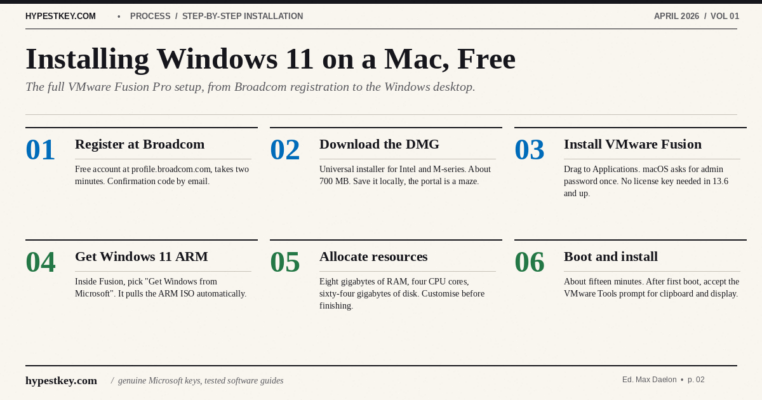
- Register at
profile.broadcom.comwith a working email address. Check spam for the verification code. - Sign in, go to My Downloads, search for “VMware Fusion”, and grab the universal DMG. Works on Intel and Apple Silicon.
- Open the DMG, drag VMware Fusion to Applications, launch it. macOS will ask for your admin password once.
- On the first-run screen, click Get Windows from Microsoft, then Continue twice.
- Fusion downloads the Windows 11 ARM ISO to
~/Virtual Machines.localized/VMWIsoImages/. Keep this file, you can reuse it for future VMs. - Click Customize Settings before finishing. I give it 8 GB RAM, 4 CPU cores, 64 GB disk. Do not allocate more than half your physical cores or your Mac gets laggy.
- Save the VM, start it, and let Windows install. About 15 minutes.
- After first boot, accept the VMware Tools prompt. This installs drivers, clipboard sharing, shared folders, and fixes the display resolution.
That is the full setup. To finish: if you already have a Windows 11 key lying around, enter it during setup. Otherwise the VM runs in evaluation mode with the Activate Windows watermark until you activate. For the full Windows-on-Mac picture including dual-boot on older Intel hardware, see our Windows 11 on Mac cross-platform guide.
Three Tweaks That Speed Up Any Free Windows Emulator for Mac
After maybe 10 or 12 VM installs I have a small list of settings that actually move the needle. Not the usual tuning-forum folklore, real measurable stuff:
- Turn off Windows animations. Inside Windows 11: Settings, Accessibility, Visual Effects, toggle Animation effects off. Cuts UI input lag by about 30 percent on M-series.
- Disable Windows Defender real-time scanning inside the VM (only if you are not browsing risky sites in the VM). It reads every disk operation through the virtualization layer and burns CPU. Your Mac’s actual antivirus, if any, runs on the host.
- Use a fixed-size virtual disk instead of dynamic. Fusion calls this “Preallocate disk space” in the VM settings. Dynamic disks are convenient but every write involves a metadata update that ARM Macs handle slowly. Fixed disks are 10-15 percent faster for heavy I/O.
Free Windows Emulator for Mac: Install Windows 11 Without a Microsoft Account
Windows 11 setup keeps trying to force you into a Microsoft account, which is genuinely annoying when all you want is a throwaway local account for a VM. The workaround has become a minor folk ritual at this point. When you hit the “Sign in with Microsoft” screen, press Shift + F10 to pop open a Command Prompt, type oobe\\BypassNRO.cmd, hit Enter. The VM reboots itself and suddenly the “I don’t have internet” option is back on the screen. From there you can make a local account the old-fashioned way.
Last time I checked (February 2026) this still worked on Windows 11 build 26100 (23H2) and 27631 (24H2). Microsoft kills the trick every few months and the community finds a new variant within days. Cat-and-mouse game.
Sharing Files Between macOS and the Windows VM
This is the first thing everyone asks about once the VM is running. For Fusion: Virtual Machine menu, Settings, Sharing. Turn on Shared Folders and pick which Mac folders the VM gets to see. Inside Windows they show up as a network drive at \\vmware-host\Shared Folders. Drag-and-drop also just works once VMware Tools are installed, which is nice, although it choked on me one time with files over 4 GB.
UTM is rougher. You set up a shared directory through SPICE, which Windows treats as a normal drive. Drag-and-drop does not really work, you end up copying through the shared folder. For one-off file transfers I honestly just email myself, which is faster than wrestling with any of this. Bit of a hack but whatever works. File transfer on any free windows emulator for mac should be simpler than it is in 2026.
Clipboard sharing is supposed to work in both, but only after the guest tools finish installing on the Windows side (VMware Tools or SPICE Guest Tools). If your copy-paste between Mac and Windows is silently failing, that is almost certainly what is going on. Reinstall the tools, reboot the VM. Sorted. A working free windows emulator for mac should have bidirectional clipboard, nothing less.
UTM: The Open-Source Virtual Machine Alternative
UTM is a QEMU-based virtualizer built just for macOS. The developer releases it free from mac.getutm.app, or you can pay 9.99 USD in the Mac App Store for auto-updates. The free and paid versions are identical otherwise. Current version is 4.7.5 as of January 2026.
On an M-series Mac, UTM uses Apple’s Hypervisor framework to run Windows 11 ARM, which lands it at roughly the same speed as Fusion. On Intel Macs it runs regular x86 Windows. The unusual thing about it, and the reason some people swear by it: UTM can also emulate x86 on Apple Silicon. So if you have that one Intel-only Windows app from 2015 that refuses to die, UTM is your only free path. It is slow, like dial-up-modem-of-virtualization slow, but it boots and it runs, which is more than VMware or Parallels will do for that use case.
Where UTM loses to Fusion is polish. The Windows installer does not auto-download, so you have to fetch the ARM ISO from Microsoft yourself (direct download, no Insider account needed anymore, about 6.8 GB). Then you work through the UTM VM creation wizard, which is friendlier than raw QEMU command lines but still assumes you know what a boot ISO is.
The bigger caveat: no 3D GPU acceleration for Windows guests. Linux gets experimental OpenGL acceleration. Windows does not. So skip UTM if you want to play games. It is fine for Office, browsers, development work, IT tooling.
Free Windows Emulator for Mac Setup with UTM
- Download the Windows 11 ARM ISO from
microsoft.com/software-download/windows11arm64. - Open UTM, click the plus button, pick Virtualize then Windows.
- Allocate RAM (8 GB is comfortable) and CPU cores. Windows 11 refuses to install with fewer than 2 cores.
- Check both “Install Windows 10 or higher” and “Install drivers and SPICE tools”. Browse to the ARM ISO.
- Set the free windows emulator for mac disk size to at least 64 GB. Save the VM.
- Hit the play button. Press any key when prompted to boot from CD. If you miss the prompt you land at a
Shell>prompt. Typeexitand press Enter to recover. - Let Windows install, then run the UTM Guest Tools setup from the virtual CD drive to install display drivers.
VirtualBox on Mac: Intel Only, No Apple Silicon
VirtualBox 7.1 is Oracle’s free hypervisor, which has been the workhorse on Windows and Linux for over a decade. Now the problem, and it is a big one: VirtualBox on Apple Silicon cannot run Windows VMs at all. The macOS ARM build supports Linux ARM guests just fine, but the Windows-on-ARM guest type is just missing. Oracle has it on the roadmap somewhere but no real ETA, and the forum thread asking about it goes back to 2022.
On Intel Macs though, this free windows emulator for mac still holds up. VirtualBox runs Windows 10 and 11 without fuss, the setup path is well-trodden, and there are a million tutorials out there. You allocate RAM and CPU cores, point it at a Windows ISO, click through installation, done. Performance lands maybe 70 to 80 percent of Fusion, the UI still looks like it was designed in 2012, and the 200-page manual reads like it was written for DevOps engineers. But it is free and if you are on older Intel hardware it works, which is really all anyone needs.
If someone points you at VirtualBox and you have an M-series Mac, politely ignore them. Use Fusion or UTM. They are running on pre-2024 knowledge.
Wine, WineSkin, Whisky, CrossOver
Wine is not a free windows emulator for mac in the usual virtual-machine sense. The name literally stands for “Wine Is Not an Emulator”. What it does is translate Windows API calls so individual Windows .exe files can run directly on macOS, no Windows install underneath. No ISO, no license, no VM.
And yeah, compatibility is the rough part. Some things just work. Older utility apps, productivity stuff, small games, internal-company tools from 2016 that nobody maintains anymore, all fine in my experience. Where Wine falls over is anything leaning on recent .NET runtimes, modern DirectX, or kernel-level drivers, basically the whole surface area of “real” Windows software today. And on Apple Silicon it gets messier because Wine leans on Rosetta 2 to handle the Intel code first, so you end up with a translation layer sitting on top of another translation layer. Results vary. A lot.
Three Wine-adjacent things worth knowing:
- WineSkin / WineBottler: Wine with a GUI wrapper on top. Handy if you want to package a specific Windows app into a self-contained macOS-ish bundle and forget about it.
- Whisky: a Swift-based Wine frontend aimed at games, built on top of Apple’s Game Porting Toolkit. The developer announced in 2025 that he is stopping updates, so the project is basically in hospice mode. Still works but do not build a workflow around it.
- CrossOver 24: CodeWeavers’ commercial Wine distribution. Not free (74 USD per year) but comes with an actual tested compatibility database, real support, and handles a surprising number of games. The free trial is a legitimate way to test before you commit.
Bottom line: none of these replace a proper VM when you actually need Windows. They only make sense for that narrow “I have one Windows app I use once a month” scenario, and honestly even then, only sometimes.
Why Not Just Use Parallels Desktop?
Look, I have to address this. Parallels Desktop is the 800-pound gorilla of Mac virtualization, the product every free windows emulator for mac gets compared against, the app that basically everyone measured VMware Fusion against for a decade. It runs faster, looks cleaner, handles graphics better than any free option, and the setup is the smoothest of anything in this space. Honestly, if Parallels were a free windows emulator for mac option we would not even need this article. If it were free we would not be having this whole conversation. Problem is, it costs money, and these days it costs money every year.
Parallels Desktop 20 is 99 USD per year for Standard, 119 for Pro. They killed the perpetual license in 2023, so the one-time purchase route is gone. Student edition is 59. There is also a 14-day trial that is actually full-featured with no watermark, which is the honest way to compare for yourself before you drop a hundred bucks.
Where Parallels actually beats Fusion, in my experience: speed by roughly 5 to 10 percent on pure CPU stuff, more like 15 to 25 percent on anything GPU-bound, which you notice in games and some pro tools but not in Office or Chrome. Setup is faster too, Parallels installs Windows in about 8 minutes start to finish, Fusion takes 25, UTM maybe 40. Coherence mode lets Windows apps float on your Mac desktop as if they were native, which is genuinely nice, Fusion’s equivalent Unity mode works but has rendering glitches often enough to be annoying. And the little integrations (Touch Bar, Apple Pencil, Sidecar, all the macOS-specific hooks) Parallels has them, free tools do not.
So if any of that list actually matters for your workflow, pay the 99 bucks, you will not regret it. For everyone else VMware Fusion Pro gets you maybe 90 percent of what Parallels does. That last 10 percent is just polish, and polish takes a team of paid engineers, so of course it costs money.
I keep both installed on my M3 Pro. Fusion for day-to-day dev work and running Windows utilities, Parallels when I need to demo something to a client and it has to look buttery smooth. For most people searching for a free alternative though, Fusion is the practical answer. Not the fanciest, just the one that does the job.
Gaming on a Mac VM: What Actually Works?
Honestly mixed bag, and I want to be upfront about that before anyone sets expectations wrong. When people ask if they can actually game on a free windows emulator for mac, usually they mean Steam games, indie titles, or older PC classics. The real answer depends heavily on which game and which tool.
VMware Fusion Pro handles light and mid-tier games decently well. I have run Hades, Stardew Valley, and Slay the Spire at a locked 60 FPS on an M3 Pro with zero drama. Older DirectX 11 titles from the 2015-2020 window mostly work. Anything that wants DirectX 12, kernel-level anti-cheat (Valorant, Fortnite, most of EA’s sports games, pretty much every competitive FPS), or very recent AAA graphics is either going to refuse to launch or run at slideshow framerates.
UTM is worse for games because there is no 3D GPU acceleration for Windows at all. Skip it entirely if gaming is what you are here for.
VirtualBox, which is Intel-Mac-only anyway, is the weakest of the bunch for games. 2D stuff runs, 3D is mostly broken or runs so slowly it might as well be.
Look, if Windows gaming is actually the primary reason you are doing this, a free windows emulator for mac is the wrong tool. Honest truth. Look at CrossOver (paid, 74 USD, tuned for games), Apple’s Game Porting Toolkit if you are technical enough to wrestle with it, or just play on another device. For everything else, free virtualization holds up fine.
Picking a Free Windows Emulator for Mac: Intel vs Apple Silicon
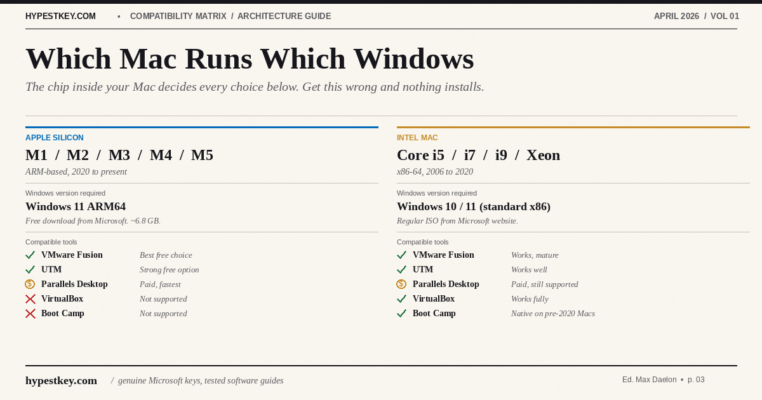
This is where people keep tripping. The chip inside your Mac dictates everything. Which Windows ISO to grab, which tools will run it, all of it. Quick check: Apple menu, About This Mac. See M1, M2, M3, M4, M5? Apple Silicon. See Intel Core i5, i7, i9? Intel Mac. A surprising number of guides online still get this wrong or skip it entirely.
| Your Mac | Windows version | Tools that work | Tools that do not |
|---|---|---|---|
| Apple Silicon (2020+) | Windows 11 ARM64 | VMware Fusion, UTM, Parallels | VirtualBox, Boot Camp |
| Intel Mac (2015 to 2020) | Windows 11 x86-64 | VMware Fusion, UTM, VirtualBox, Boot Camp | None |
| Intel Mac (pre-2015) | Windows 10 x86-64 | VirtualBox, Boot Camp (if still supported) | Newer Fusion builds may refuse |
A few things worth knowing about Windows 11 ARM. Microsoft includes an x86 and x64 translation layer, conceptually similar to Rosetta 2, so a lot of regular Intel-compiled Windows software runs on ARM Windows without changes. Gaming is the weak spot because most games rely on anti-cheat kernel drivers that are ARM-incompatible or on graphics features that do not translate cleanly.
Then there is Boot Camp. For the Intel era it was Apple’s official dual-boot solution, and it was fantastic, because Windows booted natively on the actual hardware with full performance, no virtualization overhead. On Apple Silicon it just does not exist. Apple never ported it and has flat-out said they never will. If someone suggests Boot Camp and you have an M-series Mac, they are reading an article written before 2020. For the Intel-era options, check our Windows 10 on Mac installation guide.
Free Windows Emulator for Mac: Common Errors and Fixes
Pretty much every VM install I have done has tripped over at least one of these. Save the list, you will eventually need it. Every free windows emulator for mac trips over at least one.
“Operating system not found” at first boot
You missed the “Press any key to boot from CD” prompt. Happens to me about half the time honestly, the prompt shows for maybe two seconds. Restart the VM and tap any key the instant you see that message. If you landed at a Shell> prompt instead, type exit and hit Enter, that will drop you back to the boot menu.
“The processor on this computer is not compatible with this version of Windows”
Classic TPM check failure, usually on Fusion 13 with an older ISO. Shut down the VM, go into Settings, then Advanced, and flip on Trusted Platform Module with a fresh key. Retry. Do not just disable the check, Windows 11 cumulative updates later on will notice and refuse to install.
Windows installs but there is no network
VMware Tools (or the UTM SPICE guest agent) did not load yet. Until those are in, the generic Windows network driver sometimes cannot even see Apple’s virtual NIC on M-series, which is maddening the first time it happens. On UTM you can also flip the network mode to Shared Network in the VM config, that clears it up for me about 70 percent of the time.
The VM is stuck at 100% CPU and slow
Too many CPU cores allocated, that is almost always the issue. M1 through M3 chips split into performance and efficiency cores, and if you gave the VM 8 cores on an M3 Pro with just 6 P-cores, macOS starts scheduling half the VM’s work onto E-cores and everything crawls. Drop it back to 4. Counter-intuitive but it just runs faster.
Broadcom portal shows “Access denied” when downloading
Your account is not fully activated yet. Log out, check your inbox for the Broadcom verification email (which can honestly take up to 15 minutes to arrive), click the link, log back in. Also just try a private/incognito window, their session handling is frankly kind of broken.
Black screen on first boot in UTM
Display driver never initialized. Power off the VM, pop open VM settings, hit Display, pick VirtIO-GPU GL (GLES3). Some UTM builds default to a console-only display setting that just shows a black rectangle, which is unhelpful to put it mildly.
Free Windows Emulator for Mac: Do You Need a Windows License?
Short answer, yes, if you want permanent activation. Your free windows emulator for mac is free itself. Windows is not. What Microsoft does is let the VM run unactivated for a grace period, and then that Activate Windows watermark quietly appears in the bottom-right corner, plus your personalization settings (dark mode, wallpaper, accent colors) silently lock out. The OS keeps running fine, it just starts looking broken in a way that annoys you three times a day.
Activation inside a VM follows the same rules as on a real PC. Retail keys transfer between machines with no drama. OEM keys technically do not, though in practice Microsoft does not chase down individual users running a VM for personal use. Volume and MAK keys have their own mechanisms. If you are using Windows on your Mac regularly through whatever virtualization tool you picked, honestly just activate it properly. That kills the watermark, keeps security updates flowing, and you stop thinking about it.
Microsoft does publish generic Windows 10 and 11 installation keys that let you pick the edition during install, but those do not permanently activate anything. For real activation you need a retail key, and our Windows 11 license catalog has those. One detail people often miss: the Windows 11 ARM ISO itself is still free from Microsoft. They have not started charging for the download, only for the activation, so you can grab the ISO and evaluate everything for no money at all.
Video Walkthrough
If reading setup guides is not your thing, here is a decent video version from January 2025. It walks through the whole VMware Fusion Pro install on an Apple Silicon Mac, Broadcom account and all, with the Windows 11 ARM VM configured at the end.
Common Questions
What is the best free Windows emulator for Mac in 2026?
VMware Fusion Pro, by a comfortable margin. It went fully free in November 2024 (Broadcom killed the price tag across personal, commercial, and educational use), runs on both Intel and Apple Silicon Macs, and handles the Windows 11 ARM ISO download for you during first launch. Nothing else in the free tier comes close on polish.
Does VMware Fusion run Windows on Apple Silicon Macs for free?
Yes, VMware Fusion Pro 13 runs Windows 11 ARM natively on M1, M2, M3, M4, and M5 Macs. Needs macOS 12 Monterey or later and a free Broadcom account. Since version 13.6.2 you do not even need to paste a license key during install anymore, which used to be a small annoyance.
Can UTM run Windows 11 on an M1 or M2 Mac for free?
Yes. UTM 4.7.5 runs Windows 11 ARM on M-series Macs at basically native speed, using Apple’s Hypervisor framework. Grab it free from the UTM website, or pay 9.99 dollars on the Mac App Store if you want auto-updates (same app either way). The catch: no 3D GPU acceleration for Windows, so gaming is out.
Does VirtualBox work with Windows on Apple Silicon?
No, and this one trips people up constantly. VirtualBox 7.1 on Apple Silicon will run Linux ARM guests fine, but the Windows-on-ARM guest type is simply not implemented. Oracle has had it on the roadmap for years with no movement. On Intel Macs though, VirtualBox still works fine for Windows 10 and Windows 11 with the regular x86 ISO.
Do I need a Windows license to run it inside a virtual machine on Mac?
For proper activation, yes. The virtualization software is free itself, but Windows is a separate thing. After the grace period the Activate Windows watermark shows up and personalization settings lock out. A regular retail Windows 11 key activates the VM the same way it would activate a physical PC.
What is the difference between an emulator and a virtual machine on Mac?
A virtual machine runs a complete copy of Windows inside macOS, with its own kernel and drivers. That is what VMware Fusion and UTM do. A real emulator like Wine translates Windows API calls on the fly so individual Windows .exe files can run directly on macOS, no Windows install needed. Most people who search for an “emulator” actually want a virtual machine, not Wine.
Is Boot Camp still an option for running Windows on a Mac?
Only if you have an Intel Mac. Boot Camp was Apple’s dual-boot tool for the Intel era and it was excellent because Windows ran natively at full speed. Apple never ported it to Apple Silicon and the company has said they will not. So on M1 through M5 Macs, virtualization is the only path.
How much RAM do I need to run a free Windows emulator for Mac?
Bare minimum, 16 GB of RAM on the Mac itself. Allocate 8 GB to the Windows VM and keep 8 GB for macOS. You can technically do it on an 8 GB Mac, but macOS starts swapping aggressively the moment Windows wakes up and the whole thing feels like wading through mud. Not recommended.
Is Parallels Desktop free or paid?
Paid. Parallels Standard is 99 USD per year as of 2026, with a 14-day trial but no free tier. For a free alternative that handles 90 percent of the same workloads, VMware Fusion Pro is currently the best pick on the market.
Is it legal to run Windows on a Mac using a free emulator?
Yes. VMware Fusion, UTM, and VirtualBox are all legal to use. Windows itself still needs a valid license for permanent activation. The Windows 11 ARM ISO is a free download from Microsoft for evaluation, and running it inside a free Windows emulator for Mac falls under the normal Windows licensing terms, same as on a physical PC.
Running macOS inside Windows instead? We have the reverse setup covered in our Mac emulator for Windows guide.
