Short answer: To screenshot on an HP laptop, press Windows + Shift + S and drag over the area. Windows + prt sc saves a file instead. On many HP keyboards we add Fn, because the prt sc key is shared. The files go to Pictures\Screenshots. We use Windows + Shift + S when the key is unclear.
To screenshot on an HP laptop, press the prt sc key in the top row, and hold Fn as well when that label shares a key. Windows + prt sc saves the whole screen as a file. Which HP is it? On many models fn + esc opens HP System Information with the exact product name. And the fallback? Windows + Shift + S, on any HP.
- prt sc: the whole screen to the clipboard; add Fn if the key is shared.
- Windows + prt sc: the whole screen saved as a PNG file at once.
- Alt + prt sc: only the active window, to the clipboard.
- Fn + Windows + Space: a saved screenshot on keyboards without the key.
- fn + esc: HP System Information on many models, to look up the keyboard of your exact HP.
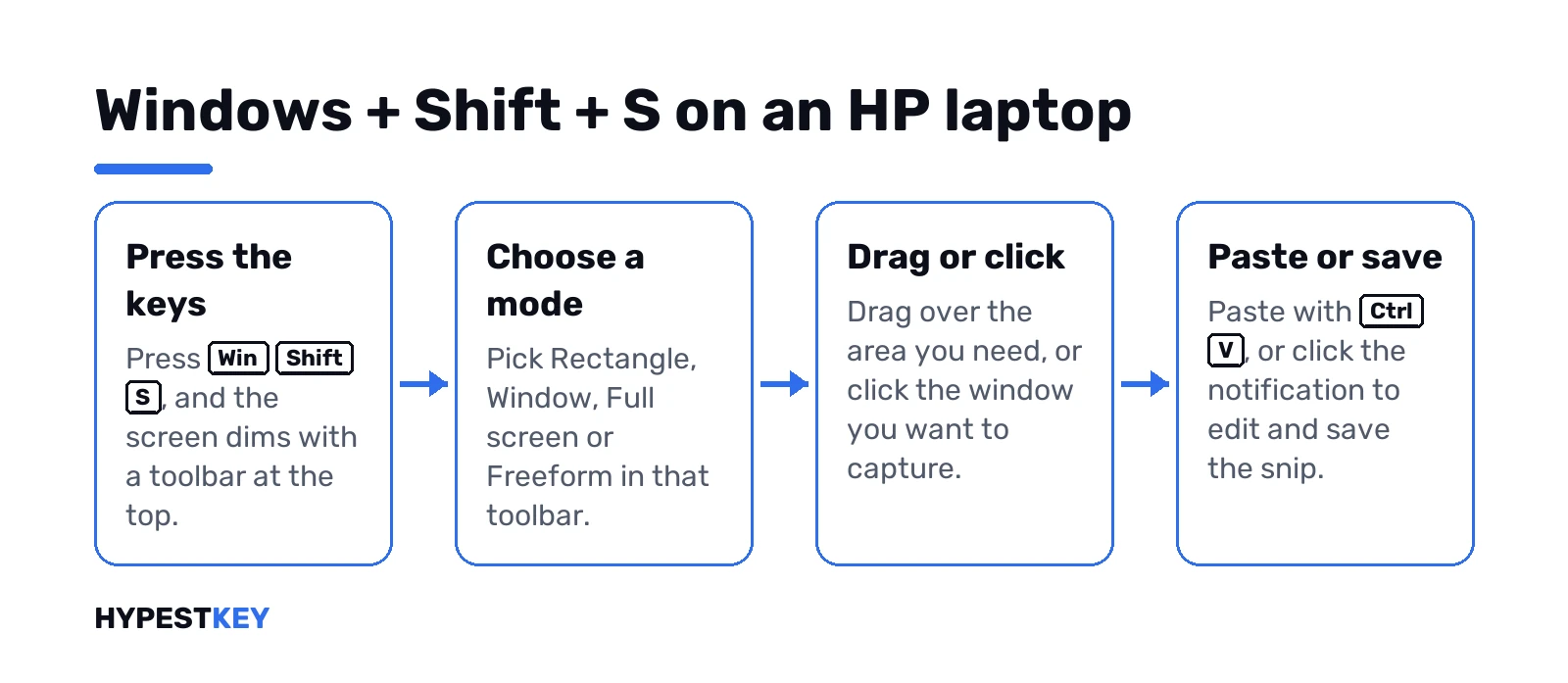
- Windows + Shift + S: part of the screen, a window or the full screen.
- Snipping Tool: delays, text actions and screen recording.
- Windows + Alt + prt sc: the active app through Xbox Game Bar.
The shortcuts are Microsoft’s, from Keyboard shortcut for print screen and Use Snipping Tool to capture screenshots. We checked them against HP’s own guide, How to screenshot on HP laptop or desktop computers, which lists the same keys.
Finding the key on an HP keyboard
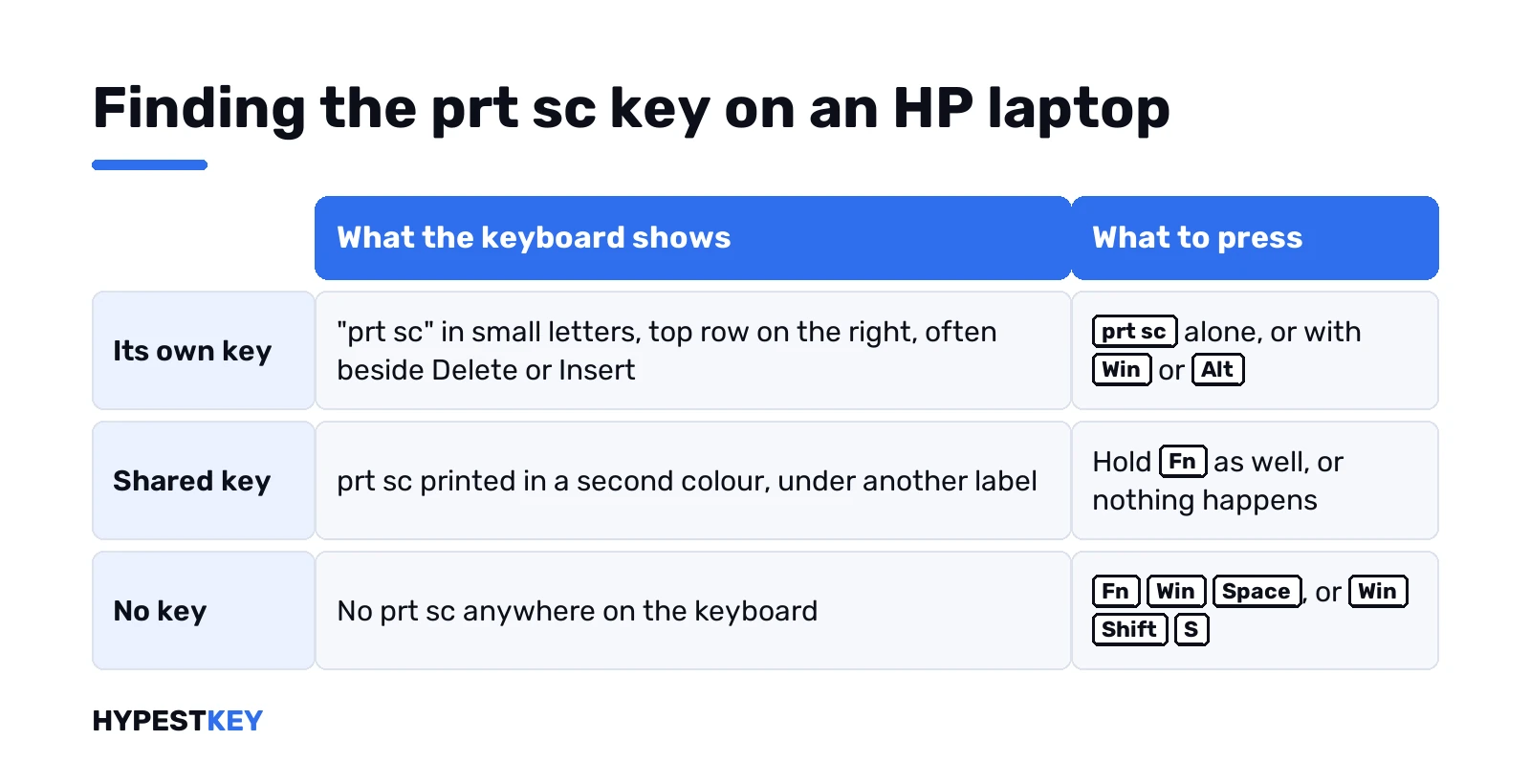
HP prints the key as “prt sc”, in small letters, and places it in the top row on the right. On many models it sits beside Delete or Insert.
| Where it is | What that means |
|---|---|
| Its own key, printed “prt sc” | Press it alone, or with Windows or Alt |
| Printed in a second colour, under another label | It’s shared: hold Fn as well |
| No prt sc anywhere | Use Fn + Windows + Space, or Windows + Shift + S |
The second row is the HP twist. On compact laptops the key doubles as something else, and without Fn nothing happens.
Finding your HP model and its key map
HP keyboards change from one line to the next. So the exact key for a screenshot on an HP laptop depends on the model, and the model is quick to look up.
- fn + esc. Opens HP System Information on many HP notebooks. Product name and product number, one screen. Nothing appears? On HP consumer PCs the shortcut can be switched off, in that same app.
- HP Support Assistant. Preinstalled on many HP models, next to HP Documentation. It shows the model too.
- The support site. Type the product number at support.hp.com and open the manuals for that exact model.
The user guide has a keyboard chapter. That’s where we’d look for where prt sc sits, whether it shares a key, and which combination switches the action keys.
One catch. On some HP models fn + esc is the Fn Lock toggle instead, covered below. Press it once and see which window or light answers.
The prt sc shortcuts for a screenshot on an HP laptop
| Keys | Result | With a shared key |
|---|---|---|
| prt sc | Whole screen to the clipboard | Fn + prt sc |
| Windows + prt sc | Whole screen saved as a PNG file | Fn + Windows + prt sc |
| Alt + prt sc | Active window to the clipboard | Fn + Alt + prt sc |
A clipboard capture shows nothing on screen. Paste it with Ctrl + V into Paint, Word or a chat to see it. Windows + prt sc dims the screen briefly and writes the file.
C:\Users\YourName\Pictures\ScreenshotsFn Lock and the action keys
HP laptops treat the top row in one of two ways. Either the printed functions come first and F-keys need Fn, or the other way round.
| Setting | Where | Effect on prt sc |
|---|---|---|
| Fn Lock | Fn + Esc on models that have it; a light on the Fn key shows the state | Flips whether the shared key needs Fn |
| Action Keys Mode | The BIOS setup, under System Configuration, on many HP models | Decides whether the top row acts as functions or as F-keys |
If a shortcut works only with Fn held, or only without, one of these two is the reason. The manual of the model names the exact combination.
Saving a screenshot on an HP laptop as a file at once
For a file without any pasting, two routes.
| Route | Keys | Folder |
|---|---|---|
| Print Screen route | Windows + prt sc, with Fn if shared | Pictures\Screenshots |
| No Print Screen key | Fn + Windows + Space | Pictures\Screenshots |
| Snipping Tool with auto-save | Windows + Shift + S on Windows 11 | Pictures\Screenshots |
With OneDrive’s folder backup on, Pictures sits inside OneDrive, and so does the Screenshots folder. Every folder by method is in where screenshots go on Windows 11.
What HP’s own screenshot guide adds
HP keeps a how-to page for screenshots on its laptops and desktops, written with the Envy and EliteBook lines in mind. The HP-specific parts, in short:
| HP says | What we take from it |
|---|---|
| The key is usually in the upper-right area, printed PrtSc, PrtScn or similar | On HP laptops it’s mostly “prt sc” in small letters |
| Some HP laptop models need Fn + PrtSc because of their keyboard layout | A shared key, not a broken one |
| Check whether Fn lock is on or off | The same switch flips every shortcut with prt sc |
| HP Support Assistant or HP Documentation may come with the laptop | The first place to read about your model |
| support.hp.com has the details for each model | The user guide settles any doubt |
Different HP models carry slightly different layouts, and HP says so itself. We’d trust the printed label first, the manual second.
The Snipping Tool, Xbox Game Bar and the rest of the built-in Windows tools work on an HP exactly as on any PC. They’re all in our guide on how to screenshot on Windows.
HP desktops and all-in-ones
A full-size HP keyboard has a plain Print Screen key. It’s labelled “prt sc” or “print screen”, and there’s no Fn to think about. Every shortcut above works as printed.
On an HP all-in-one with a touch screen, Windows + Shift + S with a finger works too. Drag the rectangle on the screen itself.
HP 2-in-1s and tablets
On a Spectre x360, Envy x360 or Pavilion x360 the keyboard folds away. The touch screen takes over.
| Situation | How to capture |
|---|---|
| Keyboard folded behind the screen | Open the Snipping Tool from Start and drag the selection with a finger |
| Keyboard still reachable | Windows + Shift + S as usual |
| A detachable HP tablet without its keyboard | Power + Volume Up, the combination Microsoft gives for Windows tablets |
| With an HP pen | Draw a freeform snip in the overlay |
Pasting, editing and printing
A capture on the clipboard needs a home. Any of these takes it with Ctrl + V.
| App | Good for |
|---|---|
| Paint | Cropping, a quick arrow, saving as PNG or JPEG |
| Word or Outlook | Putting the picture straight into a document or an email |
| Teams, Discord, WhatsApp on the web | Sending it as a message |
| The Snipping Tool editor | Pen, highlighter, crop, text actions |
To print a saved screenshot, Microsoft’s page says to right-click the file in its folder and select Print. With Windows + V we open the clipboard history, so a second capture doesn’t erase the first.
A full web page in one screenshot on an HP laptop
None of the keys captures more than what’s on screen. Microsoft Edge can, for web pages.
- Open the page in Edge.
- Press Ctrl + Shift + S.
- Select Capture full page, then save or copy the result.
For long documents in other apps, a free tool such as ShareX scrolls the window and stitches the pieces together.
All the keys on one card
| Keys | What you get | Where |
|---|---|---|
| Windows + Shift + S | Any area, window or full screen | Clipboard; a file on Windows 11 |
| prt sc, or Fn + prt sc | Whole screen | Clipboard |
| Windows + prt sc | Whole screen | Pictures\Screenshots |
| Alt + prt sc | Active window | Clipboard |
| Fn + Windows + Space | Whole screen, keyboards without prt sc | Pictures\Screenshots |
| Windows + Shift + R | A video of an area, Windows 11 | Where you save it |
| Windows + Alt + prt sc | Active app, Game Bar | Videos\Captures |
| Windows + V | Clipboard history | A list of recent copies |
When the screenshot key does nothing on an HP laptop
| Symptom | Cause | Fix |
|---|---|---|
| Nothing happens | The key is shared, or Fn Lock is set the other way | Fn + prt sc, or toggle Fn Lock |
| The snipping overlay opens | The Windows 11 Print Screen setting | Settings, Accessibility, Keyboard |
| Another program opens | That program took the key | Change its hotkey |
| Screen dims, no file | OneDrive moved Pictures | Look in OneDrive\Pictures\Screenshots |
| The key never registers | Keyboard or firmware | Test it on our online keyboard tester; check Action Keys Mode |
The full list of fixes, in order, is in Print Screen not working on Windows 11.
Related guides
- Every method for any PC: how to screenshot on Windows.
- Another make: screenshots on a Dell laptop.
- Tablets without a keyboard: screenshots on a Surface.
- Keys in another language: changing the keyboard layout in Windows 11.
- Quick access to sound and brightness: Windows 11 Quick Settings.
- How to Take a Scrolling Screenshot on Windows
HP sells laptops with Windows 11 Home or Pro; our overview of the Windows 11 editions shows the difference, and Windows 11 Home vs Pro goes into detail. For a laptop that should move up, we send the Windows 11 Pro key instant to email; every edition is under Windows 11 keys.
Common mistakes when you screenshot on an HP laptop
- Pressing prt sc on a shared key without Fn and declaring it broken.
- Expecting plain prt sc to show something on screen.
- Looking in Pictures after a Game Bar capture.
- Searching the old Pictures path while OneDrive moved it.
- Changing Action Keys Mode in the BIOS and forgetting it.
Terms used on this page
| Term | Meaning |
|---|---|
| prt sc | HP’s label for the Print Screen key |
| Fn | The function key that reaches the second label on a shared key |
| Fn Lock | A switch that fixes whether the top row needs Fn |
| Action Keys Mode | HP’s BIOS setting for the behaviour of the top row |
| Clipboard | Where copied content waits until you paste it |
FAQ
How do I screenshot on an HP laptop?
Press Windows + Shift + S and drag over the area. Or press Windows + prt sc to save the whole screen as a file. We add Fn when the prt sc key is shared with another function.
Where is the Print Screen key on an HP laptop?
In the top row on the right, printed "prt sc", often beside Delete or Insert. A label in a second colour means Fn is needed.
Why doesn't prt sc work on my HP laptop?
Most often the key is shared and needs Fn, or Fn Lock is set the other way. The Windows 11 setting that opens the Snipping Tool is the next thing we check.
Where do screenshots go on an HP laptop?
Windows + prt sc and the Snipping Tool save to Pictures\Screenshots. Game Bar saves to Videos\Captures. With OneDrive backup on, Pictures is inside OneDrive.
How do I screenshot on an HP laptop without a Print Screen key?
Microsoft's shortcut page gives Fn + Windows + Space. Windows + Shift + S works on any keyboard too, and we'd make that the habit.
How do I screenshot one window on an HP laptop?
Click the window and press Alt + prt sc, with Fn if the key is shared. We also use Window mode under Windows + Shift + S.
Does HP have its own screenshot tool?
Not one that's needed. HP's own guide lists the Windows shortcuts and the Snipping Tool. Gaming models with overlay software may add a capture key of their own.