Short answer: To delete pages in Word, click on the page and press Ctrl+G. Type the page bookmark, press Enter, then Close and Delete. A blank last page holds Word's required last paragraph; we shrink it to 1 point. Blank pages in the middle come from page or section breaks.
To delete pages in Word, click on the page and press Ctrl+G. Type the page bookmark and press Enter. Then Close, then Delete. Word has no Delete Page button. We remove what fills the page, and the page goes with it.
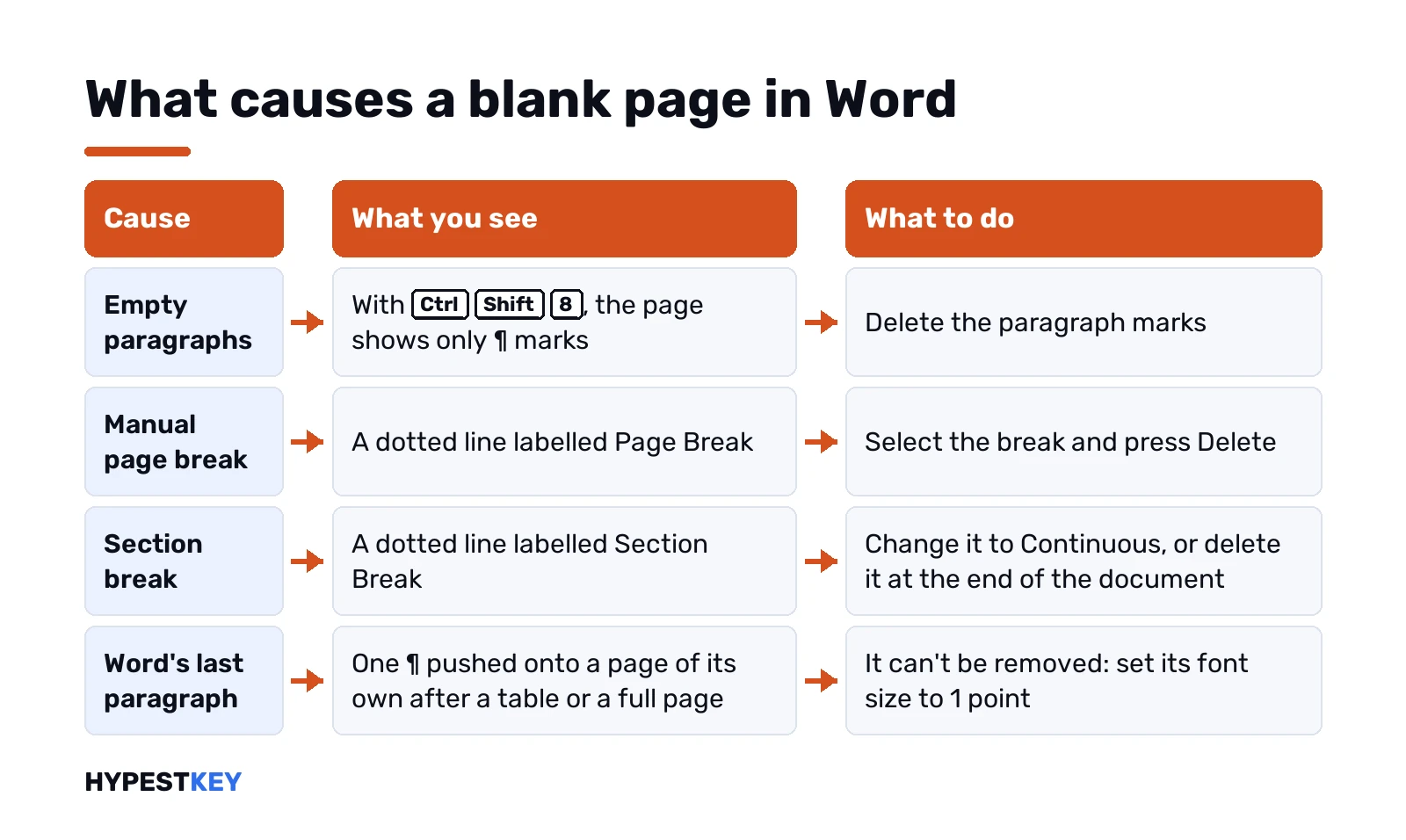
We trace blank pages to empty paragraphs, page breaks or section breaks, each with its own fix.
- A page with content: Ctrl+G, the page bookmark, Enter, Close, Delete.
- A blank last page: show paragraph marks and shrink the last one to 1 point.
- A blank page in the middle: delete the manual page break before it.
- A blank page from a section break: change the break to Continuous.
- Several pages: select from the start of the first to the end of the last, then Delete.
- A page you just added: Ctrl+Z undoes it.
We follow Microsoft’s support article Delete a page or remove a blank page in Word. It covers every current version of Word for Windows and Mac.
How to delete pages in Word with Ctrl+G
This is Microsoft’s own method. It selects exactly one page, whatever is on it: text, pictures, tables or empty paragraphs.
- Click or tap anywhere on the page you want to delete.
- Press Ctrl+G. The Find and Replace dialog opens on the Go To tab.
- In the Enter page number box, type the bookmark shown under these steps.
- Press Enter, then select Close.
- Check that the whole page is highlighted.
- Press Delete.
\page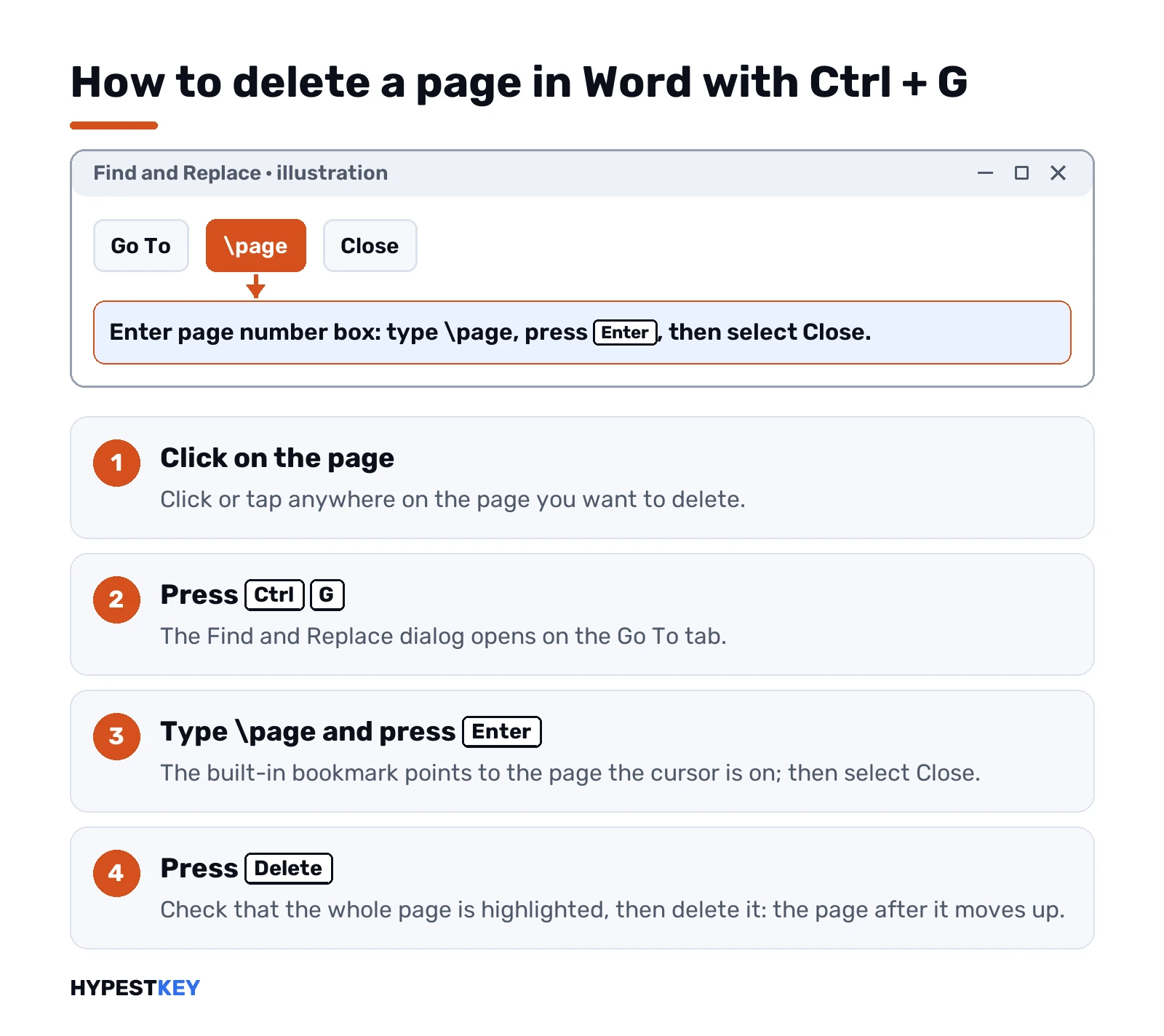
The page bookmark is built into Word. It always points to the page the cursor is on, so the same trick works on page 2 or page 200.
The page after it moves up. If the deleted page started with a heading or a page break, the next page can shift too. We look at it once afterwards.
Why Word has no Delete Page button
Word doesn’t store pages. It stores one stream of text, and pages are where that stream happens to break on screen and on paper.
So a page disappears when the content that fills it disappears. That’s why the fixes below are all about removing something: content, a break, or an empty paragraph.
| What fills the page | What to remove |
|---|---|
| Text, pictures, tables | The content, with Ctrl+G and \page |
| Empty paragraphs | The paragraph marks |
| A manual page break | The break |
| A Next Page, Odd Page or Even Page section break | Change it to Continuous, or delete it at the end of the document |
| Word’s required last paragraph | Can’t be removed; make it smaller |
Seeing what’s on a blank page
A blank page is rarely empty. Turn on paragraph marks and the cause shows up.
| Show paragraph marks | Keys or button |
|---|---|
| Windows | Ctrl+Shift+8 |
| Mac | ⌘+8 |
| Ribbon | Home tab, the ¶ button |
Each ¶ is a paragraph. A dotted line labelled Page Break or Section Break is a break. Press the same keys again to hide them.
Removing a blank last page
Word always ends a document with one paragraph mark that can’t be deleted. After a table or a full page, we see that mark pushed onto a new page of its own.
Microsoft’s fix is to make the mark so small that it fits on the page before.
- Press Ctrl+Shift+8 to show paragraph marks.
- Select the last paragraph mark.
- Click in the Font size box, type 01 and press Enter.
- Press Ctrl+Shift+8 again to hide the marks.
Still there? Microsoft suggests a smaller bottom margin: Layout, Margins, Custom Margins, and a small value such as 0.3 inches.
A square bullet next to that mark means Page break before is switched on. We right-click the paragraph, open Paragraph, go to Line and Page Breaks and clear Page break before.
Removing page breaks and section breaks
| Break | Fix from Microsoft’s article |
|---|---|
| Manual page break | Show paragraph marks, select the break, press Delete |
| Section break in the middle of the document | Double-click it, then Layout, Breaks, Continuous; deleting it can change the formatting |
| Next Page, Odd Page or Even Page break at the end | Put the cursor just before it and press Delete |
Section breaks are easier to spot in Draft view, on the View tab. Microsoft’s article names that as the tip.
Why the caution in the middle of a document? A section break carries the formatting of the section before it: margins, orientation, headers. Changing it to Continuous keeps that formatting and drops the new page.
How to delete several pages in Word at once
The Go To dialog can also take you to a page number, which makes ranges easy.
- Click at the very start of the first page you want gone.
- Press Ctrl+G, type the number of the last page and press Enter, then Close.
- Hold Shift and press the Page Down key, or Shift-click, until the end of that page is reached.
- Check the selection and press Delete.
With a mouse it’s simpler: click at the start, scroll, then Shift-click at the end of the range. Everything in between is selected.
Using the Navigation pane
The Navigation pane, View tab, Navigation Pane, shows pages as thumbnails on the Pages tab. Clicking a thumbnail jumps to that page, which helps in long documents.
Thumbnails don’t delete anything themselves. We use them to find the page, then the Ctrl+G method to clear it.
How to delete pages in Word on a Mac and on the web
| Word | Select a page | Paragraph marks |
|---|---|---|
| Windows | Ctrl+G, \page |
Ctrl+Shift+8 |
| Mac | Option+⌘+G, \page |
⌘+8 |
| Word on the web | Select the content by dragging | Home tab, ¶ button |
The Mac version has its own page here: deleting pages in Word on a Mac.
When the page still won’t go
| Symptom | Cause | Fix |
|---|---|---|
| A blank page after a table | The last paragraph after the table | Shrink it to 1 point |
| A blank page between chapters | A Next Page or Odd Page section break | Change the break to Continuous |
| Delete does nothing | The document is protected or in Read Mode | Review, Restrict Editing, or View, Edit Document |
| A blank page only when printing | Printer settings for double-sided output | Check the print options, not the document |
| The cover page won’t go | It’s an inserted cover page | Insert, Cover Page, Remove Current Cover Page |
More guides for Word and Office
- Page numbers that shift after deleting: page numbers in Google Docs covers the same idea there.
- Check boxes in documents: our checkbox guide for the Office apps.
- Getting Office in the first place: how to activate Office 2024 and how to activate Office 2021.
- Which Office to buy: Office 2024 Professional Plus vs Home and Business.
- Subscription or one-time purchase: Microsoft 365 vs Office 2024.
- Office misbehaving after an update: Office unlicensed product.
- Find and replace in Word
- How to sign a Word document
- How to download a Word document
Word works the same in every edition that contains it. Our Office LTSC Professional Plus 2024 key arrives instant to email; all versions are under Office keys.
Common mistakes when you delete pages in Word
- Pressing Backspace on a blank last page for a minute; that paragraph can’t be deleted.
- Deleting a section break in the middle and losing the page orientation after it.
- Selecting a page by dragging and missing a line at the end.
- Looking for a Delete Page button in the ribbon.
- Fixing a printer setting by editing the document.
Windows shortcuts and their Mac counterparts
| Task | Windows | Mac |
|---|---|---|
| Go To a page | Ctrl+G | Option+Command+G |
| Show paragraph marks | Ctrl+Shift+8 | Command+8 |
| Undo | Ctrl+Z | Command+Z |
| Select to the end of the document | Ctrl+Shift+End | Command+Shift+Down Arrow, or Command+Shift+End on a full keyboard |
| Delete the character to the right | Delete | Fn+Delete on a MacBook keyboard |
The full Windows guide is how to delete pages in Word.
Thumbnails in the sidebar
View, Sidebar, Thumbnails shows each page as a small picture. It’s the quickest way to spot a stray blank page in a long document.
Click the thumbnail to jump there, then use the Option+Command+G method to select and delete it.
Pages documents and PDFs
| App | How a page goes |
|---|---|
| Word for Mac | Remove its content, as above |
| Apple Pages, page layout documents | Select the page thumbnail and press Delete |
| Apple Pages, word-processing documents | Remove the content, as in Word |
| A PDF in Preview | View, Thumbnails, select the page, Delete |
A Word file opened in Pages and saved back can change its layout. We keep Word documents in Word.
Deleting several pages at once in Word for Mac
- Click at the very start of the first page you want gone.
- Scroll to the last page of the range.
- Hold Shift and click at the end of that page.
- Check the selection and press Delete.
For long ranges, Option+Command+G with a page number jumps straight to the end. Hold Shift while you click there.
Getting a page back
| Situation | Way back |
|---|---|
| Just deleted | Command+Z, as many times as needed |
| Saved and closed, file on OneDrive | File, Browse Version History |
| Saved and closed, file on the Mac | Time Machine, if it runs |
That’s why we delete pages before a final save, not after, in documents that matter.
Terms used on this page
| Term | Meaning |
|---|---|
\page |
Word’s built-in bookmark for the current page |
| Paragraph mark | The ¶ sign at the end of every paragraph, shown with Ctrl+Shift+8 |
| Manual page break | A break inserted with Ctrl+Enter or Insert, Page Break |
| Section break | A break that starts a new section with its own layout |
| Continuous section break | A section break that doesn’t start a new page |
FAQ
How do I delete a page in Word?
Click on the page, press Ctrl+G, type \page in the Enter page number box and press Enter. Close the dialog and press Delete. That's the method Microsoft's support article gives.
How do I delete a blank page at the end of a Word document?
Show paragraph marks with Ctrl+Shift+8, select the last paragraph mark and set its font size to 1. Word's last paragraph can't be deleted, so we make it fit on the page before.
Why can't I delete a blank page in Word?
Usually it holds Word's required last paragraph, a page break or a section break. Paragraph marks show which. We remove the break or shrink the last paragraph.
How do I delete multiple pages in Word?
Click at the start of the first page, then Shift-click at the end of the last one, and press Delete. We use Ctrl+G with a page number to jump to the end of a long range.
Is there a delete page button in Word?
No. Word stores text, not pages, so a page goes when its content goes. We use Ctrl+G and \page to select a whole page at once.
How do I delete a page in Word on a Mac?
Press Option+Command+G, type \page, press Enter, close the dialog and press Delete. Paragraph marks show with Command+8. We cover it in a separate Mac guide.
How do I remove a section break without changing the formatting?
Change it instead of deleting it. Double-click the break and choose Layout, Breaks, Continuous. Microsoft's article recommends that in the middle of a document.
How do I delete a blank page in Word on a Mac?
Press Command+8 to show paragraph marks and breaks, then delete the empty paragraphs or the page break. If the blank page is the last one, we shrink the last paragraph mark to font size 1.