Short answer: To download a Word document from Word for the web, open File, then Create a Copy and Download a copy. The .docx goes to your Downloads folder. In OneDrive, select the file and click Download. In Google Docs, File, Download, Microsoft Word. From email, use the arrow next to the attachment.
To download a Word document from Word for the web, open it and go to File, Create a Copy, Download a copy, and the .docx lands in your Downloads folder. From OneDrive you don’t even open it. Select the file, then Download. We list every other place below.
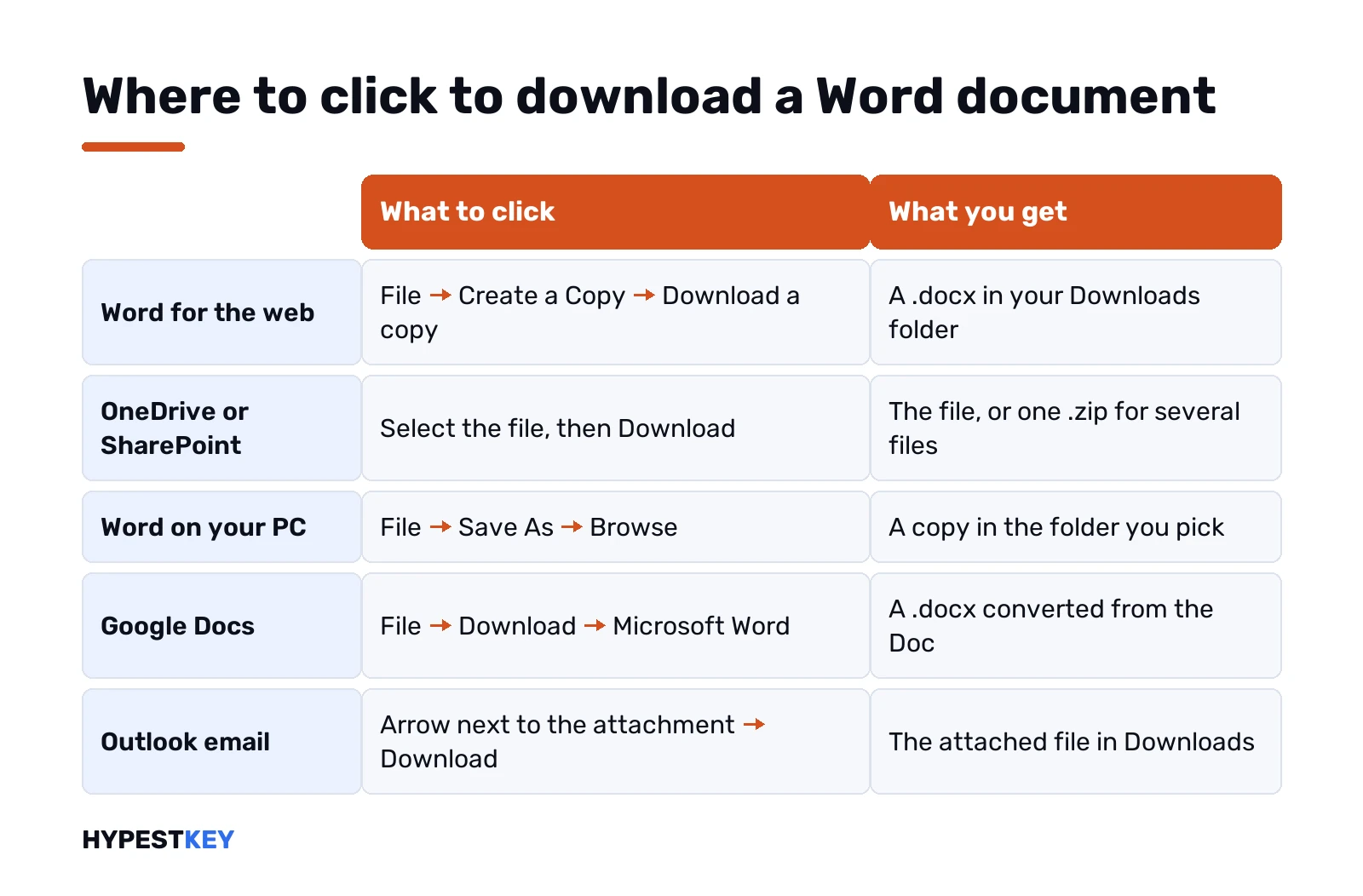
| Where the document is | What to click | What you get |
|---|---|---|
| Word for the web | File, Create a Copy, Download a copy | A .docx in Downloads |
| OneDrive or SharePoint | Select the file, Download | The file, or a .zip for several |
| Word on your PC | File, Save As, Browse | A copy wherever you pick |
| Google Docs | File, Download, Microsoft Word | A .docx converted from the Doc |
| Outlook email | Arrow next to the attachment, Download | The attached file |
| Phone, OneDrive app | Press and hold, Keep offline | The file stays on the phone |
How to download a Word document from Word for the web
Word in the browser saves on its own, but only to the cloud. To get a real file on your disk:
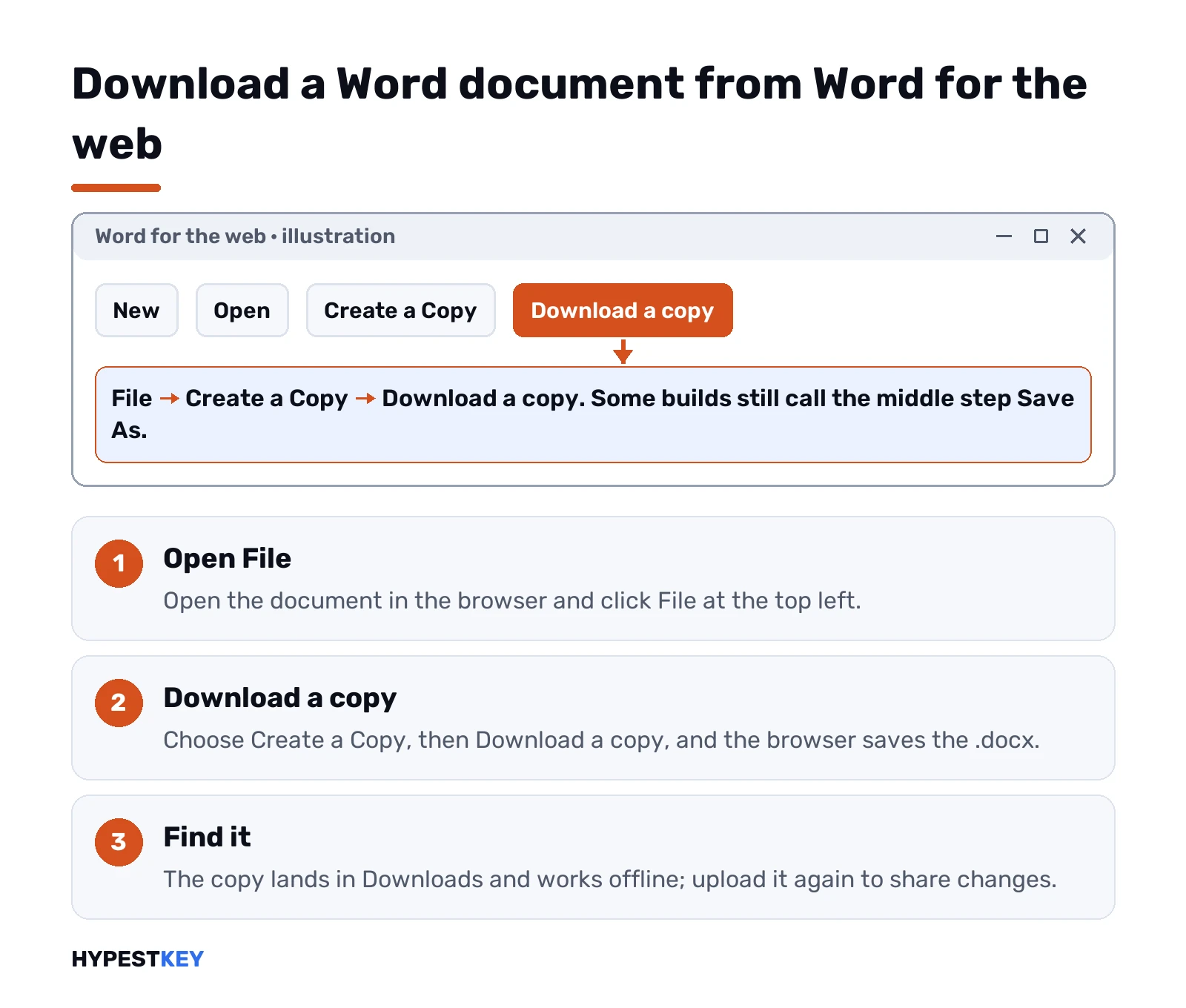
- Open the document in Word for the web.
- File, top left.
- Create a Copy. Some builds still call it Save As.
- Download a copy.
- The browser saves the .docx to Downloads. Edge and Chrome show it in the download bar right away.
That copy works offline. Edit it on a train, upload it later. Just remember it’s a copy now. Changes you make to it don’t flow back to the cloud version until you upload it again.
Microsoft writes the steps up on its page Download a copy of a Word for the web document. The wording shifts between builds. The button stays in the File menu.
Downloading from OneDrive, SharePoint or Teams
No need to open the file at all. In the OneDrive website:
- Tick the round check box on the file.
- Click Download in the top bar. Or right-click the file, Download.
- If the browser asks, pick Save or Save As.
Several files at once? Select them all, Shift-click for a range, then Download. You get one .zip. Inside a folder with nothing selected, Download grabs the whole folder as a .zip.
A few odd cases from Microsoft’s page on downloading from OneDrive or SharePoint:
- Shared with you. The Shared view has no Download. Open the file, then save a copy where you want it.
- Download button gone. Happens after a refresh inside a folder. Go up one level and back.
- Work or school account. Folders and multi-file downloads need Edge or Chrome.
Teams files live in SharePoint, so the same Download button shows up when you open the Files tab. Got the OneDrive desktop app? Then we’d skip the download step. Your OneDrive files already sit in the OneDrive folder on the PC.
Saving a copy from the Word desktop app
Desktop Word opened a file straight from the cloud? It still lives there. To get a local copy:
- File, Save As, then Browse. Pick Desktop or Documents.
- With AutoSave on, the menu may say Save a Copy. Same thing.
- Keep the type as Word Document, .docx, unless someone asked for another format.
We’d rename the copy right there, in the File name box. Two files with the same name in two places is how people end up editing the wrong one.
Word not installed at all yet? Our walkthrough of the Microsoft 365 install covers setup, and downloading Microsoft Office safely shows the official download pages only.
Download a Word document from Google Docs
A Google Doc isn’t a Word file. Google converts it on the way out. Word itself isn’t needed for that step.
- Open the Doc.
- File, then Download.
- Microsoft Word. The file comes down as .docx.
From Google Drive it’s a right-click on the file, then Download. A real .docx someone uploaded downloads as it is. A native Google Doc converts.
Conversion isn’t perfect. Google’s own help says Word files go back out only as .docx, and some things like macros don’t survive the trip. Page numbers usually make it, though. We show how to set them first in our guide to page numbers in Google Docs. Weighing the two suites against each other? See Google Docs vs Microsoft Office.
Word files sent by email
An attachment isn’t on your PC until you save it. Clicking it in the browser only opens a preview.
- New Outlook and Outlook on the web: the small arrow next to the attachment, then Download. Download all saves every file in that message.
- Classic Outlook: right-click the attachment, Save As. Microsoft says it suggests the Documents folder, and you can change it there.
- Edit in Word desktop app sits in the same menu. Handy when you want to work on it right away.
Microsoft’s notes are on its page about opening or saving attachments. Other mail services put a download arrow on the attachment, too.
Download as PDF or ODT instead
Sending a final version that nobody should change? PDF is the usual pick. In Word for the web the export lives under File, Export:
- Download as PDF. Plain PDF, no comments.
- Download as PDF with comments. Keeps the review notes visible.
- Download as ODT. OpenDocument, for LibreOffice users. Skip it otherwise.
Desktop Word does it with File, Save As, and PDF in the type list. Google Docs has PDF in the same Download menu as Word.
On iPhone, iPad and Android
Phones don’t really “download” a document the way a PC does. They keep it offline.
- OneDrive app: press and hold the file, then Keep offline. Works for files, not folders.
- Safari on iPhone or iPad: tap the download link. The file goes to the Downloads folder in the Files app.
- Android: the browser saves it to Downloads. Your file manager app shows that folder.
Opening it on the phone needs the Word app, or the browser. Editing on a big screen? We’d send it to a PC instead.
Where the downloaded file ends up
Can’t find it? Nine times out of ten it’s in Downloads.
- Windows: File Explorer, Downloads, in the left pane. Or Ctrl+J in Edge and Chrome, then Show in folder.
- Mac: Finder, Downloads. Or the Downloads stack in the Dock.
- Name changed. Download the same file twice and the browser adds a number to the second copy.
Sort the folder by date modified. The newest file sits on top.
When a downloaded Word document won’t open or edit
The file is there, Word opens it, and everything is locked. A yellow bar at the top says Protected View.
Nothing is broken. Files from the internet and some email attachments open that way on purpose. Trust the sender? Click Enable Editing. A red bar is stricter. File, Edit Anyway. Only for a file you’re sure about. Microsoft explains it in What is Protected View.
Other things we see:
- Whole ribbon grey, title bar says Unlicensed Product. A license problem. Our guide to the Office unlicensed product error walks through it.
- Old .doc file. Opens in Compatibility Mode. File, Info, Convert turns it into .docx.
- Word says the file is corrupt. A half-finished download does that. Get it again.
- No Word on the PC. Word for the web opens it in a browser with a free Microsoft account. Our page on Microsoft Office free download options lists the rest.
Once it’s editable, the usual cleanup jobs follow. We’ve written up how to delete pages in Word, the same on a Mac, and adding checkboxes in Word. Curious what a subscription adds? What Microsoft 365 is explains it.
Want desktop Word without a subscription? Our Office Home and Business 2024 key covers one PC or Mac, instant to email.
FAQ
Where do downloaded Word files go?
The Downloads folder, on both Windows and Mac. In Edge or Chrome, press Ctrl+J to see the list and open the folder.
How do I save a Word Online file to my computer?
File, then Create a Copy, then Download a copy. The browser saves a .docx to Downloads, and it works offline after that.
Why does my downloaded file open in Protected View?
Files from the internet open that way for safety. If you trust the sender, click Enable Editing in the yellow bar.
Can I turn a Google Doc into a .docx?
Yes. File, Download, Microsoft Word. Google converts it, and you don't need Word installed for that part.
How do I grab several files from OneDrive at once?
Select them all and click Download. OneDrive packs them into one .zip file that you unzip afterwards.
There's no Download option on a shared file?
Right, the Shared view doesn't have one. Open the file first, then save a copy to your own folder.
Can I get it as a PDF instead?
Yes. In Word for the web it's File, Export, Download as PDF. Desktop Word uses Save As and the PDF type.