Short answer: To sign a Word document, insert a scanned picture of your signature with Insert, Pictures, or draw it on the Draw tab. Formal option: Insert, Signature Line, then sign it. Or File, Info, Protect Document, Add a Digital Signature. Digital signatures need a certificate and make the file read-only.
To sign a Word document, insert a picture of your handwritten signature with Insert, Pictures, or add a signature line with Insert, Signature Line and sign it. Need proof that nobody changed the file afterwards? That’s a digital signature, and it needs a certificate. We’d pick the method by who reads the file.
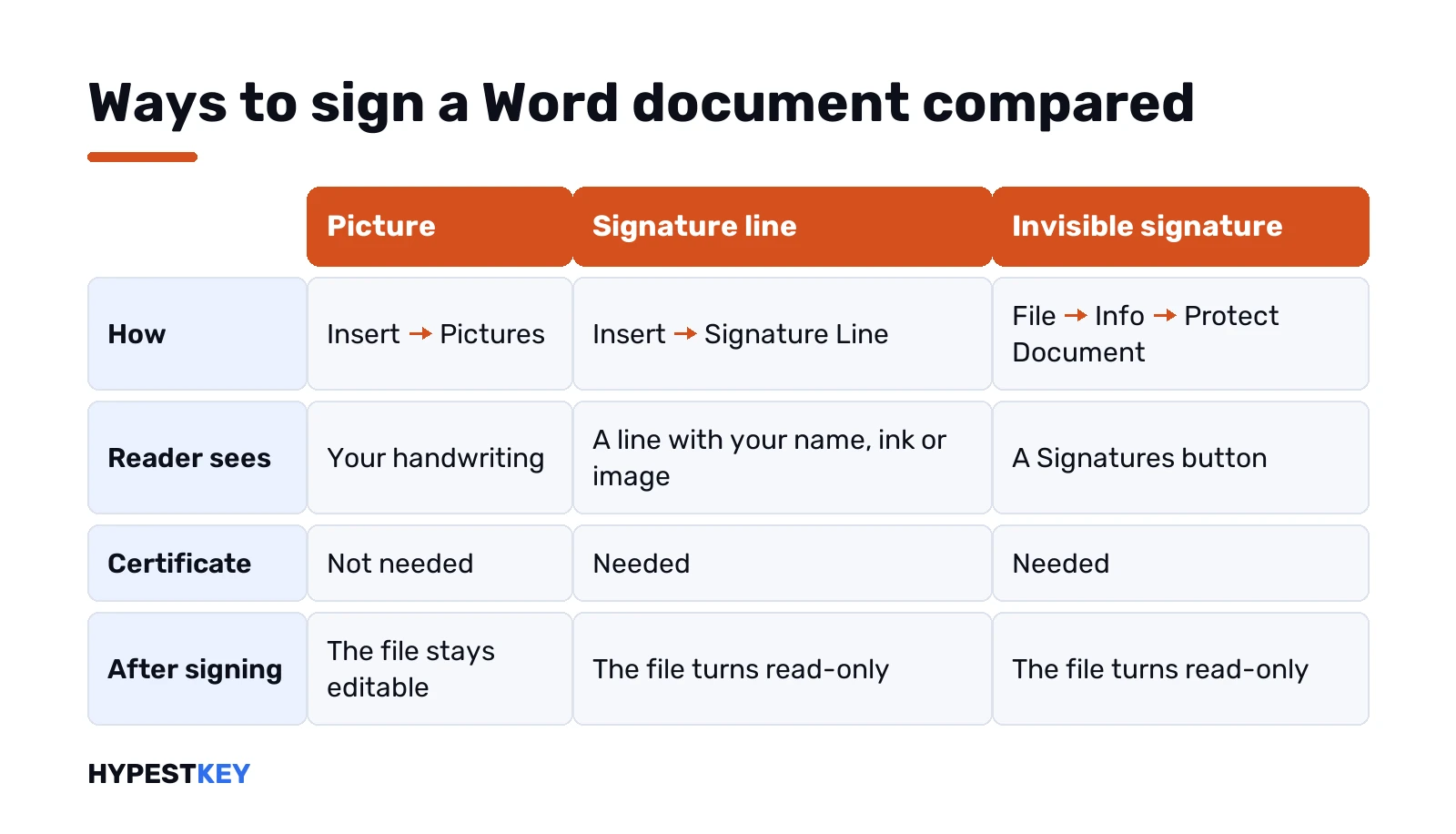
| Method | What the reader sees | Certificate | Good for |
|---|---|---|---|
| Picture of your signature | Your handwriting | No | Letters, forms, everyday paperwork |
| Drawn with the Draw tab | Ink strokes | No | Touch screens and pens |
| Signature line, signed | A line with your name, ink or image | Yes | Contracts where the signer is known |
| Invisible digital signature | A Signatures button, the file turns read-only | Yes | Proving the content wasn’t changed |
| E-signature service | Depends on the service | Handled by the service | Several signers in different places |
How to sign a Word document with a picture of your signature
The quickest route, and it works in every version of Word. You need your signature as an image file once. After that it’s two clicks.
- Sign a sheet of white paper. A dark pen scans better.
- Scan it, or photograph it flat in good light.
- Save it as BMP, GIF, JPG or PNG.
- In Word: Insert, Pictures, then pick the file.
- Select the picture. Picture Format tab, Crop. Drag the black handles tight around the signature.
- Right-click it, Save as Picture. Now there’s a clean copy for next time.
Microsoft’s own steps are on Insert a signature in a Word document. Still, it’s only a picture. It shows who meant to sign, and anyone with the file could copy it, so we keep this method for low-stakes paperwork.
Signature too big after inserting? Drag a corner handle. Side handles squash it. Layout Options, In Front of Text, lets you slide it right onto a printed line.
Saving your signature with Quick Parts
Signing the same kind of letter every week? Save the signature with your name and title under it as one block.
- Insert the signature picture.
- Under it, type your name, job title, phone or email.
- Select the picture and the text together.
- Insert, Quick Parts, Save Selection to Quick Part Gallery.
- Give it a name. Set Gallery to AutoText. OK.
Next time: Insert, Quick Parts, AutoText, and click the block by name. The whole thing drops in at the cursor.
On a Mac the menu is different. Select the picture and text, then Insert, AutoText, New, and name it. To reuse it: Insert, AutoText, AutoText, then the name.
Drawing a signature with the Draw tab
Touch screen or a pen? Then you can just write. On touch devices the Draw tab is already on.
No Draw tab on a normal PC? File, Options, Customize Ribbon. Tick Draw, OK. It also works with a mouse, though a mouse signature rarely looks like the real one.
- View tab, Print Layout. Ink only works in this view, and the Draw tab stays grey outside it.
- Draw tab, pick a pen. Thin black looks most like ink on paper.
- Write the signature where it belongs.
- Off by a bit? The Lasso tool on the Draw tab selects the strokes. Move them with the mouse or the arrow keys.
Handy on a Surface with its pen. For the pen’s other tricks see our guide to screenshots on a Surface with the pen.
Adding a signature line in Word
A signature line is the formal version. It puts an X and a line where someone signs, with their name and title printed under it.
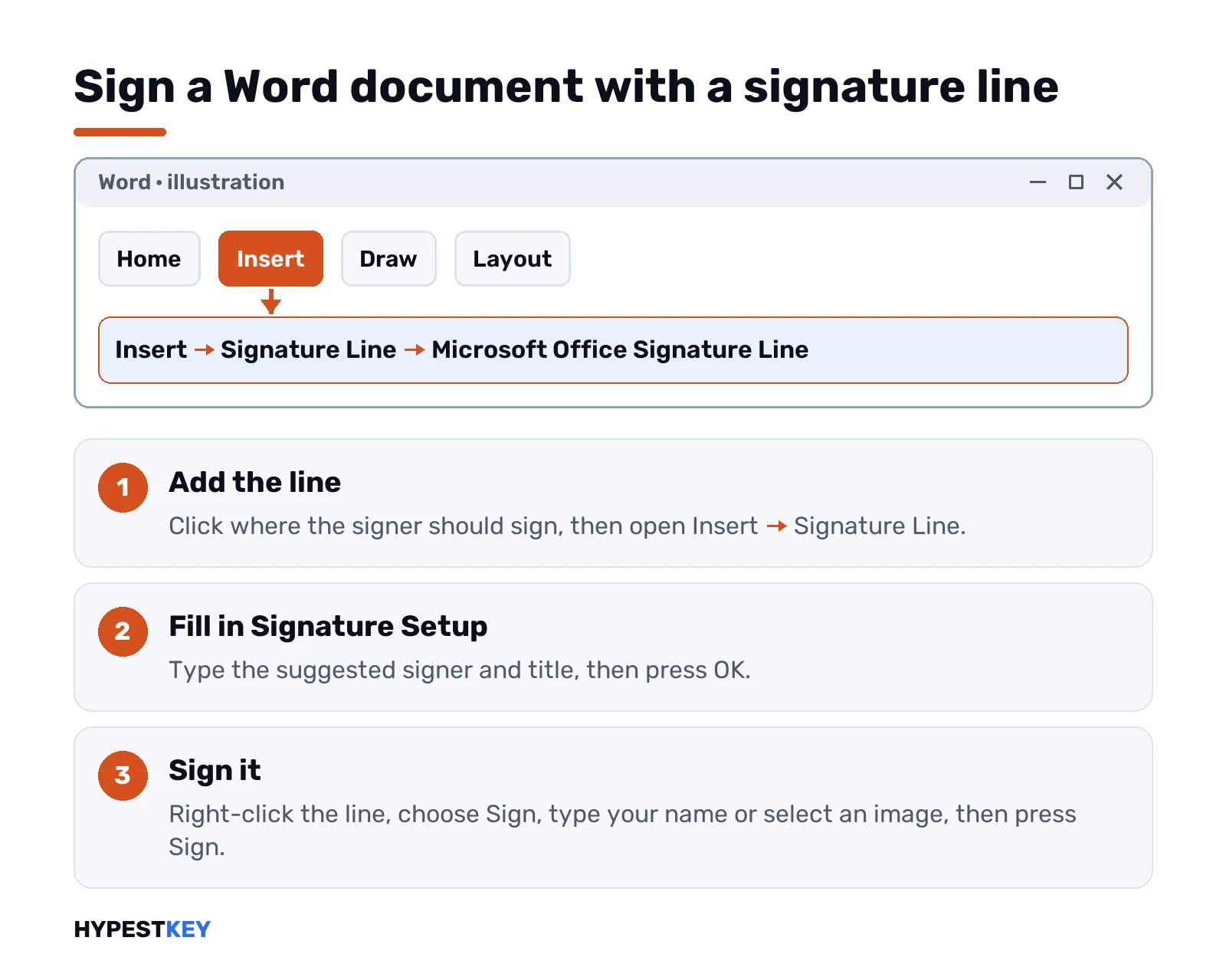
- Click where the line should go.
- Insert tab, Text group, Signature Line. Then Microsoft Office Signature Line.
- In Signature Setup, fill in the suggested signer, their title and email, and any instructions.
- Optional boxes: allow the signer to add comments, and show the sign date in the signature line.
- OK. Repeat for every person who has to sign.
The fields are all optional. For a plain contract between two people we’d fill in name and title, and leave the rest empty.
Opening a file with an unsigned line shows a Signatures message bar at the top. View Signatures takes you straight to what’s missing.
How to sign a Word document on a signature line
Someone sent you a file with a line waiting for you. Here’s the order.
- Right-click the signature line, Sign. A double-click does the same.
- Protected View bar on top? Only for a file you trust: Edit Anyway.
- Type your name next to the X. Or write it with ink. Or Select Image and pick your signature picture.
- Sign.
The Sign step uses a digital certificate. Without one, Word can’t finish, and that’s where most people get stuck. The next section covers where certificates come from.
Once signed, the document turns read-only. A Signatures button appears in the status bar at the bottom.
Digital signatures and the certificate you need
Think of it as an encrypted stamp, not a drawing. Microsoft lists four things it gives a document.
| What it proves | In plain words |
|---|---|
| Authenticity | The signer is who they say |
| Integrity | The content hasn’t changed since signing |
| Non-repudiation | The signer can’t credibly deny signing |
| Notarization | With a secure time-stamp server, in some cases it counts like a notary stamp |
For that you need a signing certificate. A certificate authority issues it. Usually valid for a year. Many companies and government offices issue their own, so we’d ask your IT team before buying one.
Just testing, or signing for yourself? Office ships a small tool for a self-made certificate, SelfCert.exe. On a current install it sits here:
C:\Program Files\Microsoft Office\root\Office16\SelfCert.exeRun it, type a name for the certificate, OK. The catch: other people can’t verify a signature made with it. On their PC it’s a stranger’s certificate until they decide to trust it.
Microsoft explains the details in Add or remove a digital signature in Office files. The steps there are for Word on Windows.
An invisible digital signature
No line, no picture. The file itself carries the signature. Good for a report you send out and want nobody to quietly edit.
- File, Info.
- Protect Document, Add a Digital Signature. A message pops up? OK.
- Pick a Commitment Type from the list.
- Type the purpose in Purpose for signing this document.
- Sign.
Finish every edit first. After signing, the document turns read-only, and editing means removing the signature.
To check a signed file: File, Info, View Signatures. The Signatures pane shows each one as valid, invalid, a recoverable error or a partial signature.
Removing or redoing a signature
Spotted a typo after signing? The signature has to go first.
- Signature line: right-click the signed line, Remove Signature, Yes.
- Invisible signature: File, Info, View Signatures. In the pane, the arrow next to the name, Remove Signature, Yes.
- Picture or ink: just click it and press Delete.
Fix the text, then sign again. A signature line stays in place after removal, so it’s a quick redo.
Sign a Word document on Mac, the web and phones
The picture method works everywhere. The certificate methods are the Windows desktop part.
- Mac: Insert, Pictures, Picture from File. Crop on the Picture Format tab. AutoText saves it for later.
- Word for the web: no signature command. Insert, Picture, and use your saved image.
- iPhone, iPad, Android: insert a picture of your signature. For a blank line to sign on paper, hold the underline key, or use a one-cell table with only the bottom border.
On a phone we’d keep the signature image in your photos. Then it’s always one tap away.
E-signature services for several signers
Five people in three cities need to sign? Passing a .docx around gets messy. Services like Adobe Acrobat Sign handle that in the cloud. Typing, drawing or uploading an image all work there.
Check the plan on the vendor’s site first. For one person signing one letter, we’d say Word on its own does the job.
Which Word you need to sign documents
Every method above needs a working Word. A grey ribbon and an Unlicensed Product banner in the title bar mean Office is in reduced functionality, and our unlicensed product guide fixes that.
Not sure which Office you have, or which to get? See every Microsoft Office version explained, Microsoft 365 vs Office 2024, and Office 2024 Professional Plus vs Home and Business. Setting up a new copy: how to activate Office 2024.
More Word how-tos from us. checkboxes in Word for forms people tick before signing. Then deleting pages in Word and Google Docs vs Microsoft Office.
Prefer a subscription? Here’s what Microsoft 365 includes.
Need Word on a new PC or Mac? Our Office Home and Business 2024 key is a one-time license, instant to email.
Related guides
FAQ
How do I sign a Word document for free?
Scan or photograph your signature, then Insert, Pictures in Word. No extra software, and no certificate needed for that.
Can I draw my signature in Word?
Yes. Draw tab, pick a pen, switch to Print Layout and write. A mouse works too, though a pen looks better.
Why can't I edit the document after signing?
A digital signature makes the file read-only. Remove the signature, edit, then sign again.
Do I need a certificate to sign a signature line?
Yes. Signature lines and invisible signatures use a digital certificate from a certificate authority or your organisation.
Signing in Word on a Mac, does it work?
The picture method does. Insert, Pictures, Picture from File, and save it as AutoText for next time.
Is a picture of my signature legally binding?
Depends on where you are and the document. A picture shows intent but proves nothing about changes, so contracts often use digital or e-signature services.
Can I sign in Word for the web?
Not with a signature command. Insert a picture of your signature instead, it works fine in the browser.