
 Microsoft Windows
 Microsoft Office
 Office for Mac
 Windows Server
A checkbox in Excel stores TRUE or FALSE. You click it, value flips. Sounds basic, right? Microsoft somehow needed 40 years to get this into the product properly. The native version that lives inside the cell only showed up in mid-2024. Before that, everyone had to mess around with the Developer tab and floating Form Controls. Word has its own checkbox system (works fine, actually), and PowerPoint… well, PowerPoint requires workarounds that feel like duct tape. I build task trackers and approval forms in all three apps regularly, so I’ve run into most of the problems you’ll hit.
I’m covering the native Excel checkbox, the old Developer tab method, Word content controls, Wingdings for print forms, and that PowerPoint animation trick. Also threw in formula patterns because honestly, a checkbox that doesn’t feed into COUNTIF or conditional formatting is pointless.
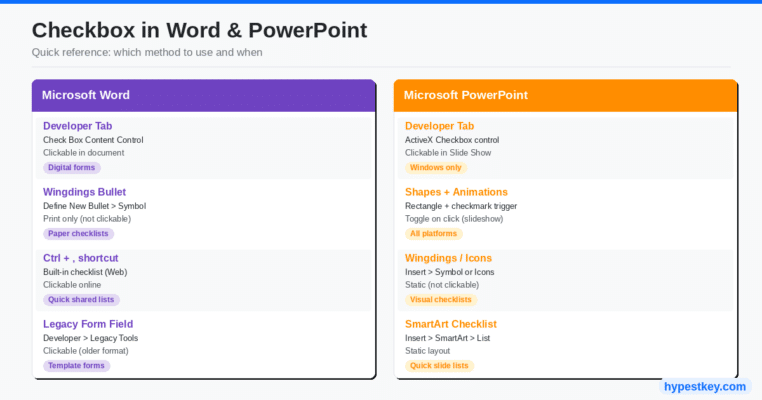
| App | Best Method | Clickable? | Version Required |
|---|---|---|---|
| Excel | Insert > Checkbox (native) | Yes | Microsoft 365 |
| Excel | Developer > Form Controls | Yes | Excel 2016+ |
| Word | Developer > Check Box Content Control | Yes | Word 2010+ |
| Word | Wingdings bullet symbol | No (print only) | All versions |
| PowerPoint | Developer > ActiveX Checkbox | Yes (slideshow) | PowerPoint 2010+ (Windows) |
| PowerPoint | Shapes + trigger animation | Yes (slideshow) | All versions |
How to Insert a Checkbox in Excel (Two Methods)
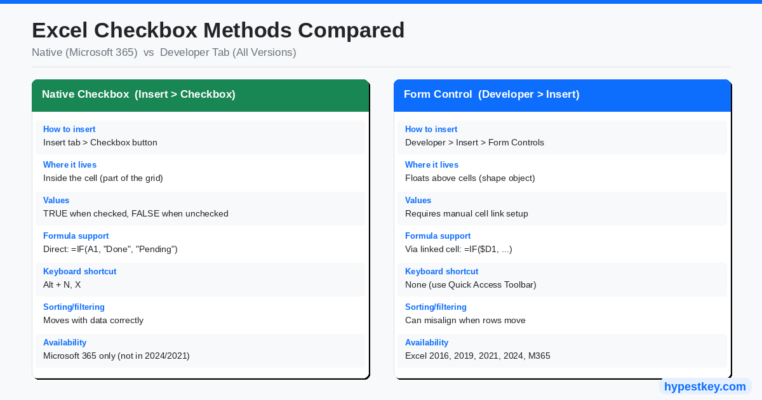
Completely separate systems, depending on your version. M365 subscribers got the native checkbox in Excel around June 2024. It behaves like a normal cell. Formula-ready from the start. If you bought Excel 2024 outright or you’re still on 2021/2019/2016, the native button doesn’t exist for you. You’ll use Form Controls from the Developer tab instead. More steps, more pain, same end result.
Method 1: Native Checkbox in Excel (Microsoft 365 Only)
Select cells. Insert tab. Checkbox. That’s the whole process. Three clicks.
Each checkbox sits inside the cell and holds TRUE when checked, FALSE when unchecked. Open the formula bar and click a checkbox cell, you’ll see the value right there. No linking required. Formulas reference the cell directly, same as any other data. The keyboard shortcut is Alt + N, X which I use constantly when building trackers with 50+ rows.
Selecting a range and pressing Spacebar checks or unchecks everything at once. Handy for attendance sheets where you mark everyone present first, then uncheck the no-shows. Deletion is a two-tap process: Delete unchecks the box, Delete again removes the formatting. Took me a while to get used to that because I kept accidentally unchecking instead of deleting.
The nice part: native checkboxes move with your data. Sort the column and they follow. Filter rows, insert new ones, whatever. They stay glued to their cells. The old Form Controls used to drift all over the place when you sorted. Super annoying.
Now the annoying part. Send that spreadsheet to a colleague on Excel 2024 or 2021 and every checkbox disappears. Their cells just display the words TRUE and FALSE. Formulas still work in the background, but visually it looks broken and confusing. I had a project manager email me asking why my “tracker was full of random TRUEs.” That’s when I started asking people what Excel version they run before choosing a checkbox in Excel method. Form Controls don’t have this problem.
Method 2: Developer Tab Checkbox (Excel 2016, 2019, 2021, 2024)
Microsoft hides the Developer tab by default. Nobody knows why. Right-click anywhere on the ribbon, Customize the Ribbon, find the Developer checkbox in the right column, tick it, OK. You do this once and it sticks forever.
Go to Developer, Insert, Form Controls and grab the checkbox icon. Click where you want it. You get a floating object labeled “Check Box 1” sitting on top of your grid. Right-click, Edit Text to fix that label or just delete all the text.
Here’s what trips people up. These checkboxes don’t write data to cells by default. Nothing happens in your spreadsheet when you click them. You have to manually link each checkbox to a cell. Right-click the box, Format Control, Control tab, type a cell address in the Cell link field. Now that cell shows TRUE/FALSE. Skip this step and your formulas can’t see the checkbox state at all. I’ve seen people build entire trackers, add 30 checkboxes, then realize none of them were linked. Painful.
Copying checkboxes is Ctrl+C, Ctrl+V like normal. Each copy gets a unique backend name (Check Box 2, Check Box 3, etc.) but the cell link copies too. So you need to right-click each pasted one and update the link individually. Yeah, it’s tedious work. This is exactly why the native method is worth the M365 subscription if checkboxes are something you use regularly.
Using a Checkbox in Excel With Formulas
A checkbox by itself is just a clickable square. It becomes useful when you hook it into formulas. These are the setups I reuse across almost every project.
Counting how many boxes are ticked: =COUNTIF(B2:B20, TRUE). Same formula for native checkboxes and linked Form Controls.
For a completion rate I usually put =COUNTIF(B2:B20, TRUE) / COUNTA(A2:A20) in a header cell and format it as percent. Quick visual of how far along the list is.
Status text that flips automatically: =IF(B2, "Done", "Pending"). You can replace those strings with anything, even a variance formula or running total.
The strikethrough trick is one of my favorites. Home, Conditional Formatting, New Rule, formula-based. Enter =$B2=TRUE, set the format to strikethrough with a gray font. Now every time you check a box, that row’s text gets a line through it. Looks satisfying.
Pulling unchecked items into a separate list: =FILTER(A2:A20, B2:B20=FALSE). Only works in M365 and Excel 2021+. Before this function existed you had to write these ugly INDEX/MATCH arrays. So glad that’s over.
For a visual progress bar, put =COUNTIF(B2:B20, TRUE)/COUNTA(A2:A20) in a cell, then Conditional Formatting, Data Bars, green solid fill. The bar grows as you check stuff off. I put one of these at the top of every tracker I make.
Checkboxes Inside Excel Tables
If you’re using structured Tables (Insert, Table), native checkboxes extend automatically when you add rows. That alone saves a ton of time on growing lists. Form Controls? Nope. You manually add a checkbox for every new row. Another win for native.
Table references make your formulas cleaner too. =COUNTIF(Table1[Status], TRUE) instead of hard-coded ranges. Column header is “Status” or whatever you named it. The formula adjusts as the Table grows, no editing needed.
One trap I found with a checkbox in Excel: put a formula returning TRUE/FALSE into a cell, then apply checkbox formatting to that cell. The box shows the result but you can’t click it. It’s read-only. The cell needs to hold its own value for the checkbox to be interactive. Not obvious and cost me about 20 minutes of confusion the first time.
How to Delete Checkboxes in Excel
Native (M365): select cells, Delete key once unchecks them, Delete again removes the checkbox format entirely. Want to keep TRUE/FALSE values but ditch the visual? Home, Clear, Clear Formats.
Form Controls are trickier. Clicking a Form Control checkbox just toggles it. Hold Ctrl first, then click to actually select the object, then Delete. For bulk removal: Home, Find & Select, Selection Pane. Everything shows up in a list. Ctrl-click the ones you want gone, Delete. Way faster than hunting them one by one across a big sheet.
Changing Checkbox Colors and Size
Bad news on native checkboxes: you can’t resize them independently or change the icon. Zoom the sheet or widen the row, that’s about it. Cell fill color changes the background but the checkmark itself stays default. Not much flexibility here.
Form Controls are better for customization. Right-click, Format Control, Colors and Lines tab. Change fill and border. Drag corner handles to make the box bigger. Still, for colored status indicators (green = approved, red = flagged), conditional formatting on the cell next to the checkbox works better than fighting with the checkbox appearance itself.
Checkbox in Excel on Mac
Native checkboxes in M365 on Mac work identical to Windows. Insert tab, Checkbox, done. No difference at all.
Form Controls on Mac are a slightly different experience. Enable Developer from Excel, Preferences (not File, Options like Windows). Same Insert, Form Controls path after that. The Format Control dialog opens as a floating panel on Mac instead of a modal box. Same fields, different layout. I switch between Mac and Windows daily and haven’t had compatibility problems between the two as long as both machines use the same checkbox type.
How to Add a Checkbox in Word
Different app, different problem. People using Word want one of two things: a digital form where someone clicks boxes on screen, or a paper form they print out with empty squares. Word does both, just through totally separate paths.
Clickable Checkbox (Developer Tab)
Same Developer tab activation as Excel: File, Options, Customize Ribbon, check Developer. Put the cursor where the box should go. Developer tab, Check Box Content Control in the Controls group. Little square appears.
Click it and it toggles. Default look is an empty square that gets an X when checked. The X is ugly in my opinion. Change it: click the checkbox, hit Properties on the Developer tab, find “Checked symbol,” Change button, pick something from Wingdings or Segoe UI Symbol. The actual checkmark character looks way better than the default X.
Building a form for other people? Protect the document after adding your checkboxes. Developer, Restrict Editing. Set it to allow only filling in forms. That way people can click checkboxes but can’t accidentally delete your headings or mess up the layout. I learned this the hard way on a compliance form that three different people managed to break.
Mac is almost the same process. Word, Preferences, Ribbon & Toolbar to get the Developer tab. The annoying part on Mac: to change default state or symbols, you click the checkbox, then Options on Developer (not Properties). Different button name, same dialog underneath. Works fine once you find it.
Printable Checkbox (Wingdings)
Print forms don’t need clickable controls. Just visual squares.
Highlight your list. Home, Bullets dropdown arrow, Define New Bullet, Symbol. Switch font to Wingdings, find the empty square (code 168). OK, OK. Your bullets become checkboxes. Clean look on paper and zero technical complexity.
If alignment looks off (text sits too far from the box), open Paragraph settings for that list. I set Left indent to 0.25″ and Hanging to 0.25″. Tightens everything up nicely.
Word for the Web (Ctrl + , Shortcut)
Word Online has its own checklist thing. Cursor position, Ctrl + , (comma key). Checklist appears and you can click to toggle items. Very limited though. No symbol customization, no cell linking, and it doesn’t work with protected forms. Good enough for a shared to-do list in SharePoint but I wouldn’t use it for anything formal.
Watch out though: open that same file in desktop Word 2024 or older and the checklist might convert to content controls or vanish entirely. Test in both environments before you send anything important.
How to Insert a Checkbox in PowerPoint
PowerPoint wasn’t built for forms. There’s no Insert, Checkbox button like Excel. Your options are ActiveX controls (Developer tab, Windows only) or a shapes-and-animations hack that works everywhere. Neither is elegant but both get the job done during live presentations.
ActiveX Checkbox (Developer Tab, Windows Only)
Enable Developer: File, Options, Customize Ribbon, Developer. Click the Checkbox icon in Controls. Drag it onto the slide. You get a box labeled “CheckBox1.” Right-click, CheckBox Object, Edit to rename.
Customize through Properties: change caption, font face, background color. The box only responds to clicks in Slide Show mode. Regular editing view treats it as a selectable object, not interactive. So you have to run the presentation to actually test your checkboxes.
Mac users: this path is a dead end. PowerPoint for Mac has zero ActiveX support. If your deck needs to work on both platforms, skip ahead to the shapes method.
Shapes + Animation Toggle (Cross-Platform)
This trick fakes a checkbox using two layered objects and trigger animations. No VBA, no ActiveX. I set these up for client workshops where I check items off during the presentation.
- Insert, Shapes, draw a small square. Hold Shift so it stays square. White fill, black outline.
- Add a checkmark on top. Insert, Icons, search “check.” Or just type a Wingdings checkmark in a text box. Layer it right over the square.
- Select the checkmark. Animations, Add Animation, Entrance, Appear. Then another: Add Animation, Exit, Disappear.
- Both animations: right-click in Animation Pane, Timing, Triggers, Start effect on click of (pick the square shape).
- Slideshow mode. Click the square, checkmark appears. Click again, it goes away. Toggle.
Pro tip: open Selection Pane (Home, Select, Selection Pane) and rename your shapes. When you have 8 checkboxes on one slide, “Rectangle 14” and “Rectangle 15” tells you nothing. “Box1” and “Check1” makes trigger assignment way less confusing.
For polished decks where interactivity isn’t needed, I just drop in checkmark icons from Insert, Icons. Empty square for pending, filled check for complete. Static, no animation setup, works on every platform including M365 and Office 2024 and exports cleanly to PDF.
Video: Excel Checkbox Feature in Action
Kenji Explains walks through the native checkbox in Excel, shows how to build a project tracker with progress bars and conditional formatting. Good visual if the text instructions above aren’t clicking.
Checkbox in Excel and Office: Troubleshooting
“Checkbox button missing from Insert tab.” Means you’re not on M365. Go to File, Account and look at the product name. Says “Excel 2024” or “Excel 2021”? That’s a perpetual license, no native checkboxes included. Developer tab is your only option. If you ARE on M365 but the button still isn’t there, force an update through File, Account, Update Options. Microsoft pushed this feature out around build 16.0.17726.
“Cells show TRUE/FALSE instead of checkboxes.” Classic version mismatch. Your file was made in M365, the other person opened it in Excel 2024 or older. The checkbox format doesn’t survive that conversion. Form Controls are the fix here since those render the same way going all the way back to Excel 2007.
“Developer tab grayed out.” Probably locked by your IT department through Group Policy. On a personal machine, go into File, Options, Trust Center, Trust Center Settings and check whether ActiveX controls got disabled. That blocks Form Control checkboxes from working.
“PowerPoint checkbox won’t click.” Because you’re still in edit mode. ActiveX controls only respond during Slide Show (F5 to start). If it’s still broken in slideshow, try turning off hardware graphics acceleration under File, Options, Advanced in the Display area.
“Word checkbox prints blank.” Expected behavior. An unchecked content control prints as an empty square. That’s what it is. If you need pre-checked boxes, check them before printing. And if you want blank squares for people to fill in by hand with a pen, use the Wingdings bullet method. Content controls aren’t meant for that.
Which Office Version Supports Checkboxes?
Confusing topic because Microsoft keeps moving features around between the subscription and the one-time purchase.
Excel situation: the native in-cell checkbox is M365-exclusive. Microsoft 365 users got it on Windows first, then Mac, then web and mobile by early 2026. If you paid for Excel 2024 as a one-time license, you don’t get it. A lot of people on Reddit were angry about this because the checkbox feature was announced in 2023, went into beta before Office 2024 even launched, and still didn’t make it into the perpetual release. Microsoft says the feature set was frozen before GA. Anyway. Developer tab with Form Controls works everywhere from Excel 2016 up.
Word is simpler. Content control checkboxes through the Developer tab have been there since Word 2010. Still there in Office 2024 and M365. Word for the Web has the Ctrl+, checklist shortcut but no actual content controls.
PowerPoint: ActiveX checkboxes work on any Windows version from 2010 forward. Mac support for ActiveX is nonexistent and probably always will be. The shapes-animation method doesn’t care about version at all.
Practical Use Cases
Project tracker in Excel. Column A has task names, checkbox in Excel column B, dates in C. I add a COUNTIF percentage at the top and conditional formatting that grays out finished rows. Made versions of this for content calendars, release checklists, and QA passes at work. Way faster than typing “done” manually or picking from a dropdown 80 times a day.
Approval form in Word. Had a client doing SOX compliance sign-offs by printing PDFs and hand-signing each checkbox. Built them a Word doc with content controls, protected it so only the boxes were clickable, and they’ve been using it since. Took maybe 30 minutes to build.
Training deck in PowerPoint. Workshop slides with a checklist per module. I use the shapes-animation toggle during live sessions and check items off as we go through them. Audience can see progress in real time. Bear with me, the setup is about 10 minutes per slide. But the audience response is noticeably better than static bullet points.
Running web versions of these apps works for basic stuff, but desktop Office handles form controls way better. Some checkbox features flat out don’t exist in the browser.
Checkbox in Excel vs Google Sheets
Google Sheets had this figured out years ago. Insert, Checkbox. No version gates, no subscription requirements. Browser-based, so everyone sees the same thing regardless of what device they’re on.
Excel’s M365 checkbox works almost identically now from a functionality standpoint. The gap is compatibility. Sheets checkboxes look the same for every single user because it’s all web-based. A checkbox in Excel only displays properly if the recipient also has M365. In a mixed-version office that creates confusion.
Where Excel pulls ahead: formula depth. XLOOKUP, dynamic arrays, Power Query, proper pivot tables. If your team runs M365 and you need more than basic data operations, the checkbox in Excel feature works just as well as Sheets and the rest of the spreadsheet is way more capable.
Customization is equally limited on both sides. No way to change the checkbox icon, no custom colors. Sheets and Excel both just give you a small square with a checkmark. It is what it is.
FAQ
How do I insert a checkbox in Excel without the Developer tab?
M365 only: Insert tab, Checkbox button. Select your cells first. That’s it, no Developer tab involved. Running Excel 2024, 2021, or 2019? Then you can’t avoid the Developer tab. Those versions don’t include native checkboxes.
Why can’t I see the Checkbox button on the Insert tab in Excel?
It’s an M365 thing. Perpetual licenses don’t have that button. Look under File, Account to confirm your version. If you’re on 2024 or 2021, go File, Options, Customize Ribbon, enable Developer. Then the checkbox is under Developer, Insert, Form Controls.
How do I add a clickable checkbox in Word?
Enable Developer tab through File, Options, Customize Ribbon. Then click where you want the box and hit Check Box Content Control on the Developer tab (Controls group). The ugly default X can be swapped to a proper checkmark through the Properties button.
Can I add an interactive checkbox in PowerPoint?
On Windows, yes. Developer tab, ActiveX Checkbox. It only responds to clicks during slideshow mode though. Mac has no ActiveX at all, so you’ll need the shapes+animation workaround where you layer a checkmark over a square and set click triggers.
What is the keyboard shortcut to insert a checkbox in Excel?
Alt + N, X on M365. It opens Insert and fires the checkbox command. The Developer tab approach doesn’t have a shortcut, but you can pin the checkbox to your Quick Access Toolbar so it’s always one click away.
Do Excel checkboxes work with formulas like IF and COUNTIF?
Absolutely. Native checkboxes store TRUE/FALSE right in the cell, so =IF(A1, "Done", "Pending") and =COUNTIF(A1:A10, TRUE) just work. With Form Controls you first need to set up a linked cell (Format Control, Control tab, Cell link field). After that, point your formulas at the linked cell instead.
How do I make a printable checkbox in Word?
Go to Home, click the Bullets dropdown arrow, Define New Bullet, Symbol. Pick Wingdings font, scroll to the empty square (code 168), OK it. Every bullet in that list turns into a checkbox. Not clickable on screen, but prints perfectly for paper forms.
Last updated: April 2026
If you’re working with checkboxes regularly, the desktop version of Office handles them way better than the web apps. We sell Microsoft Office licenses with instant delivery if you need one.
Source: Microsoft Support: Using checkboxes in Excel
